Help
Messages and troubleshooting
What every notice and warning means, and what to do about it.
Applies to MODERN and CLASSIC
This chapter lists every message XZ Mods can show you, what it means and the one thing to do about it. Find the words you see on the screen in the tables below. Messages in capitals come from the player. Messages in normal case come from the XZ Mods app on your computer.
If the player will not start with the USB
XZ Mods runs from the USB. Without the USB the player starts as it was.
- Press
 MENU
MENU - Tap CONNECT
- Tap UPDATES
- Turn
 ROTARY SELECTOR 2 clicks clockwise
- Press
- Switch the player off.
- Remove the XZ Mods USB and switch the player on. It starts without XZ Mods. Play from a stick without XZ Mods if you are in a set.
- On your computer, open the USB in the XZ Mods app. If it says Update available, choose Update USB. If it says Up to date, open Updates › XZ Mods version › Restore or update a loader by hand and update the loader again. The app keeps a backup of the old loader each time.
- Try the USB again. If it still does not start, report the problem.
Check these first:
| Check | Why |
|---|---|
| The player runs firmware 1.26 | XZ Mods supports no other firmware version |
autoexec.bin is at the top of the USB | A loader prepared into a folder has to be copied to the USB yourself |
| You updated the USB after updating the app | An app update does not change the USB |
If XZ Mods started after a network update and stopped working, open CONNECT › UPDATES and push PREVIOUS VERSION, then switch the player off and on. See Updates over the network.
If the sound goes wrong while you test, stop playback and switch the player off and on. Load the same track again and check the original mix before you go on.
Stems on the USB
When a deck cannot play stems, its stem row says why and its last button offers the next step. In CLASSIC the row sits under the deck's waveform. Open the button to see the deck's setup page in MODS.
- Press MENU
- Tap STEMS
- Tap SET UP USB STEMS
- Tap CHECK STEM ENGINE
- Tap CHECK THIS DECK AGAIN
- Tap CHECK THIS DECK AGAIN
- Tap STEMS READY / BACK TO PLAY
- Press MENU
- Press
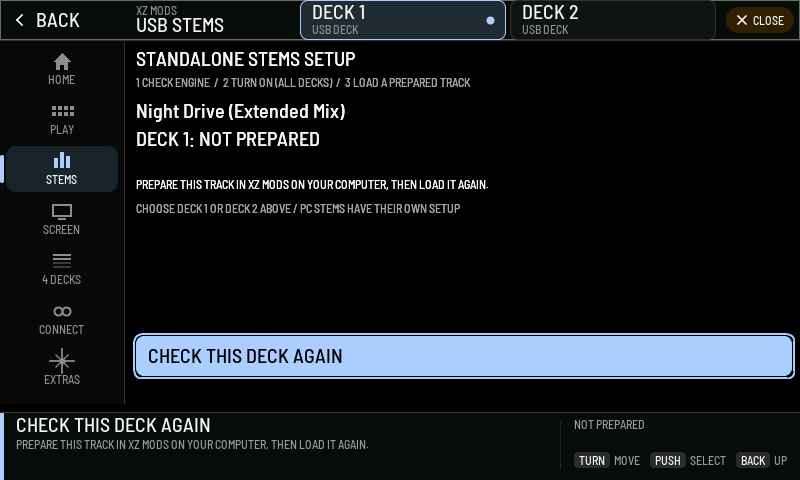
- 1STANDALONE STEMS SETUP
The three things stems need, in order.
- 2Steps
1 CHECK ENGINE, 2 TURN ON (ALL DECKS), 3 LOAD A PREPARED TRACK.
- 3Deck state
The deck and why it has no stems.
- 4Next step
The one thing to do.
- 5Deck
Choose DECK 1 or DECK 2 to check the other deck.
- 6CHECK THIS DECK AGAIN
Reads the deck again after you fixed it.
- 7State
The deck's stem state in a word or two.
| Stem row says | What it means | What to do |
|---|---|---|
| STEMS READY | Stems are ready on this deck | Nothing |
| NO STEM ENGINE, with SET UP | The loader on the USB has no stem engine | Update the USB loader with the XZ Mods app, then restart the player |
| STEMS OFF, with TURN ON | USB stems are switched off | Push TURN ON. It turns USB stems on for decks 1 and 2 |
| NO TRACK LOADED | The deck has no track | Load a track from the USB |
| NOT PREPARED, with HOW TO FIX | The track has no stems on this USB | Prepare it in the XZ Mods app, then load it again |
| LOADING STEMS | Stems are loading from the USB | Wait a moment |
| PLAY TO ALIGN | Stems are loaded but not locked to the track yet | Press play. Stems lock to the track a few seconds in |
| STEM SET ERROR, with HOW TO FIX | The stems on the USB are incomplete or damaged. The page names the problem | Verify the track in the XZ Mods app and prepare it again |
Every state on both interfaces, with pictures, is in Stems.
Notices on the play screen modern
A notice is a short message in the middle of the lanes. It clears on its own after a few seconds, and the deck keeps playing.
- Press
 BROWSE
 - Turn ROTARY SELECTOR 1 click clockwise
- Press
 LOAD 1
 - Press
 BACK
BACK
- Press
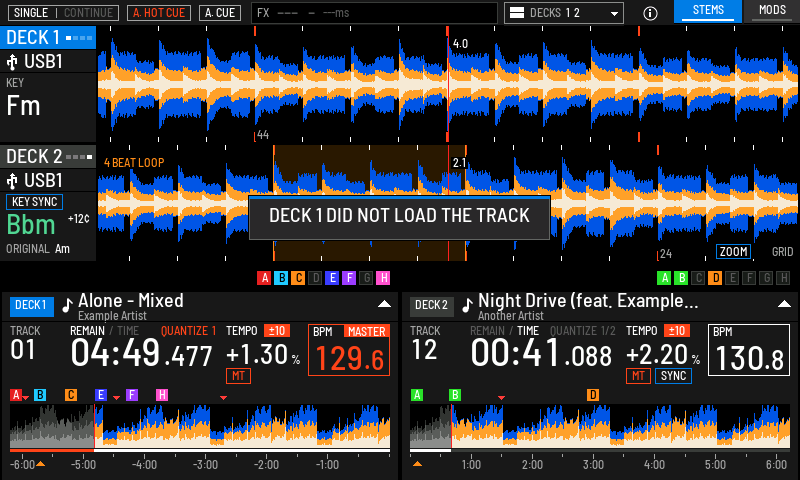
- 1Notice
What happened. Nothing else on the screen changes.
| Notice | What to do |
|---|---|
| DECK 1 DID NOT LOAD THE TRACK | Load the track again. If it fails again, check the file in your DJ software |
| THE TRACK ON USB 2 COULD NOT BE READ BECAUSE THE DEVICE WAS REMOVED WHILE IT WAS LOADING | Plug the USB back in and load the track again |
| USB1 IS NOT CONNECTED, USB2 IS NOT CONNECTED | Plug in the USB, or choose the other source |
| USB SOURCE CHANGED: SELECT TRACK AGAIN | The USB changed under the list. Choose the track again |
| SELECT A TRACK, THEN PRESS LOAD | Highlight a track first |
| OPEN A TRACK LIST TO LOAD, NO USB TRACK LIST TO LOAD FROM | Open a track list on a USB, then load |
| LOAD FROM THIS LIST IS OFF | Loading from this list is switched off. See Browsing and loading |
| THIS ROW CANNOT BE LOADED, THAT DECK CANNOT LOAD THIS TRACK | Choose another track or another deck |
| TAG LIST IS FULL: 100 TRACKS | Remove a track from the tag list first |
| MATCHING NEEDS A MASTER DECK | Set a master deck, then use MATCHING |
| NO MASTER DECK: BPM FILTER OFF, NO MASTER KEY: KEY FILTER OFF | The filter has nothing to compare with. Set a master deck |
| COMPUTER BROWSING IS NOT AVAILABLE YET, LINK BROWSING IS NOT AVAILABLE YET | Browse a USB instead. These sources come in a later version |
| LINK DID NOT OPEN, EXPORT MODE DID NOT OPEN | Try again. The player's own screen did not open |
| MODS DID NOT OPEN: PUSH AGAIN | Push again |
| TOUCH CANNOT OPEN THIS YET: PUSH THE ENCODER | Use the encoder for this item |
| THAT SETTING CANNOT CHANGE HERE | Change it in the player's own UTILITY. Hold MENU |
| DECK 3 AND 4 ARE NOT RUNNING | Set up four decks first. See Four decks |
| KEY SHIFT REFUSED: AUDIO LOAD TOO HIGH | The measured audio workload leaves too little headroom for a new shift. Current shifts keep running. Check SYSTEM READOUT and retry when the load falls. See Keys and KEY SYNC |
| THIS DECK IS MASTER | KEY SYNC matches a deck to the master. Make another deck the master first |
| A player warning such as E-8307: USB ACCESS ERROR | The player raised its own warning window. MODERN says it once in the player's words and keeps working. See The player's own warnings |
| THIS DJ PROFILE CANNOT BE READ | Make the profile again in the XZ Mods app. See Connect and DJ profiles |
Errors on a deck
When the player cannot play a track, XZ Mods shows the player's own error code and text on that deck. XZ Mods never hides these errors.
- Tap CHOOSE TRACK
- Turn ROTARY SELECTOR 1 click clockwise
- Press LOAD 1
- Press BACK
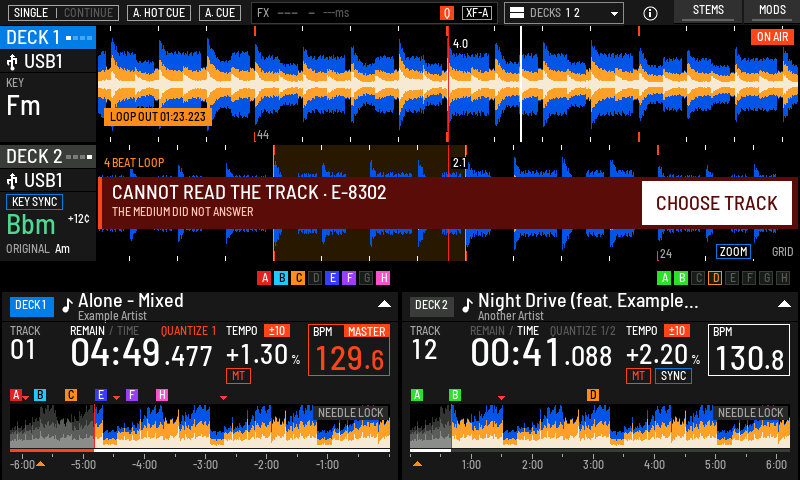
- 1Error
The player's own code and text.
- 2CHOOSE TRACK
Opens browse so you can load another track.
- MODERN. The error covers the deck's lane, with CHOOSE TRACK. While MODS is open, the strip at the top of the dock turns red with each deck's badge, the code, the player's text and SHOW DECK. Tap the strip to close MODS and see the deck.
- CLASSIC. The player's own error stays visible in the deck's lower area, also while MODS is open. Touches there go to the player.
| Code | Player's text | What to do |
|---|---|---|
| E-8302 | CANNOT PLAY TRACK | Load another track. Check the USB and the file on a computer |
| E-8304, E-8305 | UNSUPPORTED | The player cannot play this file. Export it in another format |
| E-8306 | NO FILE | The file is missing from the USB. Export the track to the USB again from your DJ software |
| E-7206 | AUTH CHIP ERROR | Switch the player off and on. If it also happens without the XZ Mods USB, the player needs service |
The player's own warnings
The player sometimes raises its own warning window, for example about a USB or a device. XZ Mods shows it and keeps working.
- MODERN. The play screen says the warning once, in the player's own words, for example E-8307: USB ACCESS ERROR. Browse, the decks and every control keep working.
- MODS, in either interface. MODS stays open on the same page. The strip at the top of the dock turns red with the warning's code and text, and REPORT THIS. The strip goes when the warning does.
- CLASSIC with MODS closed. CLASSIC shows the player's window. Touches, keys and the encoder go to the player until it closes the window. The button above
 LINK still does its own job: out of the box it switches to MODERN, which keeps working over the window.
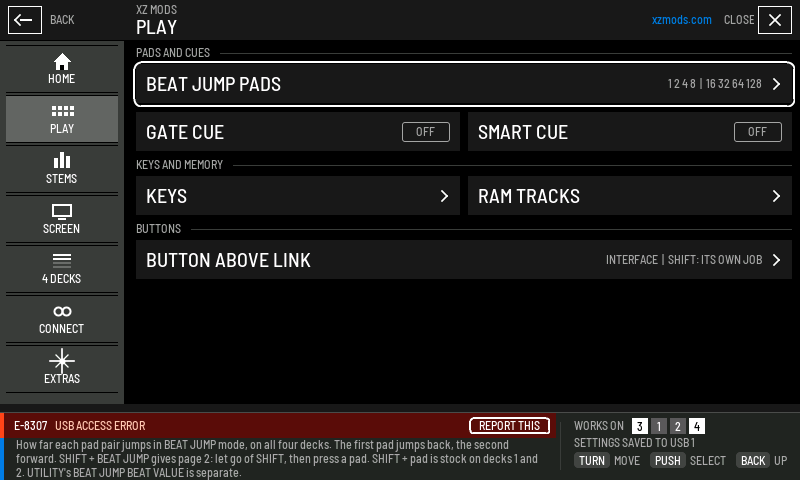
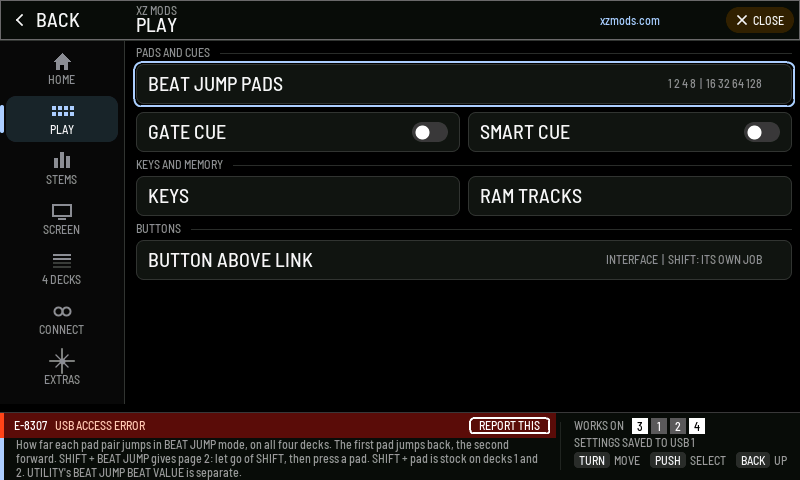
- 1Warning
The player's code and text.
LOOPBACK CABLE CONNECTED
With the loopback cable in, the play screen stays as it is in MODERN, MODS and CLASSIC, and decks 3 and 4 work as described in Four decks. If CLASSIC shows a LOOPBACK CABLE CONNECTED card, the cable is in and nothing is wrong.
When settings cannot be saved
Every change in MODS saves on its own to the USB. The save state at the right of the MODS dock says what happened. Lines that say NOT SAVED or NO SETTINGS USB show in amber. The full list is in Saving to the USB.
- Press MENU
- Tap SCREEN
- Tap CLASSIC
- Tap MODERN
- Press MENU
- Press
| Message | What it means | What to do |
|---|---|---|
| NO SETTINGS USB: CHANGES LAST UNTIL POWER OFF. | No USB to save on | Insert the XZ Mods USB, or your settings USB |
| NOT SAVED TO USB 1: CHECK USB | Writing failed | Check the stick is in and not write-protected, then change the setting again |
| USB 1 IS LOCKED: NOT SAVED | The stick is write-protected | Unlock it, or check it on a computer |
| THE STICK IS FULL: NOT SAVED | No space left on the stick | Free some space on a computer |
| THIS STICK IS READ-ONLY: NOTHING CHANGES | The player opened the stick read-only | Check the stick on a computer |
| INVALID USB SETTINGS: KEPT CURRENT, USB 1 SETTINGS INVALID: KEPT CURRENT | The settings file on the stick is damaged. The player keeps the settings it has | Change any setting to write a new file, or update the USB in the app |
| USB 1 HAS NO SETTINGS: KEPT CURRENT | The stick has no settings yet | Nothing. Your next change creates them |
| PROFILE APPLIED / NOT SAVED | A DJ profile was applied but could not be saved | Check the stick is in and not locked |
| SETTINGS SAVE UNAVAILABLE | Saving stopped in this session | Switch the player off and on |
| NOT SAVED: CHANGES LAST UNTIL POWER OFF., TRIAL RUN: NOTHING SAVED | This build runs as a trial that saves nothing | Start from a USB prepared in the XZ Mods app to save |
| TRIAL RUN: SETTINGS NOT LOADED | A trial build ignores the settings on the stick | Start from a prepared USB |
A padlock beside a setting means XZ Mods shows it but cannot change it there. The help under it says why. See UTILITY, the player's own settings.
Messages in the XZ Mods app
Every "needs setup" state in the app comes with one button that starts a short guide. Press it.
| Message | Button | What it does |
|---|---|---|
| No XZ Mods build is on this computer yet, so there is nothing to write | Set up mod versions | Finds or imports a build |
| Choose which XZ Mods build goes on this USB | Use the newest build | Picks the build that came with the app |
| Stem engine not set up yet | Set up stem engine | Checks the computer, downloads the engine and tests it |
| Connect your music USB | Connect a USB | Finds a USB or a folder and checks its library |
| Set up Live Streamer to connect to your XZ | Set up Live Streamer | Finds the XZ on the network and connects |
| Older USB loaders have no screen service | Update the USB loader | Opens the USB page to update the loader |
| The DJ software that writes this USB is open on this computer | Prepare for repair | Waits for you to close it, then checks again |
| Not confirmed yet, after sending a report | Set up reporting connection | Checks the internet connection and the clock, then sends the same report again. It never arrives twice |
| Maintainer inbox, not connected (maintainer only) | Connect and check | Keeps the owner key under Windows protection and reads the inbox to check it |
| Message | What to do |
|---|---|
| USB drives could not be listed | Choose Choose a folder instead, or plug the USB in again and choose Look again |
| The USB could not be read | Reconnect it and choose it again |
| This is a folder, not a USB | Copy the finished autoexec.bin to the top of the USB afterward |
| Nothing to write yet | Add a game or a DJ profile, or cancel |
| XZ Mods is updating itself | Write to the USB once the app update has finished |
| Finished, with something to check | Read the lines under it. Retry the failed games tries only the games that failed |
| Settings were not written | Open the USB again and write again |
| Your DJ profile was not saved | Read the reason under it, fix it and save the profile again |
| The USB was not ejected | Choose Try ejecting again, or eject it from your computer |
| Making stems needs a Windows computer or an Apple silicon Mac | Import stems made elsewhere, or make them on another computer |
| The graphics engine needs a newer NVIDIA driver | Choose Use the processor, or update the driver and check again |
| The USB is full | Choose Choose fewer tracks |
| The USB was disconnected | Plug it back in and choose Continue. Nothing was left half-written |
Every page of the app is in The XZ Mods app.
The diary on your USB sticks
XZ Mods keeps a short diagnostic diary in VJ.Tools/XZ-Mods-diary/ on each mounted USB stick, including music sticks. If a problem happens during a set, keep those sticks so you can include their diaries in a later report.
The diary records the XZ Mods version, settings fingerprint, USB slots, interface, deck view, state changes and fixed notice codes. It also records available CPU, memory, audio, SYNC, key-processing and USB-read measurements. It never records track titles, music paths, serial numbers or network identities. A missing measurement stays unknown.
Each stick holds at most 4 MiB of diary files. Older segments are replaced first, and the previous session's latest segment is kept when a new session starts. Writing pauses during track loads, RAM copies and heavy USB reads. No diary is created on a read-only stick or when less than 64 MiB of free space plus a small write reserve remains. Read-only test sessions save nothing. Normal USB-loader sessions write diary entries when these conditions allow it. Long busy periods and removal can leave gaps.
The diary stays on the sticks. Nothing is sent until you choose to include it in a report.
Report a problem
When something goes wrong, send a report. It helps fix the problem for everyone.
- Press MENU
- Tap REPORT THIS
- Tap SKIP, I'LL ADD IT ON MY COMPUTER
- Tap SEND REPORT
- Press
- On the player. Open MODS › EXTRAS › REPORT AN ISSUE, or push REPORT THIS beside an error in the dock. Choose a topic, add words if you like, and send. Offline, the report waits on the stick for your computer. See Report an issue.
- On your computer. In the XZ Mods app, open Feedback at the top right and choose Report a problem. Only one box is required, and My reports in Feedback shows where your report is afterwards. See Report a problem or share an idea.
- On GitHub. Open an issue at https://github.com/OpticMystic/XZ-Mods/issues.
Say what you did, what you expected and what happened. The app adds the cleaned-up details itself, and you can see and untick each one. Nothing is sent until you press Send privately, and the app posts nothing publicly. From the player, the public GitHub issue is a separate step you submit yourself.