
On the player
The play screen
Every part of the play screen in both interfaces: decks, waveforms, key, tempo, notices and the top bar.
Applies to MODERN and CLASSIC
The play screen is where you spend the set. XZ Mods gives you two ways to draw it. MODERN replaces the whole screen with its own layout. CLASSIC keeps the player's own screen and adds a row of buttons, the playing key and the stem rows to it. You choose between them in MODS under SCREEN (see Screen, interfaces and themes).
The MODERN play screen modern
MODERN draws every deck the same way: a top bar across the screen, one waveform lane per deck with a narrow info column on its left, a row of hot-cue lamps, and a deck strip at the bottom. Two decks share the screen in halves. For four decks, see Four decks.
- Turn
 ROTARY SELECTOR 6 clicks clockwise
 - Turn ROTARY SELECTOR 6 clicks anticlockwise
- Tap TIME 1
- Tap TIME 1
- Tap INFO HEADER
- Press
 BACK
BACK
- Turn
Top bar modern
- Tap DECKS
- Turn ROTARY SELECTOR 1 click clockwise, then push it
- Tap STEMS HEADER
- Tap STEMS HEADER
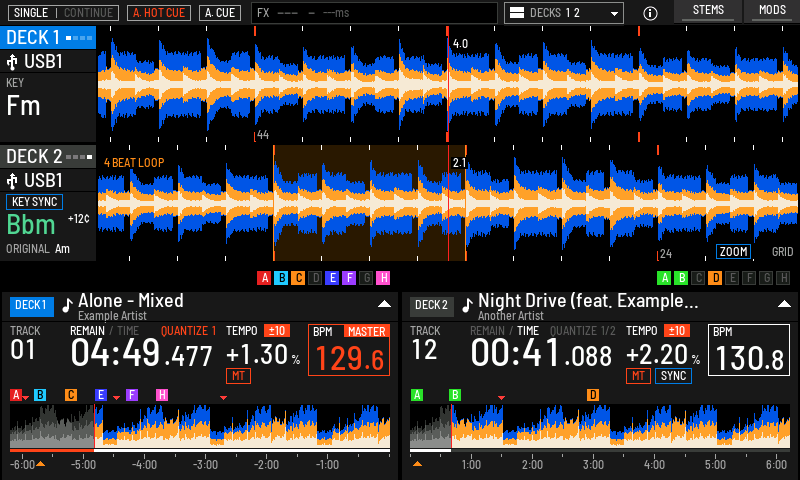
- 1SINGLE
CONTINUE | PLAY MODE. The lit word is what a deck does at the end of a track: SINGLE stops, CONTINUE loads the next track in the list and plays it. Tap to switch.
- 2A. HOT CUE
Lit while HOT CUE AUTO LOAD is on. Red means every track brings its hot cues, white means only the tracks marked for it in the library. Tap to step through ON, the library setting and OFF.
- 3A. CUE
Lit while AUTO CUE is on, so the cue point lands where the music starts. Tap to switch it.
- 4BEAT FX
The effect, its beat and time, the FX BPM and the channel it is on. It fills red while the effect is on.
- 5DECKS
Shows which decks the sides drive and opens DECK VIEW. See Four decks.
- 6INFO
Opens INFO for the active deck's track.
- 7STEMS
Steps the stem buttons through their layouts. Lit blue while stems are on. In 4 DECKS it shows or hides them. See Stems.
- 8MODS
Opens MODS.
A lamp label in grey shows a mode the player does not let XZ Mods change from the screen. Change it in the player's own UTILITY instead (hold  MENU). You can hide the three lamps in MODS under SCREEN, LAMPS AND TITLES. The BEAT FX readout then takes their room.
Deck column and waveform lanes modern
- 1DECK tag
Tap to make this the active deck. The blue tile marks the active deck. The dashes beside the name count the beats of the bar.
- 2Source
Where the track came from: USB1 or USB2.
- 3Key
The key the deck plays now. Green or amber means it mixes with the master deck's key. See Key.
- 4KEY SYNC
Replaces the KEY caption while KEY SYNC holds this deck's key.
- 5Tuning
How many cents the playing key sits off the nearest semitone.
- 6ORIGINAL
The track's analysed key, shown once the playing key has moved away from it.
- 7Beat countdown
Bars and beats to the next cue ahead of the playhead, as bars.beats.
- 8Bar number
Counts bars every four bars, so you can count phrases.
- 9Loop
A running loop shades the waveform and names its length.
- 10Playhead
The current position. The waveform scrolls past it.
- 11ZOOM
How far the waveforms are zoomed. Turn the rotary encoder to zoom in or out.
- 12Hot-cue lamps
Pads A to H in their cue colours. A dark lamp is an empty pad.
Turn the rotary encoder on the play screen to zoom both lanes together. There are seven zoom steps. The zoom is kept when you leave the screen, and saved to the USB with your other settings.
Deck strip modern
- 1DECK badge
The deck this strip belongs to, lit when it is the active deck.
- 2Title and artist
The loaded track.
- 3Play state
A triangle while the deck plays, two bars while it is paused.
- 4TRACK
The track's number in the list it was loaded from.
- 5REMAIN / TIME
The lit word says how the time counts: REMAIN counts down to the end, TIME counts up from the start. Tap the time to switch.
- 6QUANTIZE
Red while QUANTIZE is on, with the beat value loops and cues snap to.
- 7Tempo range
The tempo slider's range, for example ±10.
- 8MT
MASTER TEMPO. It blinks while KEY SYNC holds the key.
- 9SYNC
Lit while the deck is synced.
- 10BPM
The deck's playing BPM. MASTER marks the tempo master.
- 11Cue marks
Hot cues as lettered chips and memory cues as red marks above the overview.
- 12Overview
The whole track. The lighter part is what has played.
- 13Minute scale
Minutes to the end in REMAIN, from the start in TIME.
In the last 30 seconds of a track the overview's playing address flashes slowly, and in the last 15 seconds it flashes fast, in either time mode.
Key and KEY SYNC modern
The large key in each deck's column is the key the deck plays right now. Tempo with MASTER TEMPO off, a key shift and KEY SYNC all move it. Its colour compares it with the master deck's key. Green means it mixes with the master's key: the same key, its relative major or minor, or one step away on the key wheel, tuned within 25 cents of the master. Amber means it would mix, but it is detuned by more than 25 cents. White means neither, and the master deck itself is always white. Turn KEY MATCH COLOURS off in SCREEN and every key is white. The cents beside it show how far it sits off the semitone, so you can match by ear. Once the playing key leaves the track's analysed key, ORIGINAL shows the analysed key below it.
- Press MENU
- Tap PLAY
- Tap KEYS
- Turn ROTARY SELECTOR to KEY UP and push it
- Turn ROTARY SELECTOR to KEY DOWN and push it
- Turn ROTARY SELECTOR to RESET and push it
- Turn ROTARY SELECTOR to KEY SYNC and push it
- Press
While KEY SYNC holds a deck's key, the KEY caption becomes a blue KEY SYNC chip and the deck's MT lamp blinks, half a second lit and half a second dark.
You choose how keys are written (as on the USB, musical or wheel numbers) and whether the playing key shows at all in MODS under SCREEN. See Screen, interfaces and themes.
Waveform colours modern
MODS under SCREEN offers four waveform colours for MODERN. They change the lanes and the overviews together. Your choice is saved to the USB. 3-BAND COLOURS, beside LAMPS AND TITLES, changes the colour of each band; see 3-band colours.
- Press MENU
- Tap SCREEN
- Tap STOCK
- Tap RGB
- Tap 3-BAND
- Tap STEMS
- Tap LAMPS AND TITLES
- Tap MODE LAMPS
- Tap QUANTIZE LAMP
- Tap TITLES IN WAVEFORMS
- Tap DECK + WAVE
- Tap DECK ONLY
- Tap OFF
- Tap CLOSE
- Press
| Choice | What you see |
|---|---|
| STOCK | One blue waveform with white peaks |
| RGB | Lows red, mids green, highs blue |
| 3-BAND | Lows blue, mids amber, highs white, or the colours you chose in 3-BAND COLOURS |
| STEMS | Drums, harmonics and vocals in their stem colours. A track without stems shows 3-BAND |
USB COLORS (MODS, SCREEN, LAMPS AND TITLES) lets each deck take the colours saved on the USB stick its track came from.
Notices modern
When something you asked for does not happen, a notice appears in the middle of the screen for two and a half seconds. It says what went wrong in one line, for example DECK 1 DID NOT LOAD THE TRACK. A long notice wraps. Messages and troubleshooting explains each one.
- Tap DECKS
- Turn ROTARY SELECTOR 1 click clockwise, then push it
- Tap CHOOSE TRACK
- Push ROTARY SELECTOR
- Tap TRACK ROW
- Tap LOAD DECK 3
If a deck cannot go on, its lane turns red and names the problem, for example EMERGENCY LOOP (the deck loops until you load a track) or CANNOT READ THE TRACK with the player's error code. Tap CHOOSE TRACK on the red band to make that deck active and open BROWSE.
A deck that plays its whole track from RAM after the music USB went out is not in trouble, so its lane says so in teal instead: WHOLE TRACK IN RAM · PLAYABLE, in the waveform's place. See RAM tracks.
SHORTCUT modern
Press  SHORTCUT on the play screen to see the settings you change most during a set on one page. It has the same four groups as the player's own SHORTCUT screen: PLAYER SETTINGS, DECK STATUS, DEVICE SETTINGS and MY SETTINGS. Press BACK or tap the arrow in the top left corner to return to the play screen.
- Press SHORTCUT
- Turn ROTARY SELECTOR 1 click clockwise, then push it
- Turn ROTARY SELECTOR 1 click clockwise, then push it
- Press BACK
- Press
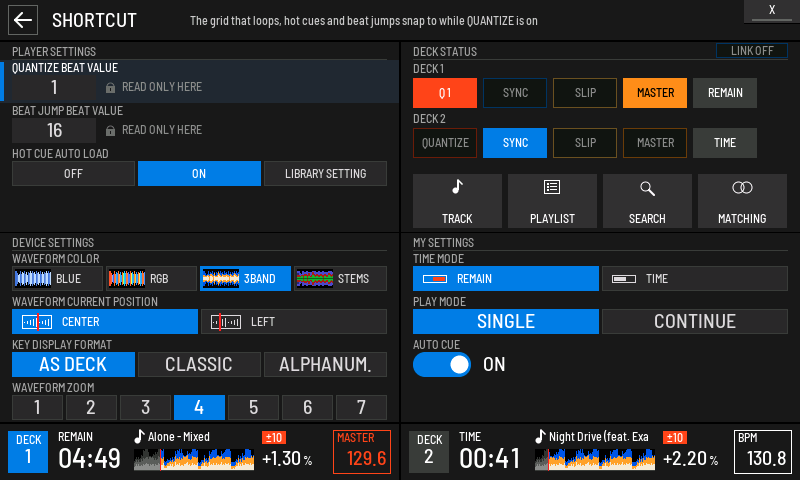
- 1Highlighted row
Turn the encoder to move between rows. The line under the title explains the highlighted row.
- 2Locked value
A lock and READ ONLY HERE mean XZ Mods shows this value but cannot change it here. Pushing or tapping it does nothing.
- 3Choice buttons
Tap a value to change it. The lit button is the current value.
- 4DECK 1 lamps
QUANTIZE (or Q1), SYNC, SLIP, MASTER and the time mode for deck 1. Tap QUANTIZE to switch it, tap REMAIN or TIME to change the time mode.
- 5LINK lamp
Shows whether the player is linked to other players.
- 6Jumps
TRACK, PLAYLIST and SEARCH open those lists. MATCHING opens matching tracks, or hands over to the player's own browser when XZ Mods cannot list them.
- 7DEVICE SETTINGS
Waveform colour, playhead position, key display format and waveform zoom. These change the MODERN screen at once.
- 8MY SETTINGS
Time mode, play mode and auto cue for the decks.
Which rows you can change depends on what the player lets XZ Mods write. A locked row shows its value and the reason it is read-only. A short MENU on SHORTCUT opens MODS.
NEEDLE LOCK appears in PLAYER SETTINGS when the player reports it. LOCK prevents a waveform touch from searching a playing deck. Pause the deck to search, or choose UNLOCK when that setting is writable.
With four decks, SHORTCUT also shows DECK SELECT. See Four decks.
The CLASSIC play screen classic
CLASSIC keeps the familiar play screen, in the classic theme you chose, with a row of XZ Mods buttons across the top, the playing key under each deck's key, and stem rows under the waveforms. Everything else stays where the XDJ-XZ operating instructions put it.
- Tap the screen
- Tap the screen
- Tap the screen
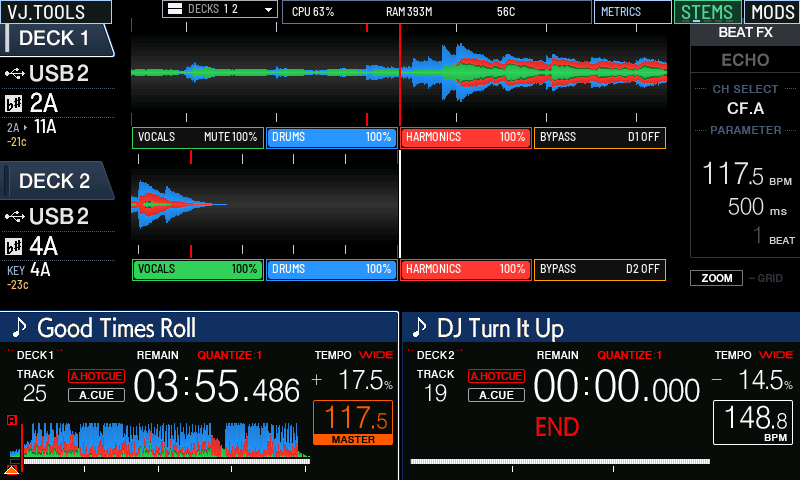
- 1VJ.TOOLS
Switches to the VJ.Tools screen when a VJ.Tools computer is connected. See Connect and DJ profiles.
- 2DECKS
Shows which decks the sides drive and opens DECK VIEW. See Four decks.
- 3Metrics
The player's CPU load, free memory and temperature. Tap METRICS to set it up. See Extras.
- 4STEMS
Steps the stem rows through their layouts. The marks under the label show the current one. Dark in 4 DECKS, which has no stem rows. See Stems.
- 5MODS
Opens MODS.
- 6Playing key
Shown under the player's own key. The analysed key, an arrow, then the key the deck plays now, with its tuning in cents.
- 7Same key
When the playing key has not moved, KEY and the key, with the cents.
- 8Stem rows
VOCALS, DRUMS, HARMONICS and BYPASS for each deck. See Stems.
This picture shows CLASSIC with the XZ Mods buttons and stem rows. Everything else on it is the player's own: the deck tabs, source, key, BEAT FX, ZOOM, the deck strips with A.HOTCUE, A.CUE, QUANTIZE, TEMPO and the BPM box. The XDJ-XZ operating instructions explain those.
The key line replaces the player's beat countdown under the key. You choose the key notation and whether the playing key shows in MODS under SCREEN.
.](/manual/shots/b9fbaf344322c2fb.webp)
Scrolling waveform classic
In CLASSIC, SCREEN offers three scrolling waveforms. The setting is wave_mode on the USB.
- Press MENU
- Tap SCREEN
- Tap CLASSIC
- Tap 2 DECKS
- Tap 4 DECKS
- Tap 4 DECKS
- Tap STOCK
- Tap 3-BAND
- Tap STEMS
- Tap AS ON THE USB
- Tap MUSICAL
- Tap WHEEL
- Tap PLAYING KEY
- Tap KEY MATCH COLOURS
- Tap KEY BEFORE TITLE
- Tap CLOSE
- Press
| Choice | What you see |
|---|---|
| STOCK | The player's own scrolling waveform |
| 3-BAND | Layered lows, mids and highs (the default). 3-BAND COLOURS chooses their colours; see 3-band colours |
| STEMS | Drums, harmonics and vocals layered in their stem colours. A track without prepared stems shows 3-BAND |
The overview in each deck strip stays the player's own in every choice.
When a deck plays its whole track from RAM after the music USB went out, a teal card in its lane says WHOLE TRACK IN RAM · PLAYABLE where the waveform was. See RAM tracks.
If something looks wrong
- Press MENU
- Tap SCREEN
- Tap PLAYING KEY
- Tap PLAYING KEY
- Tap KEY MATCH COLOURS
- Tap KEY BEFORE TITLE
- Tap CLOSE
- Press
| You see | Why | What to do |
|---|---|---|
| Dashes instead of numbers | The value has not been read yet, or the deck has no track | Wait a moment, or load a track |
| A grey mode lamp that does not react | The player does not let XZ Mods change that mode | Change it in UTILITY (hold MENU) |
| NO STEM WAVE YET · 3BAND in a lane | STEMS waveform chosen, but this track's stems are not loaded yet | Wait, or prepare the track's stems. See Stems |
| The key stays white on every deck | No master deck, or KEY MATCH COLOURS is off | Set a tempo master, or turn KEY MATCH COLOURS on in SCREEN |