
On your computer
The XZ Mods app
Preparing a USB, building stems, watching the XZ screen live and the tools in the desktop app.
Applies to XZ Mods app on your computer
The XZ Mods app runs on your computer. It puts XZ Mods on a USB, makes stems for your tracks, makes your DJ profile, keeps the app and your USB up to date, holds tools for your library, games and the XZ screen, and sends your reports and ideas to the maintainer. It never formats a drive and never changes your music or the library your DJ software exported.
You need 64-bit Windows with WebView2, or a Mac with macOS 14 or later. Making stems needs a Windows computer or an Apple silicon Mac. On an Intel Mac you can still import stems you made elsewhere.
Around the app
The bar along the top has five sections for your work, then the Manual and About and, on the right, Feedback. The section you are in is filled yellow. The page sits on the raised panel below it.
| Section | What it is for |
|---|---|
| USB | Install or update XZ Mods on a USB, add your DJ profile and games |
| Stems | Make stems for the tracks on your music USB, or import stems you already have |
| DJ Profile | Your name and logo on the XZ, and the profile track |
| Updates | App updates, the XZ Mods version for your USB, and network updates for your XZ |
| Tools | Repair library, Game downloads and XZ Screen |
| Manual | This manual, with search, animations and your place in it |
| About | The app, its maker, links, disclaimers and open-source licenses |
| Feedback | Report a problem, request a feature or ask a question, and follow what you sent |
Tools, Updates and the Manual list what they hold down the left, beside the page: the tools, the three Updates pages, or the manual's chapters. The button at the far left of the top bar hides that list and shows it again, and the app remembers your choice.
The top left names the player firmware the app prepares USBs for, XDJ-XZ 1.26. The app version is at the top right. In a narrower window point at Beta to see it.
The app opens as large as its pages need, but never larger than your screen. In a narrow window the sections show only their icons. Point at one to see its name. The list on the left then opens over the page from the button at the top left, and closes when you pick something.
USB
USB is the first page. Plug in your XZ USB, or any USB stick, and the app finds it. When only one USB is connected, it opens by itself.
Choose a USB or a folder
The USB list shows every connected USB the app can write XZ Mods to. Any file system works, FAT32 or exFAT, and each card shows it beside the drive letter. Choose a card to open that USB.
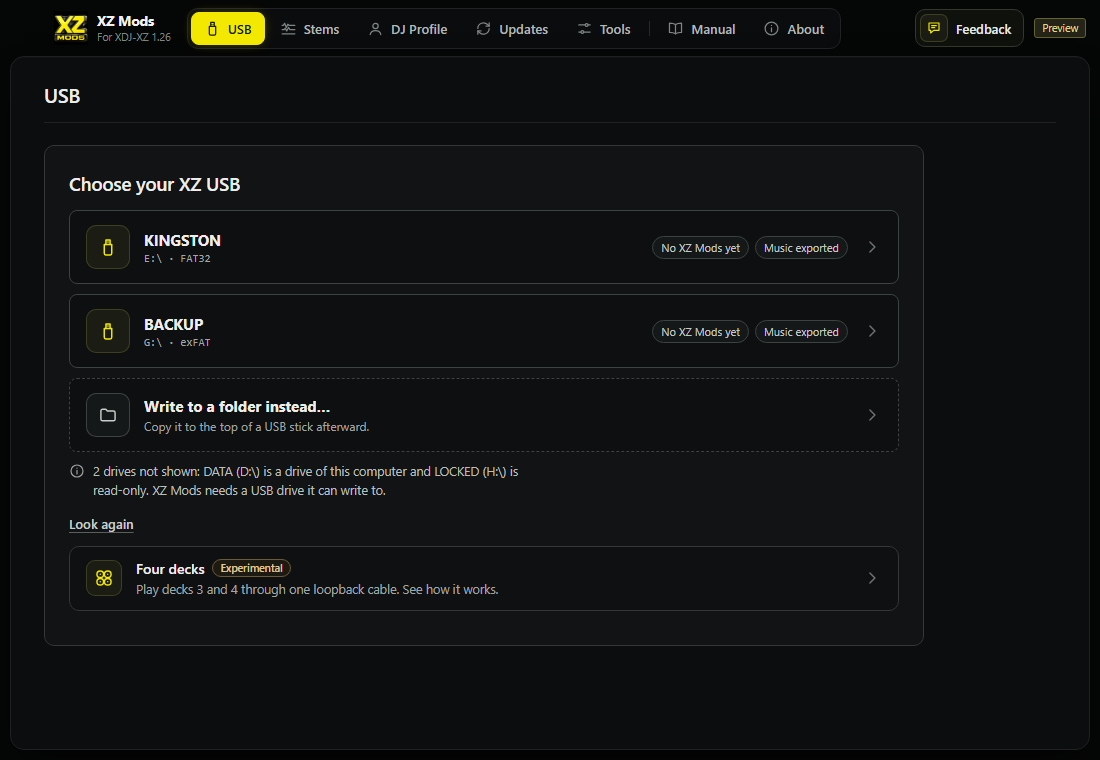
- 1USB
A USB the app can write to, with its drive and file system.
- 2Write to a folder instead…
Prepares a folder on this computer instead of a USB.
- 3Drives not shown
A read-only USB, or a disk of this computer, with the reason.
- 4Look again
Searches for USBs at once.
Write to a folder instead… puts the loader and its settings in a folder on this computer. Copy everything in it to the top of a USB stick afterward. Games are added only when you write to a USB itself.
The list comes back whenever you step back from a USB: Change USB on the dashboard, Cancel in a guide, or Esc on the dashboard. The USB you left does not open by itself again until you plug in or remove a drive, so you can pick another one. Its card is still selected, and Enter opens it again.
The USB dashboard
Once a USB is open, the page shows one status and one action for it.
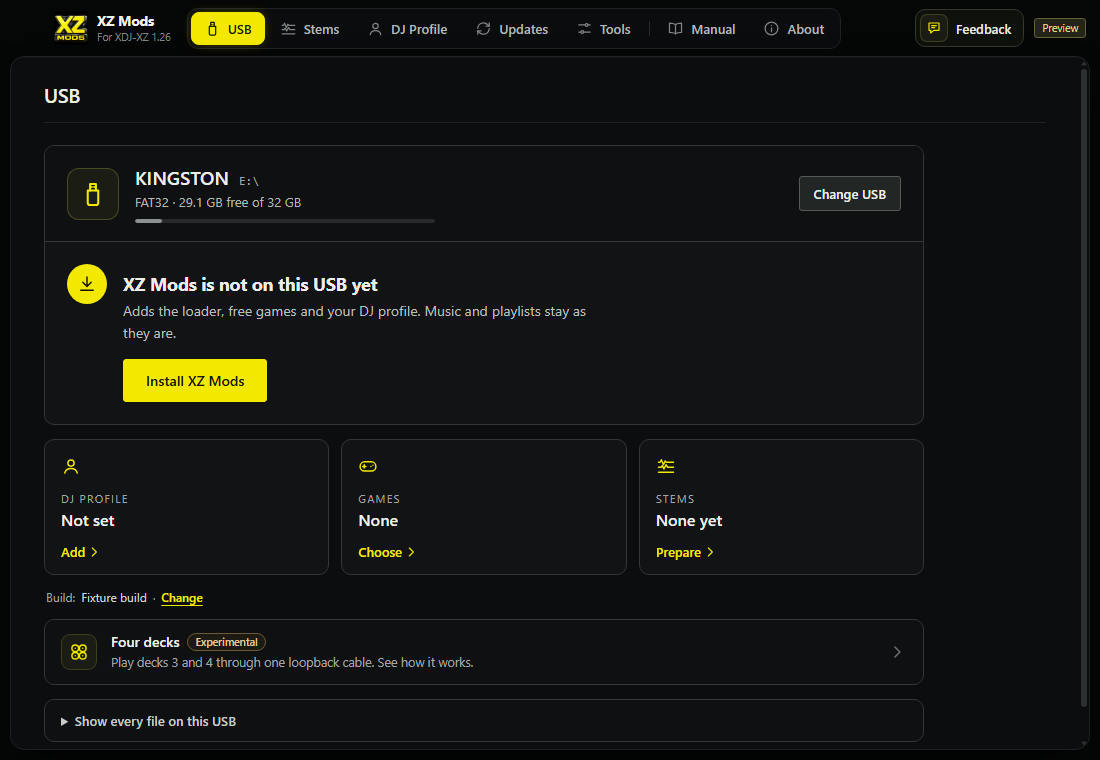
- 1Sections
USB, Stems, DJ Profile, Updates and Tools.
- 2USB
The USB's name and drive.
- 3Free space
The file system, the free space and a bar of how full the USB is.
- 4Change USB
Goes back to the USB list, to choose another USB or a folder.
- 5Status
What XZ Mods found on this USB.
- 6Action
The one thing to do next. Here it installs XZ Mods.
- 7DJ profile
The active profile on the USB. Add or Edit opens the profile step.
- 8Games
How many games are on the USB. Choose opens the games list.
- 9Stems
How many tracks have stems. Prepare opens the Stems section.
- 10Build
The XZ Mods build that goes on the USB. Change opens XZ Mods version in Updates.
- 11Four decks
How four decks work. It sets nothing up. See Four decks in the app.
- 12Show every file
A read-only list of what XZ Mods keeps on this USB.
- 13Feedback
Reports and ideas for the maintainer. See Feedback.
The status changes with what the app finds:
| Status | Action | What it means |
|---|---|---|
| XZ Mods is not on this USB yet | Install XZ Mods | Adds the loader, free games and your DJ profile. Music and playlists stay as they are. |
| Update available | Update USB | The USB has an older build. Updating backs up its loader first. See what changes lists what is new. |
| Up to date | none | The chosen build is already on this USB. |
| Choose which XZ Mods build goes on this USB | Use the newest build | No build is chosen on this computer yet. The button picks the one that came with the app. |
| No XZ Mods build is on this computer yet | Set up mod versions | Opens a short guide that finds or imports a build. |
Install or update XZ Mods
Install XZ Mods and Update USB open a short guide. The steps that do not apply are left out, so the count at the top changes.
Every step ends in the same bar. Back on the left returns to the step before; from the first step it returns to the dashboard. The way forward is on the right. Esc does the same as Back. Cancel at the top leaves the guide without writing anything and shows the USB list, so you can choose another USB or a folder. While the USB is written there is no Back, and the done screen has Done instead, because a write cannot be undone.
- Your DJ profile. Appears when the USB has no profile yet. Type your name and add a logo, or choose Skip for now and add it later.
- Choose the screen the XZ shows. New interface (MODERN) or Standard XDJ-XZ interface (CLASSIC). See Getting started.
- Ready to write. A checklist of everything the write will do.
- Writing. The progress of each part. Underneath, the app explains four decks while you wait.
- Done. What was written, what to do on the XZ, and how four decks work.
- Optional support. A thank-you page with a voluntary support link. Every feature works whether you contribute or not.
Four decks is not a step of the guide. Nothing about it happens while the USB is written: you set it up at the player, whenever you want. See Four decks in the app.
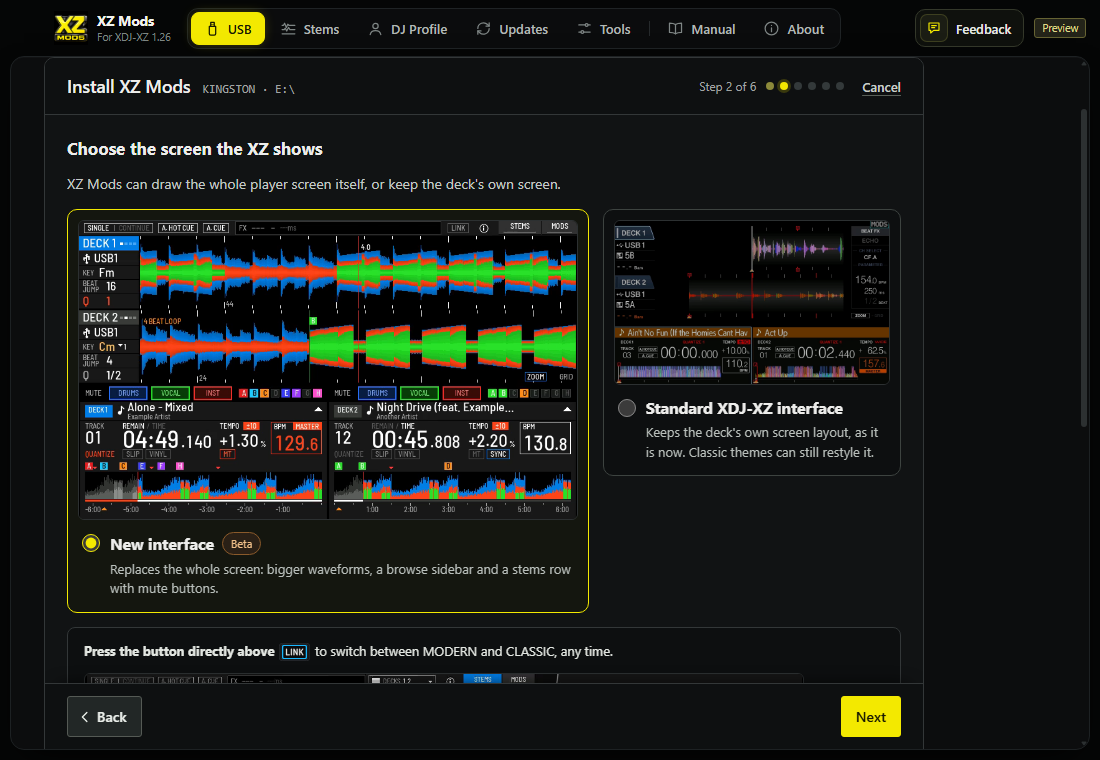
- 1Progress
Which step you are on.
- 2Cancel
Leaves the guide. Nothing is written.
- 3New interface
MODERN. XZ Mods draws the whole player screen.
- 4Standard XDJ-XZ interface
CLASSIC. The player's own screen with MODS added. Classic themes can restyle it.
- 5Switch later
How to change your mind on the player: the button above LINK first, then the menu, each with a video of the player.
- 6Back
The step before. From the first step, the dashboard.
- 7Next
The next step.
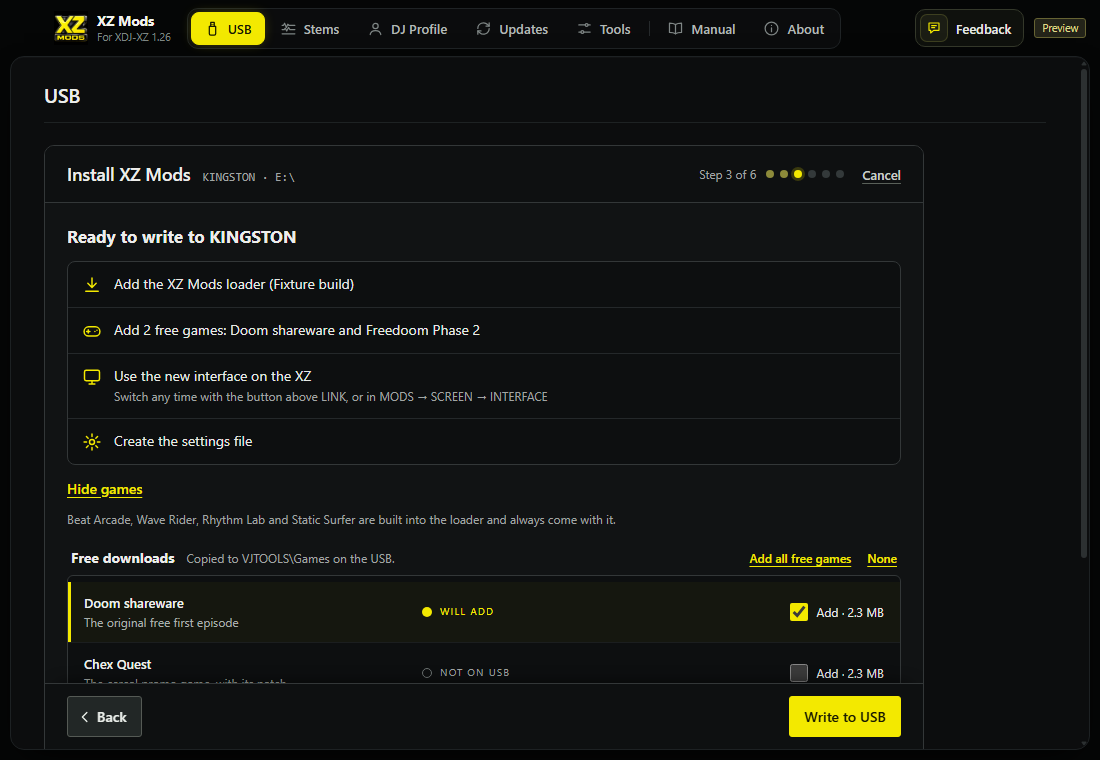
- 1Loader
Adds the XZ Mods loader, or backs up and updates it.
- 2Games
The free games that will be copied.
- 3Interface
The screen the XZ starts with.
- 4Settings file
A USB without settings gets a new settings file.
- 5Change games
Opens or hides the games list.
- 6Add all free games
Ticks every download. None unticks the ones not on the USB yet.
- 7Game state
WILL ADD, NOT ON USB, or already on the USB.
- 8Add
Ticks one game. The size is what it adds to the USB.
- 9Back
The step before.
- 10Write to USB
Writes everything in the checklist.
Beat Arcade, Wave Rider, Rhythm Lab and Static Surfer are built into the loader and always come with it. Doom shareware, Chex Quest and Freedoom Phase 2 are free downloads that the app checks and copies to VJTOOLS\Games on the USB. A fresh USB gets every free game unless you untick it. An update keeps the games the USB already has and adds none on its own. Under the checklist, Eject the USB when writing finishes ejects it for you so you can take it straight to the XZ.
Press Write to USB in the bar under the checklist. If a newer build needs a setting changed on the USB, the app first asks in Adjust USB settings for this version. It saves a copy of the settings file first and puts it back if the loader write fails.
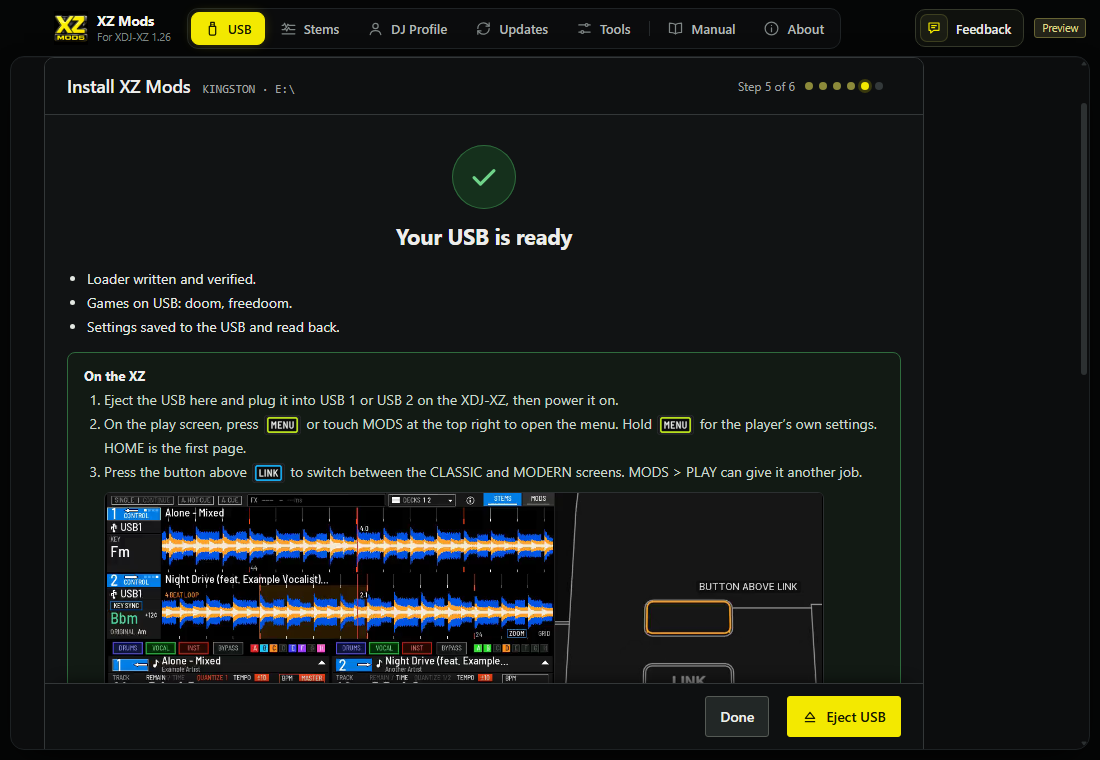
- 1Result
Your USB is ready, or Finished, with something to check.
- 2What was written
One line per part. A game that did not download says why.
- 3On the XZ
What to do with the USB next, and how to switch between CLASSIC and MODERN with the button above
 LINK.
LINK. - 4Four decks
How four decks work. See Four decks in the app.
- 5Done
Back to the dashboard.
- 6Eject USB
Ejects the USB so you can unplug it.
Under Four decks, Support XZ Mods (optional) opens the optional support page, and Eject the USB by itself next time ejects the USB on its own after the next write.
If a game download failed, Retry the failed games tries only those, and the USB is not ejected until you have. When the write also saved a DJ profile, Make the profile track opens the profile track steps.
Four decks in the app experimental
Four decks is set up at the player, so the app explains it rather than asking you to do anything. The USB list and the dashboard show a Four decks row. While a USB is written, and again on the done screen, a Four decks section shows the cable animation and the three things to do at the player.
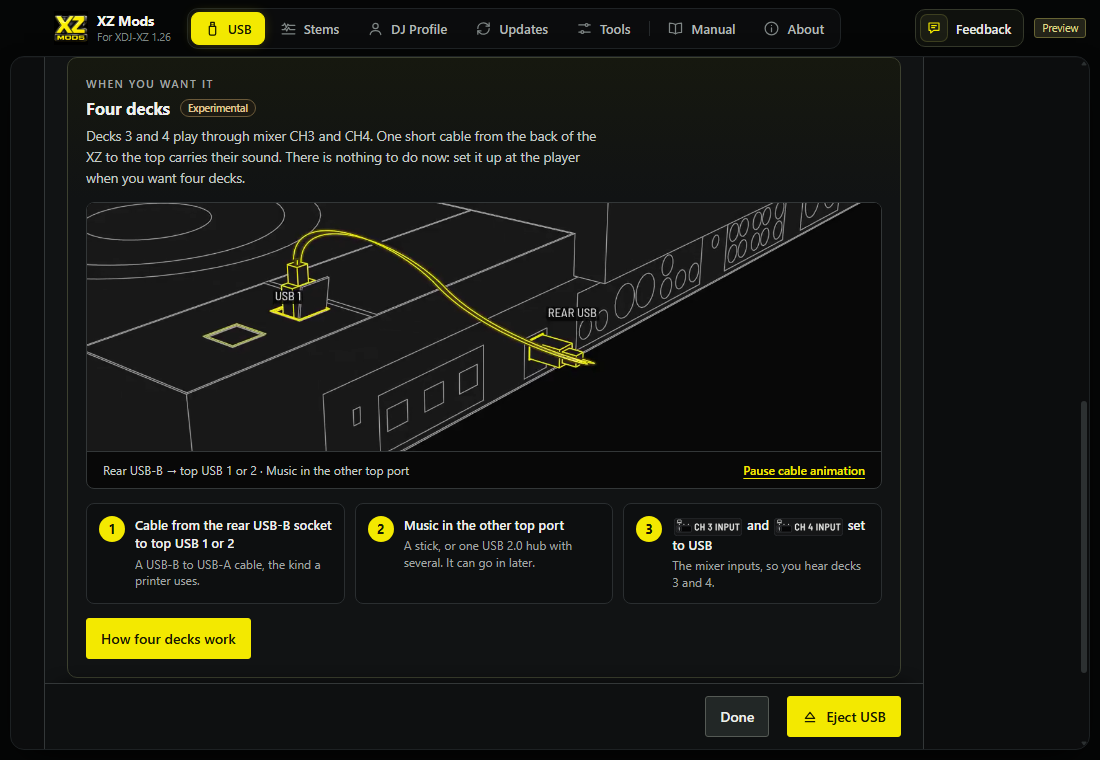
- 1Four decks
Experimental. Nothing to do now. You set it up at the player when you want it.
- 2Cable animation
The loopback cable from the rear USB-B socket to a top port. The animation shows USB 1; USB 2 works too.
- 3Pause cable animation
Stops and starts the animation. With reduced motion turned on, the app shows a still picture.
- 4At the player
Cable from the rear USB-B socket to top USB 1 or 2, music in the other top port (a stick, or one USB 2.0 hub), and
 CH 3 INPUT and
  CH 4 INPUT set to USB.
 - 5How four decks work
Opens the Four decks chapter of this manual.
How four decks work and the Four decks row both open the Four decks chapter of this manual. If the build just written has no four-deck engine, the section says so and offers Choose the four-deck build, which opens the four-deck build choice in XZ Mods version. Save it, then update the USB.
Stems
Stems makes vocal, harmonic and drum stems for the tracks on your music USB and writes them beside each track. Plug in the USB your DJ software exports your music to. The app lists every track on it. Your tracks and the library your DJ software exported stay as they are.
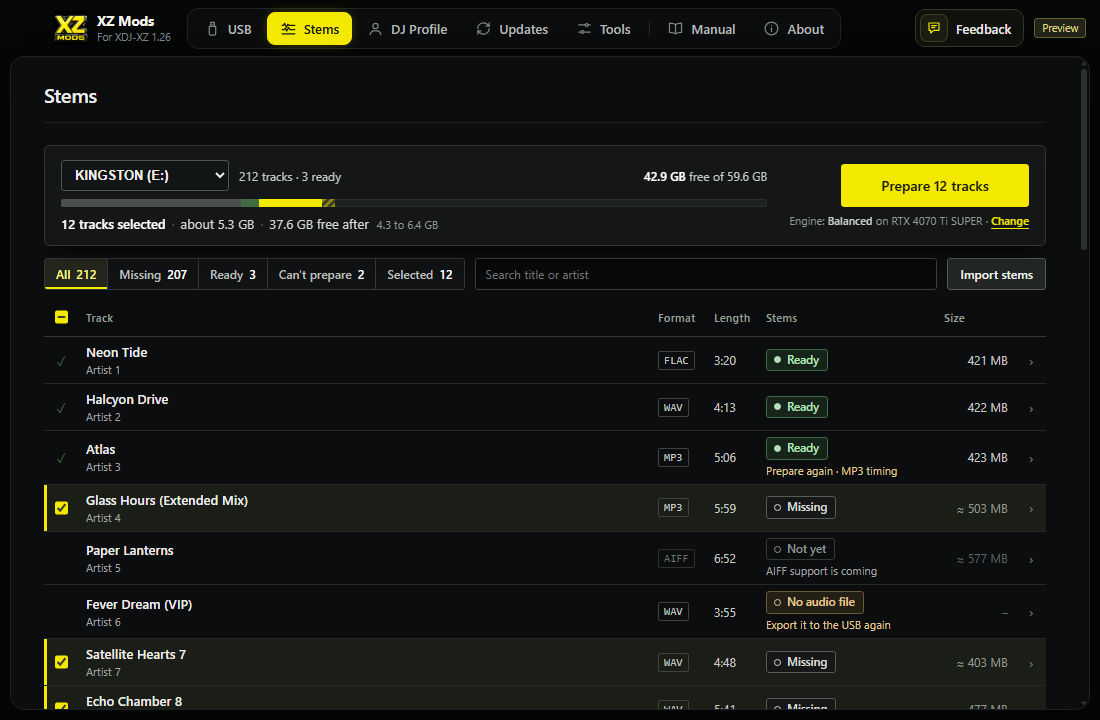
- 1USB
Your music USB. Its menu also offers Choose a folder and Look for USBs again.
- 2Tracks
How many tracks the USB holds and how many have stems.
- 3Estimate
How many tracks you selected, about how much space their stems take and what is left after.
- 4Prepare
Makes stems for the selected tracks. The label counts them.
- 5Engine
The stem engine and the quality in use. Change sets another quality.
- 6Tabs
Show All, Missing, Ready, Can't prepare, or only the Selected tracks.
- 7Search
Finds a title or artist.
- 8Import stems
Brings in stems you made elsewhere.
- 9Select
Ticks a track. The box in the header ticks every Missing track in view.
- 10Status
Ready, Missing, Not yet, No audio file, Preparing, Queued, Failed or Damaged.
- 11Details
Opens the track's details.
| Status | What it means | What to do |
|---|---|---|
| Ready | Stems are on the USB | Nothing. Open the details to Verify them |
| Missing | No stems yet | Select it and prepare |
| Not yet | XZ Mods cannot prepare this format yet, such as AIFF | Export the track as WAV, FLAC or MP3 |
| No audio file | The track's file is not on the USB | Export the track to the USB again from your DJ software |
| Failed | Preparing stopped, with the reason under it | Fix the reason, then Retry |
| Damaged | Verify found a broken stem page | Select it and prepare it again |
| Prepare again | Made by an older version | Open the details and choose Prepare again |
A batch holds up to 100 tracks. The estimate turns amber when space gets tight and red when the selection does not fit. The button then reads Prepare N that fit and prepares the tracks in order until the next one would not fit.
While a batch runs, each row moves from Queued to Preparing to Ready, and the bar shows the track, the step and about how long is left. The first time on a new computer it says Timing this computer until it has measured. Cancel stops within a second. Finished tracks are kept. When the batch ends, the bar offers the next step.
| After a batch | What it offers |
|---|---|
| A track failed | Retry N failed |
| You pressed Cancel | Prepare N remaining |
| The USB was unplugged | Continue. Nothing is left half-written |
| The USB filled up | Choose fewer tracks |
Open a row for its details. A Ready track shows who prepared it and offers Verify, which reads every stem page without changing the USB, Import stems to replace them, and Prepare again. Prepare again keeps the current stems until the new ones pass their check.
Set up the stem engine
The first time, the button reads Set up stem engine. It opens a short guide that ends on a working engine.
- Check. The app looks at this computer's graphics card or processor.
- Choose. Pick a quality. The recommended one is marked for this computer.
- Install. The app downloads what the engine needs once and checks every file.
- Test. It separates 30 seconds of your first selected track and tells you how long a whole track will take. Nothing is written to the USB.
| Quality | Use it for |
|---|---|
| Balanced | The best quality. Recommended with a graphics card or Apple silicon |
| Fast | Good separation in about half the time. Recommended without a graphics card |
| Light | Computers without a graphics card and with little memory. Vocals bleed more |
If setup cannot finish, it names the one reason and offers the fix. For example, when the graphics driver is too old, Use the processor sets up the engine on the processor instead.
Import stems you already have
Choose Import stems in the toolbar, or Import stems made elsewhere in a track's details. Drop stem files or a ZIP into the window, or choose files. WAV, FLAC, MP3 and AIFF sets work.
- Add files. From the toolbar, also pick which track the stems are for.
- Check. The app places each file on VOCALS, DRUMS or HARMONICS by its name and lines the stems up with the track on your USB. Change any Goes to choice you disagree with. Leave out skips a file.
- Write. Write stems to USB writes the stems and checks them.
A vocals and instrumental pair needs the stem engine to pull the drums out of the instrumental. If the engine is not set up yet, the import offers Set up stem engine and carries on afterward. To use stems on the player, see Stems.
DJ Profile
DJ Profile makes and edits the profiles on a USB. A profile is your name, logo and colour. The XZ shows each profile as a logo tile, and the active one is the DJ the XZ and VJ software on the same network see. Profiles are saved on the USB only. Nothing is uploaded. To use them on the player, see Connect and DJ profiles.
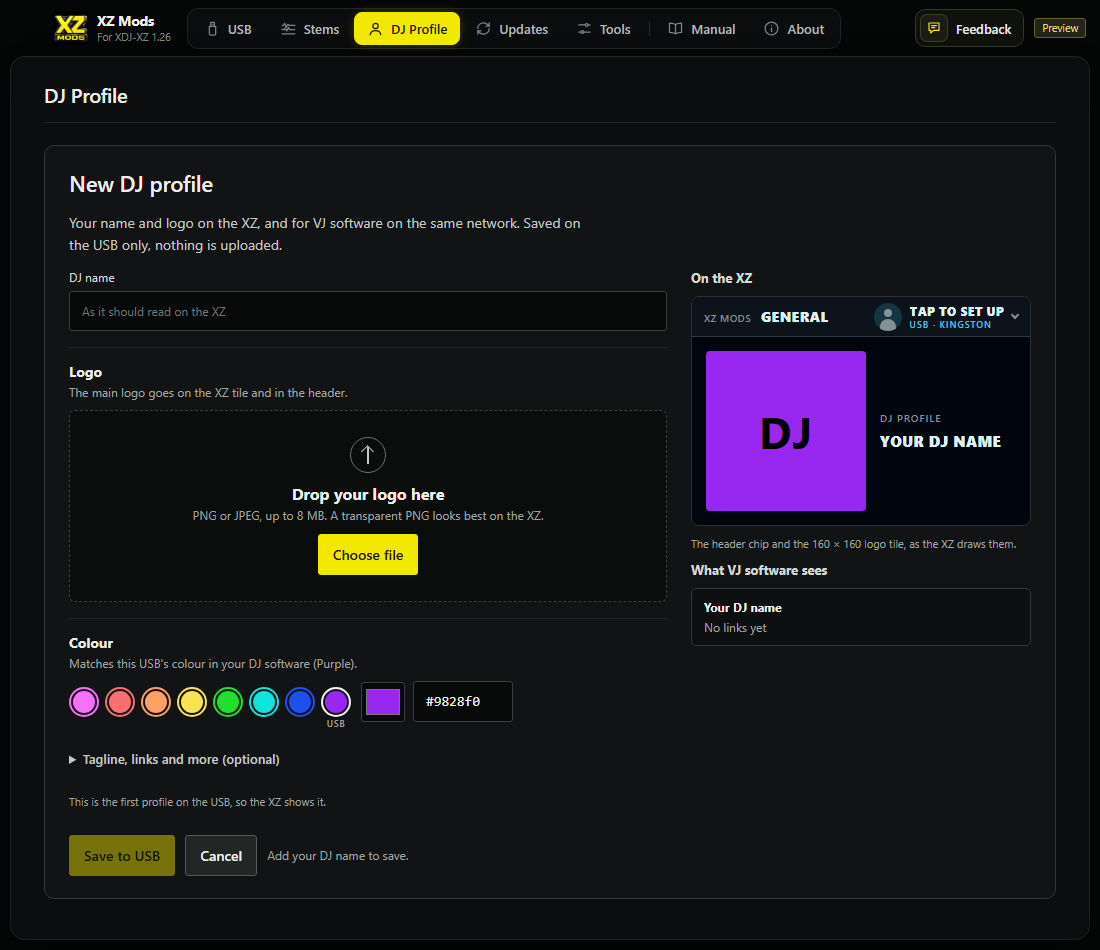
- 1DJ name
Your name as it should read on the XZ.
- 2Logo
A PNG or JPEG up to 8 MB. A transparent PNG looks best. You can add alternate logos.
- 3Colour
The profile colour. The first swatch matches the USB's colour in your DJ software.
- 4On the XZ
The header and the logo tile as the XZ draws them.
- 5What VJ software sees
Your name and links as VJ software reads them.
- 6More
An optional tagline, links and more.
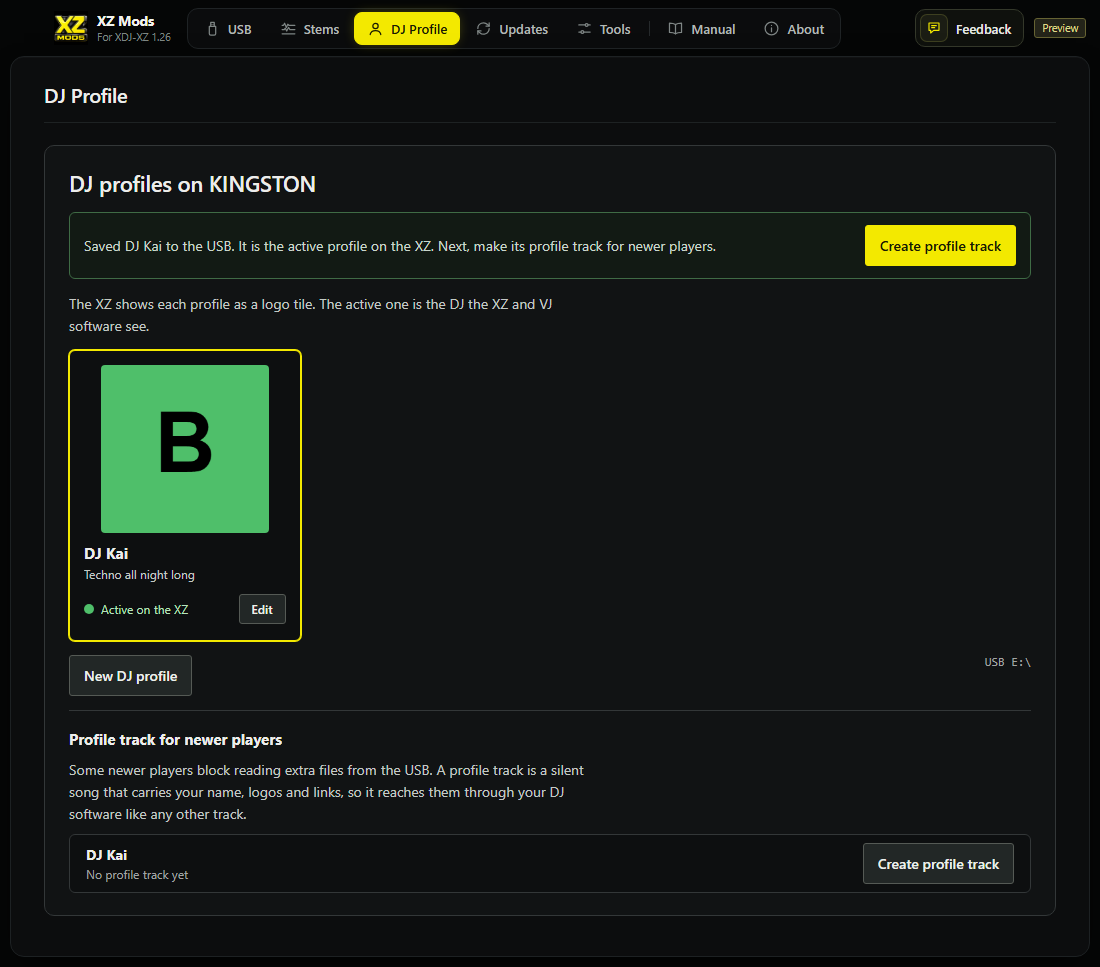
- 1Create profile track
The next step after a save.
- 2Profile tile
One tile per profile.
- 3Active
The profile the XZ uses.
- 4Edit
Changes this profile.
- 5New DJ profile
Adds another profile to the USB.
- 6Profile track
A track that carries your profile to players that cannot read extra files.
For players that only read tracks, a profile track carries your name, logos and links. It is a silent song, so it goes through your DJ software like any other track.
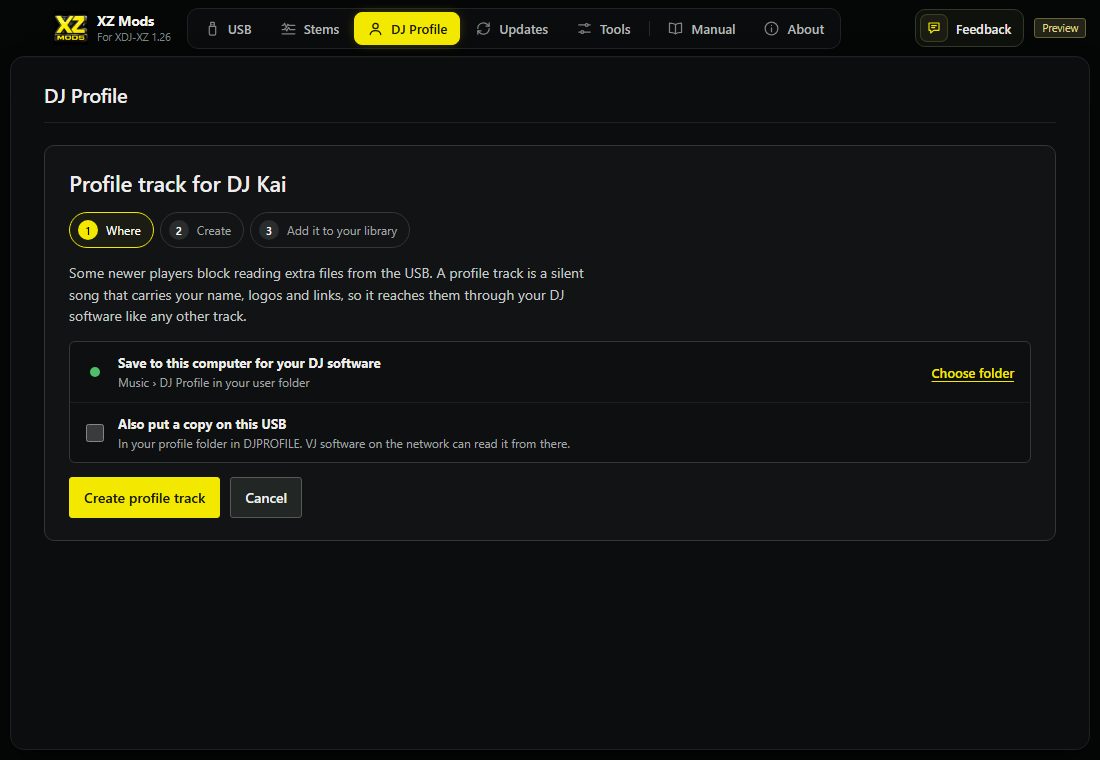
- 1Steps
Where, Create, then Add it to your library.
- 2This computer
Saves the track in your Music folder, ready for your DJ software.
- 3Choose folder
Saves the track somewhere else.
- 4Copy on the USB
Also puts a copy in your profile folder on the USB.
- 5Create or Cancel
Makes the track, or leaves without one.
Updates
Updates keeps every version in one place, on three pages listed on the left: App updates for this app, XZ Mods version for the build that goes on your USB, and Network updates to send that build to XZs on your network. Updates opens on App updates. A yellow dot on Updates and on App updates in its list means a newer app is ready.
App updates
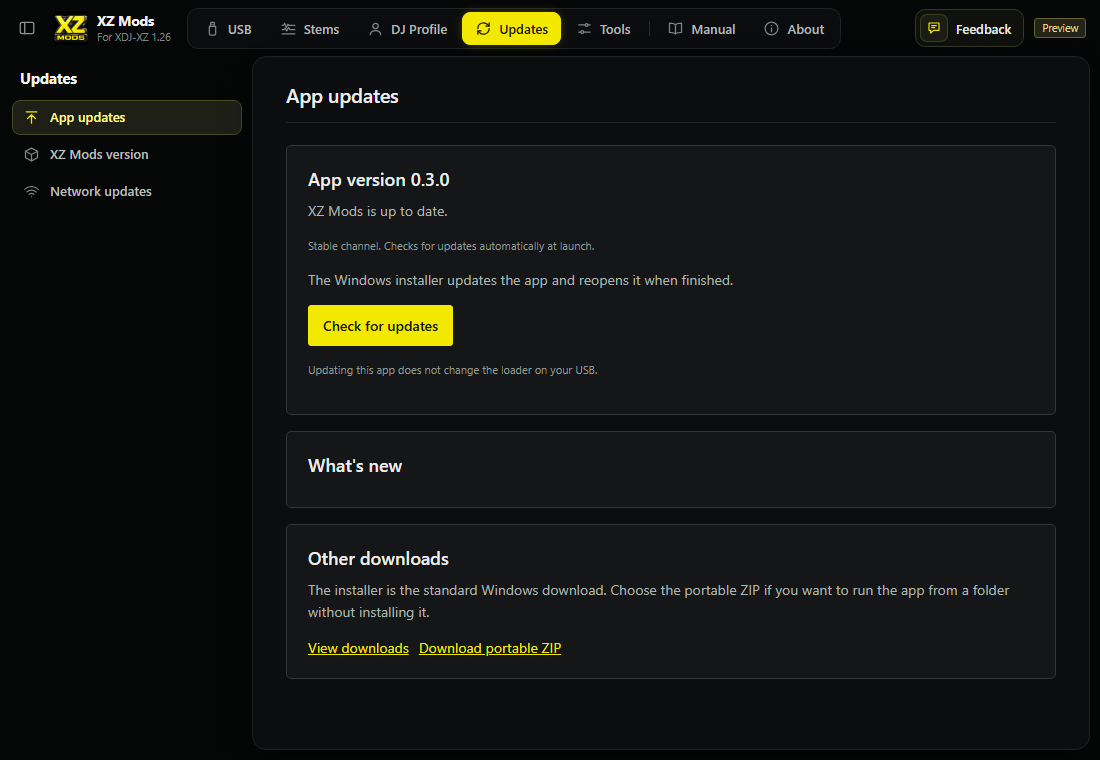
- 1Updates pages
App updates, XZ Mods version and Network updates. Updates opens on App updates.
- 2Version
The app version on this computer.
- 3Status
Up to date, or the newer version on offer.
- 4Check for updates
Checks now. Download and install update appears when there is one.
- 5What's new
The release notes.
- 6Other downloads
The installer and the portable ZIP.
On Windows the app checks for updates by itself at launch and shows Review update at the top of the page when one is ready. The installer updates the app and opens it again. Mac versions download from the release page.
XZ Mods version
XZ Mods version chooses which build goes on your USB the next time you install or update it. Saving your choice does not write to any USB.
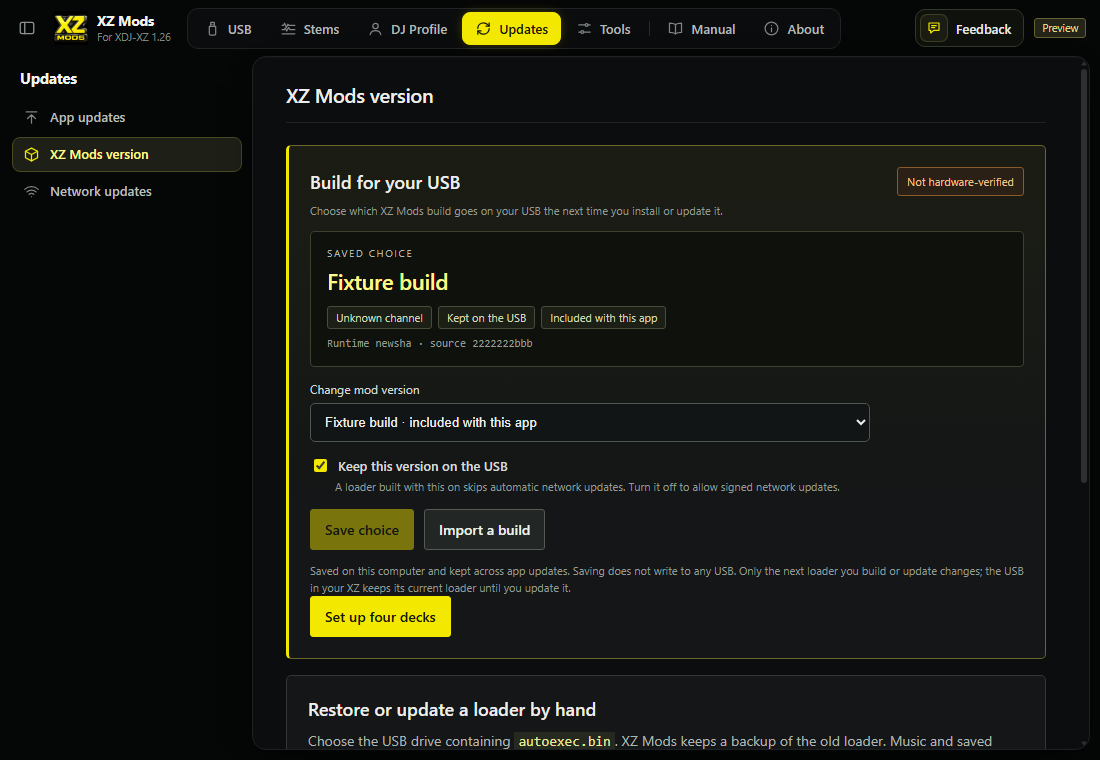
- 1Verified
Says whether the build was checked on a real XDJ-XZ.
- 2Saved choice
The build your next install or update uses.
- 3Details
Its channel, whether it stays on the USB and where it came from.
- 4Change mod version
Every build on this computer.
- 5Keep this version on the USB
A loader built with this on skips network updates, so the USB stays on this build.
- 6Save choice and Import a build
Saves the choice, or adds a build from a folder.
- 7Set up four decks
Chooses the included four-deck build.
- 8Restore or update a loader by hand
Updates the loader on a USB you choose and keeps a backup of the old one.
Lower on the page:
- Restore or update a loader by hand updates the loader on a USB you choose and keeps a backup of the old one. Music and saved settings stay in place.
- Prepare from a firmware 1.26 file builds the loader from a firmware 1.26 file you choose, into a folder you choose.
Import a build takes a prepared XZ Mods resources folder, or a whole XZ Mods app folder that holds one. The app checks every file before it adds the build. Imported builds are not checked on a real XDJ-XZ.
Network updates experimental
Network updates sends the build installed on this computer to XZs on your local network. Each XZ checks the signed update, saves it on its USB and starts it at the next boot.
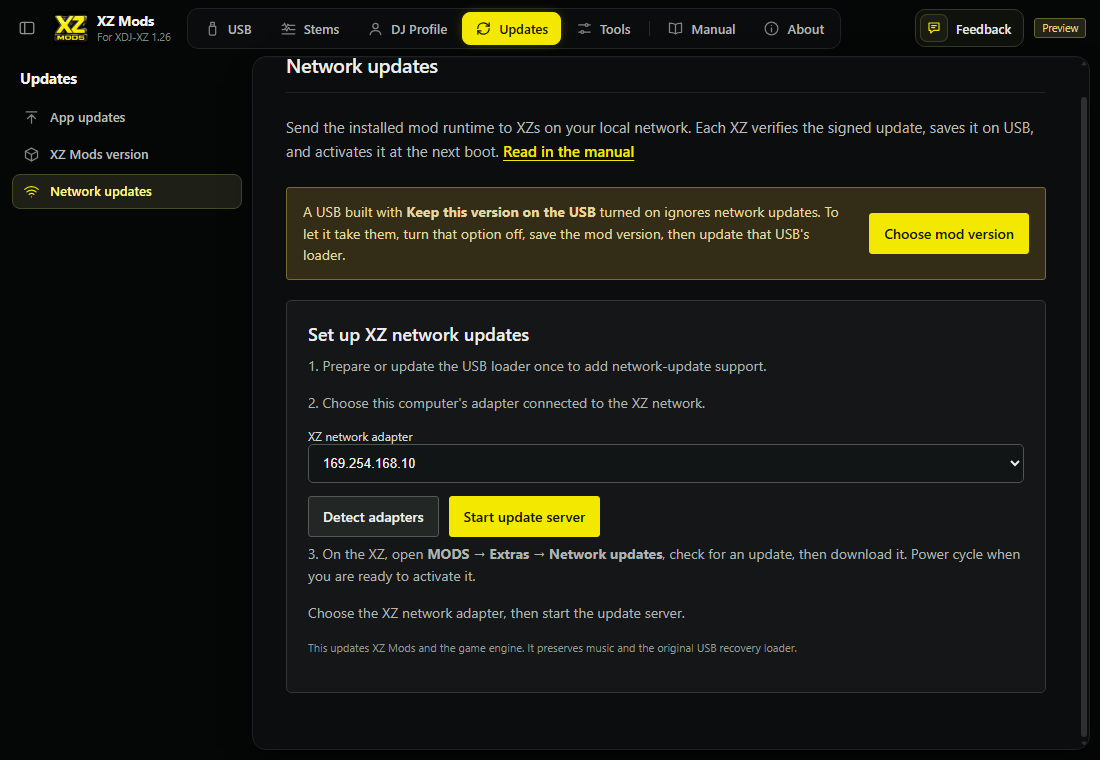
- 1Choose mod version
A USB built with Keep this version on the USB ignores network updates. Change that here.
- 2Detect adapters
Lists this computer's network connections.
- 3XZ network adapter
The connection that reaches the XZ.
- 4Start update server
Offers the update on that network until you cancel.
- 5On the XZ
What to do on the player.
- Prepare or update the USB loader once, so it supports network updates.
- Choose Detect adapters, then the adapter connected to the XZ network.
- Choose Start update server.
- On the XZ, open CONNECT › UPDATES, then download the update. See Updates over the network.
- Switch the XZ off and on when you are ready to start the new version.
Network updates change XZ Mods and the game engine. They keep your music and the original USB loader, so you can always go back. Cancel stops the server.
Tools
Tools holds what you need now and then, grouped by what it works on: your USB and your XZ. The list on the left holds the same tools, so you can go straight from one to another. Tools in the top left of each tool goes back to this page.
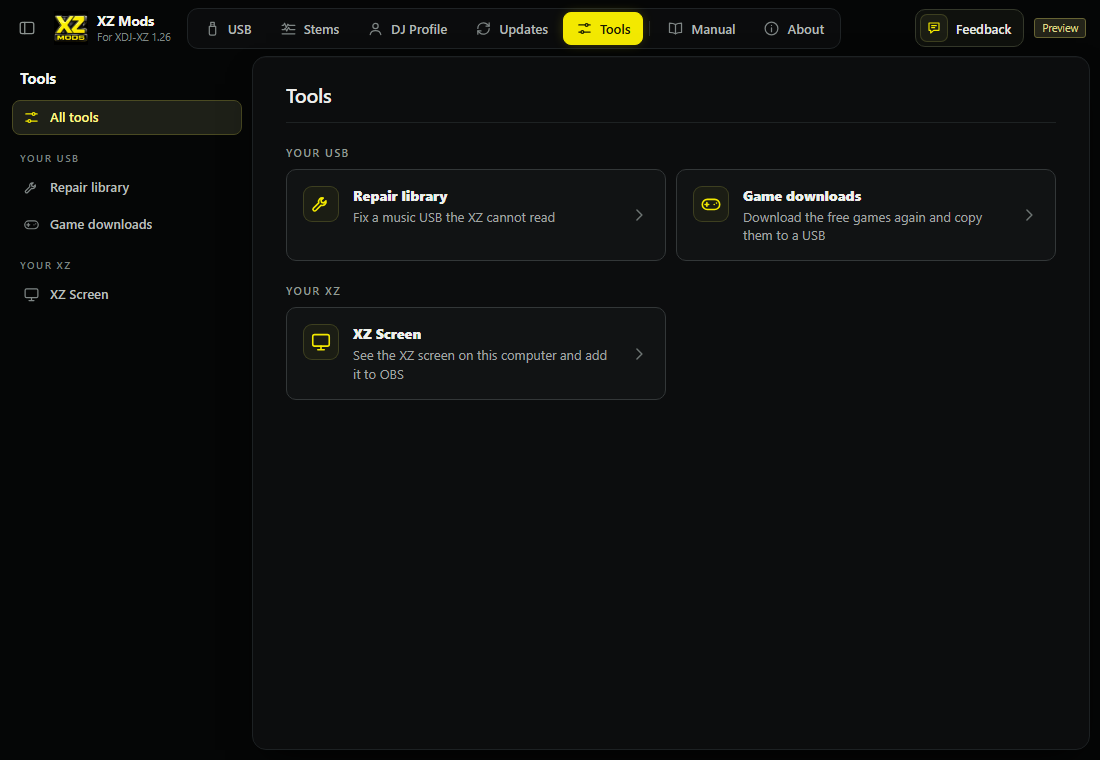
- 1Repair library
Fixes a music USB the XZ cannot read.
- 2Game downloads
Gets the free games again and copies them to a USB.
- 3XZ Screen
Shows the XZ screen on this computer, ready for OBS.
- 4Updates
App updates, XZ Mods version and Network updates have their own section in the top bar.
- 5Feedback
Reports and ideas have their own section at the right of the top bar.
Repair library
Repair library checks the music library your DJ software exported to a USB the XZ cannot read. It can clear invalid unused pages and reconnect playback history pages that survived. It keeps track records, playlists, music and prepared stems.
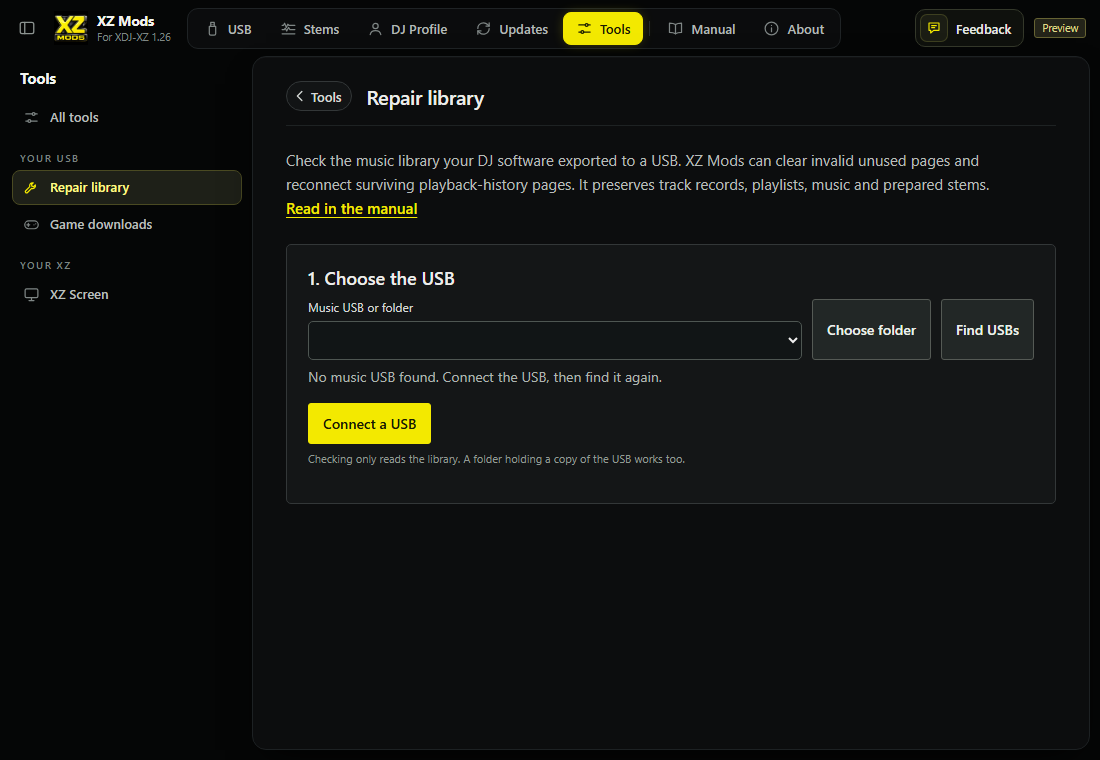
- 1USB
Your music USB or a folder holding a copy of it.
- 2Choose folder and Find USBs
Picks a folder, or looks for USBs again.
- 3Connect a USB
Appears when no USB is found. Opens a short guide to connect one.
- 4Read only
Checking only reads the library.
- Choose the USB. Then choose Check library.
- Library check. The verdict, what the library holds and what is wrong. Save report keeps the result on this computer.
- Repair plan. What changes and what stays the same. Back up and repair backs up the library files first.
If the DJ software that writes the USB is open on this computer, the check says so and offers Prepare for repair. Close it so both apps do not write at the same time, then check again. After a repair, Undo this repair puts the library files back exactly as they were before it.
Game downloads
Game downloads gets the free games again and copies them to a USB. Use it to retry a download that failed while the app wrote your USB, or to add the games to a USB that already has XZ Mods. Games already on the USB stay in place.
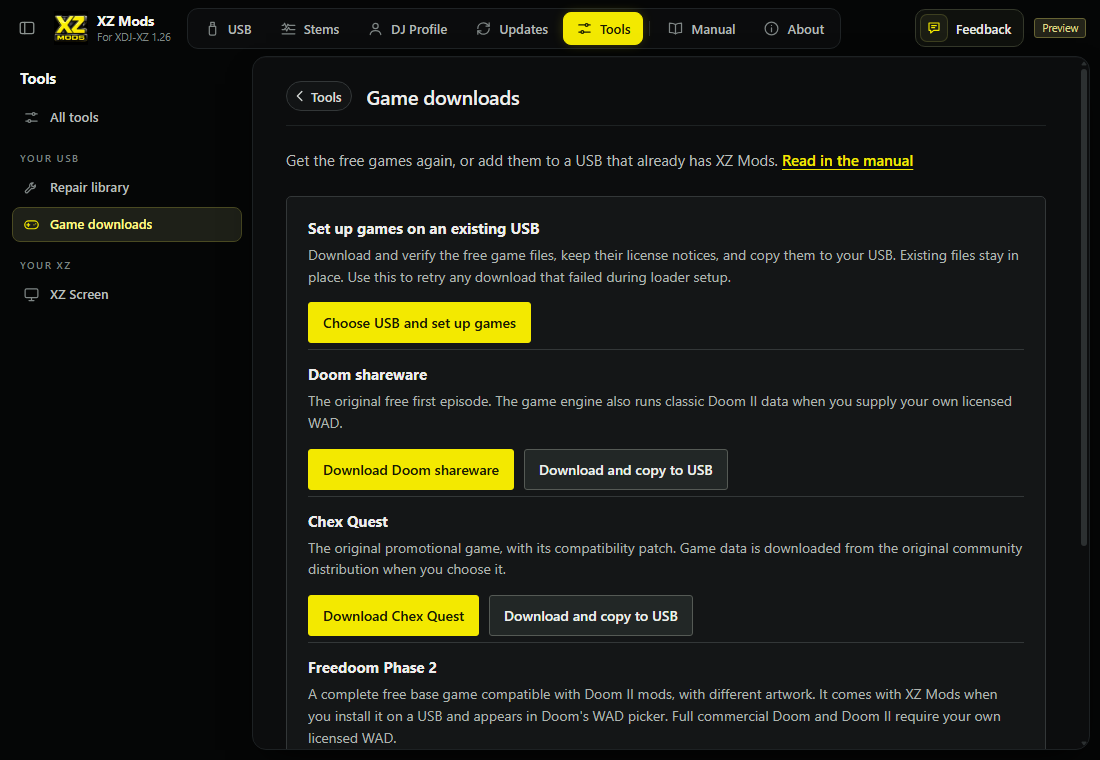
- 1Choose USB and set up games
Downloads and checks every free game, keeps its license notice and copies it to the USB you choose.
- 2One game
Download keeps the game on this computer. Download and copy to USB also puts it on a USB.
Doom shareware, Chex Quest and Freedoom Phase 2 each have their own download. Put your own compatible WADs in a WADS folder on either USB, then choose a base game and an optional add-on in the XZ's USB WAD loader. Downloading games does not change the XZ loader.
XZ Screen experimental
XZ Screen shows the XDJ-XZ screen on this computer over the network, so you can add it to an OBS scene. It sends the picture only, no audio, and the XZ keeps all its controls.
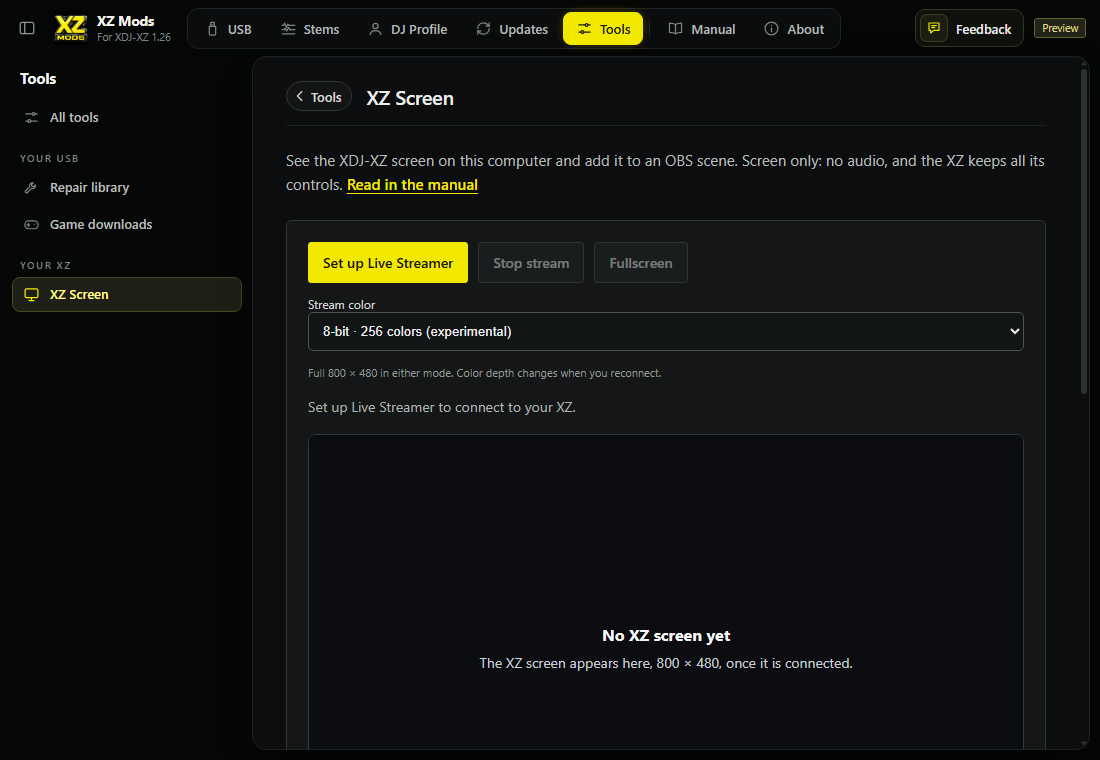
- 1Set up Live Streamer
Opens the three-step connection guide.
- 2Stop stream and Fullscreen
Work once the XZ is connected.
- 3Stream color
8-bit with 256 colors, or 16-bit with the original colors. A change applies when you reconnect.
- 4Status
What the connection is doing, and the frame rate it measures.
- 5Screen
The XZ screen at 800 × 480 once it is connected.
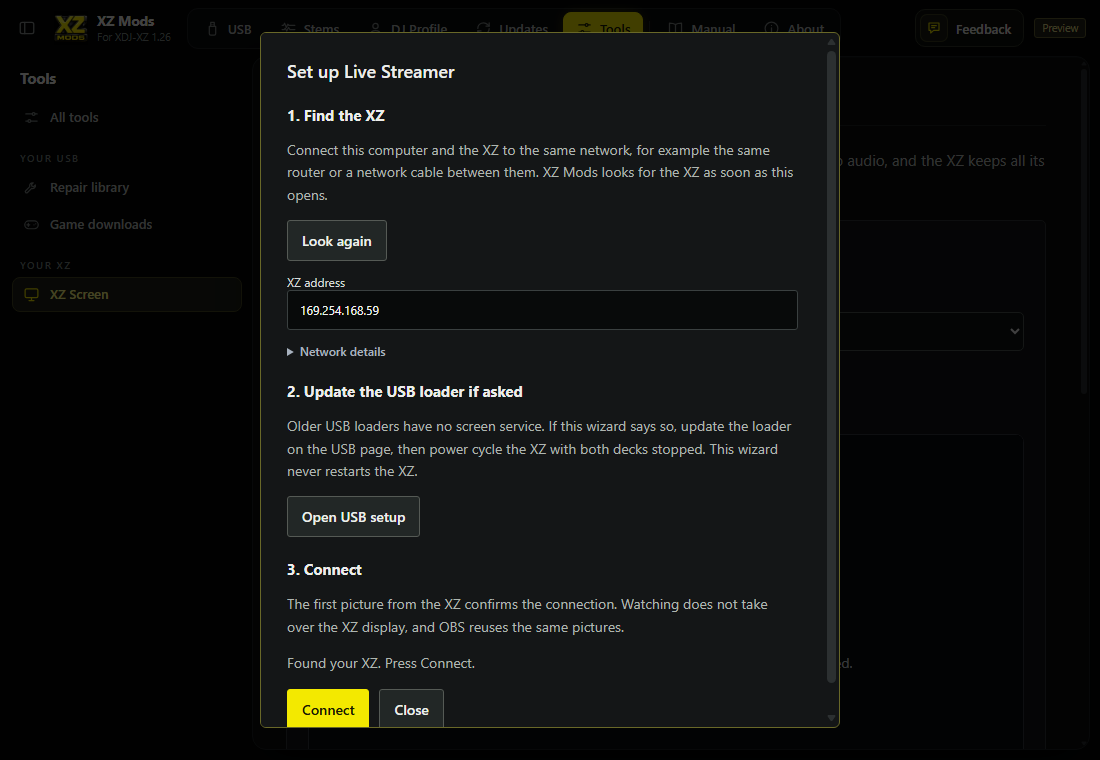
- 1Look again
Searches the network for the XZ again.
- 2XZ address
Found by itself, or type the address the XZ shows.
- 3Network details
The ports a firewall must allow, UDP 50006 and TCP 50010.
- 4Open USB setup
Older USB loaders have no screen service. Update the loader on the USB page.
- 5Status
Found your XZ, still looking, or what stopped it.
- 6Connect and Close
The first picture from the XZ confirms the connection.
- Connect this computer and the XZ to the same network, for example the same router or a network cable between them.
- Choose Set up Live Streamer. The app looks for the XZ at once.
- If the guide asks, update the USB loader on the USB page, then switch the XZ off and on with both decks stopped. The guide never restarts the XZ.
- Choose Connect.
To use the picture in OBS, add a Browser source, paste the OBS Browser Source URL, and set its width to 800 and height to 480. Copy OBS URL copies it. Keep the app running. The URL works on this computer only and changes when you reconnect.
Tick Show a logo while browsing USB to cover the stream with the XZ Mods logo while you browse your USB. The play screen comes back on its own. Menus, custom themes and screens the app does not recognise stay covered.
With an older USB loader the picture updates about once a second and the status says it is not performance video. Update the USB loader appears beside it.
Manual
Manual is this manual, inside the app. It comes with the app, so it needs no internet connection. Where the app explains a feature, Read in the manual opens the chapter about it.
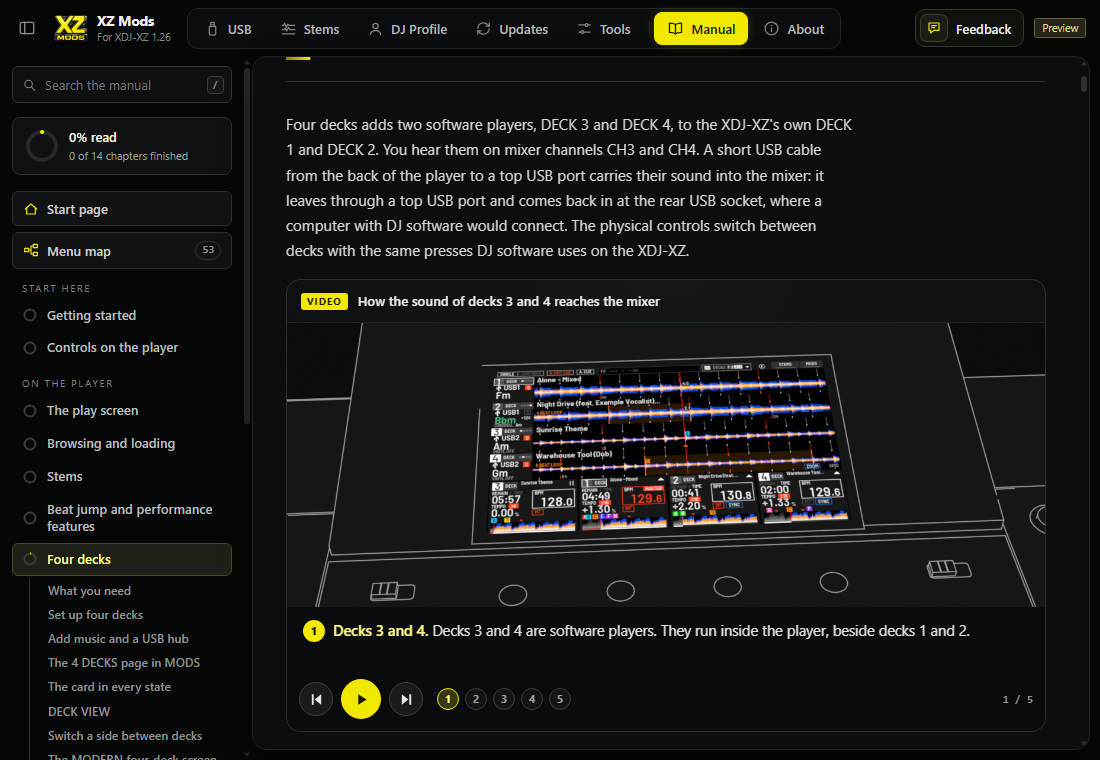
- 1Manual
Opens the manual. It sits between Tools and About in the top bar.
- 2Search
Searches every chapter as you type. Press / to get here from anywhere on the page, and Enter to open the first result.
- 3Progress
How much of the manual you have read. A chapter's circle fills as you read and turns into a tick at its end.
- 4Start page
What XZ Mods adds, the interface you play on, and every chapter in order.
- 8Menu map
Every screen of the player as a flow chart. See The menu map.
- 5Chapter list
Every chapter, on the left beside the page. The one you are reading is outlined and lists its sections.
- 6Chapter
The chapter you are reading. Previous and Next at its end move through the manual in order.
- 7Video
An illustration of the XDJ-XZ shows how a feature works. It plays when it comes into view, and Play pauses it. A video in several steps also has arrows and numbered steps, and its caption follows the step.
- How-to videos. Many sections show how to get there on the player: the player's screen, beside a picture of the key, rotary selector or pad you use, pressed in time with the screen. The steps under the video light up as it reaches them. Click a step to play from there. Where a section shows more than one way, the tabs above the steps switch between them.
- Numbers on pictures. Point at a number, or tab to it and use the arrow keys, to light up that part of the picture and read what it is. Play steps through every number. The list under the picture says the same.
- Your interface. Choose MODERN, CLASSIC or Both on the start page or at the foot of the chapter list. The manual then hides what does not apply to you. A MODS page drawn in both interfaces has a MODERN and CLASSIC switch on its picture.
- Where you stopped. The manual remembers the chapter and section you read last. The start page offers Continue where you left off.
- Less motion. When your computer is set to reduce motion, nothing in the manual moves by itself. A video shows a still picture of each step and plays only when you press Play.
The menu map
Menu map, under the start page in the chapter list, shows every screen on the player and how to get to it, as a flow chart. The play screen is on the left, and what each key opens fans out to its right. Every branch is labelled with the control that opens it: a key such as  MENU, the rotary selector, or a tap on a word on the screen.
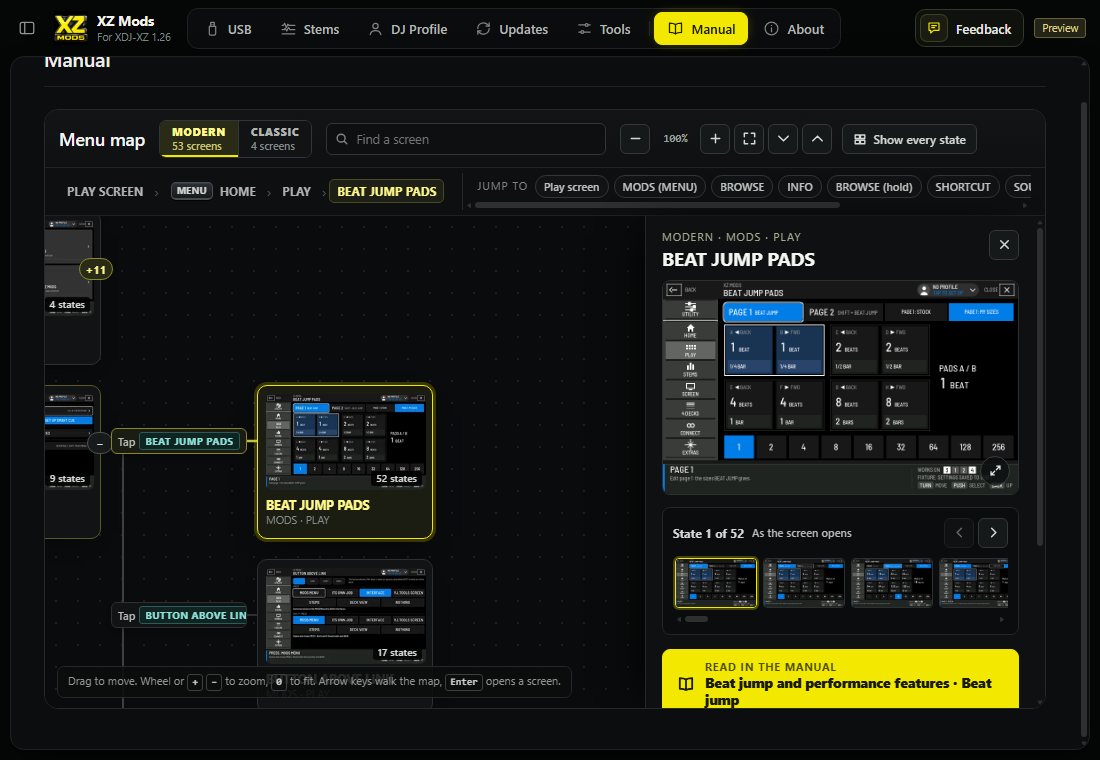
- 1Interface
MODERN or CLASSIC. The map starts on the interface you chose for the manual.
- 2Find a screen
Type the name of a screen and press Enter to go to it.
- 3View
Zoom out and in, fit the whole map, open every branch, or close them back to the MODS sections. Show every state lays out every state of every screen.
- 4Path
How you got here from the play screen, one control at a time. Click a step to go back to it.
- 5Jump to
The play screen and what each of its keys opens.
- 6Screen
The screen you picked, outlined in yellow, as are the branches that lead to it. The number on its picture counts its states.
- 7Control
The control that opens the screen. A keycap is a key on the player; a tap names the words on the screen.
- 8The screen
The screen at full size. Its states follow below it, then the parts you can pick, how you get here and where it leads.
- 9States
Each state of the screen as you turn the rotary selector or change a value, and the control between them.
- 10Read in the manual
Opens the part of this manual that explains the screen.
- Room to work. The chapter list folds away while the map is open, so the map has the width. The button at the far left of the top bar brings the list back.
- Move around. Drag the map to move it. The mouse wheel, or the + and − keys on your computer, zoom in and out, and 0 fits the whole map. In a wide window the small map in the corner shows where you are; click it to go there.
- Branches. The number beside a screen opens the screens after it, and − closes them again. The map opens with the MODS sections closed, so the first view stays readable.
- Keys. The arrow keys walk the map: right into a branch, left back out, up and down to the screens beside it. Enter opens a screen and Esc closes it. Previous screen and Next screen at the foot of a screen walk the whole map in order.
- From a chapter. A section of the manual about a screen has On the menu map beside its heading. It opens the map at that screen.
About
About says what XZ Mods is and who makes it, and gathers the links, the disclaimers and the open-source licenses in one place.
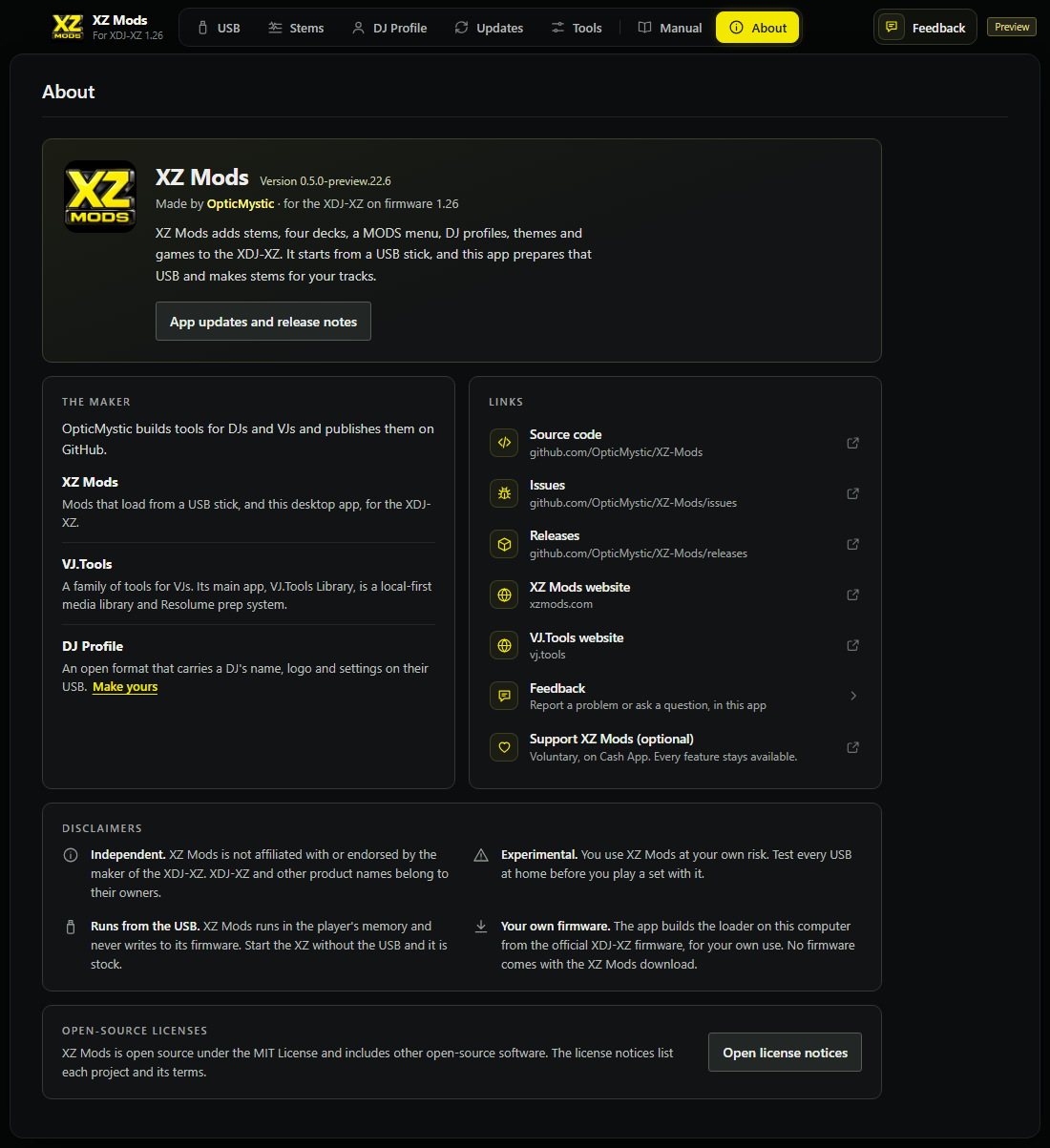
- 1Version
The app version on this computer.
- 2Maker
XZ Mods is made by OpticMystic.
- 3App updates and release notes
Opens App updates in Updates.
- 4The maker
OpticMystic's projects: XZ Mods, VJ.Tools and DJ Profile. Make yours opens DJ Profile.
- 5Links
The source code, issues and releases on GitHub, xzmods.com and vj.tools. Each opens in your browser.
- 6Feedback
Opens Feedback in the app.
- 7Support XZ Mods (optional)
Voluntary support on Cash App. Every feature stays available.
- 8Disclaimers
XZ Mods is independent of the maker of the XDJ-XZ, is experimental and runs from the USB.
- 9Open license notices
Every open-source project XZ Mods uses and its license.
Feedback
Feedback is where you tell the maintainer about a problem, ask for a feature or ask a question, and follow what you sent. It sits at the right of the top bar on every page.
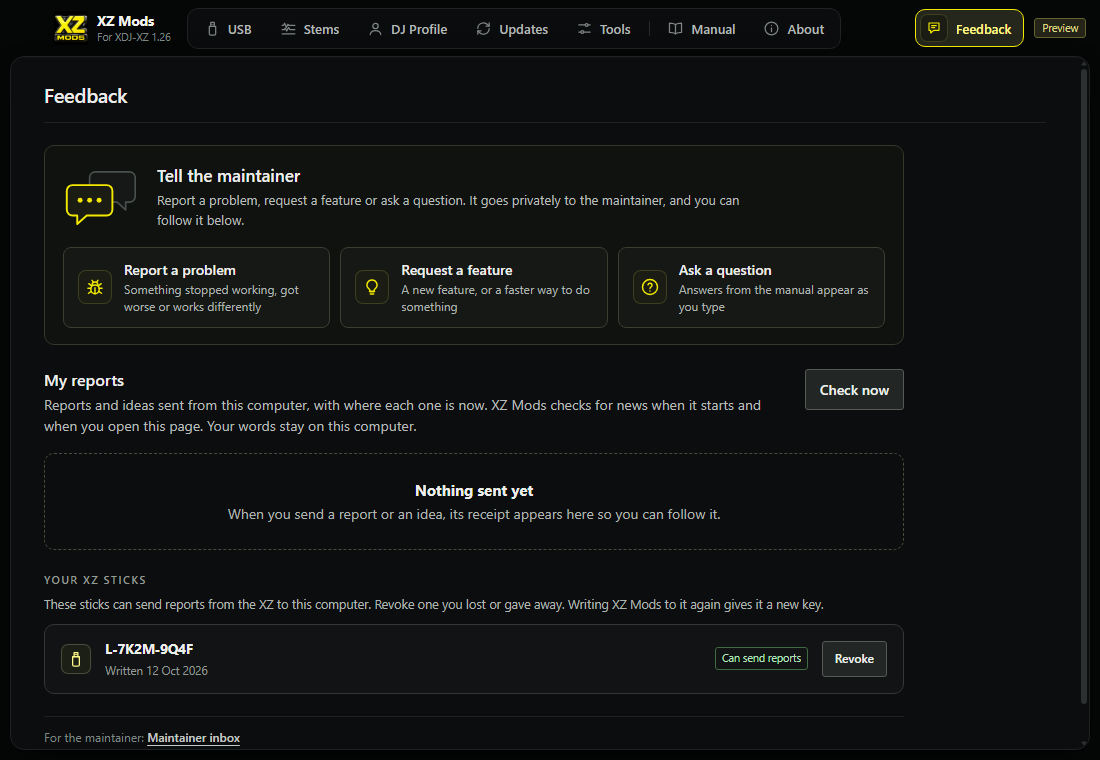
- 1Feedback
Opens this section from any page. A count on it shows reports from your XZ that wait for your words.
- 2Report a problem
Opens the report window at its first question.
- 3Request a feature
Opens the report window at the kind of idea.
- 4Ask a question
Goes straight to the box. Answers from this manual appear as you type.
- 5My reports
What you sent from this computer and where each report is now.
- 6Maintainer inbox
For the maintainer only.
Reports from your XZ that wait for your words appear above My reports, under From your XZ. The sticks that may send them are listed under Your XZ sticks.
Report a problem or share an idea
The report window sends a private report to the maintainer: a problem, something that got worse, an idea or a question. Report a problem in Feedback opens it at the first question. Request a feature and Ask a question answer that question for you. The only thing you have to fill in is one box. Nothing is posted publicly.
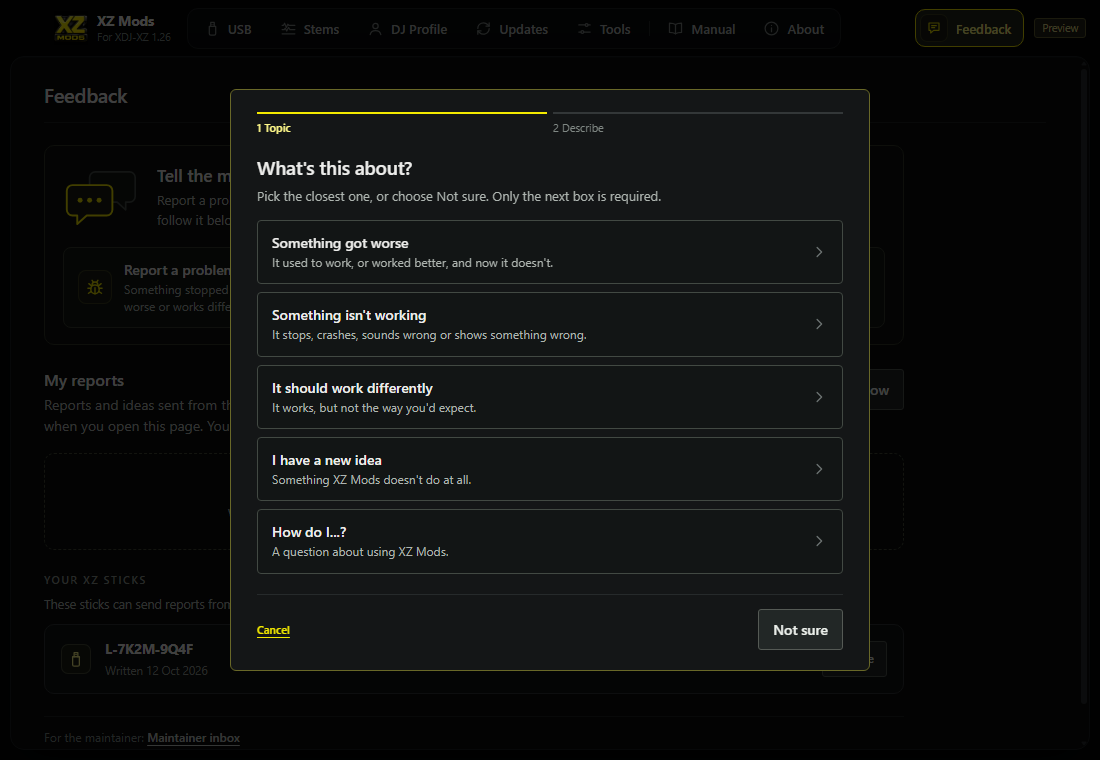
- 1Steps
Where you are. The box with Send is always the last step.
- 2Topic
Pick the closest one. The next question depends on it.
- 3How do I...?
For a question. Answers from this manual appear as you type.
- 4Not sure
Skips the question. Every question has it.
- 5Cancel
Closes the window. What you typed comes back when you open it again.
- Pick what it is about, or Not sure.
- Answer at most two more short questions, or press Not sure.
- Write what happened in your own words. One sentence is enough.
- Press Send privately.
| You pick | It then asks |
|---|---|
| Something got worse | When it got worse, then for the USB sticks that were in the XZ |
| Something isn't working | What kind of problem: sound, SYNC or tempo, the screen, buttons and pads, loading and USB, four decks, a crash, or something else |
| It should work differently | Compared with what: the XZ before XZ Mods, another XZ feature, other DJ gear or software, an earlier XZ Mods version, or just your preference. For gear or another feature, which one |
| I have a new idea | What kind of idea |
| How do I...? | Nothing more. Go straight to your question |
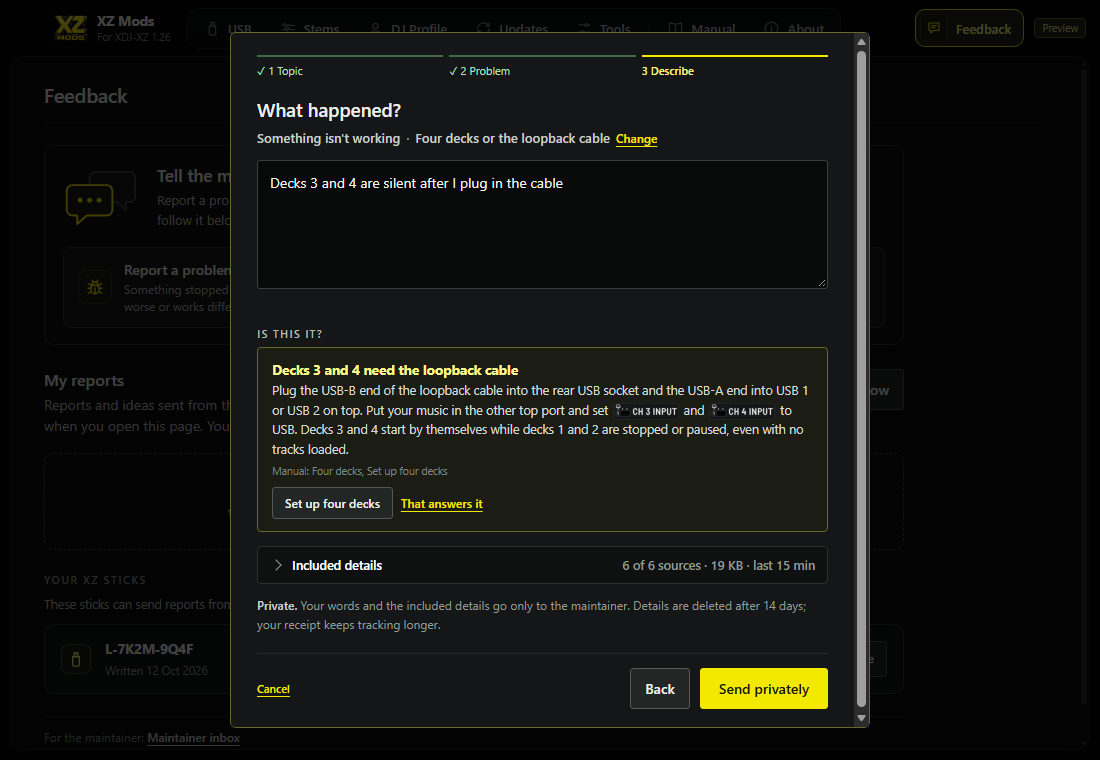
- 1Your answers
What you picked. Change goes back to the first question.
- 2The box
The only thing you have to fill in. Up to 4,096 bytes; a counter appears near the limit.
- 3Is this it?
Up to three answers from this manual that match what you typed.
- 4Answer buttons
Set up four decks opens that setup. That answers it closes without sending anything.
- 5Included details
What the app collected to send with your words. Closed until you open it.
- 6Send privately
Sends your words and the details shown, to the maintainer only.
As you type, Is this it? shows answers from this manual. The matching runs on your computer; your words are not sent anywhere for it. If an answer solves it, its button opens the right setup, such as Set up four decks, or That answers it closes the window. Nothing is sent.
Included details
While you answer and type, the app reads the details that help the maintainer, for at most 10 seconds: the session log and settings on your XZ Mods USB, the diary on each stick, the app's events and the build. Everything is cleaned first. No track names, file paths, serial numbers or network addresses are kept.
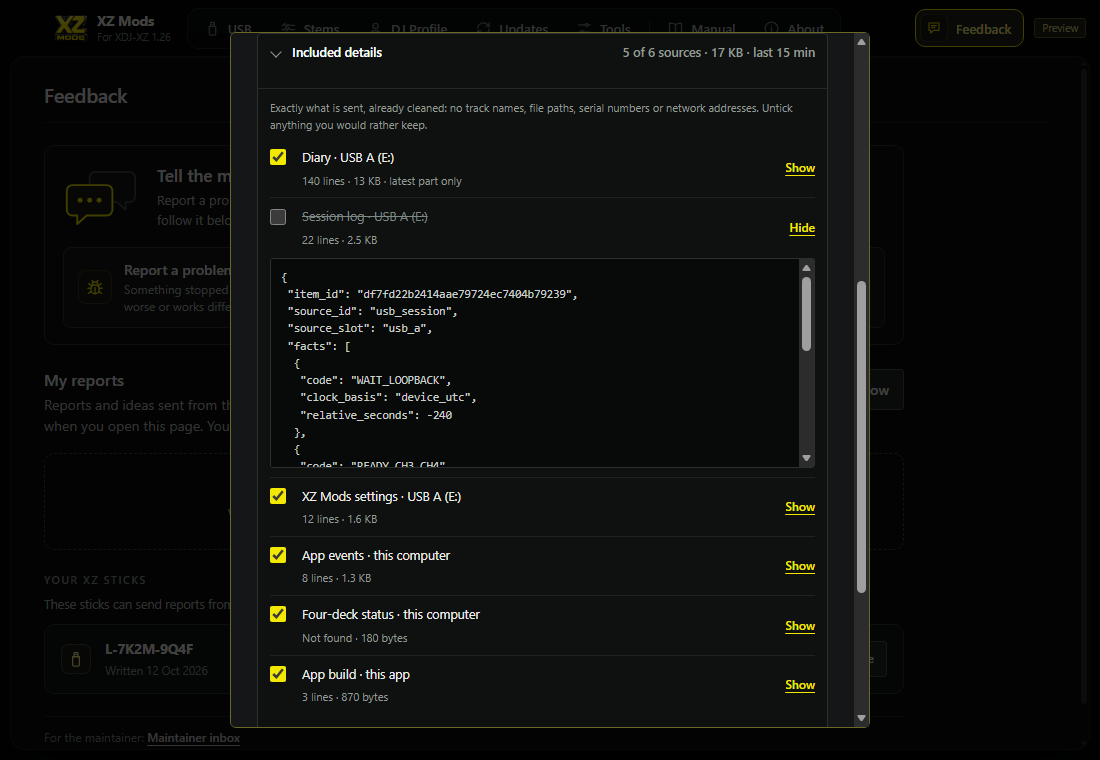
- 1Included details
How many sources are included, their size and the time around the problem they cover.
- 2A source
What it is and where it comes from. Untick it to leave it out.
- 3Show
The exact content that would be sent for this source.
- 4Left out
An unticked source is not sent.
- 5Exact content
What is sent for this source, after cleaning.
Send privately sends exactly your words and the ticked details shown at that moment. If you send before the app has finished reading, it sends what it has read and notes what is missing. Collect again reads everything again. Ideas include no details at all, only your words. Details are deleted after 14 days.
When something got worse
For something that got worse, the app asks you to plug in every USB stick that was in the XZ when it happened. XZ Mods versions that keep a diary write it to each stick while the XZ plays. The app reads only that diary, never your music.
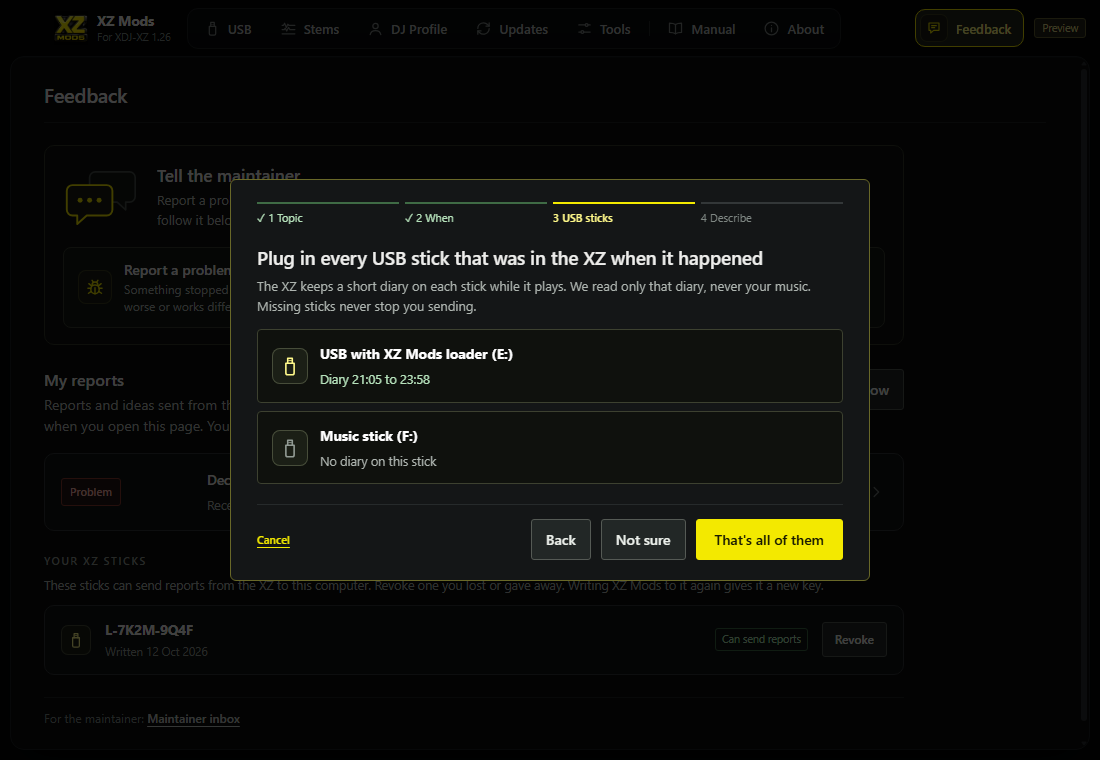
- 1XZ Mods USB
A stick with the XZ Mods loader on it.
- 2Diary
The time range the diary on this stick covers.
- 3Music stick
A stick with music only.
- 4No diary on this stick
This stick has no diary, for example from a version that does not keep one.
- 5That's all of them
Goes on to the box.
Each stick appears by itself as you plug it in. Press That's all of them when every stick is in. A missing stick or a missing diary never stops you sending.
After you send
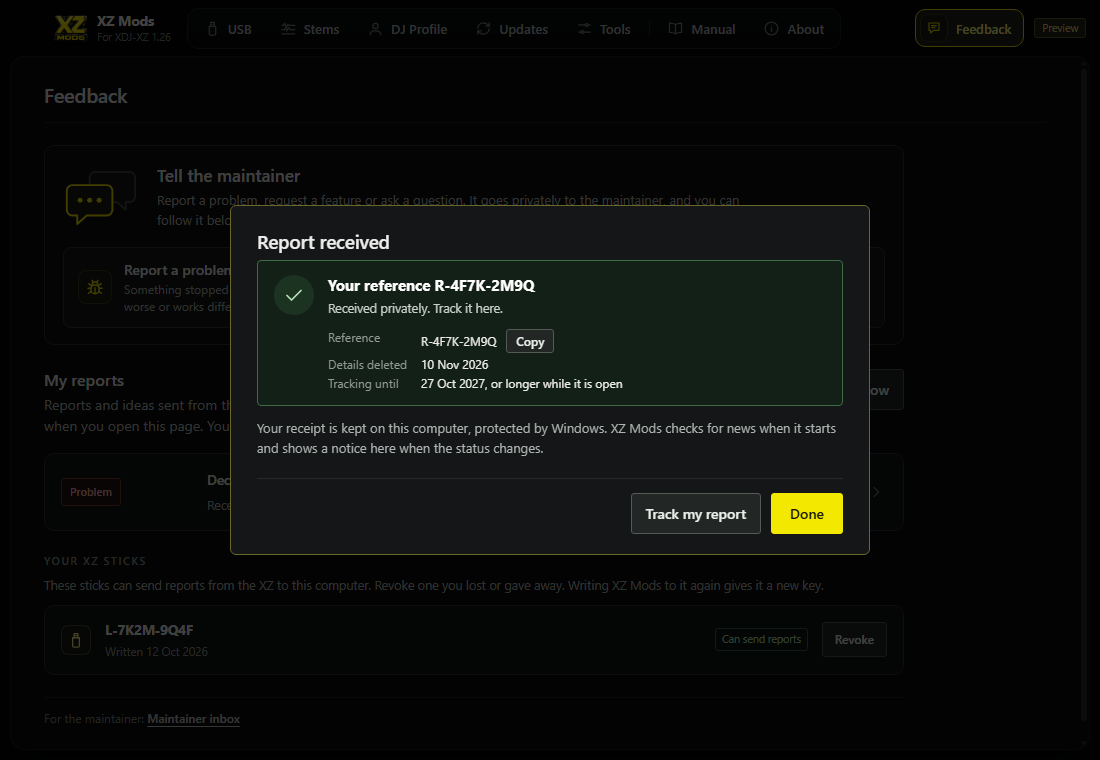
- 1Your reference
The permanent reference for this report, also shown in My reports.
- 2Status
Where the report is now.
- 3Copy
Copies the reference so you can quote it to the maintainer.
- 4Track my report
Opens it in My reports.
Every accepted report or idea gets its own reference, such as R-4F7K-2M9Q. Quote it when asking about that report. Copy copies the reference. The reference stays the same if you send again after a connection failure. It does not let anyone read your report or its status.
If the app cannot confirm that a report arrived, it says Not confirmed yet. Nothing is lost. Set up reporting connection checks the internet connection and the computer's clock, then Send again sends the same report. If the first attempt did arrive, you get its receipt and nothing arrives twice. Save to a file keeps a copy without sending.
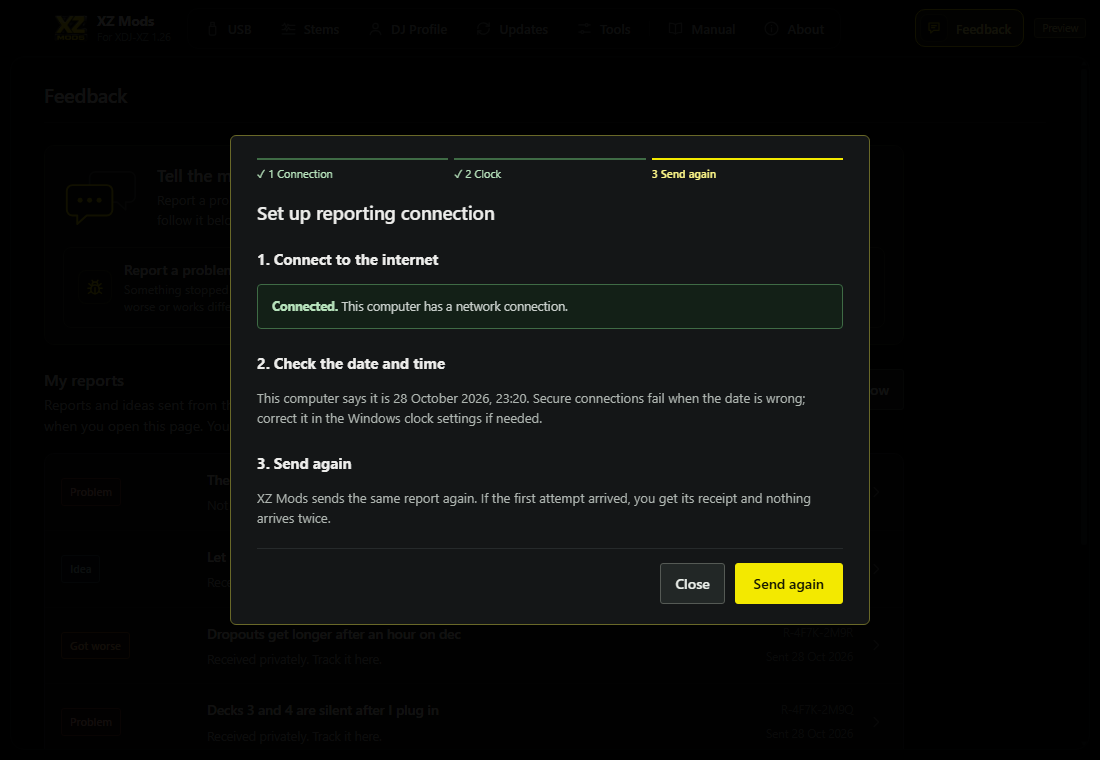
- 1Connection
Whether this computer is online.
- 2Clock
Secure connections fail when the date is wrong.
- 3Send again
Sends the same report again.
My reports
My reports lists every report and idea sent from this computer, with its kind and where it is now, in plain words. It is the list under the buttons in Feedback.
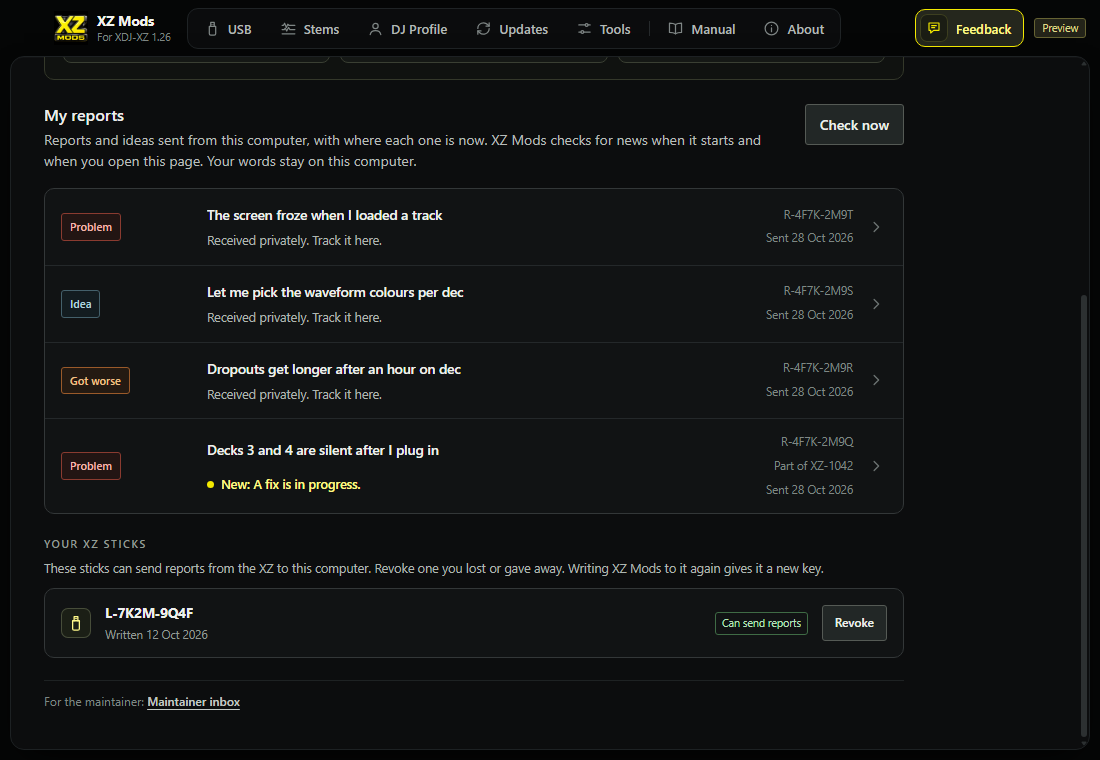
- 1Kind
Such as Problem, Got worse, Works differently, Idea or Question.
- 2Your words
The start of what you wrote. It stays on this computer.
- 3Status
Where the report is now. New marks a change you have not opened yet.
- 4Reference and date
Your report reference and the day you sent it. Part of XZ-1042 appears when the maintainer assigns an item.
- 5Check now
Checks every report at once, and asks for new reports from your XZ.
When a report's status changes, a notice appears at the top of whichever page is open.
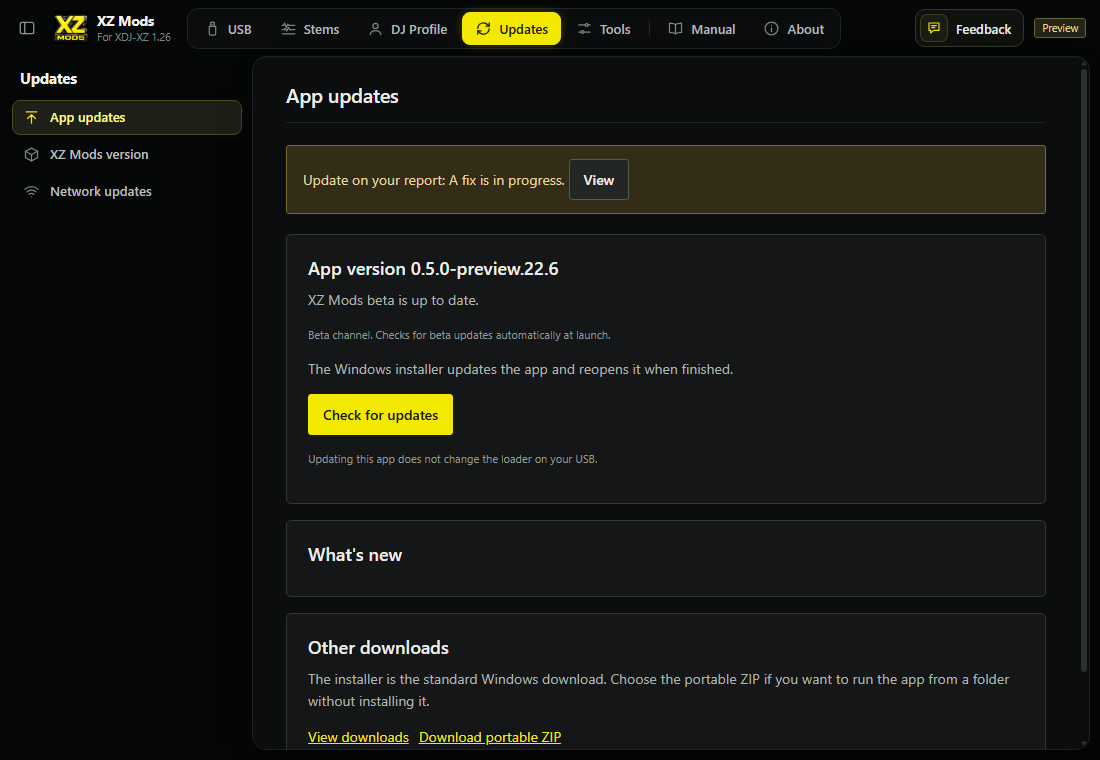
- 1Notice
Appears when the status of one of your reports changes.
- 2View
Opens that report.
The app checks for news when it starts, after it checks for app updates, and when you open My reports, at most every 15 minutes for each report. Check now checks at once. If you are offline, the last known status stays.
Open a report to see where it is. The view is read-only. Once the maintainer assigns it, Part of XZ-1042 names the bug, feature or question it belongs to. Reports about the same item share that item number. If the maintainer moves your report to another item, this number changes; your R reference stays the same. Item numbers remain after the report's details are deleted.
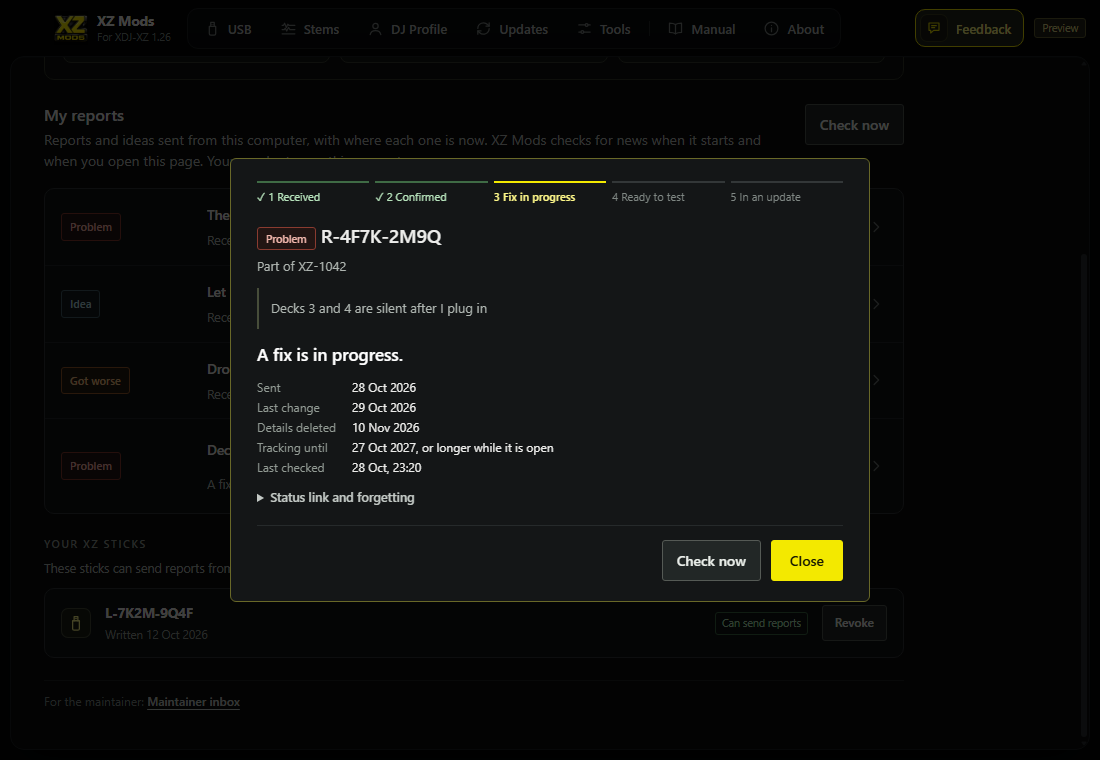
- 1Progress
Received, Confirmed, Fix in progress, Ready to test, In an update. Ideas and questions show Received, Looked at, Decided.
- 2Reference
This report's permanent reference and kind.
- 3Your words
The start of what you wrote.
- 4Status
Where it is now, in plain words.
- 5Dates
When you sent it, the last change, when its details are deleted and how long tracking lasts.
- 6Status link and forgetting
The status link, and Forget this report.
- 7Check now
Checks this report at once.
- 8Part of
The item this report belongs to, such as XZ-1042.
- If the maintainer needs one more detail, the question appears in the report. Answer in a new report starts a report that names this one.
- Open status page and Copy status link give a read-only web page with the same status, report reference and item number. It shows none of your words or details. Anyone with the link can read the status. Turn off status links stops every link for this report; the app still checks it.
- Forget this report removes its receipt from this computer. The maintainer keeps the report.
- A report saved, but not sent, by an older version of the app appears under Saved, not sent. Use this text starts a new report with its words.
Details are deleted 14 days after you send them. Tracking lasts while a report is open, up to one year without news, then 180 days after it closes. A fix in a local test build is not a published update.
From your XZ
A report sent from the XZ waits in Feedback for your words. From your XZ appears above My reports while one waits. The XZ notes the screen you were on as names only. It keeps no picture and no text from the screen.
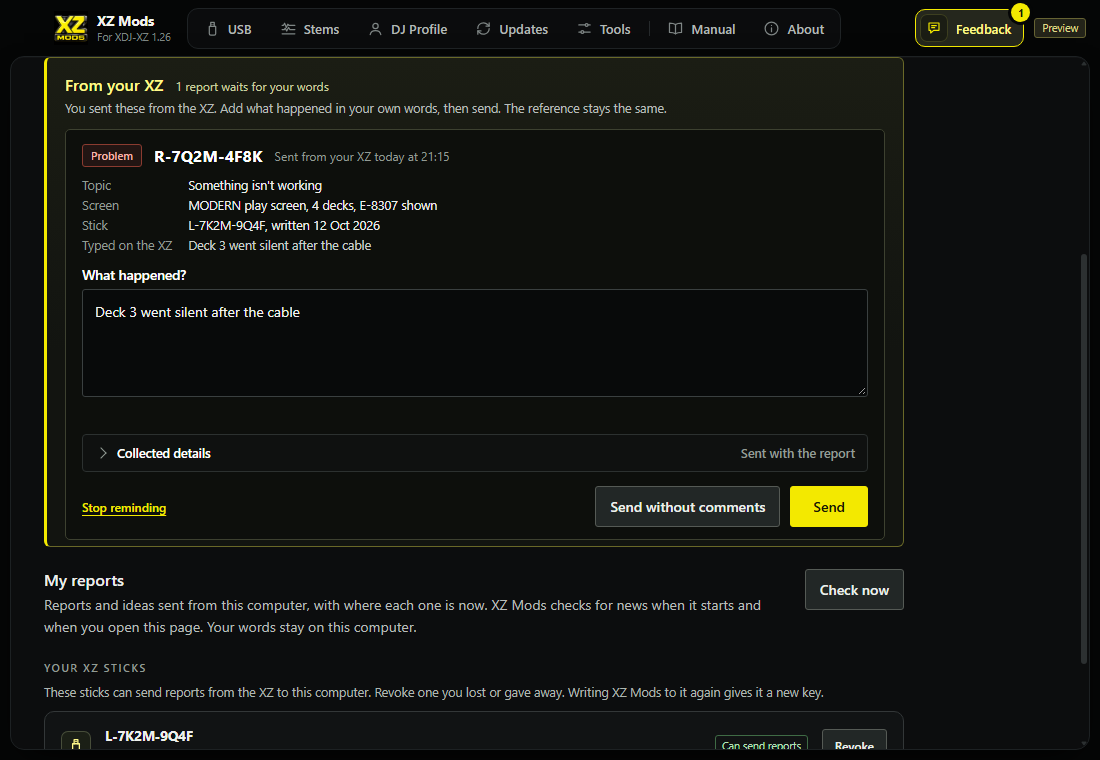
- 1From your XZ
Reports from your XZ that wait for your words.
- 2Reference and time
The report's reference and when the XZ sent it. It stays the same when you add your words.
- 3Screen
The screen the XZ showed just before you reported, with any error code on it.
- 4Stick
The stick the report came from, and when XZ Mods wrote it.
- 5Typed on the XZ
What you typed on the XZ, if anything.
- 6What happened?
Starts with what you typed on the XZ. Change it or add to it.
- 7Collected details
What the XZ collected and sent with the report. Show displays each part exactly.
- 8Stop reminding
Ends the reminders for this report. It stays in the list.
- 9Send without comments
Finishes the report without words from you.
- 10Send
Adds your words to the same report.
- Send adds your words to the same report, under the same reference. The report then moves to your sent reports, where you follow it like any other.
- Send without comments finishes the report as it is.
- If the app can't reach the report service, it keeps your words and sends them by itself later. You can close the app.
- The XZ already sent the collected details. They are deleted 14 days after it sent them. After that the report says so, and your words still reach the maintainer.
- The maintainer sees the report as soon as the XZ sends it, marked as waiting for your comments, and can start from the logs.
The app tells you when a report from the XZ waits:
- While the app is open, a new report brings a Windows notification, such as "Your XZ sent a report, R-4F7K-2M9Q. Add what happened?" Click it to open that report.
- Feedback in the top bar shows how many reports wait.
- When the app starts with reports waiting, a callout under the page title names them.
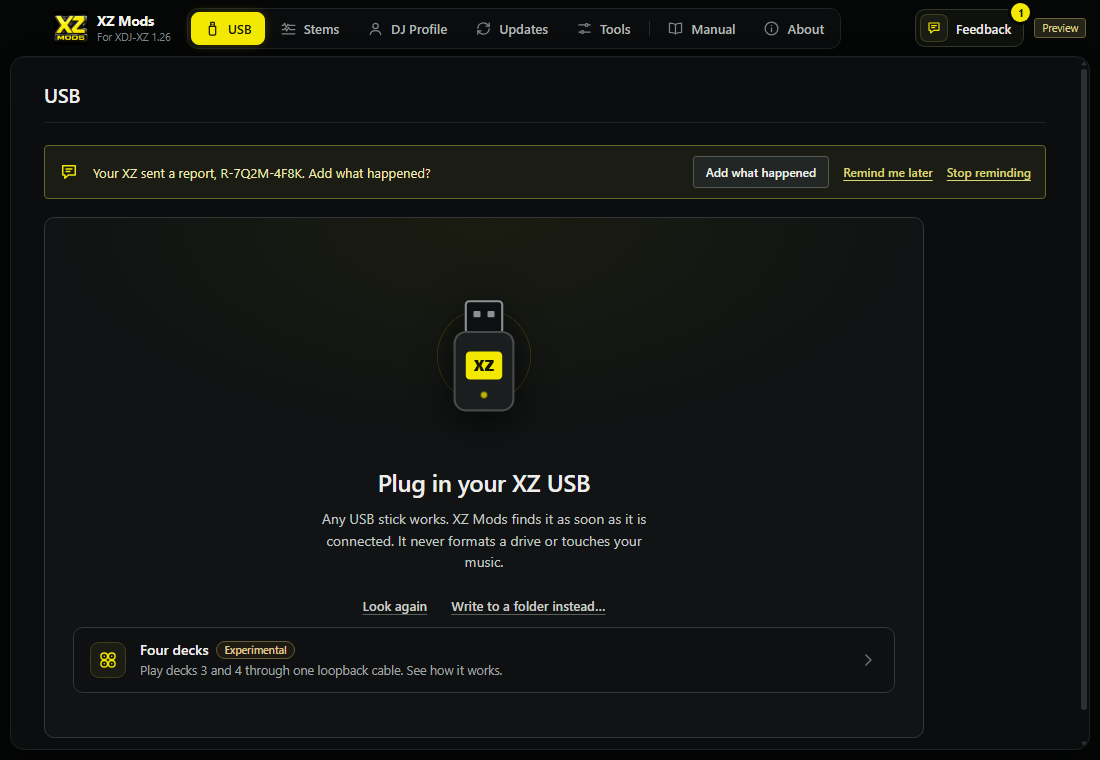
- 1Callout
Names the report your XZ sent. It never covers the window or takes the keyboard.
- 2Add what happened
Opens the report in Feedback with its box ready.
- 3Remind me later
Hides the callout until the app starts again.
- 4Stop reminding
Ends the reminders for these reports. They stay in Feedback.
- 5Badge
How many reports from your XZ wait for your words.
Reminders end when you choose Stop reminding, or 7 days after a report arrives. Each report brings one notification at most. If Windows notifications are off for XZ Mods, or your copy of the app is not installed, the badge and the callout tell you instead.
Your XZ sticks
Every stick XZ Mods writes gets a loader ID, such as L-7K2M-9Q4F. It lets the XZ send reports from that stick to this computer, and to nothing else. Your XZ sticks, near the bottom of Feedback, lists them.
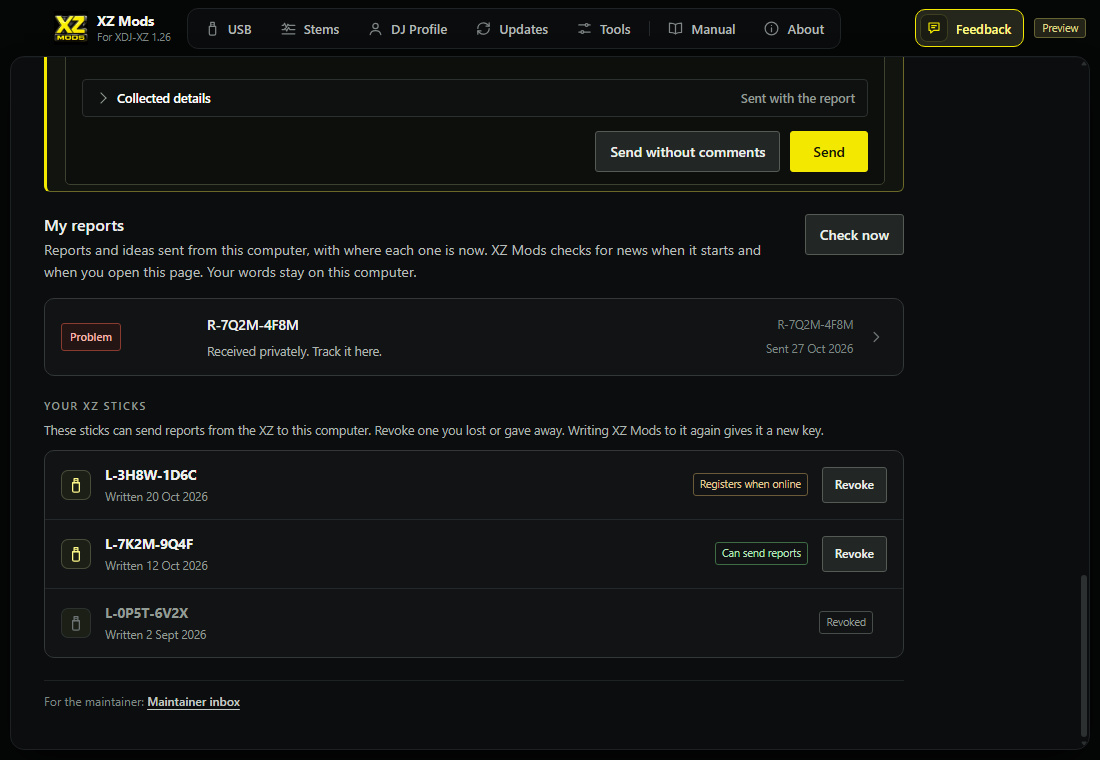
- 1Your XZ sticks
The sticks XZ Mods wrote on this computer.
- 2Loader ID
Reports from this stick carry it.
- 3Written
When XZ Mods last wrote the stick.
- 4State
Can send reports, Registers when online, Plug it in to finish, Revokes when online or Revoked.
- 5Revoke
Stops this stick sending reports. The app asks first.
- Revoke a stick you lost or gave away. The XZ can no longer send reports from it. If you are offline, the stick is revoked on this computer at once and the report service hears of it later.
- Writing XZ Mods to that stick again gives it a new key, and it can send reports again.
- Plug it in to finish means a write to that stick was not confirmed. Plug the stick in with the app open. If the state stays, write XZ Mods to the stick again.
- With no sticks yet, Set up a USB opens the USB setup.
Maintainer inbox
Maintainer inbox, at the bottom of Feedback, is for the maintainer. Connect it with the report-only owner key. The short setup checks that key by reading the inbox.
Enter a report reference or item number in the search box and choose Find. You can type either case, with or without spaces and dashes. For a report reference, I or L also means 1, and O means 0. A report reference finds one report; an item number finds the reports assigned to that item. Clear returns to the inbox.
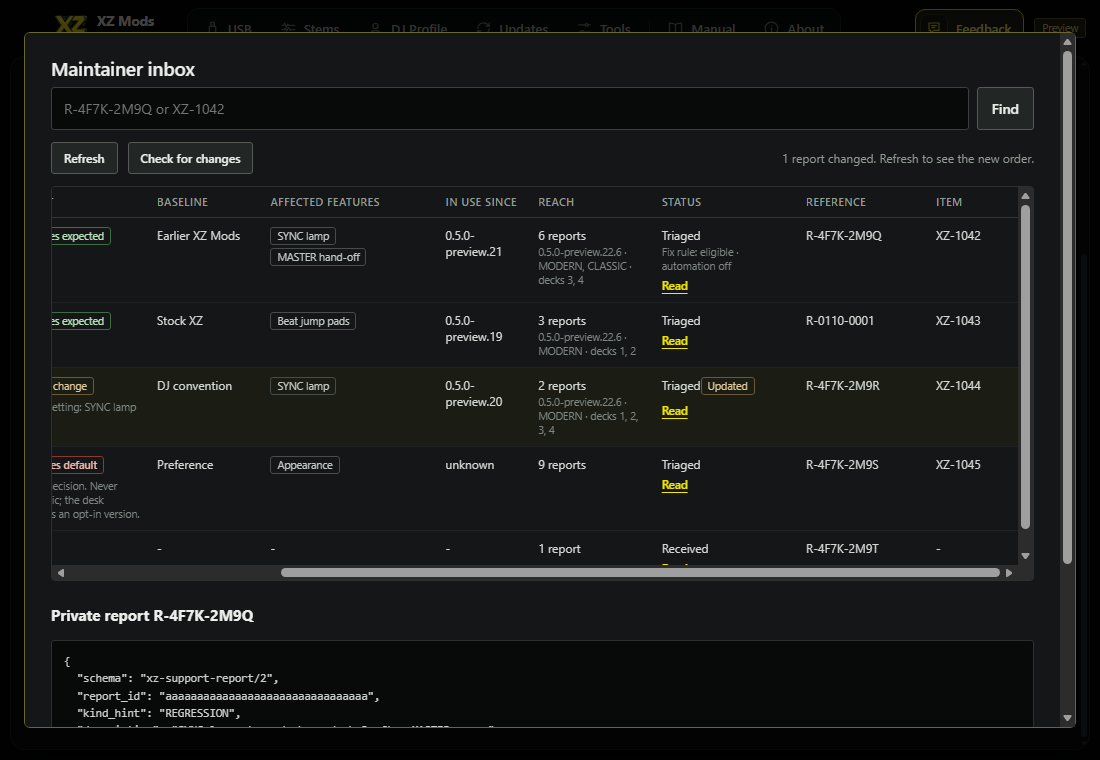
- 1Find
Searches the whole inbox by report reference or item number.
- 2Reference
The permanent reference for each report.
- 3Item
The bug, feature or question the report belongs to. A dash means it has not been assigned yet.
- 4Scroll
Scroll right or left to see every column.
The reference and item number identify a report; the owner key is still required to read the inbox.
Desktop language
Choose Language / Idioma below the navigation to open XZ language setup. It detects the bundled offline catalogs, lets you choose a language, imports an optional JSON catalog, then applies the text so you can verify it on screen. No account or translation service is required. This setting belongs to XZ Mods only.
Coverage counts describe extracted desktop and manual text. Machine translations require language review. Export a catalog to review text offline; import rejects changed sources, missing placeholders and altered printed control names. After a source change, regenerate all languages against a fresh source snapshot.
For local generation, open the independent provider section. Detect saved resources, enter the Python executable and Small100 model folder, then choose Connect and live verify. The test translates a sentence into all 14 languages. Install pinned dependencies creates an XZ-only Python environment using the selected Python and installs the pinned provider packages. It needs network access for those packages, but translation runs locally without credentials or paid services. The Small100 folder must already contain model.bin, shared_vocabulary.json and sentencepiece.bpe.model.
Choose Generate all languages to resume the full corpus. Progress and logs remain in the XZ application data directory. Cancel translation stops this job and retains checkpoints. Publication replaces the complete language set only after every locale passes structural validation. This does not establish native-speaker approval. The packaged source snapshot belongs to this XZ release; updating the app supplies a new snapshot.
Printed hardware names such as  CUE,
CUE,  SHIFT,
  SYNC, MENU and
  BACK stay as printed. Track names and stock alerts are not translated. Arabic uses browser right-to-left text layout; fonts come from the operating system. Pictures of the player's screens keep their English labels. The MODS menu on the player has its own language choice, under MODS > EXTRAS > LANGUAGE (Language); choosing a desktop language does not change it.