Start here
Getting started
What XZ Mods changes on the XDJ-XZ, what you need, and your first start from a prepared USB.
Applies to MODERN and CLASSIC
XZ Mods is software for the XDJ-XZ that starts from a USB stick. It adds a MODS menu, stems you can mute live, custom beat jump, four decks over a loopback cable, DJ profiles, themes and games. It can also replace the whole play screen with its own MODERN interface.
What changes and what stays the same
XZ Mods runs from the USB. Start the player without the USB and it is as it was.
- Hold
 MENU for a second
 - Push
 ROTARY SELECTOR
 - Turn ROTARY SELECTOR 1 click clockwise, then push it
- Turn ROTARY SELECTOR 1 click clockwise, then push it
- Press
 BACK
BACK
- Hold
- The player picks up the XZ Mods loader (
autoexec.bin) from the USB at start and runs XZ Mods from there. - Your music, the library your DJ software exported and your playlists stay as they are. XZ Mods adds its own folders beside them.
- The player's own settings are still there. Hold MENU to open UTILITY, as without XZ Mods.
- Settings you change in MODS are saved on the USB, so they travel with it to another XZ running XZ Mods.
Start without XZ Mods
- Switch the player off.
- Start it without the XZ Mods USB, or with a USB that has no
autoexec.binon it.
The player starts without XZ Mods. Plug the XZ Mods USB back in and start again to load XZ Mods. If you play from a separate music stick, that stick works without XZ Mods as before.
What you need
| Item | What you need |
|---|---|
| Player | XDJ-XZ on firmware 1.26. No other firmware version is supported |
| Computer | 64-bit Windows with WebView2, or a Mac with macOS 14 or later, to prepare the USB |
| Stems | Made on a Windows computer or an Apple silicon Mac. An Intel Mac can import stems made elsewhere |
| USB | A USB stick for the loader. It can be your music USB, or a separate loader stick |
| Four decks | A USB-B to USB-A cable. See Four decks experimental |
The app gets and checks the files it needs. Nothing from the player's maker is included in the XZ Mods download.
Prepare a USB
You prepare the USB in the XZ Mods app on your computer. It does not format the drive or touch your music.
- Install the XZ Mods app and open it.
- Plug in your USB. The app finds it and opens it. With several USBs plugged in, choose yours from the list.
- Choose Install XZ Mods.
- Follow the short guide: your DJ profile, the screen the XZ starts with, then a checklist of what it will write. Back returns to the step before.
- Choose Write to USB, then Eject USB.
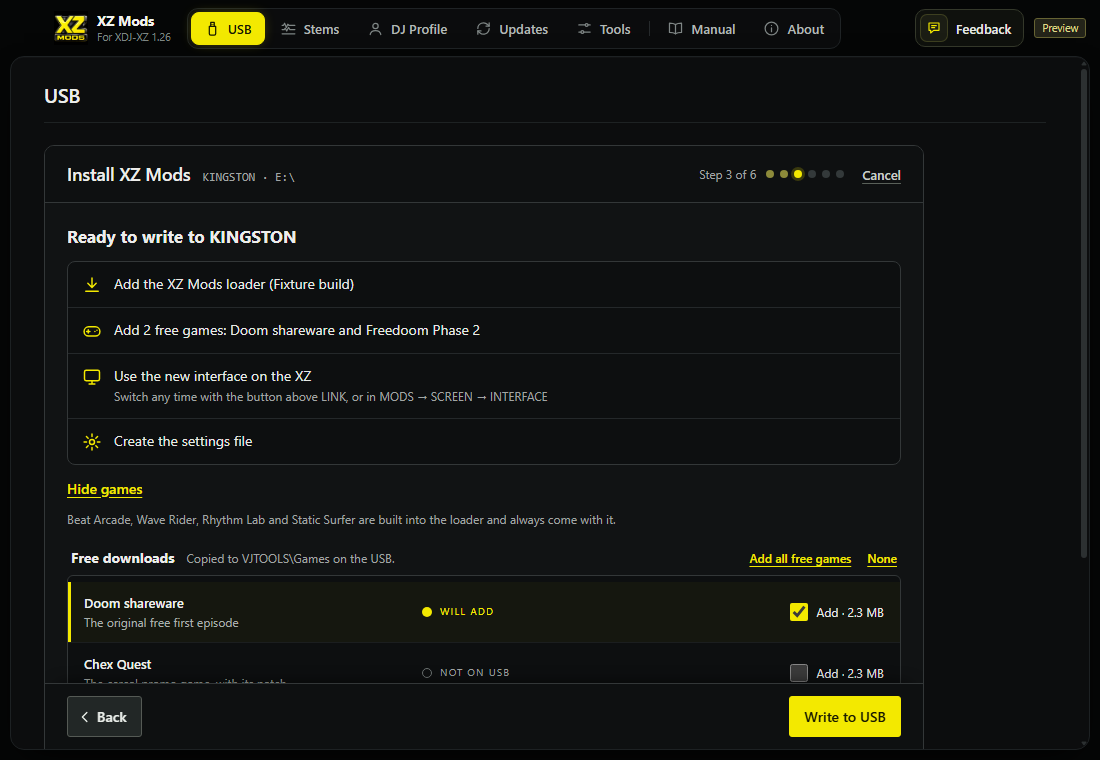
- 1Loader
XZ Mods itself.
- 2Games
Free games the app downloads and checks.
- 3Interface
The screen the XZ starts with.
- 4Write to USB
Writes everything in the checklist.
Every step of the app is in The XZ Mods app. To add stems to your tracks, see Stems.
First start
- Press
 BROWSE
 - Turn ROTARY SELECTOR 1 click clockwise
- Press
 LOAD 1
 - Press BACK
- Press MENU
- Turn ROTARY SELECTOR to SCREEN and push it
- Tap CLASSIC
- Tap MODERN
- Press MENU
- Press
- Plug the USB into USB 1 or USB 2 on the top of the XDJ-XZ.
- Switch the player on.
- Wait for XZ Mods to start. Load a track as usual and check it plays.
- Press MENU on the play screen, or touch MODS at the top right, to open the MODS menu. HOME is the first page.
If you use a separate loader stick, keep it in until XZ Mods has started. Keep the USB with your music and stems in while you play.
MODERN on first start modern
MODERN draws the whole play screen. The player's controls work as before, and the top bar adds a few buttons.
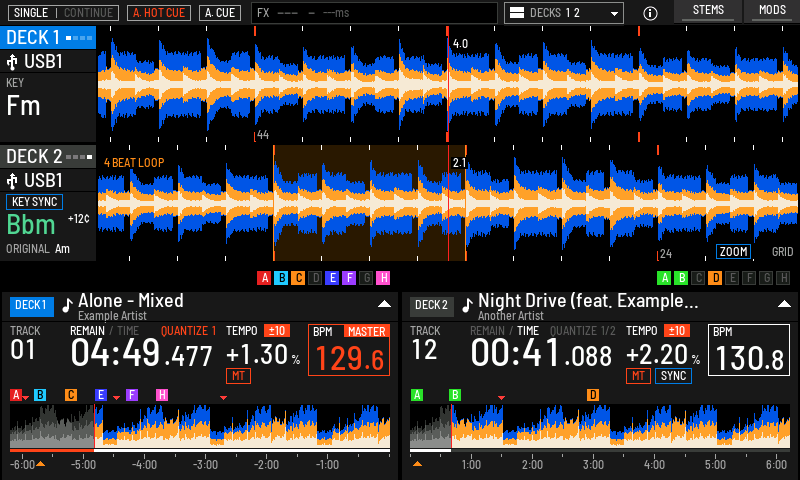
- 1MODS
Opens the MODS menu, like a short press of MENU.
- 2STEMS
Shows or hides the stem rows.
- 3DECKS
Chooses two or four decks.
- 4Deck lanes
One waveform lane per deck, with its source and key.
- 5Deck panel
The track, time, tempo and BPM of each deck.
The rest of the play screen is in The play screen.
CLASSIC on first start classic
CLASSIC keeps the player's own play screen and adds MODS to it. Touch MODS at the top right, or press MENU, to open the menu. A classic theme can restyle the screen. See Screen, interfaces and themes.
- Press the button above
 LINK
LINK - Press the button above LINK
- Press the button above
Choose MODERN or CLASSIC
The XZ starts in the interface saved on the USB. You choose it in the app before the first start, and you can change it on the player at any time. Nothing else changes when you switch. Your settings, stems and decks stay as they are.
| Interface | What you see |
|---|---|
| MODERN | XZ Mods draws the whole screen: bigger waveforms, a browse sidebar and a stems row with mute buttons. Marked Beta in the app |
| CLASSIC | The player's own play screen, with MODS added. Classic themes can restyle it |
A new USB starts in MODERN unless you choose the standard interface in the app.
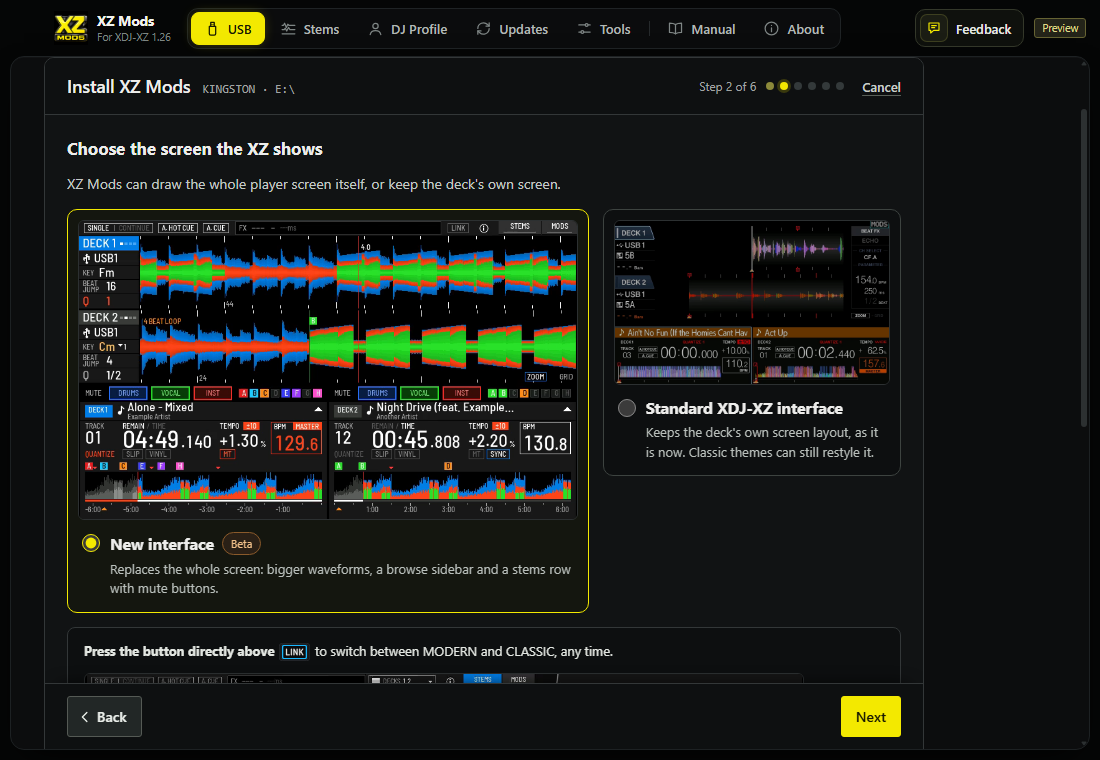
- 1New interface
MODERN.
- 2Standard XDJ-XZ interface
CLASSIC.
Switch on the player
There are two ways to switch.
- Press the button above LINK. Out of the box it switches between MODERN and CLASSIC, and the screen says which one you are in. You can give it another job in PLAY › BUTTON ABOVE LINK.
- Open MODS, go to SCREEN and choose CLASSIC or MODERN under INTERFACE.
- Press the button above LINK
- Press the button above LINK
- Press the button above
- Press MENU
- Tap SCREEN
- Tap CLASSIC
- Tap MODERN
- Press
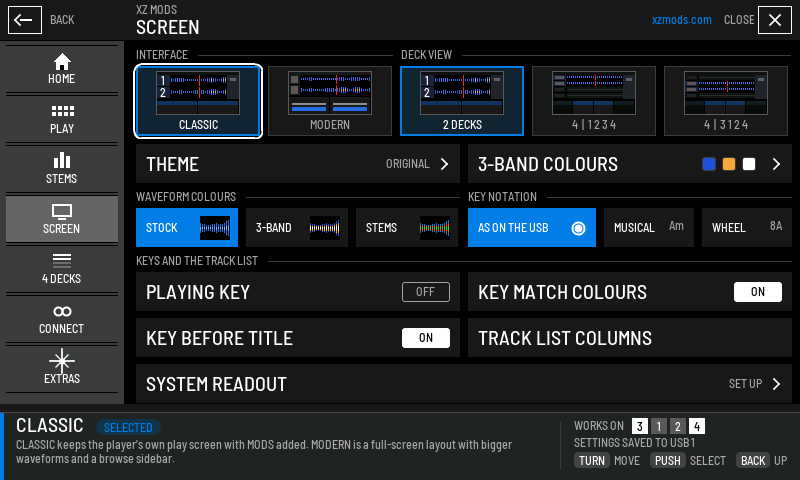
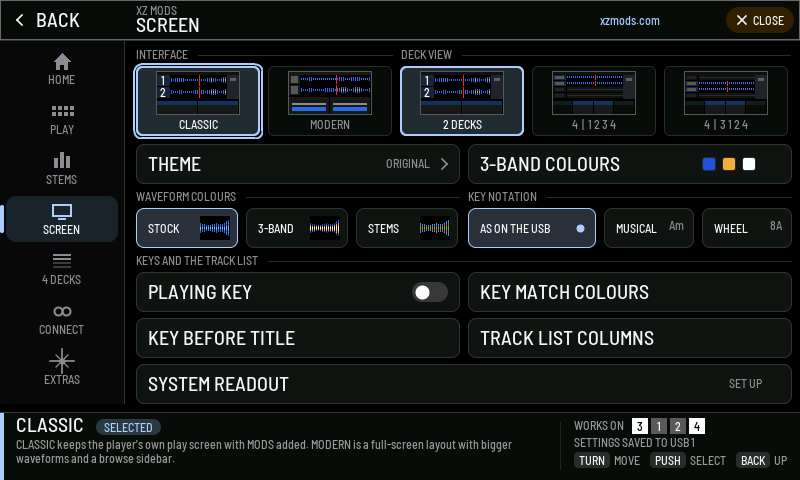
- 1INTERFACE
The interface the XZ shows. The change saves to the USB.
- 2CLASSIC
The player's own screen with MODS.
- 3MODERN
The full-screen XZ Mods layout.
- 4THEME
The classic theme. See Screen, interfaces and themes.
- 5Explanation
What the highlighted choice does.
- 6Save state
Confirms the change is saved to the USB.
Updating
There are two things to update, and they update separately.
- Press MENU
- Tap CONNECT
- Tap UPDATES
- Turn ROTARY SELECTOR 2 clicks clockwise
- Press
| What | How |
|---|---|
| The app on your computer | On Windows the app checks at launch and offers the update. On a Mac, download the new version from the release page. See App updates |
| XZ Mods on your USB | Open the USB in the app. When it says Update available, choose Update USB. The app backs up the old loader first |
| XZ Mods over the network | Send the update from the app and download it on the player. See Updates over the network experimental |
Music, your exported library and your saved settings stay in place through an update. A USB built with Keep this version on the USB stays on its build and ignores network updates. See XZ Mods version.
If something does not work after an update, see Messages and troubleshooting.