
On the player
Four decks
Playing decks 3 and 4 over the loopback cable: setup, deck view, what decks 3 and 4 can do, and every status.
Applies to MODERN and CLASSIC
Four decks adds two software players, DECK 3 and DECK 4, to the XDJ-XZ's own DECK 1 and DECK 2. You hear them on mixer channels CH3 and CH4. A short USB cable from the back of the player to a top USB port carries their sound into the mixer: it leaves through a top USB port and comes back in at the rear USB socket, where a computer with DJ software would connect. The physical controls switch between decks with the same presses DJ software uses on the XDJ-XZ.
What you need experimental
- The loopback cable: a USB cable with a USB-B plug on one end and a USB-A plug on the other, the kind a printer uses.
- For tracks, a music stick in the other top USB port, or music sticks on one USB 2.0 hub in that port. Decks 3 and 4 can start before you insert any music.
- Decks 1 and 2 stopped or paused while decks 3 and 4 start. Once they run, you can play all four decks.
- CH3 and CH4 on the mixer set to USB so you hear decks 3 and 4.
The cable goes directly from the rear USB socket to either USB 1 or USB 2 on top. Put music in the other top port. The picture uses USB 1 as an example; both arrangements work.
Set up four decks experimental
- Tap DECKS
- Turn
 ROTARY SELECTOR 1 click clockwise, then push it
 - Tap RESCAN
- Stop or pause decks 1 and 2.
- Choose either top USB port for the loopback cable. Leave the other port for music.
- Plug the USB-B end of the loopback cable into the rear USB socket.
- Plug the USB-A end directly into your chosen top port, USB 1 or USB 2.
- Set the CH3 and CH4 input switches to USB.
- Tap DECKS at the top of the play screen and choose one of the 4 DECKS pictures, or open MODS and choose 4 DECKS.
- Wait for DECKS 3 AND 4 ARE READY. The card in the lanes of decks 3 and 4 tells you each step it is waiting for.
- Press
 SHIFT twice on the left side to play deck 3, or on the right side to play deck 4.
Decks 3 and 4 start as soon as the cable is in, even when decks 1 and 2 have no tracks loaded. You can leave the cable connected before starting the USB loader. No RESCAN is needed. Decks 1 and 2 must be stopped or paused while the route starts. RESCAN checks at once if you want to check again. After a disconnection, plug the cable back into either top port. Decks 3 and 4 come back once decks 1 and 2 are stopped or paused; the card says when it is waiting for that. No restart of the USB loader is needed, also when you move the cable to the other port.
Add music and a USB hub experimental
Once the USB loader is running, you can bring up decks 3 and 4 with only the loopback cable connected. Insert music later in the other top port. Starting the audio route does not load a track.
To connect several music sticks, put one high-speed USB 2.0 hub in the top port opposite the loopback cable. Stop or pause decks 1 and 2 while a newly connected hub starts. Connect the sticks to that hub and choose the sources the player makes available. The hub does not add more decks or source buttons.
Connect the loopback cable directly to the player, never through the music hub. Do not connect a second hub behind the first. Check that your hub and drives have enough power; use the hub's own power supply if it has one. Keep any drive that holds a playing track connected.
The 4 DECKS page in MODS
MODS > 4 DECKS shows the cable's state, lets you choose the deck view, and lists what works on each deck.
- Press
 MENU
MENU - Tap 4 DECKS
- Tap 4 DECKS
- Tap 4 DECKS
- Tap 2 DECKS
- Press
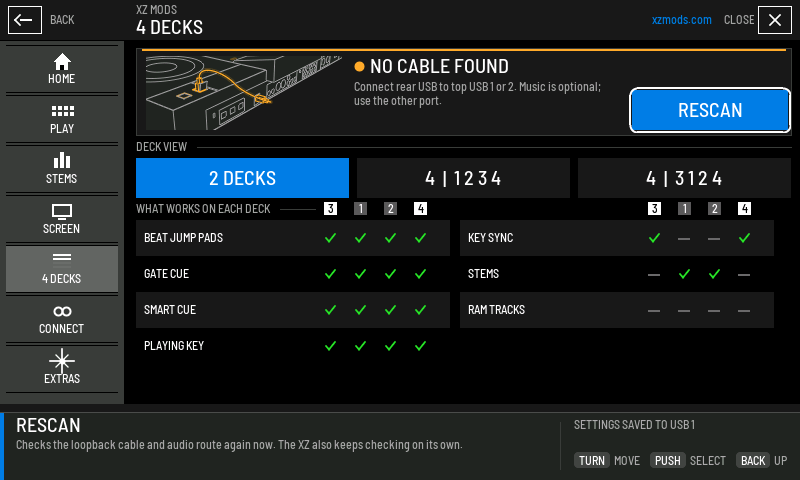
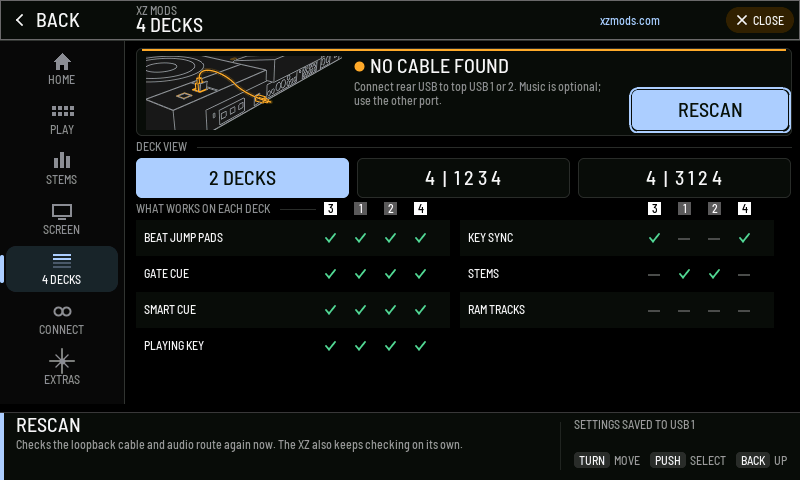
- 1Cable picture
Shows USB 1 as an example; USB 2 works too. The picture explains the connections, not which port is currently occupied.
- 2State
Where four decks stand now, with one sentence on what happens next. The states are listed under The card in every state.
- 3RESCAN
Checks the cable and the audio route now. Reads TRY AGAIN after a failed start and SCANNING while a check runs.
- 4DECK VIEW
2 DECKS, 4 DECKS in number order (1 2 3 4) or 4 DECKS in mixer order (3 1 2 4). The highlighted box is the saved view.
- 5Deck columns
One column per deck, in mixer order 3 1 2 4, the same on both halves of the grid.
- 6Feature row
A tick means the feature works on that deck. A dash means it does not. Turn the encoder onto a row and the dock says why.
- 7Dock
Explains the highlighted control or row.
- 8Save state
Confirms that your deck view is saved to the USB.
The HOME page shows the same state on the 4 DECKS card. When four decks need you (no cable found, a failed start, a lost connection, or no four-deck engine on the USB loader) HOME also shows SET UP FOUR DECKS, which opens this page.
If the USB loader has no four-deck engine, the page says so and offers CHECK INSTALLED ENGINE. Rebuild the USB loader in the XZ Mods app, restart the player with it, then press CHECK INSTALLED ENGINE.
| HOME status line | What it means |
|---|---|
| Not connected | No loopback cable found yet. |
| Looking for the cable | A check is running now. |
| Starting decks 3 and 4 | The cable is found and the software players are starting, or they wait for decks 1 and 2 to stop. |
| Ready, 2 decks shown | Decks 3 and 4 run. The play screen shows two decks. |
| Ready, 4 decks shown | Decks 3 and 4 run. The play screen shows four decks. |
| Could not start | The start failed. The 4 DECKS page says why. |
| Disconnected | The cable was unplugged or lost power. |
| Not available on this player | The software players are not running in this build. |
The card in every state
While decks 3 and 4 are not running, a four-deck view puts a card in their lanes. The card shows the cable steps, the state, and the buttons you need. Decks 1 and 2 stay live above it. In number order the card fills the lanes of decks 3 and 4 under decks 1 and 2. In mixer order it splits into a strip above deck 1 and a strip below deck 2.
- Tap DECKS
- Turn ROTARY SELECTOR 1 click clockwise, then push it
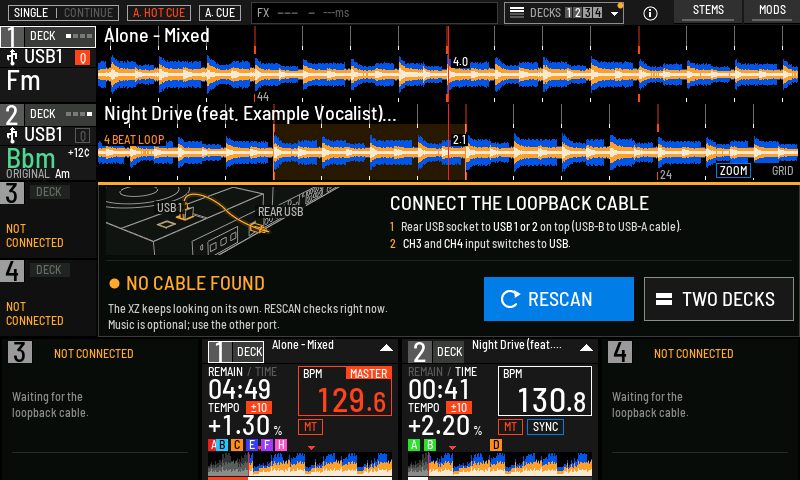
- 1Cable picture
USB 1 is the illustrated example; USB 2 works too. The picture moves for a minute after the card appears or your last input, then rests.
- 2Steps
The two things to do: connect the cable, and set the CH3 and CH4 input switches to USB.
- 3State
The state's title and what happens next.
- 4RESCAN
Checks for the cable now.
- 5TWO DECKS
Goes back to the two-deck view. Decks 3 and 4 keep trying in the background.
- 6Deck 3 tag
NOT CONNECTED while deck 3 is not running.
- 7Deck 3 channel
The bottom channel of deck 3 waits for the loopback cable.
- 8DECKS button
Shows the current view. The small amber dot means decks 3 and 4 are not connected.
You can drive the card with the encoder. While the card shows, push the encoder to highlight RESCAN, turn it to move between the card's buttons and the DECKS button, and push again to press.  BACK, or six seconds without input, gives the encoder back to the player.
| Card title | What it means | What to do |
|---|---|---|
| NO CABLE FOUND | The XZ does not see the loopback cable. | Connect the cable directly to either top port. Music goes in the other port and is optional for startup. Press RESCAN to check at once. |
| LOOKING FOR THE CABLE... | A check runs now. The button reads SCANNING. | Wait a moment. |
| STARTING DECKS 3 AND 4 | The cable is found and the audio input is starting. | Wait a few seconds. The card's sentence says which step is running. |
| STOP DECKS 1 AND 2 | Decks 3 and 4 or a newly connected music hub wait for decks 1 and 2 to stop. | Stop or pause decks 1 and 2. The card changes by itself. |
| COULD NOT START DECKS 3 AND 4 | The start failed. The picture marks the type of connection that needs attention: top USB, cable, rear socket or CH3/CH4 switches. The drawn port is an example. | Read the sentence, fix that part, then press TRY AGAIN. It tries the start again, and restarts the four-deck helper if it had stopped. |
| DECKS 3 AND 4 DISCONNECTED | The cable was unplugged or lost power while decks 3 and 4 ran. | Plug the cable back into either top port. Press RESCAN to check at once. |
| FOUR DECKS ARE NOT AVAILABLE | The software players are not running in this build. Decks 1 and 2 play as usual. | Press TWO DECKS. |
| DECKS 3 AND 4 ARE READY | The route came up. The card turns green, then wipes away. | Press SHIFT twice on a side to play deck 3 or 4. |
When the route comes up, a banner says DECKS 3 AND 4 ARE READY for a few seconds. If the play screen shows two decks at that moment, the banner says DECKS 3 AND 4 ARE READY. TAP DECKS AT THE TOP FOR FOUR DECKS. The view does not change by itself.
With the loopback cable in experimental
When you plug in the loopback cable, the play screen stays as it is in MODERN, MODS and CLASSIC, whether four decks are on or not. Decks 3 and 4 work as described here.
When you connect a music hub with the loopback cable in, stop or pause decks 1 and 2 and let the hub finish connecting. A hub in the loopback port, a second hub behind the first, or a hub that does not support high-speed USB 2.0 does not work. Remove that hub or connect the music stick directly.
DECK VIEW
DECK VIEW chooses what the play screen shows. It changes neither the sound, the mixer channels, nor which deck a side controls.
- Tap DECKS
- Turn ROTARY SELECTOR 1 click clockwise, then push it
- Tap DECKS
- Turn ROTARY SELECTOR 1 click clockwise, then push it
- Tap DECKS
- Press BACK
| DECK VIEW | Waveform lanes, top to bottom | Bottom channels |
|---|---|---|
| 2 DECKS (the default) | The two decks the sides control | The same two decks |
| 4 DECKS, number order 1 2 3 4 | 1, 2, 3, 4 | 3, 1, 2, 4 |
| 4 DECKS, mixer order 3 1 2 4 | 3, 1, 2, 4 | 3, 1, 2, 4 |
The bottom channels always follow the mixer, left to right: CH3, CH1, CH2, CH4. Mixer order puts the lanes in the same order, top to bottom. Each lane and each channel carries its deck's number in a badge, so you can always tell which deck is which. Decks 1 and 2 have a white number on grey. Decks 3 and 4 have a black number on white, as on the jog displays.
DECK VIEW is saved to the USB with your other settings. You can change it in five places, and they all change the same setting:
- the DECKS button at the top of the play screen;
- TWO DECKS on the card;
- MODS > SCREEN > DECK VIEW;
- MODS > 4 DECKS > DECK VIEW;
- the button above
 LINK, when you set it to DECK VIEW in MODS > PLAY > BUTTON ABOVE LINK. Each press then steps 2 DECKS, 4 DECKS in number order, 4 DECKS in mixer order.
The DECKS button and its picker
The DECKS button is always at the top of the play screen in both interfaces. It names the decks on screen: DECKS 1 2, DECKS 1234, DECKS 3124, or the pair the sides control in 2 DECKS, such as DECKS 3 2. In MODERN it sits left of the INFO button. In CLASSIC it sits in the black space between VJ.TOOLS and the METRICS readout.
- Tap DECKS
- Turn ROTARY SELECTOR 1 click clockwise, then push it
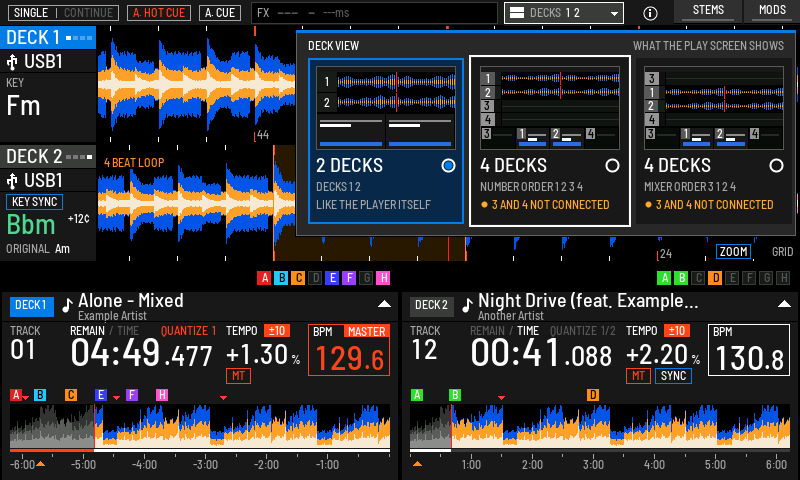
- 1DECKS button
Opens and closes the picker. It shows the view now on screen.
- 22 DECKS
The two decks the sides control, like the player itself.
- 34 DECKS, number order
All four decks, lanes 1 2 3 4.
- 44 DECKS, mixer order
All four decks, lanes 3 1 2 4, matching the mixer channels.
- 5Status
LIKE THE PLAYER ITSELF for two decks. DECKS 3 AND 4 READY in green, or 3 AND 4 NOT CONNECTED in amber.
A tap outside the picker, BACK, or six seconds without input closes it. The encoder also turns and pushes inside the open picker.
Switch a side between decks experimental
The left controls play DECK 1 or DECK 3. The right controls play DECK 2 or DECK 4. Decks 3 and 4 must be ready.
- Press SHIFT on the left deck twice quickly
- Press
- Press SHIFT on the right deck twice quickly
- Press
- Press SHIFT twice quickly on a side to switch it. The left SHIFT switches between decks 1 and 3, the right SHIFT between decks 2 and 4. These are the presses the XDJ-XZ uses for DJ software.
- Or press
 SHORTCUT and tap the deck under DECK SELECT modern.
After a switch the tempo fader does not jump. The deck you switched to keeps its tempo until you move the fader across that deck's value. The same holds when you switch back.
In 2 DECKS the screen follows the sides. A side on deck 3 or 4 shows that deck's waveform, tag and channel, and the screen says where the side went for two seconds, for example LEFT: DECK 3. In a four-deck view the lanes stay where they are, and a pale blue tag marks the decks the sides control.
If decks 3 and 4 are not running, SHIFT pressed twice does not switch. The screen says DECK 3 AND 4 NEED THE CH3/CH4 ROUTE. If the route is lost while a side plays deck 3 or 4, both sides go back to decks 1 and 2 and the screen says DECK 3/4 ROUTE LOST.
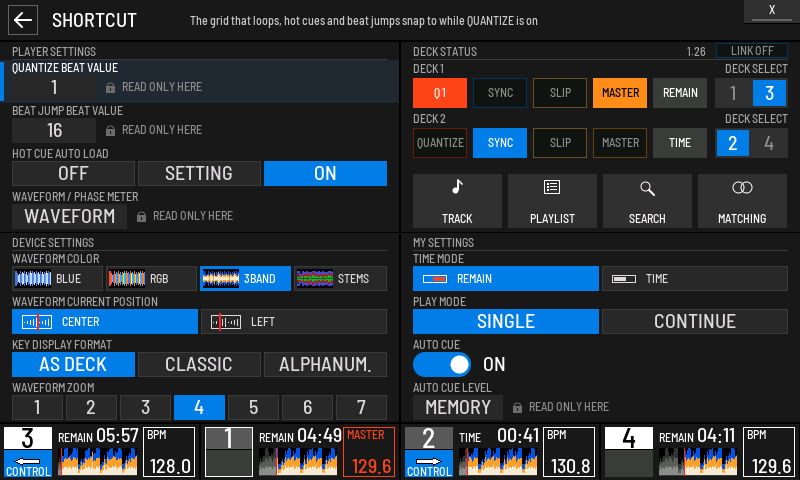
- 1DECK SELECT
Each deck row has its switch. Tap 1 or 3 for the left side, 2 or 4 for the right side.
- 2CONTROL
In the bottom strip, the decks the sides control carry CONTROL with an arrow.
The MODERN four-deck screen modern
- Tap DECKS
- Turn ROTARY SELECTOR 1 click clockwise, then push it
- Tap LANE 3
- Tap the screen
- Tap LANE 3
- Tap STEMS HEADER
- Tap STEMS HEADER
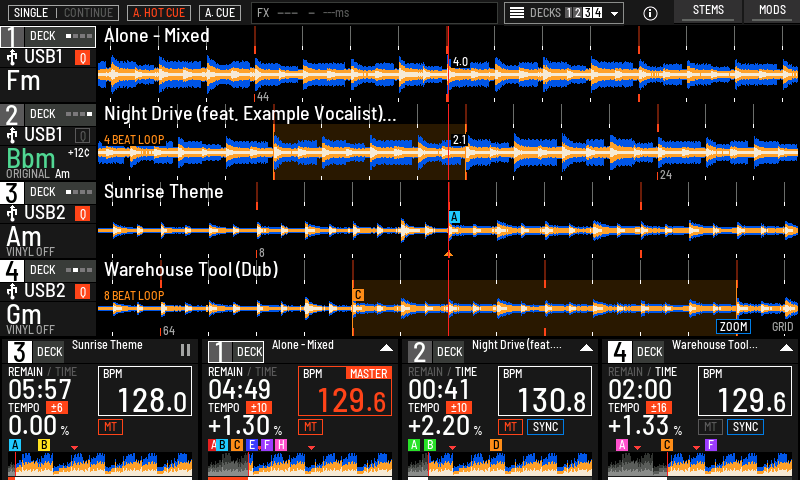
- 1DECKS button
Shows DECKS 1234 or DECKS 3124. Tap it to change the view.
- 2Lane tag
The deck's badge, source stick and the key it plays in now, in the key match colours.
- 3VINYL
Whether VINYL is on for deck 3 or 4.
- 4Bottom channels
The four decks in mixer order 3 1 2 4: time, tempo, range, BPM, hot cues and the whole-track overview.
- 5MASTER
The tempo master. A software master reads 3/4 MASTER.
- 6SYNC
What SYNC is doing. SYNC 3 means synced to deck 3, BPM 3 deck 3's tempo only, LIMIT a tempo out of reach. See SYNC on decks 3 and 4.
Tap a lane of deck 3 or 4 to open its detail panel. It shows the full pad bank, the deck's modes, what SYNC is doing and a whole-track overview you can touch to search. Tap the lane again, or CLOSE, to close it.
Stem buttons show in a half row under a deck's waveform, only for decks 1 and 2 and only while the deck's track has prepared stems. Decks 3 and 4 have no stems. A deck without stems shows no stem buttons and its waveform keeps the whole lane.
STEMS in the top bar shows or hides the stem buttons on all four lanes: one tap hides them, the next shows them. The screen says STEM BUTTONS HIDDEN or STEM BUTTONS SHOWN, and STEMS is lit while they show. Your 2 DECKS stem layout does not apply here and does not change. See Stems.
The CLASSIC four-deck screen classic
CLASSIC keeps the player's own look and adds what four decks need.
- Tap the screen
- Tap the screen
- Tap the screen
- Tap the screen
- Tap the screen
- Waveforms. The waveform area holds four narrower lanes, one per deck, in the order DECK VIEW chooses. Decks 3 and 4 draw the same 3-band waveform with beat ticks, hot cue flags A to H, the cue point, loops and the playhead.
- Side column. The left column has one tag per lane. The tag of a deck a side controls is pale blue with LEFT or RIGHT. Decks 1 and 2 show the analysed key, the playing key and its cents. Decks 3 and 4 show their playing key and its cents the same way, TRACK KEY until they report it, or NOT CONNECTED and SEE THE CARD while they are not running.
- Bottom panel. Four channels in mixer order 3 1 2 4. Each shows the deck's title, time, QUANTIZE, tempo and range, AUTO CUE and MT, what SYNC follows, what the pads do, the BPM (orange with MASTER for the master deck) and the whole-track overview. A deck that is not connected shows a dim band with NOT CONNECTED and DECK n WAITS FOR THE LOOPBACK CABLE.
- Stem rows are not drawn while four decks show, because there is no room, and STEMS stays dark. Your stem layout comes back when you return to two decks. Pressing STEMS meanwhile changes nothing and says STEM BUTTONS SHOW IN 2 DECKS VIEW.
- 2 DECKS shows the decks the sides control. A side on deck 3 or 4 gets a whole half: its waveform, its side tag and its bottom panel.
Tap a lane, side tag or channel title of deck 3 or 4 to open its detail panel. Touch the overview in the bottom channel to search the track. NEEDLE LOCK refuses a search while the deck plays.
Load tracks onto decks 3 and 4 experimental
 LOAD on a side loads the highlighted track into the deck that side controls, deck 3 or deck 4 included. In CLASSIC this goes through the player's own browser. In MODERN, tap a track to see a LOAD chip with one cell per deck, then tap the deck number. See Browsing and loading for the rest.
- Tap DECKS
- Turn ROTARY SELECTOR 1 click clockwise, then push it
- Press
 BROWSE
 - Push ROTARY SELECTOR
- Tap TRACK ROW
- Tap LOAD DECK 3
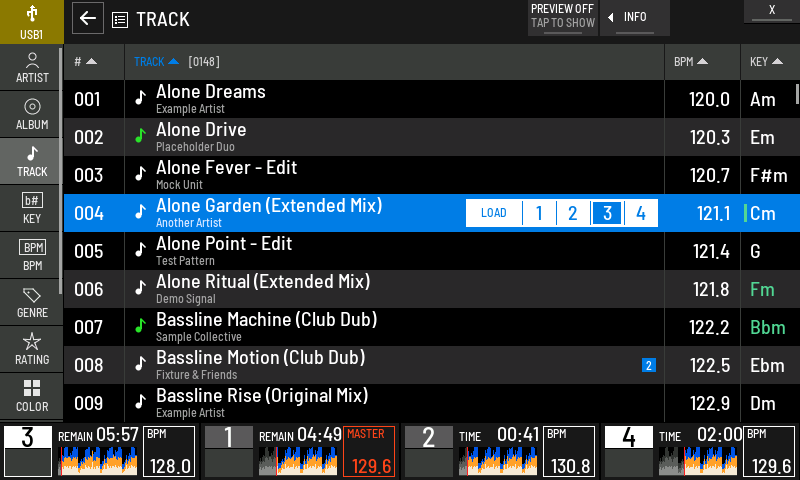
- 1LOAD
Tap a deck number to load the track there. LOAD returns to the play screen.
- 2Target deck
The blue cell is the deck the screen acts on now.
- 3Bottom strip
The four decks in mixer order while you browse.
Decks 3 and 4 cannot load a track at a memory point from the CUE/LOOP LIST. The screen says DECK 3 AND 4 CANNOT LOAD AT A MEMORY POINT.
INFO, SOURCE and UTILITY with four decks modern
INFO has a tab for each deck. SOURCE shows which decks use each stick. UTILITY and the other full screens keep a compact strip of all four decks at the bottom.
- Tap DECKS
- Turn ROTARY SELECTOR 1 click clockwise, then push it
- Press
 INFO
INFO - Tap the screen
- Tap the screen
- Press BACK
- Open SOURCE (BACK at the top of a list)
- Press BACK
- Hold MENU for a second
- Press BACK
What decks 3 and 4 can do experimental
Decks 3 and 4 are software players. They follow the player's own controls on the side that controls them. MODS > 4 DECKS shows the current answer for each feature.
- Tap DECKS
- Turn ROTARY SELECTOR 1 click clockwise, then push it
- Press
 PLAY/PAUSE on the left deck
 - Press
 CUE on the left deck
 - Press PLAY/PAUSE on the left deck
- Press
 SYNC on the left deck
 - Press
 DECK QUANTIZE on the left deck
 - Press SYNC on the left deck
- Press
 MASTER on the left deck
 - Press SYNC on the left deck
- Press PLAY/PAUSE on the left deck
- Press
 IN/CUE on the left deck
 - Press
 OUT on the left deck
 - Press
 RELOOP/EXIT on the left deck
| Feature | Decks 1 and 2 | Decks 3 and 4 |
|---|---|---|
| Beat jump pads with your own sizes | Yes | Yes, the same sizes and both pages |
| Gate cue and smart cue | Yes | Yes |
| Waveform colours, key notation, titles | Yes | Yes |
| Playing key | Yes | Yes |
| Key sync and key shift | Yes | Yes. Both can shift together; new shifts check measured audio headroom. |
| Stems | Yes, with USB stems set up | No. Decks 3 and 4 have no stems. |
| RAM tracks | Yes | Yes, while the loopback cable is connected. See RAM tracks. |
On a side that controls deck 3 or 4, these controls work on that deck experimental:
| Control | What it does on deck 3 or 4 |
|---|---|
| PLAY/PAUSE, CUE | Play and pause, back cue and cue audition. With VINYL on, pause brakes to a stop at the VINYL SPEED ADJUST rate. |
 HOT CUE, HOT CUE,  BEAT LOOP, BEAT LOOP,  SLIP LOOP, SLIP LOOP,  BEAT JUMP BEAT JUMP | Set the pad mode of deck 3 or 4. Deck 1 or 2 on that side keeps its own mode. |
| Pads | Hot cues, beat loops, slip loops and beat jumps, as on decks 1 and 2. |
| IN/CUE, OUT, RELOOP/EXIT | Manual loops, loop adjustment with the jog, reloop and exit. |
 SLIP, SLIP,  DIRECTION REV, DIRECTION REV,  VINYL VINYL | Slip, reverse and vinyl mode. |
 TEMPO RANGE, TEMPO RANGE,  TEMPO RESET, TEMPO RESET,  MASTER TEMPO MASTER TEMPO | Tempo range up to WIDE, original speed, and key lock while the tempo moves. |
| SYNC, MASTER | Follow the master deck's tempo, and with QUANTIZE its beat. Make this deck the master. See SYNC on decks 3 and 4. |
| SHIFT + SYNC, MASTER TEMPO | KEY SYNC to the master deck, and back to the deck's own key. See Keys and KEY SYNC. |
| DECK QUANTIZE | Cue, loop and hot cue points land on the beat. DECK QUANTIZE switches every deck. SHIFT + DECK QUANTIZE switches only this side's deck. |
 MEMORY, MEMORY,  DELETE, DELETE,  CUE/LOOP CALL CUE/LOOP CALL | Store, delete and call memory points. |
 TRACK SEARCH, TRACK SEARCH,  SEARCH SEARCH | Previous and next track, and fine search. With AUTO CUE on, the new track waits at its cue. Previous and next follow the list the track was loaded from in MODERN. After a CLASSIC load the deck shows NO SAVED TRACK ORDER, and TRACK SEARCH back returns to the cue. |
On decks 3 and 4, TRACK SEARCH respects AUTO CUE. With AUTO CUE on, a newly loaded track waits at its cue point. With AUTO CUE off, a deck that was playing continues with the new track; a paused deck stays paused.
Hot cues and memory points you set on decks 3 and 4 are saved on the music stick for those decks only. Decks 1 and 2 and your DJ software do not see them, and the exported library stays unchanged.
SYNC on decks 3 and 4 experimental
Press SYNC and the deck takes the master deck's BPM at once. The SYNC button stays lit for as long as SYNC is on. With QUANTIZE on and a beat grid on both tracks, the deck also locks to the master's beat. Press SYNC again to turn it off.
If the beats drift apart, press SYNC off and on again. With QUANTIZE on, every engage snaps to the nearest position at the selected beat value, even for a small drift. The beat value can be 1, 1/2, 1/4 or 1/8 beat. With QUANTIZE off, only the tempo follows.
- The tempo follows even when the master or the synced deck is paused. If the beat position is available, the paused deck aligns once. If it is unavailable, alignment happens as soon as it can be read. Continuous beat lock resumes when both decks play.
- A pause, a jump, a loop or a new master never turns SYNC off. The deck follows again on its own, with no second press.
- Nudge the jog from the side to move the deck a little off the master's beat. SYNC stays on and the tempo stays matched. The deck keeps the new alignment, also when the master's tempo changes, and the SYNC button flashes.
- Nudge the master's jog from the side to move only the master. It stays master, and the synced decks keep their tempo and the new alignment.
- To line the beats up again, press SYNC off and on. The deck snaps to the nearest beat and the button lights steadily.
- Scratching on the platter top takes control of the deck. When you let go, QUANTIZE snaps it back to the beat.
- Press SYNC off and the deck keeps its position and the synced tempo. The tempo fader takes over once you move it to that tempo.
- The tempo fader does not move the deck while SYNC is on.
The bottom channel, the lane and the detail panel say what SYNC is doing:
| Shown | What it means |
|---|---|
| SYNC 1 to SYNC 4 | SYNC is on and follows that deck. |
| BPM 1 to BPM 4 | Only the tempo can follow that deck: QUANTIZE is off, a track has no beat grid, a loop is running, or the master's beat position is not available. |
| MASTER | This deck is the tempo master. |
| 3/4 MASTER | This deck is the master for decks 3 and 4 only. |
| LIMIT | The master's tempo is out of this deck's reach. The deck keeps its last tempo. |
| EXT MASTER | The master is another player on the LINK network, which decks 3 and 4 cannot follow. |
| NO BPM | The track has no BPM to sync with. Analyse it in your DJ software. |
The detail panel adds a line about the reason, for example:
| Detail panel | What it means |
|---|---|
| SYNC ON / FOLLOWING DECK 1 | The deck follows deck 1. |
| SYNC ON / TEMPO MATCHED, PAUSED / TEMPO MATCHED | The tempo matches. The beat locks once both decks play. |
| BPM SYNC / MASTER PAUSED, BPM SYNC / DECK PAUSED | One of the two decks is paused. The tempo follows, and the beat locks once both play. |
| BPM SYNC / NO BEAT GRID | A track has no beat grid, so only the tempo follows. |
| BPM SYNC / LOOP ACTIVE | A loop is running, so only the tempo follows until it ends. |
| BPM SYNC / BEAT POSITION UNAVAILABLE | The master's beat position cannot be read, so only the tempo follows. |
| BPM SYNC / QUANTIZE OFF | QUANTIZE is off, so only the tempo follows. |
| SYNC ON / JOG CONTROL | You are nudging or scratching. SYNC picks up again when you let go. After a side nudge it keeps the new alignment. |
| NO MASTER / TEMPO UNCHANGED | No deck is master. The deck keeps its tempo and follows as soon as there is one. |
| MASTER CLOCK UNAVAILABLE / LAST TEMPO RETAINED | The master's tempo cannot be read right now. The deck keeps the last tempo. |
| SYNC TEMPO LIMIT / LAST TEMPO RETAINED | The master's tempo is out of reach. |
| EXTERNAL MASTER / SYNC SOURCE UNAVAILABLE | A LINK player is master. |
| TRACK BPM UNAVAILABLE / SYNC ON | The track has no BPM. |
Limits
- Decks 1 and 2 must be stopped or paused while decks 3 and 4 start.
- Keep the music stick connected while you play. Decks 3 and 4 read from it all the time.
- Decks 3 and 4 play WAV, AIFF, FLAC, MP3 and Ogg Vorbis files. AAC and M4A files do not play on decks 3 and 4.
- A deck 3 or 4 master reads MASTER when decks 1 and 2 can follow it too, and 3/4 MASTER when it drives decks 3 and 4 only.
- Press MASTER on a playing deck 3 or 4 and it is master at once. The MASTER buttons show the change.
- When you pause the master, MASTER passes at once to the next playing deck. A deck with SYNC on comes first. Otherwise after deck 3 comes deck 4, then decks 1 and 2. After deck 4 come decks 1 and 2, then deck 3. In VINYL mode MASTER passes when you press pause, while the deck slows down.
- When you pause a deck 1 or 2 master, a playing deck 3 or 4 takes MASTER at once. If the other of decks 1 and 2 is playing, MASTER goes to that deck instead, as with two decks.
- In VINYL mode, hold the master's platter top and MASTER passes to the other synced, playing deck after a moment.
- Load a new track on the master and MASTER passes to the other playing deck. The loading deck keeps SYNC on and plays its new track at the tempo the decks shared.
- A handover never changes the tempo.
- A master set by another player over LINK is never taken.
- Some lamps on the player do not yet light as they do for decks 1 and 2. The beat loop and slip loop pad colours are provisional.
- Four decks, the handover of MASTER between decks 1 and 2 and decks 3 and 4, and scratching on decks 3 and 4 are experimental in this version.
If something goes wrong, the card or the 4 DECKS page names the state. Messages and troubleshooting lists every notice.