
MODS menu
Screen, interfaces and themes
MODERN or CLASSIC, the 25 themes, waveform colours, key notation, deck view and the play screen's parts.
Applies to MODERN and CLASSIC
SCREEN is the MODS section for how the player looks. Here you choose between the MODERN and CLASSIC interfaces, pick a theme, set the waveform colours and the 3-band colours, and decide how keys are written. Nothing on this page changes how a track sounds.
Open MODS with  MENU, then choose SCREEN in the section rail.
The SCREEN page
- Press MENU
- Tap SCREEN
- Tap 2 DECKS
- Tap 4 DECKS
- Tap 4 DECKS
- Tap STOCK
- Tap RGB
- Tap 3-BAND
- Tap STEMS
- Tap AS ON THE USB
- Tap MUSICAL
- Tap WHEEL
- Tap PLAYING KEY
- Tap KEY MATCH COLOURS
- Tap KEY BEFORE TITLE
- Press
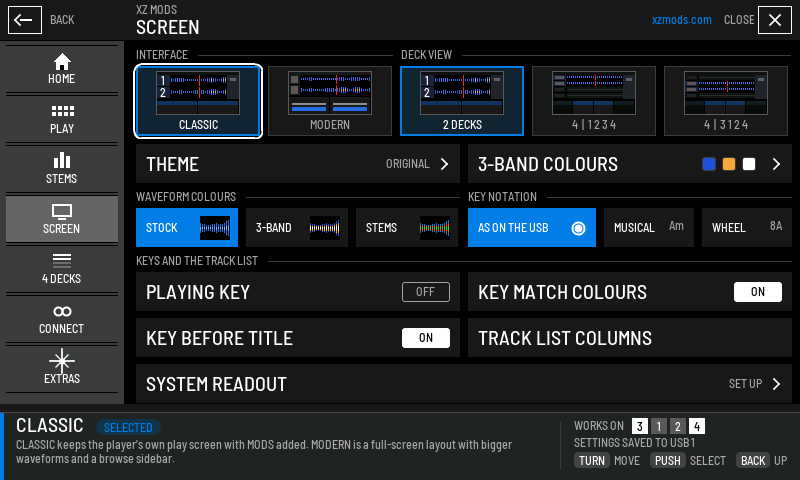
- 1INTERFACE
MODERN or CLASSIC. The framed picture is the one in use.
- 2DECK VIEW
How many decks the play screen shows and in what order. See Four decks.
- 3THEME
Opens CLASSIC THEMES. The value is the theme in use. Under MODERN this row is LAMPS AND TITLES.
- 43-BAND COLOURS
Opens the 3-BAND COLOURS page. The three squares are the colours of the lows, mids and highs now.
- 5WAVEFORM COLOURS
How the scrolling waveforms are coloured.
- 6KEY NOTATION
How keys are written everywhere MODS draws them.
- 7PLAYING KEY
Shows the key a track plays in after tempo and key shift.
- 8KEY MATCH COLOURS
Colours keys by how well they mix with the master deck.
- 9KEY BEFORE TITLE
Shows the key in front of each title in the track list.
- 10TRACK LIST COLUMNS
Tells you where to change the columns of the track list.
- 11SYSTEM READOUT
CPU, memory and temperature on the top bar. Reads SET UP until you have run its setup.
- 12WORKS ON
The decks the highlighted control applies to, in mixer order 3 1 2 4.
| Control | Choices | What it changes |
|---|---|---|
| INTERFACE | CLASSIC, MODERN | Who draws the play screen. See MODERN and CLASSIC |
| DECK VIEW | 2 DECKS, 4 DECKS in number order, 4 DECKS in mixer order | Which decks the play screen shows. Sound and controls do not change. Hidden on a player that cannot run decks 3 and 4 |
| THEME (CLASSIC) | 24 classic themes | The look of the player's own screen and of MODS |
| LAMPS AND TITLES (MODERN) | A page of switches | Which parts of the MODERN play screen you see |
| 3-BAND COLOURS | A page of colours | The colours of the lows, mids and highs in every 3-BAND waveform. See 3-band colours |
| WAVEFORM COLOURS | STOCK, 3-BAND, STEMS (MODERN adds RGB) | The colours of the scrolling waveforms |
| KEY NOTATION | AS ON THE USB, MUSICAL, WHEEL | How keys are written |
| PLAYING KEY | ON, OFF | The key a track plays in now, or its original key |
| KEY MATCH COLOURS | ON, OFF | Green or amber keys on the play screen and in the track list |
| KEY BEFORE TITLE | ON, OFF | The key in front of each title in the track list |
| TRACK LIST COLUMNS | Information only | Tap a column title in the track list, or press MENU there, to choose its columns and sort |
| SYSTEM READOUT | Opens its setup | CPU, RAM and temperature on the top bar. It has the last row of the page to itself |
The HOME card for SCREEN sums the page up in one line, for example Classic | 3-band | Am keys.
MODERN and CLASSIC
XZ Mods gives the player two interfaces. You choose one with INTERFACE on the SCREEN page, or when you prepare the USB in the XZ Mods app. MODERN is the default.
- Press MENU
- Tap SCREEN
- Tap CLASSIC
- Tap MODERN
- Press
- Press the button above
 LINK
LINK - Press the button above LINK
- Press the button above
- MODERN is a full-screen layout drawn by XZ Mods, with bigger waveforms and a browse sidebar.
- CLASSIC keeps the familiar play screen and adds MODS to it, in the classic theme you choose.
| MODERN | CLASSIC | |
|---|---|---|
| Play screen | Drawn by XZ Mods, full screen | The familiar layout, in your theme |
| Themes | One look, STANDARD. MODS uses the MODERN look | 24 themes. MODS uses the theme you pick |
| Waveform colours | STOCK, RGB, 3-BAND, STEMS | STOCK, 3-BAND, STEMS |
| Lamps and titles | Each part can be shown or hidden | Not available |
| Playing key | Shown as the big key in each deck's column | Shown where the beat countdown sits |
| Stem buttons | Six places, including small buttons beside the hot cues | Five places |
| Browse | The XZ Mods browser with a sidebar. See Browsing and loading | The player's own browser |
Each interface keeps its own theme. If you switch from CLASSIC to MODERN and back, your classic theme comes back with you.
To switch without opening MODS, press the button above LINK. Out of the box it switches between MODERN and CLASSIC. You can give it another job in PLAY › BUTTON ABOVE LINK. See Controls on the player.
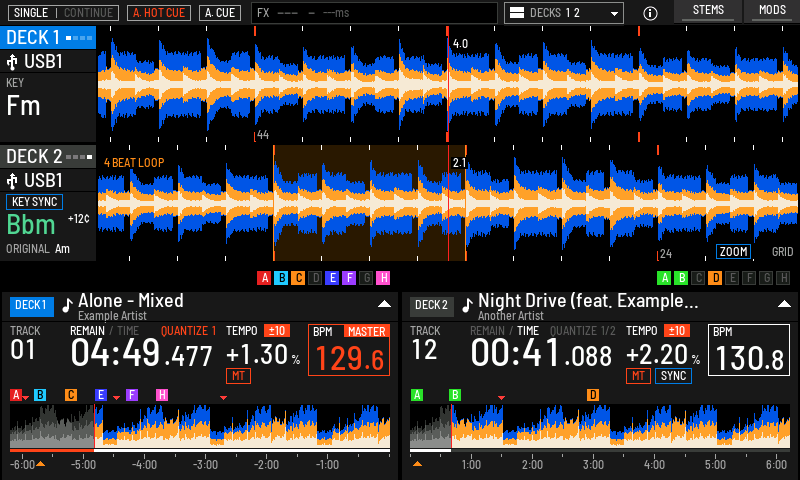
- 1Mode lamps
SINGLE or CONTINUE, A. HOT CUE and A. CUE. Hide them in LAMPS AND TITLES.
- 2QUANTIZE lamp
Red while QUANTIZE is on, with its beat value. Hide it in LAMPS AND TITLES.
- 3Playing key
The key the track plays in now. ORIGINAL below it is the key it was analysed in.
- 4Scrolling waveform
Coloured by WAVEFORM COLOURS.
- 5STEMS and MODS
STEMS steps the stem buttons through their places, or shows and hides them in 4 DECKS. MODS opens the MODS menu.
Classic themes classic
A classic theme restyles the player's own play screen and the MODS menu: artwork, text, waveforms, cue marks and dialogs. Track positions, numbers and touch areas stay where the player puts them, so a theme never moves a control under your finger.
- Press MENU
- Tap SCREEN
- Tap CLASSIC
- Tap THEME
- Turn
 ROTARY SELECTOR 2 clicks clockwise, then push it
- Press
Choose THEME on the SCREEN page to open CLASSIC THEMES. Tap a theme, or turn the encoder to it and push. Close MODS to see the play screen in the new theme.
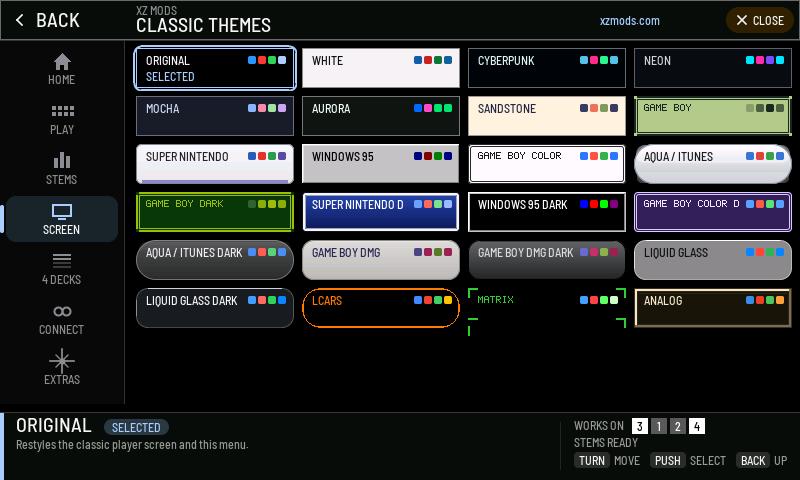
- 1Theme in use
Framed, with SELECTED under its name.
- 2Colour dots
The theme's main colours, so you can compare themes before you pick one.
- 3Dock
Says what a theme restyles before you choose it.
- 4WORKS ON
Themes apply to decks 1 to 4.
The gallery shows the HOME page of MODS in every theme.
Theme families classic
- Tap the screen
- Tap the screen
| Family | Themes | What to expect |
|---|---|---|
| Modern palettes | ORIGINAL, WHITE, CYBERPUNK, NEON, MOCHA, AURORA, SANDSTONE | Colour schemes on the player's own artwork. ORIGINAL is the player as it ships |
| Game Boy | GAME BOY, GAME BOY DARK, GAME BOY COLOR, GAME BOY COLOR DARK, GAME BOY DMG, GAME BOY DMG DARK | Handheld palettes, with their own player artwork and title treatment |
| Super Nintendo | SUPER NINTENDO, SUPER NINTENDO DARK | Console colours with their own player artwork |
| Windows 95 | WINDOWS 95, WINDOWS 95 DARK | Grey bevelled windows and title bars |
| Aqua | AQUA / ITUNES, AQUA / ITUNES DARK | Glossy rounded panels |
| Liquid Glass | LIQUID GLASS, LIQUID GLASS DARK | Translucent rounded panels |
| LCARS | LCARS | Amber and violet swept panels and capsules. Its own MODS layout with a sidebar |
| Matrix | MATRIX | A green terminal with inverse selections and pixel lettering |
| Analog | ANALOG | A brushed metal faceplate with lamp keys and switches. Its needle shows the VJ.Tools frame rate, not audio level |
Most families come in a light and a DARK version. Pick the dark one for dim booths.
MODERN look modern
MODERN has one look, STANDARD, so it has no theme list. MODS uses the MODERN look: black pages, a grey section rail and blue selections. More MODERN looks are planned.
- Press MENU
- Tap SCREEN
- Tap LAMPS AND TITLES
- Turn ROTARY SELECTOR 2 clicks clockwise
- Press
Instead of THEME, the SCREEN page offers LAMPS AND TITLES. Its row shows ALL SHOWN, or how many parts you have hidden.
| Group | Switch or choice | Shown | Hidden |
|---|---|---|---|
| TOP BAR | MODE LAMPS | The SINGLE / CONTINUE, A. HOT CUE and A. CUE lamps light while their mode is on | The lamps leave the screen. The modes keep working |
| TOP BAR | QUANTIZE LAMP | Each deck's QUANTIZE lamp and beat value above its time | The QUANTIZE button's own light still shows it |
| WAVEFORMS | TITLES IN WAVEFORMS | Track titles inside the waveform lanes | The waveforms use that space. Titles at the bottom stay |
| TRACK COLOURS | DECK + WAVE | The colours set for the USB in your DJ software show on the deck tag and its waveform | |
| TRACK COLOURS | DECK ONLY | Those colours show on the deck tag only | |
| TRACK COLOURS | OFF | USB colours are not shown |
A hidden lamp also stops answering touch.
Your LAMPS AND TITLES choices, TRACK COLOURS and the BYPASS BUTTON switch are saved to the USB with your other settings, so they come back after the player restarts. So are MODERN's waveform colour, its waveform position and zoom, and how it writes keys.
The BYPASS BUTTON switch for MODERN sits with the stem buttons in STEMS. See Stems.
Waveform colours
WAVEFORM COLOURS sets how the scrolling waveforms are coloured. The setting itself is explained with the rest of the play screen in The play screen.
| Choice | What you see |
|---|---|
| STOCK | The player's own waveform colours |
| RGB | The full-colour waveform. MODERN only |
| 3-BAND | Lows, mids and highs as layers: lows outside, mids around them, highs at the core. Blue, amber and white unless you choose your own 3-band colours |
| STEMS | Drums outside, harmonics around them, vocals at the core, in your stem colours |
The preview strip on the 3-BAND COLOURS page draws the three layers in the colours in use: lows outside, mids around them, highs at the core.
- 3-BAND and STEMS read the track analysis your DJ software and the XZ Mods stem builder already put on the USB. You do not prepare anything extra.
- A track without stems shows 3-BAND under STEMS. A track with four stems also shows 3-BAND, because its stems carry no waveform data yet.
- Stem colours are set in STEMS › STEM COLOURS. See Stems.
- In MODERN, UTILITY's WAVEFORM COLOR is the same setting. Your choice is saved to the USB and comes back after a restart.
3-band colours
3-BAND COLOURS chooses the colour of each band in the 3-BAND waveform: the lows, the mids and the highs. On the SCREEN page it sits beside THEME in CLASSIC and beside LAMPS AND TITLES in MODERN. Its row shows the three colours in use.
- Press MENU
- Tap SCREEN
- Tap 3-BAND COLOURS
- Turn ROTARY SELECTOR 2 clicks clockwise
- Press
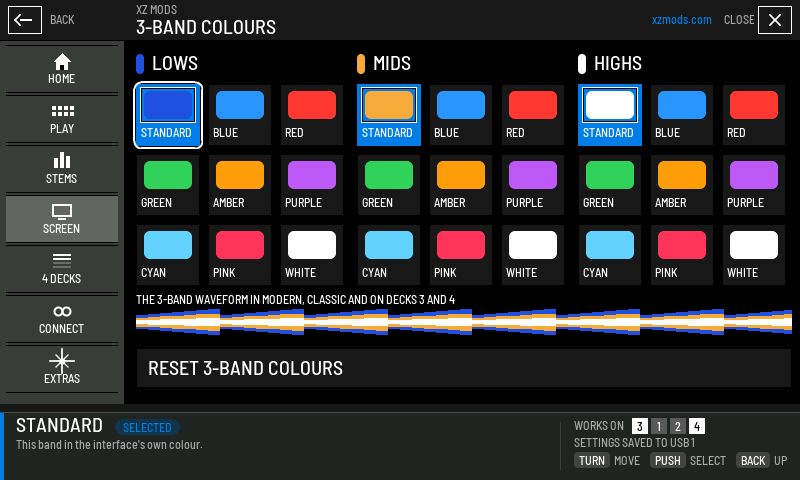
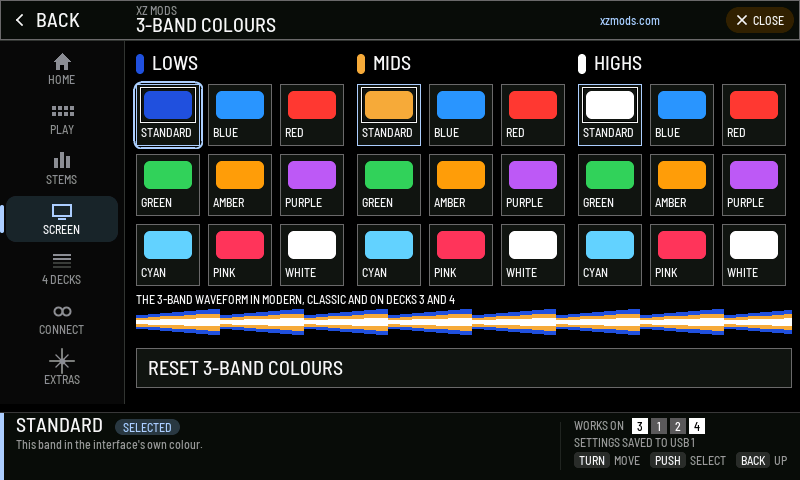
- 1LOWS
The colour of the lows, the outer layer of the waveform.
- 2MIDS
The colour of the mids, the middle layer.
- 3HIGHS
The colour of the highs, at the core.
- 4STANDARD
Keeps the interface's own colour for that band. The highlighted choice in each band is the colour in use.
- 5Colour choices
BLUE, RED, GREEN, AMBER, PURPLE, CYAN, PINK and WHITE. Tap one to give it to that band.
- 6Preview
A strip drawn the way the 3-BAND waveform stacks the bands, in the colours you chose.
- 7RESET 3-BAND COLOURS
Puts all three bands back to STANDARD.
- 8WORKS ON
3-band colours apply on all four decks.
- Open MODS > SCREEN > 3-BAND COLOURS.
- Tap a colour under LOWS, MIDS or HIGHS. Without the touch screen, turn the encoder to a colour and push.
- Close MODS to see the play screen in the new colours.
| Band | Choices | Default |
|---|---|---|
| LOWS | STANDARD, BLUE, RED, GREEN, AMBER, PURPLE, CYAN, PINK, WHITE | STANDARD |
| MIDS | The same nine | STANDARD |
| HIGHS | The same nine | STANDARD |
- The colours apply to every 3-BAND waveform: the MODERN lanes and overviews, the CLASSIC scrolling waveform, decks 3 and 4, and the browse preview.
- STANDARD is not one fixed colour. It is the colour the interface itself uses for that band, so MODERN and CLASSIC can differ a little.
- The 3-BAND pictures under WAVEFORM COLOURS on the SCREEN page are drawn in your colours too.
- Stem colours are separate. Set them in STEMS › STEM COLOURS.
- The colours are saved to the USB with your other settings.
Keys
Key notation
KEY NOTATION sets how keys are written everywhere MODS draws them: on the play screen, in the track list and in MODS.
| Choice | Example | When to use it |
|---|---|---|
| AS ON THE USB | as set in your library | Keys look the way your DJ software writes them |
| MUSICAL | Am | You think in note names |
| WHEEL | 8A | You mix by key wheel numbers |
Playing key
With PLAYING KEY on, each deck shows the key the track plays in now, after tempo changes and key shifts. The original key and the offset in cents sit beside it.
- In MODERN the playing key is the big key in each deck's column. Off shows the track's original key there.
- In CLASSIC the playing key sits where the beat countdown is. Off brings the countdown back.
- Decks 3 and 4 show their playing key too. Until a software deck reports it, the deck shows the track's own key, marked TRACK KEY in CLASSIC.
The key readout and Key Sync are explained in The play screen and Beat jump and performance features.
Key match colours and key before title
KEY MATCH COLOURS colours keys green or amber by how well they mix with the master deck, in the track list and on the play screen. Green means the key mixes with the master's key and sits within 25 cents of it. Amber means it would mix, but it is detuned by more than 25 cents. KEY BEFORE TITLE puts the key in front of each title in the track list. See Browsing and loading.
Deck colours
When a screen names a deck, it draws the deck number in a small badge. The badge tells you the deck by its digit and the pair by its colours.
| Decks | Badge |
|---|---|
| 1 and 2 | White digit on grey |
| 3 and 4 | Black digit on white |
| A deck that is not live | The same badge, dimmed |
No deck owns a colour. Blue and pale blue mark the deck a side of the player controls. Amber, red, green, the waveform bands and USB colours keep their own meanings. The WORKS ON row in the MODS dock uses the same badges, in mixer order 3 1 2 4. See Four decks for the deck view.
System readout
SYSTEM READOUT puts CPU load, memory and temperature beside STEMS and MODS on the top bar. Open it to see deck 3 and 4 audio render times and active key shifters across all four decks. P99 is the time at or below which 99% of the last 256 rendered blocks finished; MAX is the longest. Short blocks are scaled to a full block. D3+D4 MAX adds both maxima and compares them with the 5,805 microseconds available per block. New shifts use a stricter 3,483 microsecond budget, leaving time for other work. These render numbers include decoding, time stretch and key shift; they do not measure the complete output path. Use them when you suspect the player is working hard, for example with stems on both decks and four decks running.
- Press MENU
- Tap SCREEN
- Tap SYSTEM READOUT
- Turn ROTARY SELECTOR 2 clicks clockwise
- Press
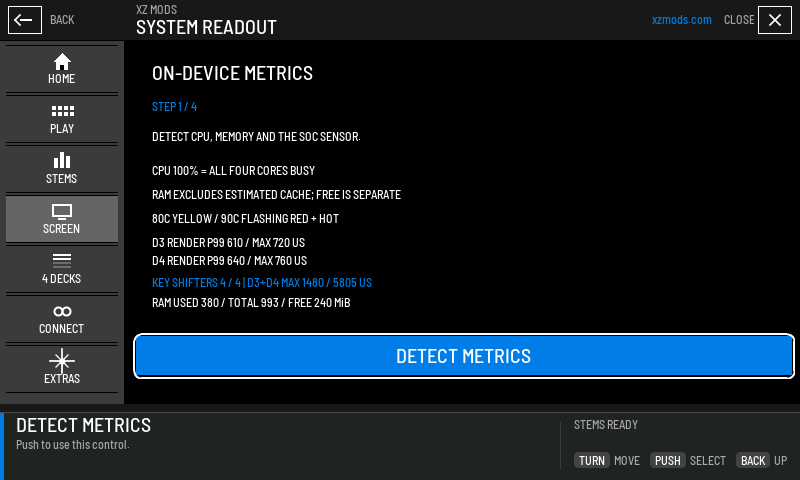
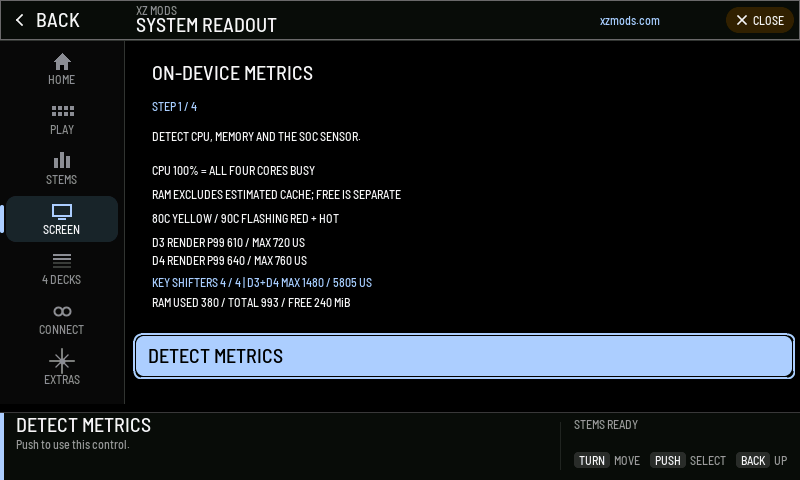
- 1STEP
Where you are in the setup.
- 2What the numbers mean
CPU 100% means all four cores are busy. RAM leaves out cache. 80 C turns yellow, 90 C flashes red with HOT.
- 3Audio render time
Each software deck shows its p99 and maximum render time in microseconds. LAST RUN means the reading is no longer live.
- 4Key shifters
Counts shifted decks, including decks 1 and 2. The combined software maximum is shown against one audio block.
- 5DETECT METRICS
Runs the current step. Push to move through the setup.
- Choose SYSTEM READOUT on the SCREEN page.
- Push DETECT METRICS. The setup looks for CPU, memory and the temperature sensor.
- Follow the remaining steps until the live readings show.
After setup the row on the SCREEN page reads ON. On the top bar, METRICS STARTING - TAP TO SET UP means the readings have not arrived yet. METRICS STALE - TAP TO VERIFY means they stopped updating. Tap either one to open the setup again.
When something looks wrong
- Press MENU
- Tap SCREEN
- Tap CLASSIC
- Tap MODERN
- Tap 3-BAND COLOURS
- Tap STANDARD
- Tap BLUE
- Tap RED
- Tap GREEN
- Tap AMBER
- Tap PURPLE
- Tap CYAN
- Tap PINK
- Tap WHITE
- Tap STANDARD
- Tap BLUE
- Tap RED
- Tap GREEN
- Tap AMBER
- Tap PURPLE
- Tap CYAN
- Tap PINK
- Tap WHITE
- Tap STANDARD
- Tap BLUE
- Tap RED
- Tap GREEN
- Tap AMBER
- Tap PURPLE
- Tap CYAN
- Tap PINK
- Tap WHITE
- Tap RESET 3-BAND COLOURS
- Tap RESET 3-BAND COLOURS
- Press
 BACK
BACK - Press MENU
- Press
| What you see | What to do |
|---|---|
| The theme did not change | Close MODS. The play screen takes the new theme once MODS is closed |
| DECK VIEW is missing from SCREEN | This player's USB loader cannot run decks 3 and 4. See Four decks |
| STEMS waveforms look like 3-BAND | The track has no prepared stems, or it has four stems. See Stems |
| Keys show in the wrong notation | Set KEY NOTATION. AS ON THE USB follows your library's own setting |
| The waveform colours are not the ones you expect | Check 3-BAND COLOURS. RESET 3-BAND COLOURS puts every band back to STANDARD |