MODS menu
Connect and DJ profiles
Your DJ profile on the USB, VJ.Tools, the network and over-the-air updates.
Applies to MODERN and CLASSIC
CONNECT is the MODS section for people and computers: your DJ profile, the VJ.Tools link, the player's network and updates over the network. Everything here is optional. The player plays the same with all of it switched off.
Open MODS with  MENU, then choose CONNECT in the section rail.
The CONNECT page
- Press MENU
- Tap CONNECT
- Turn
 ROTARY SELECTOR 3 clicks clockwise
 - Press
 BACK
BACK
- Press
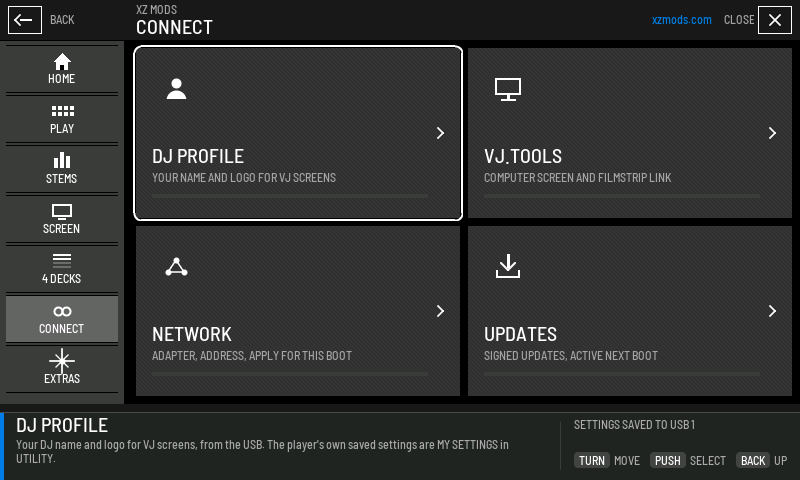
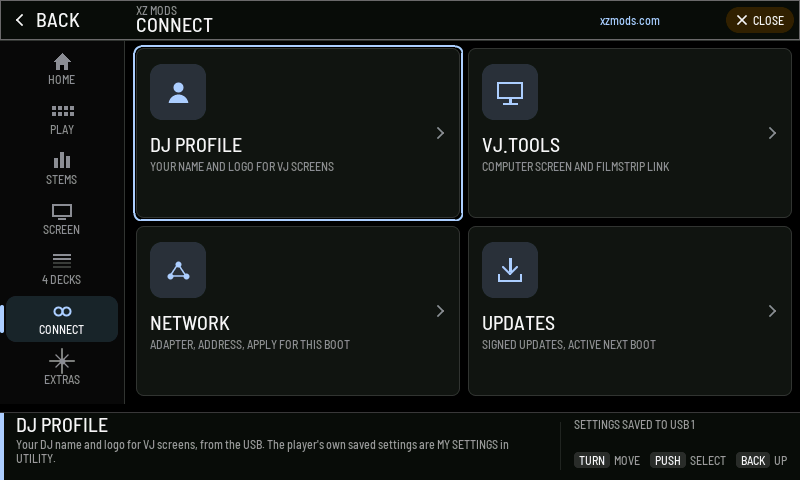
- 1DJ PROFILE
Your DJ name and logo from the USB, for VJ screens.
- 2VJ.TOOLS
The optional link to VJ.Tools on a computer, and the VJ.Tools screen view.
- 3NETWORK
The player's network adapters and addresses.
- 4UPDATES
Signed XZ Mods updates over the network. An update starts at the next power cycle.
- 5Dock
Explains the highlighted card before you open it.
The HOME card for CONNECT shows your active DJ profile and its USB, then the state of the VJ.Tools link, for example DJ Kai (USB 1) | VJ.Tools waiting. With no profile it reads No DJ profile.
DJ profile
A DJ profile is your DJ name and logo, with an optional tagline. It lives on your USB, next to your music. VJ software such as VJ.Tools shows the profile of the USB that is playing on the master deck, so the screens behind you show who is playing. Nothing is stored on the XZ and nothing is uploaded.
- Press MENU
- Tap CONNECT
- Tap DJ PROFILE
- Tap SET UP DJ PROFILE
- Turn ROTARY SELECTOR 2 clicks clockwise
- Press
DJ Profile is an open standard. Any player, mixer or VJ program can read the same folder.
Make a profile on a computer
- Press MENU
- Tap CONNECT
- Tap DJ PROFILE
- Tap SET UP DJ PROFILE
- Tap CHECK USB FOR PROFILES
- Press BACK
- Press
- On the USB, make a folder named
DJPROFILEat the top level. - Inside it, make a folder with your DJ name, for example
DJPROFILE/DJ Kai. - Put your logo in that folder as
logo.pngorlogo.jpg. - Put the USB in the XZ, open CONNECT › DJ PROFILE and push CHECK USB FOR PROFILES.
A folder with a usable logo is a profile. A folder without one is skipped. A USB shows at most 16 profiles. The XZ Mods app can also make and edit profiles. See The XZ Mods app.
Make a profile on the XZ
You can type a profile on the player with the encoder or by touch.
- Press MENU
- Tap CONNECT
- Tap DJ PROFILE
- Tap SET UP DJ PROFILE
- Tap CREATE ON THIS XZ
- Type dj test on the screen keyboard
- Tap NEXT: LOGO
- Tap NO LOGO
- Tap NEXT: TAGLINE
- Type fixture set on the screen keyboard
- Tap NEXT: REVIEW
- Tap SAVE TO USB 1
- Tap NEW PROFILE
- Type dj two on the screen keyboard
- Tap NEXT: LOGO
- Tap NO LOGO
- Tap NEXT: TAGLINE
- Tap SKIP TAGLINE
- Tap SAVE TO USB 1
- Tap < PREV
- Tap MAKE ACTIVE
- Press
- Open CONNECT › DJ PROFILE.
- Push CREATE ON THIS XZ, or NEW PROFILE if the USB already has one.
- Type your DJ name on the on-screen keyboard, then push NEXT: LOGO.
- Pick a PNG or JPEG image from the USB, or NO LOGO. Images in your own
DJPROFILEfolder are listed first. Then push NEXT: TAGLINE. - Type a few words, such as your genre, city or crew, and push NEXT: REVIEW. To leave the tagline out, push SKIP TAGLINE.
- Check the review, then push SAVE TO USB 1 or SAVE TO USB 2.
A new profile becomes the active profile on the USB you save it to. Only the DJPROFILE folder on that USB is written. Your music, playlists and stems are not touched.
| Step | Controls |
|---|---|
| Name and tagline | The keyboard, SHIFT for capitals, #+= for symbols (ABC goes back), SPACE, DELETE, BACK to the step before |
| Logo | One row per image on the USB, PREV and NEXT for more, RESCAN (or CHECK USB AGAIN), NO LOGO, KEEP CURRENT when you edit |
| Review | CHANGE NAME, CHANGE LOGO, CHANGE TAGLINE, then SAVE TO USB 1 or SAVE TO USB 2 |
- A name holds up to 64 characters and a tagline up to 80.
- With NO LOGO, your initial is shown on the accent colour.
- Logos are shown square over black.
- Nothing is saved until you push SAVE. The bottom line says NOTHING IS SAVED UNTIL YOU PRESS SAVE on the review step.
Choose and switch profiles
With profiles on the USB, the DJ PROFILE page shows one profile at a time: its logo, name and tagline, which USB it is on, and whether it is active there.
| Control or line | What it means |
|---|---|
| < PREV, NEXT > | Step through the profiles on both USBs. 2 OF 3 shows where you are |
| EDIT | Change this profile's name, logo or tagline |
| MAKE ACTIVE | Makes this the active profile on its USB. Only the USB is written |
| NEW PROFILE | Makes another profile on the USB, for an alias or a back to back set |
| CHECK USB | Reads both USB ports again |
| ACTIVE ON THIS USB | This profile is the one its USB says is playing |
| SHOWN TO THE VJ NOW | This is the profile VJ software sees right now |
| FROM ITS FOLDER IN DJPROFILE | A profile made from a folder and a logo |
| OLDER CARD: EDIT IT IN VJ.TOOLS | An older profile card. Edit it in VJ.Tools, or make a new profile |
Your active profile also sits in the MODS header, with its logo and name. Tap it, or highlight it and push, to switch between the profiles on both USBs.
When a profile will not save or show
- Press MENU
- Tap CONNECT
- Tap DJ PROFILE
- Tap SET UP DJ PROFILE
- Tap CREATE ON THIS XZ
- Type dj test on the screen keyboard
- Tap NEXT: LOGO
- Tap pictures/alternate.jpg
- Tap NEXT: TAGLINE
- Tap SKIP TAGLINE
- Tap SAVE TO USB 1
- Tap CHANGE LOGO
- Tap NO LOGO
- Tap NEXT: TAGLINE
- Tap SKIP TAGLINE
- Tap SAVE TO USB 1
- Press
| Message | What to do |
|---|---|
| INSERT THE USB WITH YOUR MUSIC | Put your USB in. Profiles live on the USB only |
| NO DJ PROFILE ON THIS USB YET | Make one on a computer or on the XZ, as above |
| INSERT A USB FIRST | Insert a USB before you push CREATE ON THIS XZ |
| TYPE YOUR DJ NAME FIRST | The name cannot be empty |
| THE NAME IS FULL, THE TAGLINE IS FULL | You reached 64 or 80 characters |
| THAT USB IS NOT IN / PUT IT BACK | Put the USB back in the port you are saving to |
| THIS LOGO CANNOT BE USED / CHANGE LOGO | Pick another image, or NO LOGO |
| THIS PROFILE FILE IS DAMAGED / SAVE IT AGAIN FROM VJ.TOOLS | Save the profile again from VJ.Tools or the XZ Mods app |
| SAVING YOUR PROFILE TO THE USB / KEEP THE USB IN | Wait. Do not pull the USB |
VJ.Tools experimental
VJ.Tools is a desktop app for VJs. The VJ.TOOLS page lets VJ.Tools on a computer connect to the player, announces the player on the network, and can show the computer's picture instead of the play screen.
- Press MENU
- Tap CONNECT
- Tap VJ.TOOLS
- Turn ROTARY SELECTOR 2 clicks clockwise
- Press
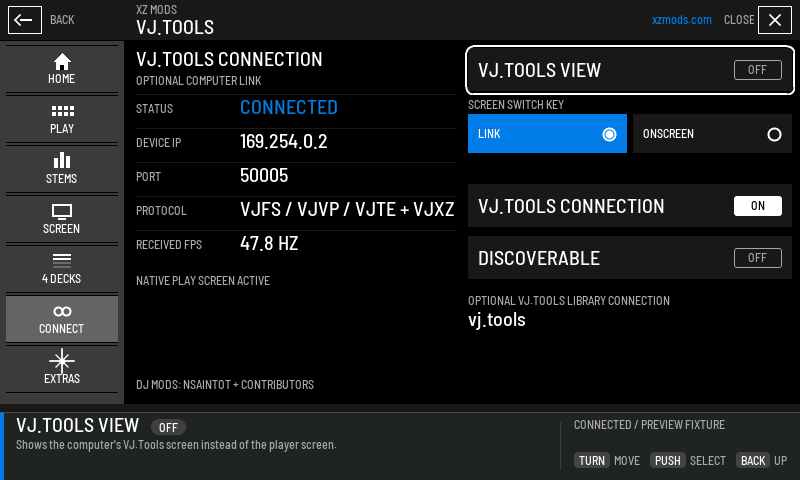
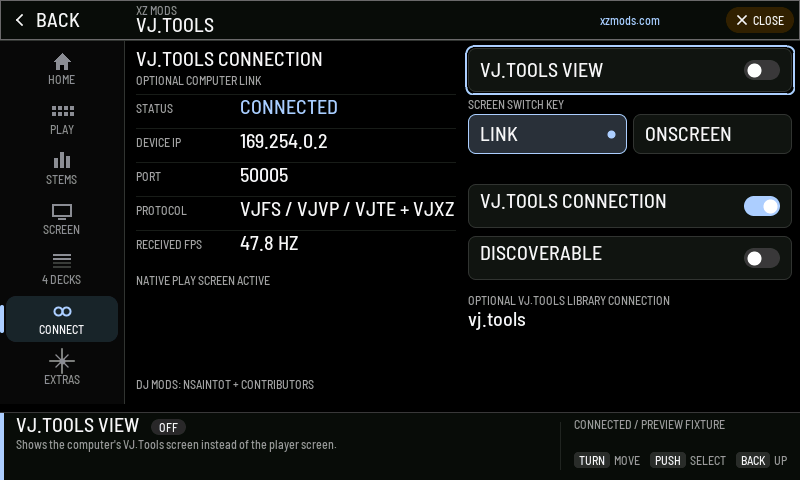
- 1STATUS
CONNECTED, WAITING FOR VJ.TOOLS, DISABLED or NOT AVAILABLE.
- 2DEVICE IP
The player's address for VJ.Tools.
- 3PORT
The port VJ.Tools connects to.
- 4PROTOCOL
What the link carries. You only need it when you report a problem.
- 5RECEIVED FPS
Frames per second arriving from VJ.Tools. NOT REPORTED until frames arrive.
- 6Screen in use
NATIVE PLAY SCREEN ACTIVE, or COMPUTER SCREEN ACTIVE while the VJ.Tools view is on and the computer is connected.
- 7VJ.TOOLS VIEW
Shows the computer's VJ.Tools screen instead of the player screen.
- 8SCREEN SWITCH KEY
What switches the VJ.Tools view while you play: LINK or an ONSCREEN button.
- 9VJ.TOOLS CONNECTION
Lets VJ.Tools on a computer connect to this player.
- 10DISCOVERABLE
Announces this player so VJ.Tools finds it on the network.
- 11vj.tools
Where to get VJ.Tools.
| Control | Choices | What it does |
|---|
| VJ.TOOLS VIEW | ON, OFF | ON shows the computer's VJ.Tools screen on the player while VJ.Tools is connected. OFF shows the play screen |
|---|---|---|
| SCREEN SWITCH KEY | LINK, ONSCREEN | LINK makes the LINK key switch the view. ONSCREEN puts a button for it on the screen. See Controls on the player |
| VJ.TOOLS CONNECTION | ON, OFF | Lets VJ.Tools connect |
| DISCOVERABLE | ON, OFF | Lets VJ.Tools find the player without typing its address |
When a link control shows READ ONLY, MODS cannot change it on this player. Pushing it shows CONTROL IS NOT AVAILABLE.
To switch the view without opening MODS, use the key you chose under SCREEN SWITCH KEY. You can also give the button above  LINK the job VJ.TOOLS SCREEN in PLAY › BUTTON ABOVE LINK. It needs an enabled, connected VJ.Tools link, and says so when there is none. In CLASSIC, a VJ.TOOLS button can appear on the top bar. It reads EXIT VJ while the view is on.
With VJ.TOOLS VIEW on and no computer connected, the player shows the interface you chose, MODERN or CLASSIC, and the button above LINK switches between them as usual. The VJ.Tools screen takes over when the computer connects. When the computer disconnects, its last picture stays for about 2 seconds and then the player screen comes back; if the computer reconnects within that time, the view stays on without a blink.
Network experimental
NETWORK sets up the player's network adapters for VJ.Tools and network updates. You do not need it to play.
- Press MENU
- Tap CONNECT
- Tap NETWORK
- Turn ROTARY SELECTOR 2 clicks clockwise
- Press
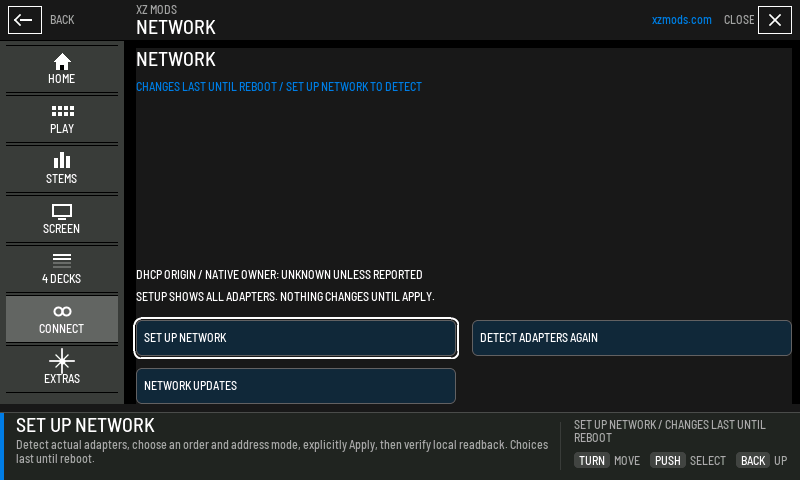
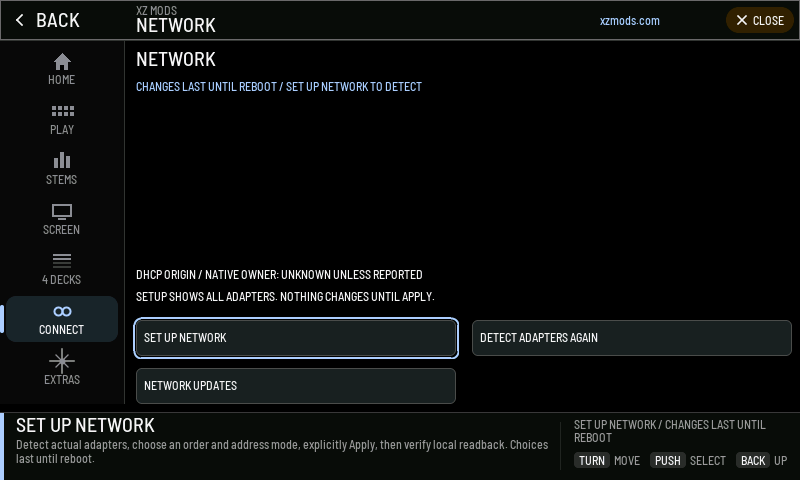
- 1Status line
What the page knows now. CHANGES LAST UNTIL REBOOT reminds you that nothing here is permanent.
- 2What is known
Which parts the player reports, and that nothing changes until you apply.
- 3SET UP NETWORK
Starts the setup: read the adapters, choose, review, apply.
- 4DETECT ADAPTERS AGAIN
Reads the adapters again, for example after you plug in a cable.
- 5NETWORK UPDATES
Opens UPDATES.
Setup runs in four steps. Every change lasts until the player is switched off.
- Detect. The page lists each adapter with its link state and current address.
- Choose. Pick an adapter and how it gets an address: KEEP CURRENT, DHCP ON or STATIC IP. With STATIC IP, use EDIT IP, EDIT MASK / PREFIX and EDIT GATEWAY. PRIORITY UP and PRIORITY DOWN set which adapter XZ Mods prefers.
- Review. Push REVIEW CHANGES and read the summary.
- Apply. Push APPLY FOR THIS BOOT. The page then checks the result. REVERT TRIAL / MODS DHCP OFF undoes what this setup added.
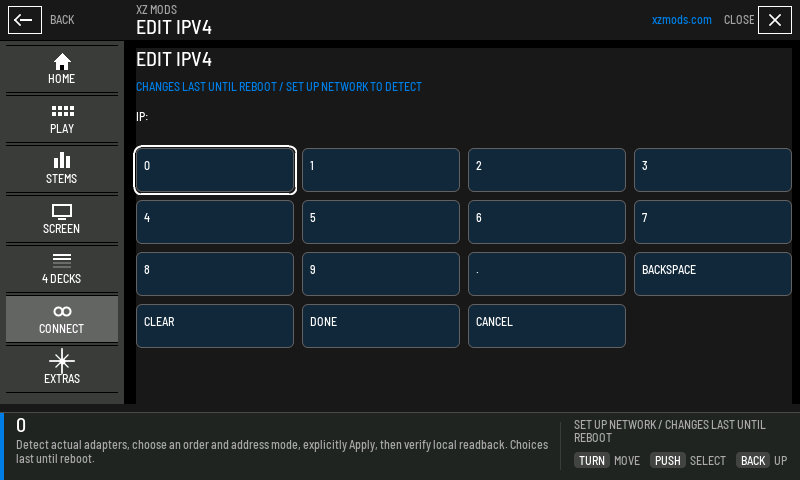
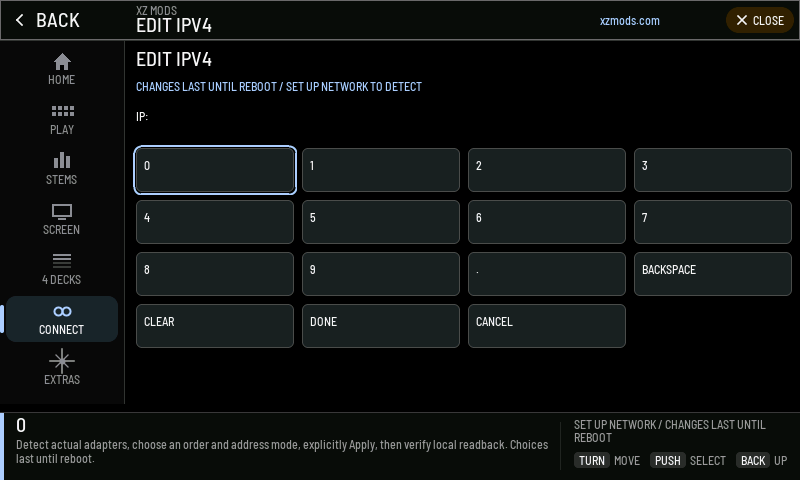
- 1Field
Which value you are typing and what you have typed.
- 2Digits and point
Type the address one character at a time.
- 3BACKSPACE
Deletes the last character.
- 4CLEAR
Empties the field.
- 5DONE
Keeps the value and goes back to the setup.
- 6CANCEL
Leaves the value as it was.
| Message | What to do |
|---|---|
| DETECT ACTUAL ADAPTERS FIRST | Push DETECT ADAPTERS AGAIN, then choose |
| ENTER A VALID IP AND CONTIGUOUS MASK / PREFIX | Check the address and mask you typed |
| ENTER A VALID GATEWAY OR KEEP ROUTE OFF | Type a valid gateway, or set MODS ROUTE: OFF |
| NETWORK CHANGED / DETECT AND CHOOSE AGAIN | A cable or adapter changed. Start the setup again |
| RELOAD A PRIVATE USB IMAGE WITH NETWORK SUPPORT | This USB loader has no network support. Update the loader with the XZ Mods app, then push VERIFY RELOADED LOADER |
Updates over the network experimental
UPDATES fetches a newer signed XZ Mods version from the XZ Mods app on your computer and saves it to the USB. The update starts at the next power cycle. Your music stays where it is.
- Press MENU
- Tap CONNECT
- Tap UPDATES
- Turn ROTARY SELECTOR 2 clicks clockwise
- Press
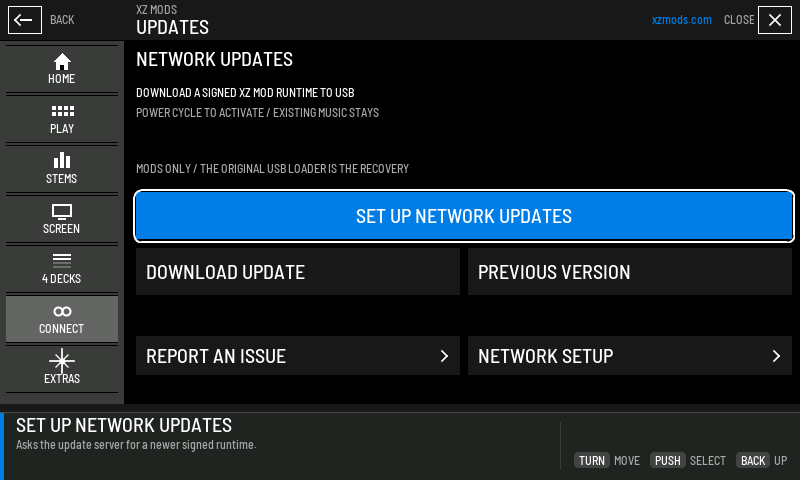
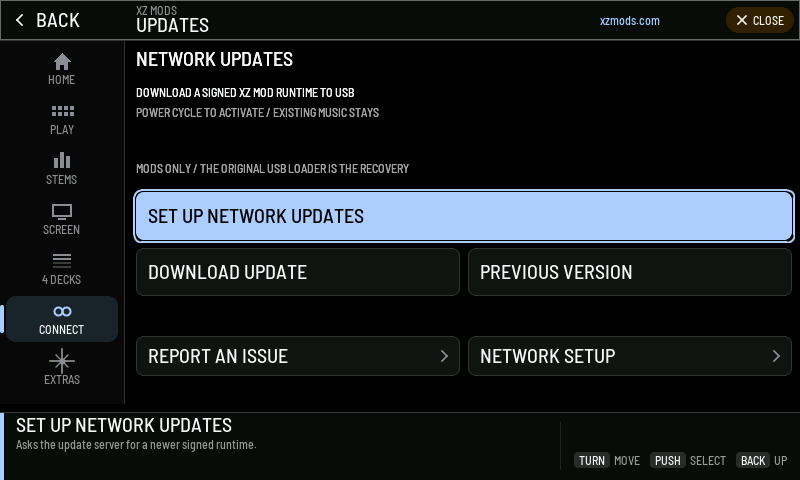
- 1What it does
Downloads a signed XZ Mods version to the USB. Power cycle to activate.
- 2Recovery
Updates change XZ Mods only. The original USB loader is the way back.
- 3SET UP NETWORK UPDATES
Opens UPDATE SETUP, which finds the update server.
- 4DOWNLOAD UPDATE
Downloads the update to the USB. It activates after a power cycle.
- 5PREVIOUS VERSION
Goes back to the previous XZ Mods version at the next power cycle.
- 6REPORT AN ISSUE
Opens REPORT AN ISSUE in EXTRAS.
- 7NETWORK SETUP
Opens NETWORK.
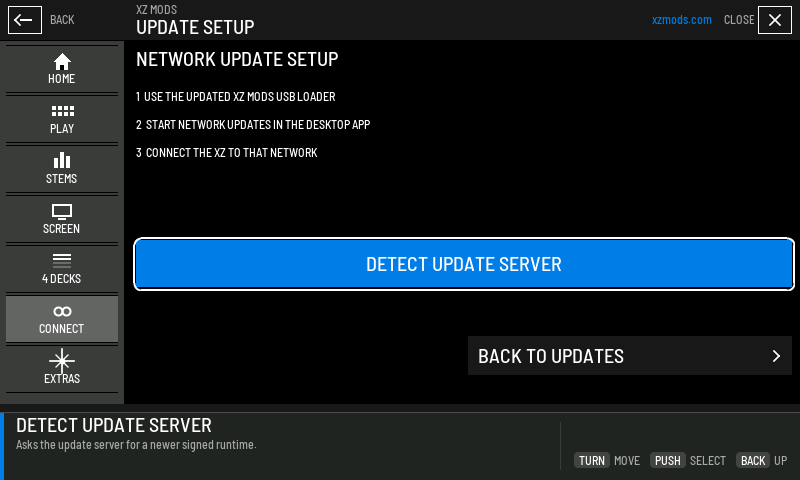
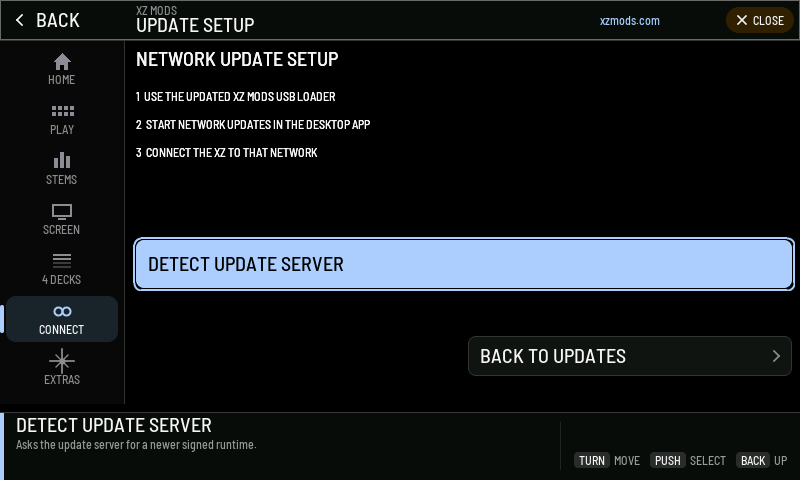
- 1Steps
Use the updated USB loader, start network updates in the desktop app, connect the XZ to that network.
- 2DETECT UPDATE SERVER
Asks the update server for a newer signed XZ Mods version.
- 3BACK TO UPDATES
Returns to UPDATES.
- Prepare the USB with a current XZ Mods app, so the loader supports network updates.
- In the XZ Mods app, start network updates. See The XZ Mods app.
- Connect the XZ to the same network as the computer. Use NETWORK if it needs an address.
- Open CONNECT › UPDATES › SET UP NETWORK UPDATES and push DETECT UPDATE SERVER.
- Back on UPDATES, push DOWNLOAD UPDATE.
- Switch the player off and on to start the new version.
To undo an update, push PREVIOUS VERSION and switch the player off and on. Network updates change XZ Mods only. If the player will not start XZ Mods at all, restore or update the USB loader with the XZ Mods app.