Start here
Controls on the player
Which buttons, pads and knobs do something new, and what each one does with XZ Mods running.
Applies to MODERN and CLASSIC
XZ Mods leaves every control on the XDJ-XZ doing its normal job unless this page says otherwise. This page covers only the controls whose behaviour XZ Mods changes or adds, and the ones you use to drive MODS. For everything else, the XDJ-XZ operating instructions still apply.
The top panel
The picture is an illustration of the XDJ-XZ from straight above.
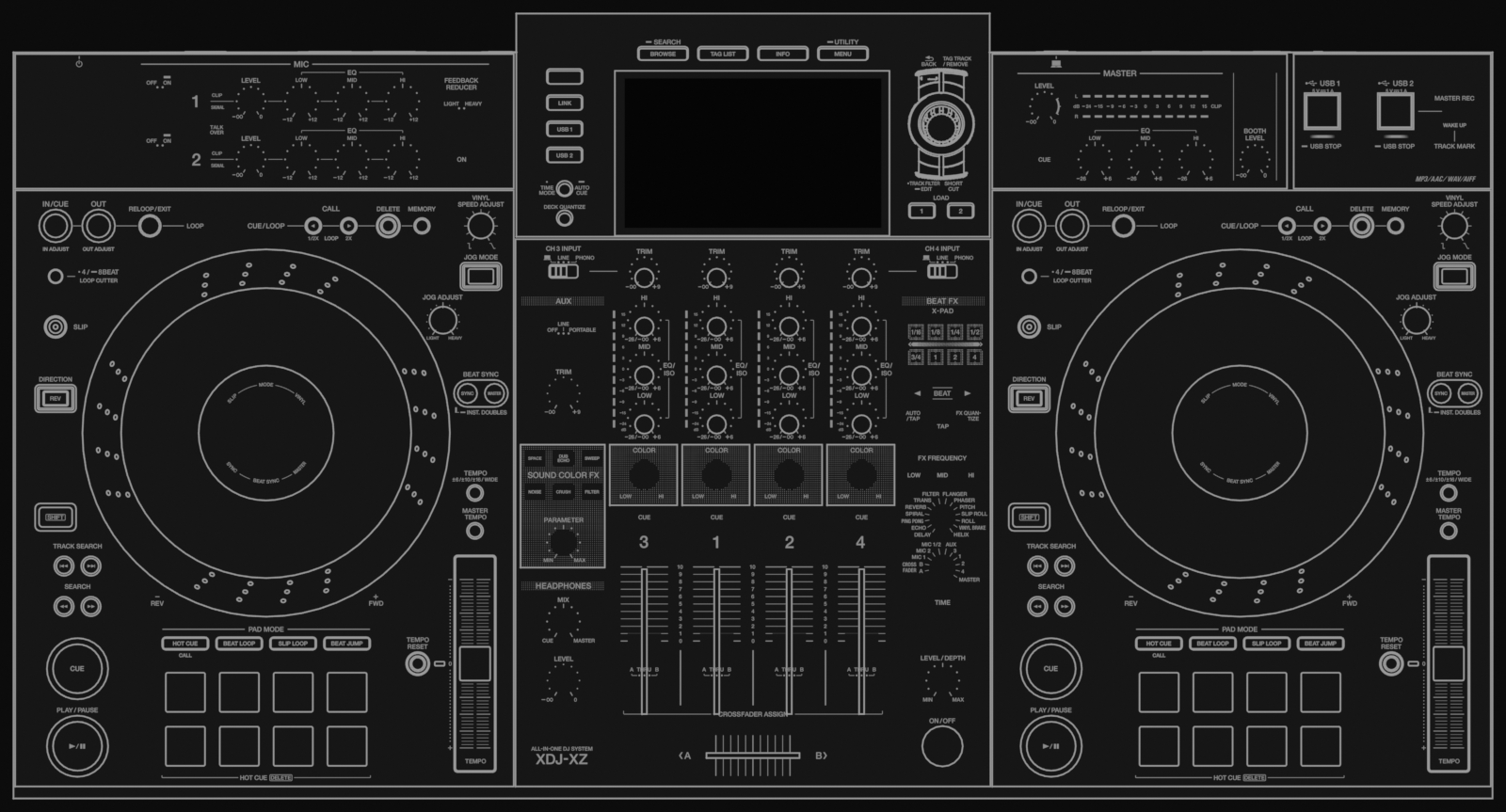
- 1Touch screen
Shows the play screen in the interface you chose (MODERN or CLASSIC) and the MODS menu. Every MODS control also answers touch.
- 2MENU (UTILITY)
Press: opens MODS where the screen has no MENU job of its own. Hold: opens the player's own UTILITY, as without XZ Mods.
- 3BACK
Goes up one level, in MODS too.
- 4Rotary selector
Turn to move the highlight in MODS, push to select. It drives every MODS page, so you never need the touch screen.
- 5SHORTCUT
Opens the SHORTCUT screen, as without XZ Mods. A short MENU on that screen opens MODS.
- 6Button above LINK
The media button directly above LINK. XZ Mods lets you choose what it does, alone and with SHIFT.
- 7LINK
Its normal job. It can also switch the VJ.Tools view on and off.
- 8TIME MODE and DECK QUANTIZE
Their normal job on decks 1 and 2. While a side drives deck 3 or 4 they also work on that deck.
- 9LOAD 1, LOAD 2
Load into the deck that side controls now: deck 1 or 3 on the left, deck 2 or 4 on the right.
- 10Left deck
Controls deck 1, or deck 3 after you press SHIFT twice.
- 11Right deck
Controls deck 2, or deck 4 after you press SHIFT twice.
- 12Mixer channels 3 1 2 4
Decks 3 and 4 play through CH3 and CH4 over the loopback cable.
Browse section keys
- Open SOURCE (
 BACK at the top of a list)
 - Press
 MENU
MENU - Press MENU
- Press
 INFO
INFO - Press MENU
- Press BACK
- Press MENU
- Press
 SHORTCUT
 - Press MENU
- Press MENU
- Hold MENU for a second
- Press BACK
- Open SOURCE (
| Key | Action with XZ Mods |
|---|---|
| MENU press | Opens MODS on the play screen, the SOURCE screen, the INFO screen and the SHORTCUT screen experimental. Everywhere else it keeps its normal job. In MODS it closes MODS. |
| MENU hold | Opens the player's own UTILITY, in both interfaces. |
| BACK | Goes up one level. In MODS it steps from an open item to its page, then to the section rail. |
 TURN Rotary selector, turn TURN Rotary selector, turn | Moves the highlight to the next card, row or button in MODS. On a beat jump pair, after a push, it steps the jump size. |
 PUSH Rotary selector, push PUSH Rotary selector, push | Opens or changes the highlighted item in MODS. |
 BUTTON ABOVE LINK BUTTON ABOVE LINK | Does what you chose in MODS > PLAY > BUTTON ABOVE LINK. The default is INTERFACE. |
 SHIFT + BUTTON ABOVE LINK SHIFT + BUTTON ABOVE LINK | Hold SHIFT on either deck and press it. Does the second choice on the same page. The default is ITS OWN JOB. |
 LINK LINK | Its normal job. With the screen switch key set to LINK it also switches the VJ.Tools view on and off. |
| SHORTCUT | Opens the SHORTCUT screen. In MODERN this is MODERN's own SHORTCUT screen. |
 LOAD LOAD | Loads the highlighted track into the deck that side controls: deck 1 or 3, deck 2 or 4. |
 TIME MODE, TIME MODE,  DECK QUANTIZE DECK QUANTIZE | Their normal job on decks 1 and 2. For decks 3 and 4, see Quantize and Four decks. |
A short press of MENU keeps its normal job wherever it has one. What a short press does in each place:
| Where you are | Short press of MENU |
|---|---|
| The MODS menu is open | Closes MODS |
| A game is on screen | The game's own key |
| The VJ.Tools view is on screen | As before |
| A menu, popup or dialog is open | Works or closes the open menu |
| A track list (browse, playlist, search, history) | The sort menu or the track menu |
| TAG LIST | LIST MENU |
| The play screen in GRID ADJUST | The beat grid menu |
| The play screen | Opens MODS experimental |
| The SOURCE screen | Opens MODS experimental |
| The track INFO screen | Opens MODS experimental |
| The SHORTCUT screen | Opens MODS experimental |
| The player's own UTILITY | Closes UTILITY |
| Any other screen | The screen's own job |
The button above LINK
The XDJ-XZ has a media button directly above LINK. Without XZ Mods it opens the library of a computer or phone connected to the player. XZ Mods gives it two slots: a plain press, and a press while SHIFT is held on either deck. Set them in MODS > PLAY > BUTTON ABOVE LINK.
- Press the button above LINK
- Press the button above LINK
- Press the button above
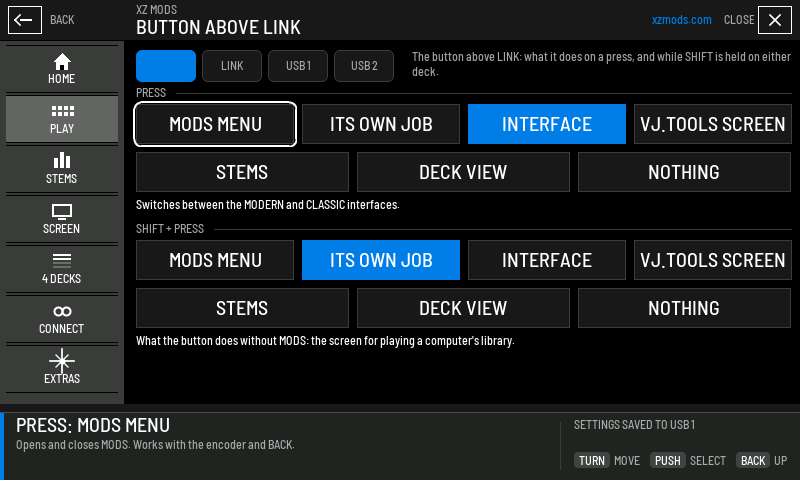
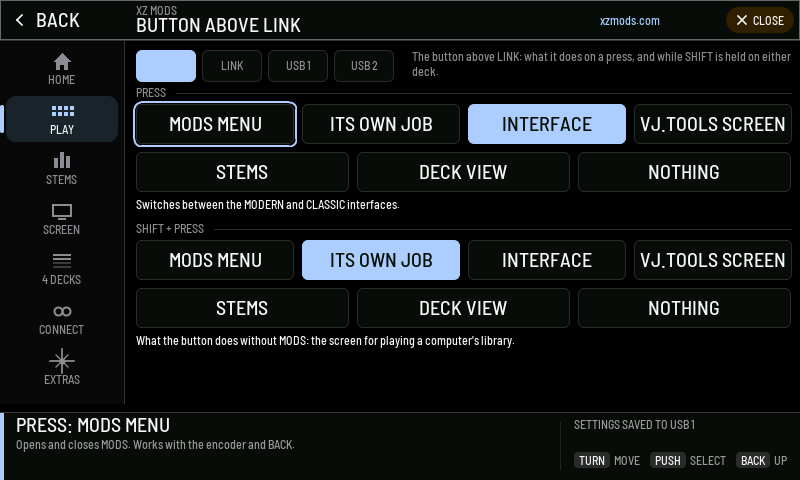
- 1Media buttons
The four media buttons in the player's order from the top, left to right: the button above LINK, highlighted, then LINK, USB 1 and USB 2.
- 2PRESS
What a plain press does. The filled choice is the current one.
- 3What it does
One line explaining the current PRESS choice.
- 4SHIFT + PRESS
What the button does while SHIFT is held on either deck.
- 5What it does
One line explaining the current SHIFT + PRESS choice.
- 6Dock
Explains the highlighted choice before you pick it.
| Choice | What the button does |
|---|---|
| MODS MENU | Opens and closes MODS. MODS then works with the rotary selector and BACK. |
| ITS OWN JOB | Its normal job: the screen for playing a computer's or phone's library. In MODERN the player's own screen for it takes over until you are back on the play screen. |
| INTERFACE | Switches between MODERN and CLASSIC, with the same notice as MODS > SCREEN. |
| VJ.TOOLS SCREEN | Switches the VJ.Tools screen on and off. Without an enabled, connected VJ.Tools link it says so instead. |
| STEMS | Does what the STEMS button on the screen does: steps the stem buttons through their places in 2 DECKS, and shows or hides them in MODERN's 4 DECKS. |
| DECK VIEW | Steps DECK VIEW: 2 DECKS, 4 DECKS in number order 1 2 3 4, 4 DECKS in mixer order 3 1 2 4, then 2 DECKS again. It saves the choice and shows the new view in a short notice. |
| NOTHING | The button does nothing. |
LINK and the VJ.Tools view
When VJ.Tools on a computer is connected, the player's screen can show the VJ.Tools view instead of the play screen. MODS > CONNECT > VJ.TOOLS has a SCREEN SWITCH KEY with two choices:
- Press MENU
- Tap CONNECT
- Tap VJ.TOOLS
- Turn
 ROTARY SELECTOR 2 clicks clockwise
- Press
| Choice | What switches the VJ.Tools view |
|---|---|
| LINK (default) | Pressing LINK. LINK also keeps its normal job. |
| ONSCREEN | A VJ.Tools button on the screen, in the corner opposite MODS. |
To switch the view with the button above LINK instead, set that button to VJ.TOOLS SCREEN. See Connect and DJ profiles for the connection itself.
Deck keys
The picture shows the left deck from above. The right deck has the same controls in the same places.
- Hold SHIFT on the left deck and press
 SYNC on the left deck
 - Press
 MASTER TEMPO on the left deck
- Hold
- Hold SHIFT on the left deck and press SYNC on the left deck
- Hold
- Press SHIFT on the left deck twice quickly
- Press
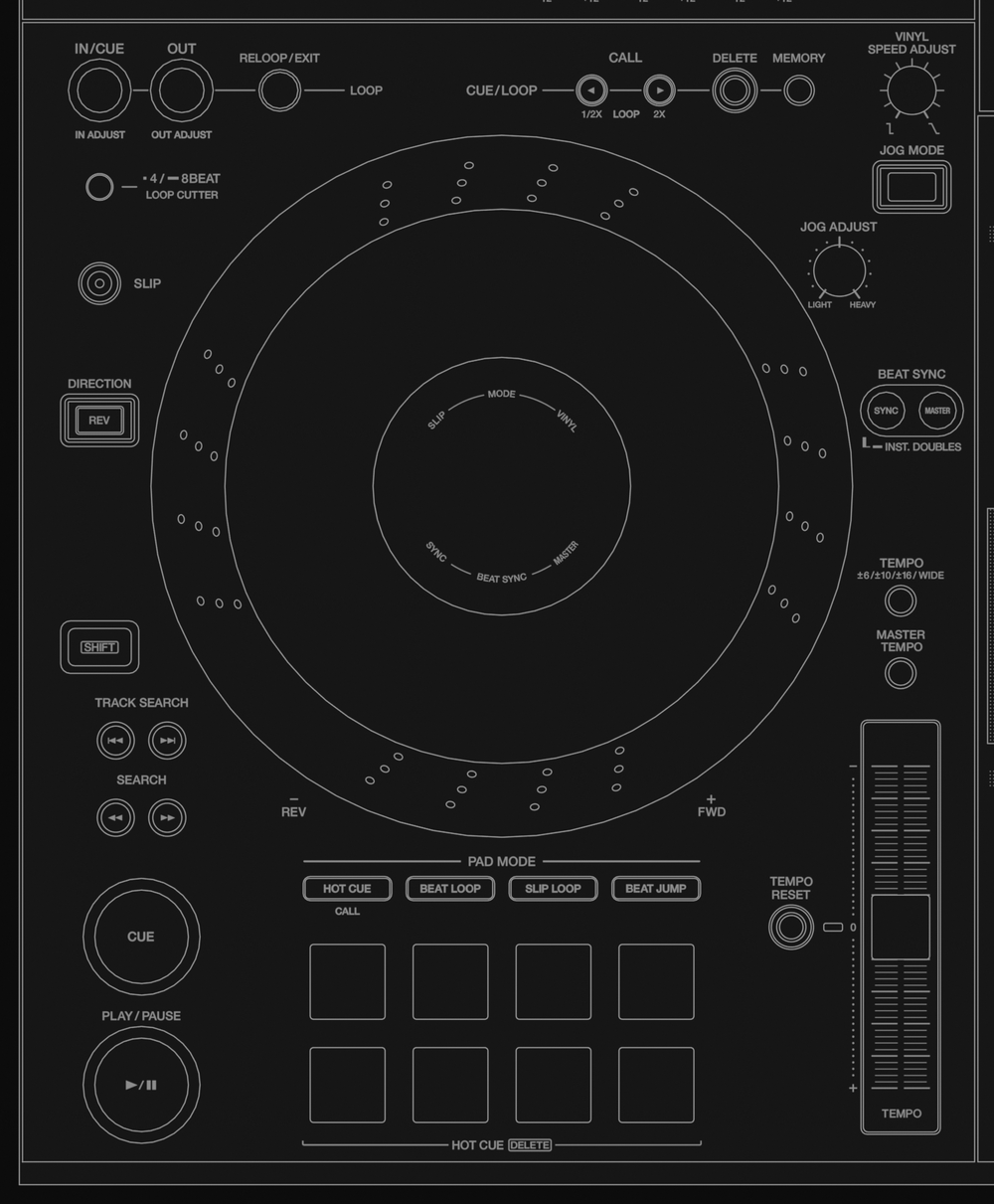
- 1SHIFT
Press twice quickly to switch this side between its two decks. Held, it is the modifier for the combinations below.
- 2SYNC
SHIFT + SYNC matches this deck's key to the master deck (KEY SYNC). SYNC alone does its normal job on decks 1 and 2.
- 3MASTER TEMPO
While KEY SYNC holds, a press returns the deck to its own key.
- 4TEMPO slider
After you switch decks, the new deck keeps its tempo until the slider reaches it.
- 5Jog wheel
Its normal job on decks 1 and 2. Plays decks 3 and 4, and the games.
- 6Pad mode buttons
HOT CUE, BEAT LOOP, SLIP LOOP, BEAT JUMP. One of them gives stem pads. With SHIFT, they mute stems.
- 7BEAT JUMP
Press for beat jump page 1. SHIFT + BEAT JUMP gives page 2.
- 8Pads A to D
Stem pads in the stem mode when the bank is A-D. Jump pairs A/B and C/D in BEAT JUMP mode.
- 9Pads E to H
Stem pads when the bank is E-H. Jump pairs E/F and G/H in BEAT JUMP mode.
- 10CUE and PLAY/PAUSE
Their normal job on decks 1 and 2. They play deck 3 or 4 while the side drives it.
| Key | Action with XZ Mods |
|---|---|
| SHIFT twice | Switches the left side between deck 1 and deck 3, or the right side between deck 2 and deck 4. Press it twice within about half a second, without touching anything else. Decks 3 and 4 need the loopback cable; without it the screen says DECK 3 AND 4 NEED THE CH3/CH4 ROUTE. |
| SHIFT + SYNC | KEY SYNC: shifts the key of the deck this side controls to match the master deck, and turns on MASTER TEMPO. Press it again to end KEY SYNC. Works on all four decks. SYNC alone keeps its normal job on decks 1 and 2. |
| MASTER TEMPO | While KEY SYNC holds on that deck, a press ends KEY SYNC and returns the deck to its own key. Otherwise its normal job. SHIFT + MASTER TEMPO keeps its normal job. |
 HOT CUE, HOT CUE,  BEAT LOOP, BEAT LOOP,  SLIP LOOP SLIP LOOP | Choose the pad mode as without XZ Mods. The mode set in MODS > STEMS > STEM PADS turns four pads into stem pads. |
| SHIFT + HOT CUE | Mutes or unmutes the first stem in your STEM ORDER (vocals by default) on that deck. |
| SHIFT + BEAT LOOP | Mutes or unmutes the second stem (harmonics by default). |
| SHIFT + SLIP LOOP | Mutes or unmutes the third stem (drums by default). |
 BEAT JUMP BEAT JUMP | Beat jump mode with page 1 of your jump sizes. |
| SHIFT + BEAT JUMP | Beat jump mode with page 2 of your jump sizes. Let go of SHIFT before you press a pad. |
| TEMPO slider | After a deck switch, the deck that takes over keeps its tempo until the slider crosses its value. Then the slider moves it again. This works both ways. |
| LOAD | Loads into the deck the side controls now. |
| Jog wheel | Its normal job on decks 1 and 2. On decks 3 and 4 it bends, scratches in VINYL mode and moves loop edges. The jog games use it too. |
The three SHIFT + pad mode combinations work while the USB loader has the stem engine. They also turn stem audio on if it was off. With them, the player's own SHIFT + HOT CUE (CALL) is not available on decks 1 and 2.
Every other deck key keeps its normal job on decks 1 and 2. While a side drives deck 3 or 4, the transport, loop, cue and tempo keys play that deck instead. Four decks lists what each one does there.
Performance pads
The eight pads keep their normal job in every pad mode, with two exceptions: the stem pads, and the BEAT JUMP pads.
- Press HOT CUE on the left deck
- Press BEAT LOOP on the left deck
- Press SLIP LOOP on the left deck
- Press BEAT JUMP on the left deck
- Hold SHIFT on the left deck and press HOT CUE on the left deck, then BEAT LOOP on the left deck, then SLIP LOOP on the left deck
- Press
| Pad mode | Pads with XZ Mods |
|---|---|
| HOT CUE | The player's own hot cues. Gate cue and smart cue change what a hot cue does when you turn them on; see Gate cue and smart cue. |
| BEAT LOOP | The player's own beat loops. |
| SLIP LOOP | The player's own slip loops. |
| BEAT JUMP | Your jump sizes. A/B, C/D, E/F and G/H are pairs: the first pad jumps back, the second forward. With a loop on, the loop moves instead. SHIFT + pad keeps its normal job on decks 1 and 2. See Beat jump. |
| The stem mode | Four pads (A to D, or E to H) mute stems instead. The other four keep their job in that mode. |
Stem pads
In the pad mode you choose for stems, four pads switch stems on that deck. A, B and C mute the three stems in your STEM ORDER. D is BYPASS: it plays the original track instead of the stems. On a 4-stem track, D mutes bass instead. With the E-H bank, E to H do the same.
- Press MENU
- Tap STEMS
- Tap STEM PADS
- Tap HOT CUE
- Tap BEAT LOOP
- Tap SLIP LOOP
- Tap BEAT JUMP
- Tap PADS A-D
- Tap PADS E-H
- Tap ORDER
- Tap STEM COLOURS
- Tap OFF
- Press
- Press HOT CUE on the left deck
- Press pad A on the left deck
- Press pad B on the left deck
- Press pad C on the left deck
- Press pad D on the left deck
- Press pad A on the left deck
- Press
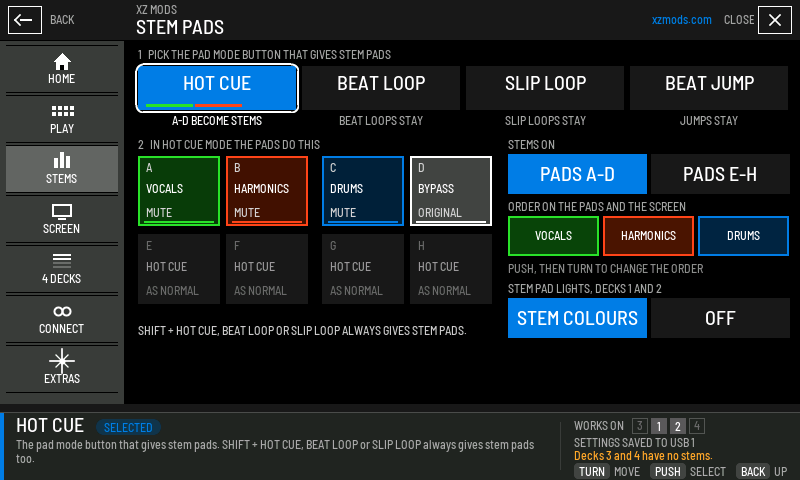
- 1Pad mode
The pad mode button that gives stem pads. The others keep their pads.
- 2Pad diagram
What each pad does in that mode, laid out like the pads on the deck.
- 3STEMS ON
Which four pads carry the stems: PADS A-D or PADS E-H.
- 4Order
The order of the stems on pads A, B and C and on the play screen. Push, then turn to change it.
- 5Stem pad lights
STEM COLOURS lights stem pads in their stem colours and dims muted stems. OFF leaves the pad lights to the player.
- 6Works on
Stem pads work on decks 1 and 2. Decks 3 and 4 have no stems.
| Setting on this page | Choices | Default |
|---|---|---|
| Pad mode | HOT CUE, BEAT LOOP, SLIP LOOP, BEAT JUMP | HOT CUE |
| STEMS ON | PADS A-D, PADS E-H | PADS A-D |
| STEM PAD LIGHTS | STEM COLOURS, OFF | STEM COLOURS |
If you choose BEAT JUMP for stems, beat jumps win its pads. Page 2 always jumps. Page 1 jumps while it uses MY SIZES, and gives stem pads only while it is set to PAGE 1: STOCK. Stems explains the stem audio itself, the order and the stem buttons on the screen.
Pad lights
| What you see | Meaning |
|---|---|
| Stem pads in stem colours, muted stems dim | STEM PAD LIGHTS is STEM COLOURS, on decks 1 and 2. |
| Warm red and amber pads in BEAT JUMP mode | Beat jump page 2 is selected on that deck. |
| The player's own pad colours | Every other mode, and page 1 of BEAT JUMP. |
Decks 3 and 4 from the deck controls
Each side of the XZ drives one of two decks: the left side deck 1 or deck 3, the right side deck 2 or deck 4. Press SHIFT twice to switch. LOAD on that side then loads into the deck it controls.
- Press SHIFT on the right deck twice quickly
- Press
- Connect the loopback cable and wait until MODS > 4 DECKS says the route is ready.
- Press SHIFT twice quickly on the left side. The left side now drives deck 3.
- Move the TEMPO slider until it reaches deck 3's tempo. Until then the slider does not change deck 3.
- Press SHIFT twice again to go back to deck 1.
If the loopback route goes down, both sides go back to decks 1 and 2. Four decks covers setup, the deck view and every status.
When a control does not respond
| What happens | Why, and what to do |
|---|---|
| MENU opens one of the player's own menus instead of MODS | That screen has its own MENU job. Press BACK to the play screen, then press MENU. |
| MENU opens UTILITY | You held it. A short press opens MODS. |
| The button above LINK does nothing | It is set to NOTHING. Change it in MODS > PLAY > BUTTON ABOVE LINK. |
| SHIFT twice shows DECK 3 AND 4 NEED THE CH3/CH4 ROUTE | Decks 3 and 4 are not connected. Open MODS > 4 DECKS. |
| The TEMPO slider does not change the deck | Pickup after a deck switch. Move the slider through the deck's tempo. |
| A key sync press shows a message on the deck's key | See Keys and KEY SYNC. |
| A BEAT JUMP pad shows JUMP UNAVAILABLE | See When a jump is refused. |