
On the player
Browsing and loading
Finding tracks, search, filters, track info, tag lists, playlists and loading to any deck.
Applies to MODERN and CLASSIC
This chapter covers finding a track and putting it on a deck. MODERN has its own browse screens, built for touch and the rotary encoder. CLASSIC uses the player's own browse screens and adds the key, colours for compatible keys and a few labels to them.
Browsing in MODERN modern
Press  BROWSE or
  TAG LIST to open that list, or hold BROWSE for SEARCH. PLAYLIST is in the BROWSE category rail and on the SHORTCUT screen. Press
  BACK to go up one level. At the top of a list BACK opens SOURCE, where you pick the USB to browse.
- Press BROWSE
- Turn
 ROTARY SELECTOR 7 clicks clockwise, then push it
 - Turn ROTARY SELECTOR 1 click clockwise, then push it
- Press BACK
- Press BACK
- Press
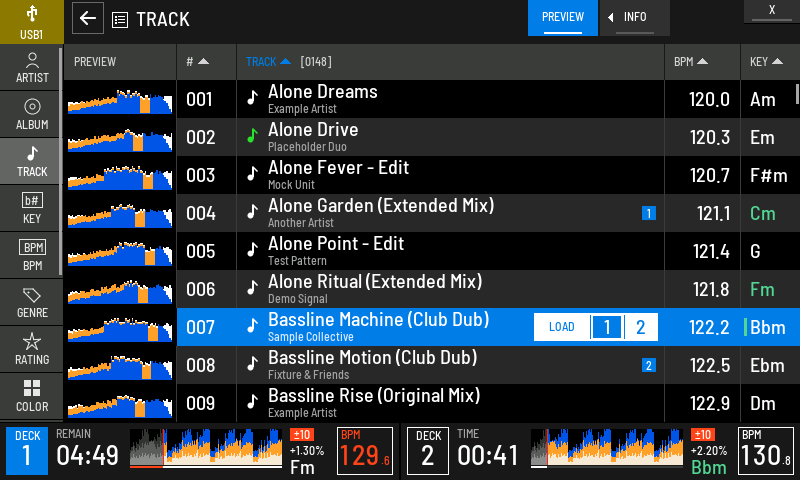
- 1Source
The USB you are browsing, in its own colour. Tap to open SOURCE.
- 2Category rail
ARTIST, ALBUM, TRACK, KEY, BPM, GENRE, RATING, COLOR, PLAYLIST, FOLDER, HISTORY and MATCHING. Tap one, or drag the rail to see the rest.
- 3BACK
Goes up one level.
- 4PREVIEW
Shows or hides the preview waveform column.
- 5INFO
Opens the INFO panel for the highlighted track.
- 6Column title
The arrow marks the column the list is sorted by. The number in brackets is how many items the list holds.
- 7Preview
A small waveform of each track, so you can see breaks and builds before you load.
- 8Played
A green note marks a track you have played.
- 9On a deck
A blue number says the track is loaded on that deck.
- 10LOAD
Appears on the row you touched. Tap 1 or 2 to load the track on that deck.
- 11Key colour
Green or amber means the key mixes with the master deck's key.
- 12Deck strip
Both decks' time, overview, tempo, key and BPM stay in view while you browse.
Moving through a list modern
- Press BROWSE
- Push ROTARY SELECTOR
- Turn ROTARY SELECTOR 5 clicks clockwise
- Press BACK
- Press
| Control | What it does |
|---|---|
| Turn the encoder | Moves the highlight one row |
| Push the encoder | Opens a folder. On a track, opens the track menu: LOAD TO DECK for each deck, CUE / LOOP LIST when the track has memory points and the deck can load at one, and CANCEL. The active deck is highlighted, so a second push loads it there |
| Hold the encoder | Turns letter jump on. Turning then jumps by first letter, or by page where the list has no index. Push or hold again to stop |
| Drag or flick the list | Scrolls |
| Tap a row | Highlights it and shows LOAD |
| BACK | Up one level. At the top, opens SOURCE |
 MENU MENU | Opens the list's MENU panel: sort, columns and the track menu |
 INFO INFO | Opens or closes the INFO panel |
The preview column starts hidden. One tap on PREVIEW shows it, and XZ Mods remembers your choice on the USB (browse_preview). PREVIEW is touch only.
Loading a track modern
There are three ways to load the highlighted track:
- Press BROWSE
- Push ROTARY SELECTOR
- Turn ROTARY SELECTOR 3 clicks clockwise
- Press
 LOAD 1
 - Press BACK
- Press
- Tap the row, then tap 1 or 2 on its LOAD chip.
- Push the encoder twice to load on the active deck, or push, turn to another deck and push.
- Press the LOAD button of the deck you want.
If no track is highlighted, LOAD says SELECT A TRACK, THEN PRESS LOAD. On a screen that is not a track list it says OPEN A TRACK LIST TO LOAD. To load onto decks 3 and 4, see Four decks.
INFO panel modern
Press INFO or tap INFO to open a panel with the highlighted track's details beside the list. The list narrows to make room.
- Press INFO
- Tap the screen
- Tap the screen
- Tap the screen
- Tap the screen
- Tap the screen
- Press
INFO while keys are colour codedSort, columns and the track menu modern
Press MENU or tap a column title. The MENU panel opens on the right with the sort order, the columns to show, and the actions for the highlighted track.
- Press BROWSE
- Push ROTARY SELECTOR
- Press MENU
- Tap CUE/LOOP LIST
- Tap INTRO CUE
- Press
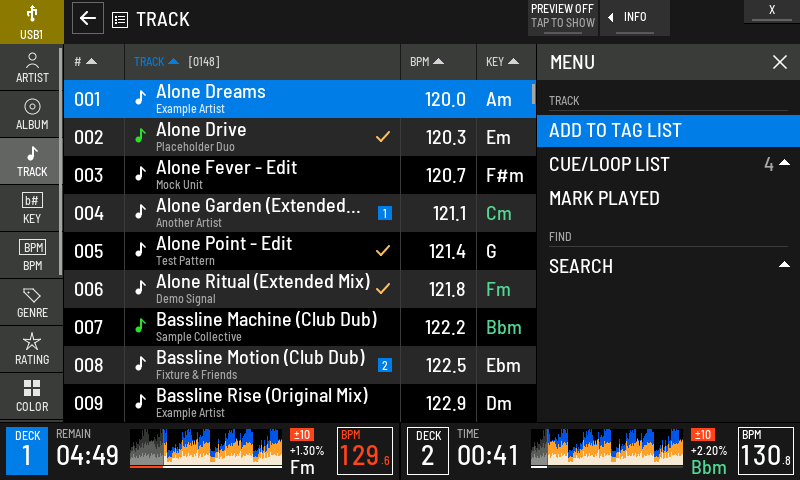
- 1TRACK
Actions for the highlighted track.
- 2ADD TO TAG LIST
Adds the track to the tag list. On a track already in it this reads REMOVE FROM TAG LIST.
- 3CUE/LOOP LIST
Not on the player in this version.
- 4MARK PLAYED
Marks the track played. A played track offers MARK UNPLAYED.
- 5SEARCH
Opens SEARCH.
- 6Tag marks
Tracks in the tag list carry a check mark.
- 7Close
Closes the panel.
MENU and BACK close it too.
Filter modern
Tap FILTER to narrow the list without leaving it. The filters stay on while you move between categories, and a chip in the header says which are on.
- Press BROWSE
- Press
 TRACK FILTER
 - Turn ROTARY SELECTOR 2 clicks clockwise, then push it
- Press BACK
- Press
| Filter | What it keeps |
|---|---|
| BPM | Tracks within a range of the master deck's BPM, for example MASTER ±6 |
| MATCH MASTER KEY | Tracks whose key mixes with the master deck's key |
| AT LEAST | Tracks rated at least that many stars |
| COLOR | Tracks with any of the colours you tick |
| MY TAG | Not available yet |
CLEAR ALL FILTERS in the panel, or a tap on the chip, turns every filter off. Filters that compare with the master deck need one. Without it you see NO MASTER DECK: BPM FILTER OFF or NO MASTER KEY: KEY FILTER OFF.
Search modern
Hold BROWSE (SEARCH is printed above it), or tap SEARCH on the SHORTCUT screen. Type on the keyboard and the list updates as you type. SEARCH puts the keyboard away so you can scroll the results. DELETE removes a letter and CLEAR empties the field.
- Hold BROWSE for a second
- Tap A
- Tap B
- Turn ROTARY SELECTOR 2 clicks clockwise
- Hold
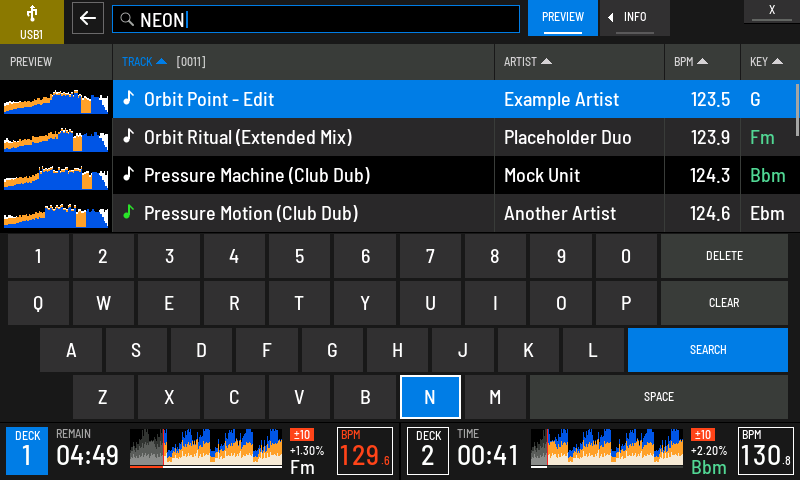
- 1Search field
What you have typed.
- 2Count
How many tracks match.
- 3SEARCH
Puts the keyboard away and moves to the results.
- 4DELETE
Removes the last letter.
- 5Key
The key you touched is outlined.
Tag list modern
The tag list is a quick list of tracks you want to play next. It holds up to 100 tracks and shows how many it has in the header. XZ Mods keeps it on the USB in XZMODS/playlists.txt, with your playlist changes. To add a track, use ADD TO TAG LIST in the MENU panel. To add a whole folder, highlight it and use ADD ALL TO TAG LIST.
- Press TAG LIST
- Turn ROTARY SELECTOR 2 clicks clockwise
- Press MENU
- Press BACK
- Press
Playlists modern
Tap PLAYLIST in the BROWSE category rail, or on the SHORTCUT screen, to open the USB's playlists. You can also make your own and change them on the player. Press MENU in the playlist list or inside a playlist.
- Press BROWSE
- Turn ROTARY SELECTOR 6 clicks clockwise, then push it
- Turn ROTARY SELECTOR 2 clicks clockwise, then push it
- Press BACK
- Press
| In the MENU panel | What it does |
|---|---|
| NEW PLAYLIST | Makes a playlist in the folder that is open. Type its name on the keyboard |
| RENAME | Renames the highlighted playlist |
| DELETE | Deletes the highlighted playlist. Push again to confirm |
| ADD TO PLAYLIST | Adds the highlighted track to a playlist you pick |
| REMOVE FROM PLAYLIST | Takes the highlighted track out of the playlist |
| MOVE TRACK | Picks up a track. Turn the encoder to move it, push to drop it |
Playlists, the tag list, played marks and histories can change only on a USB that is not read-only. Changes made on the player are saved on the same USB in XZMODS/playlists.txt. They never change the library your DJ software exported, so your DJ software and the CLASSIC browse screens do not show them. A playlist you changed on the player is marked in the list. In HISTORY the MENU panel offers DELETE HISTORY and DELETE ALL HISTORIES, each after a second push. If the USB is read-only you see THIS STICK IS READ-ONLY: PLAYLISTS CANNOT CHANGE. If it is full you see THE STICK IS FULL: PLAYLIST NOT SAVED.
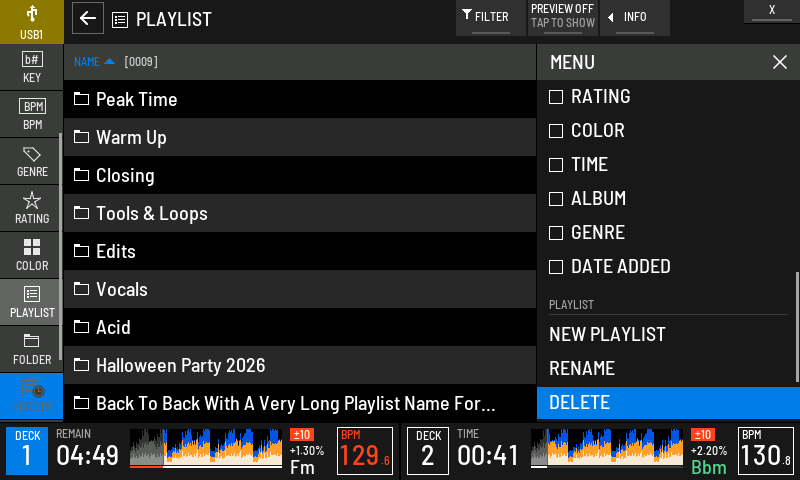
- 1PLAYLIST
Actions for the playlist list.
- 2NEW PLAYLIST
Makes a playlist here.
- 3RENAME
Renames the highlighted playlist.
- 4DELETE
Deletes it after a second push.
- 5Sort and columns
The same sort and column choices as in BROWSE.
SOURCE modern
SOURCE shows every place music can come from, one tile each. Press BACK at the top of a list, or tap the source tile at the top left of BROWSE.
- Open SOURCE (BACK at the top of a list)
- Turn ROTARY SELECTOR 1 click clockwise
- Press BACK
- Open SOURCE (
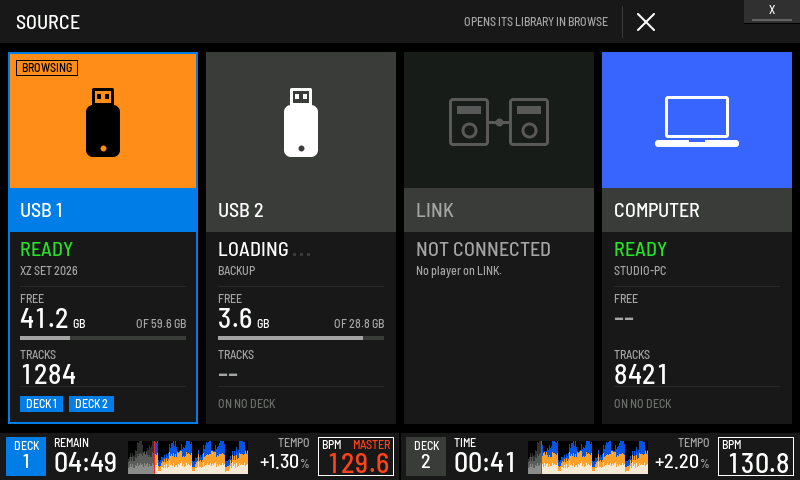
- 1BROWSING
The source BROWSE shows now.
- 2Name and colour
The USB's name and the colour saved on it.
- 3Status
READY, LOADING, NOT CONNECTED, or DECK'S OWN SCREEN where the player's own screen handles that source.
- 4FREE
Free space on the USB.
- 5Decks
The decks playing a track from this source.
- 6LINK
Players on LINK. Browsing LINK from MODERN is not available yet.
- 7COMPUTER
DJ software on a computer linked to the player. Browsing it from MODERN is not available yet.
- 8Hint
Opening a source opens its library in BROWSE.
Turn the encoder to pick a tile and push to open it, or tap it. A source the player's own screen handles opens that screen. Touch cannot open it yet; push the encoder instead.
BACK from the top of BROWSEINFO modern
Press INFO on the play screen, or tap the INFO icon in the top bar, to see everything about a loaded track.
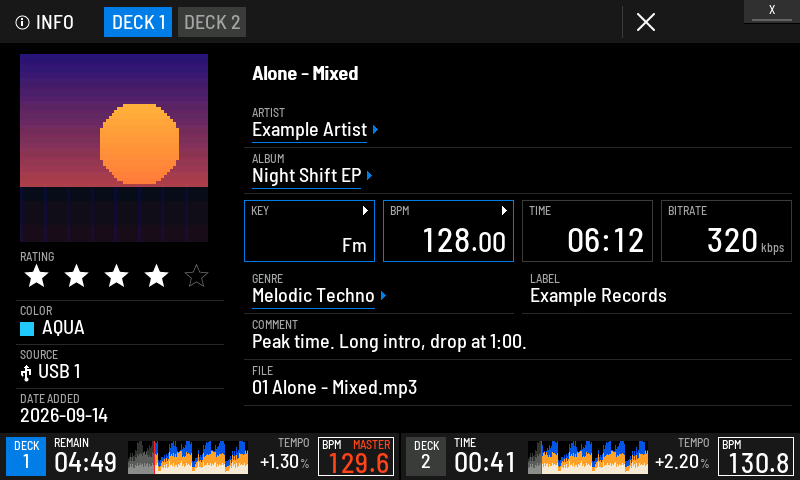
- 1Deck tabs
Switch between the decks' tracks.
- 2Close
Back to where you were.
INFO and BACK close it too. - 3Artwork
The track's artwork, when the USB has it.
- 4RATING
The track's stars.
- 5Linked field
A field with an arrow opens BROWSE with every track that shares it. ARTIST, ALBUM, KEY, BPM and GENRE are linked.
- 6KEY and BPM
Tap to open the KEY or BPM category at this value.
- 7COMMENT
The comment saved with the track in your DJ software.
- 8SOURCE
Where the track came from.
- 9Deck strip
Both decks stay in view.
Browsing in CLASSIC classic
CLASSIC keeps the player's own browse screens: the same lists, keys and menus the XDJ-XZ operating instructions describe. XZ Mods adds three things to them.
- The key in every row. Each track row shows up to three fields from the library exported to your USB inside the title cell. The default is the title, then the key, then the BPM.
- Key before title. With KEY BEFORE TITLE on, the key leads the row, so you can read keys down the list.
- Key match colours. With KEY MATCH COLOURS on, a leading key is green when it mixes with the master deck's key, amber when it is detuned against it, and grey otherwise.
The table header names what the player's own MENU click changes: SORT over the title column and COLUMN over the right-hand column. The STEMS and MODS buttons stay at the top right.
These additions only use tracks on a USB with an exported library. A track XZ Mods cannot match in the export keeps the player's own row, and a field the export does not have is left out.
Browse settings
- Press MENU
- Tap SCREEN
- Tap KEY MATCH COLOURS
- Tap KEY BEFORE TITLE
- Tap CLOSE
- Press BROWSE
- Push ROTARY SELECTOR
- Press MENU
- Tap ARTIST
- Press
| Setting | MODS | What it does | Default |
|---|---|---|---|
browse_preview | PREVIEW tile in MODERN browse | Shows the preview waveform column in MODERN browse | Hidden |
browse_traffic | SCREEN, KEY MATCH COLOURS | Colours keys that mix with the master deck's key, in both interfaces | On |
browse_key_prefix | SCREEN, KEY BEFORE TITLE | Puts the key first in each CLASSIC browse row | On |
browse_1, browse_2, browse_3 | none | The three fields in each CLASSIC browse row, in order. Each is TITLE, ARTIST, KEY or BPM | TITLE, KEY, BPM |
modern_browse_columns | COLUMNS in the MODERN MENU panel | The columns of the MODERN track list. TITLE always shows | Automatic |
MODS has no control for the three CLASSIC row fields in this version. They keep the values stored on the USB. In MODERN, choose columns from the MENU panel instead.
If browsing goes wrong
- Open SOURCE (BACK at the top of a list)
- Turn ROTARY SELECTOR 1 click clockwise, then push it
- Press BROWSE
- Push ROTARY SELECTOR
- Press LOAD 1
- Open SOURCE (
| You see | What to do |
|---|---|
| USB1 IS NOT CONNECTED or USB2 IS NOT CONNECTED | Insert the USB, or pick another source |
| USB SOURCE CHANGED: SELECT TRACK AGAIN | The USB changed while you chose. Highlight the track again |
| LOAD FROM THIS LIST IS OFF | Load from a track list instead |
| LINK BROWSING IS NOT AVAILABLE YET or COMPUTER BROWSING IS NOT AVAILABLE YET | Switch to CLASSIC to browse that source |
| TOUCH CANNOT OPEN THIS YET: PUSH THE ENCODER | Highlight the tile and push the encoder |
| PLAYLIST CHANGE NOT APPLIED | Try again. If the USB is read-only or full, the notice says so |