MODS menu
The MODS menu
How to open MODS, move around it with the encoder or touch, and what is on every section page.
Applies to MODERN and CLASSIC
MODS is the menu XZ Mods adds to the player. Everything the mod can change lives here, sorted by what you want to do. Both interfaces open the same menu, so what you learn here works in MODERN and CLASSIC. In MODERN, MODS uses the MODERN look. In CLASSIC, it uses the theme you chose.
Open and close MODS
Press  MENU on the play screen. A short press opens MODS wherever MENU has no other job, and leaves its normal job alone everywhere else. Hold MENU to open the player's own UTILITY, as without XZ Mods.
- Press MENU
- Press MENU
- Press MENU
- Tap CLOSE
- Press
| Where you are | Short press of MENU |
|---|---|
| The MODS menu is open | Closes MODS |
| A game is on screen | The game's own key |
| The VJ.Tools view is on screen | As before |
| A menu, popup or dialog is open | Works or closes the open menu |
| A track list (browse, playlist, search, history) | The sort menu or the track menu |
| TAG LIST | LIST MENU |
| The play screen in GRID ADJUST | The beat grid menu |
| The play screen | Opens MODS experimental |
| The SOURCE screen | Opens MODS experimental |
| The track INFO screen | Opens MODS experimental |
| The SHORTCUT screen | Opens MODS experimental |
| The player's own UTILITY | Closes UTILITY |
| Any other screen | The screen's own job |
To leave MODS, press MENU again, tap CLOSE in the top right corner, or press  BACK until you are back on the play screen.
You can also open MODS from the MODS button at the top of the MODERN play screen, or from the button above  LINK when you set it to MODS MENU in PLAY.
Move around
You can drive the whole menu with the rotary encoder, with touch, or with both.
- Press MENU
- Push
 ROTARY SELECTOR to choose PLAY
 - Turn ROTARY SELECTOR to GATE CUE and push it
- Turn ROTARY SELECTOR to SMART CUE and push it
- Press BACK
- Press
| Control | What it does in MODS |
|---|---|
| Turn the encoder | Moves the highlight to the next card, row or button |
| Push the encoder | Opens or changes the highlighted item |
| BACK | Goes up one level: from an open item to its page, then from a page to the section rail |
| Tap | Opens or changes whatever you tap |
The hints in the bottom right corner (TURN MOVE · PUSH SELECT · BACK UP) always show what the encoder and BACK will do next.
Every page has the same frame. The section rail on the left lists HOME, PLAY, STEMS, SCREEN, 4 DECKS, CONNECT and EXTRAS. The dock along the bottom explains whatever is highlighted. On the right of the dock, WORKS ON shows which decks the highlighted feature works on, in mixer order 3 1 2 4. A dimmed number means the feature does not work on that deck, and a short amber line says why.
HOME
HOME is the first page. It shows one card for each section, with a one-line summary of what the section does and the current state of its most important setting, so you can see at a glance whether stems are ready or four decks are connected.
- Press MENU
- Tap HOME
- Turn ROTARY SELECTOR 3 clicks clockwise
- Press BACK
- Press
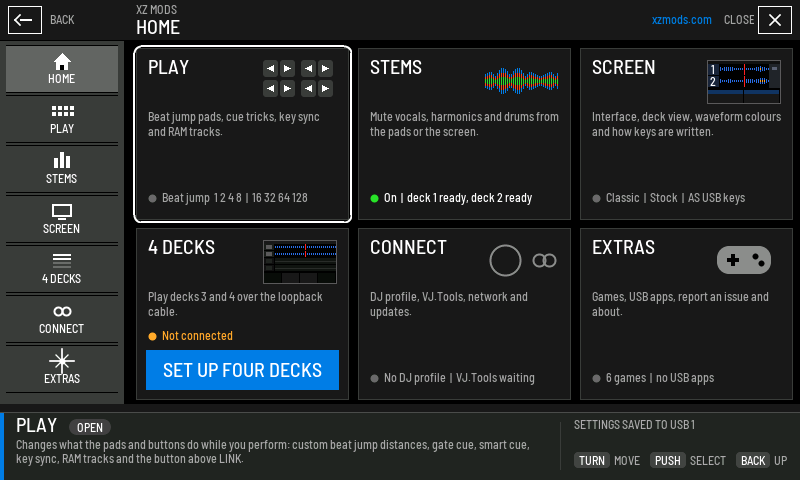
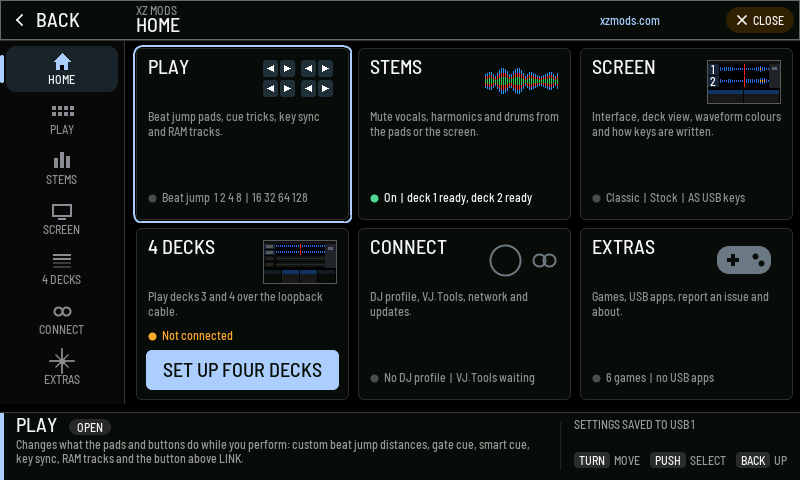
- 1BACK
Goes up one level. On HOME it closes MODS.
- 2Section rail
Every section of MODS, top to bottom. Tap one, or turn the encoder while the rail is highlighted.
- 3Section card
Opens that section. The highlighted card has a light outline.
- 4Status line
The state of the section's main setting. Green means ready, amber means it needs you.
- 5Setup button
Appears when a feature needs setting up, and starts a short guide for it.
- 6Dock
Explains the highlighted item in plain words before you open it.
- 7Save state
Confirms your changes are saved to the USB, or says why they cannot be.
- 8Encoder hints
What turning, pushing and BACK will do right now.
- 9CLOSE
Closes MODS and returns to where you were.
| Card | Its status line shows |
|---|---|
| PLAY | Your beat jump sizes, page 1 then page 2 |
| STEMS | Not set up, Off, or On with the state of deck 1 and deck 2 |
| SCREEN | The interface, the waveform colours and the key notation |
| 4 DECKS | Not connected, Looking for the cable, Starting decks 3 and 4, Ready with the deck view, Could not start, Disconnected, or Not available on this player |
| CONNECT | Your DJ profile and its USB, and whether VJ.Tools is connected |
| EXTRAS | The games and how many USB apps are on the stick |
Two setup buttons can appear on HOME. SET UP USB STEMS opens the USB stems guide when the stem engine is not ready. SET UP FOUR DECKS opens 4 DECKS when no cable is found, a start failed, the cable was lost, or the USB loader has no four-deck engine.
PLAY
PLAY changes what the pads and buttons do while you perform.
- Press MENU
- Tap PLAY
- Turn ROTARY SELECTOR 3 clicks clockwise
- Press BACK
- Press
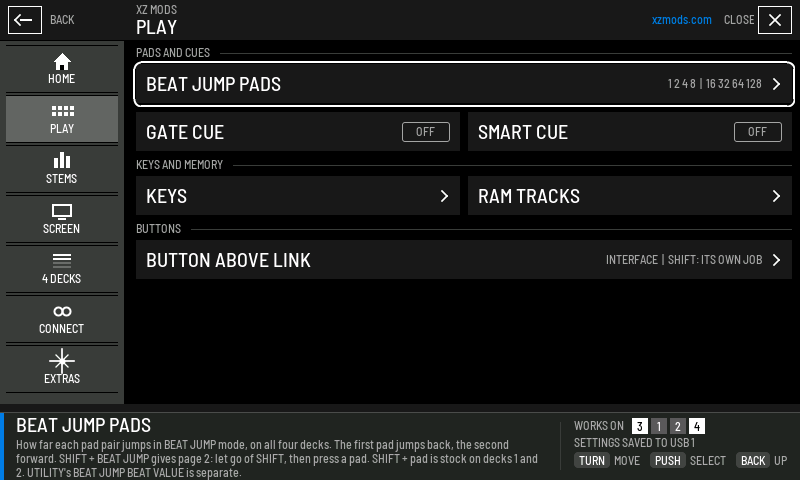
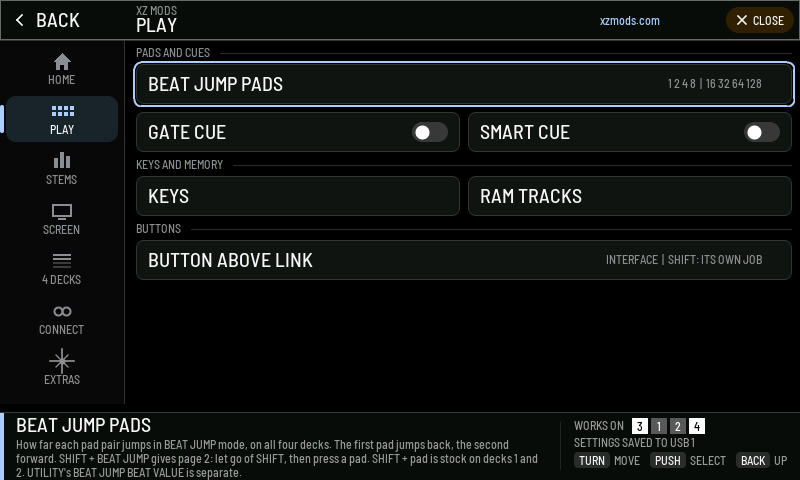
- 1BEAT JUMP PADS
Your own beat jump distances for both pad pages. The row shows the sizes now in use.
- 2GATE CUE and SMART CUE
Switch each cue trick on or off. A feature the player has not reported yet shows a SET UP button instead.
- 3KEYS and RAM TRACKS
Open their own pages.
- 4BUTTON ABOVE LINK
What the button above LINK does on a press, and with SHIFT.
- 5WORKS ON
The decks the highlighted feature works on.
Beat jump and performance features explains every item on this page.
STEMS
STEMS mutes vocals, harmonics and drums from the pads or the screen.
- Press MENU
- Tap STEMS
- Turn ROTARY SELECTOR 3 clicks clockwise
- Press BACK
- Press
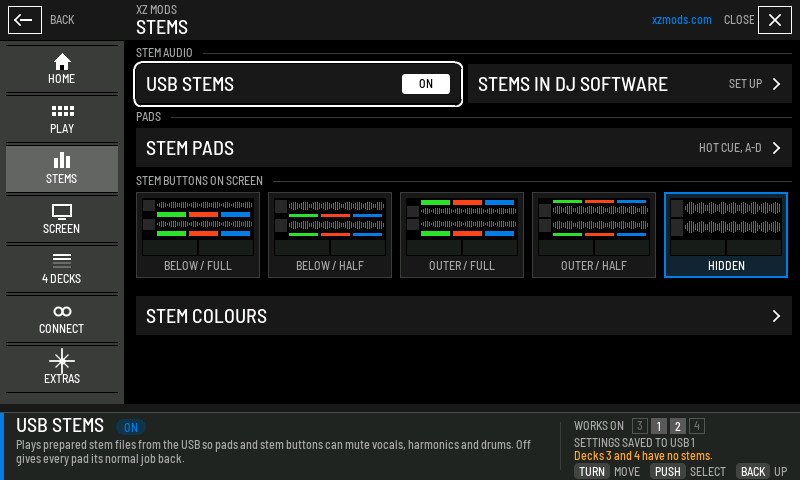
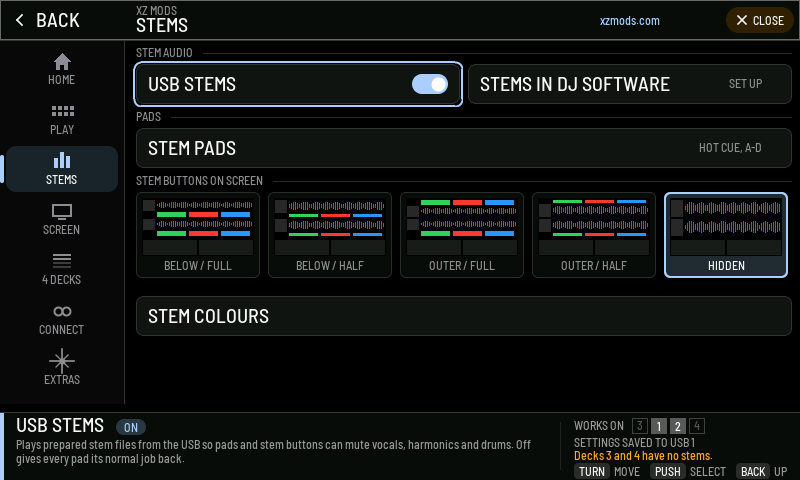
- 1USB STEMS
Switches stems from the USB on or off. Reads SET UP USB STEMS until the stem engine is ready.
- 2STEM PADS
Which pad mode and pad bank the stems use.
- 3Stem buttons on screen
Where the stem buttons sit on the play screen. Each picture is one layout.
- 4STEM COLOURS
The colours of drums, harmonics and vocals.
- 5WORKS ON
Only decks 1 and 2 are lit. The amber line under it says decks 3 and 4 have no stems.
STEMS IN DJ SOFTWARE sets up stems for a computer playing through the player. MODERN adds a BYPASS BUTTON switch beside STEM COLOURS. Stems explains every item on this page.
SCREEN
SCREEN sets how the play screen looks.
- Press MENU
- Tap SCREEN
- Turn ROTARY SELECTOR 3 clicks clockwise
- Press BACK
- Press
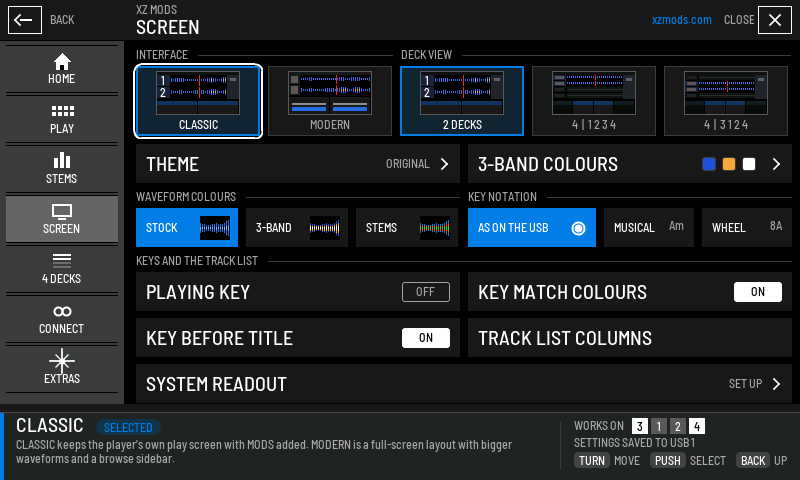
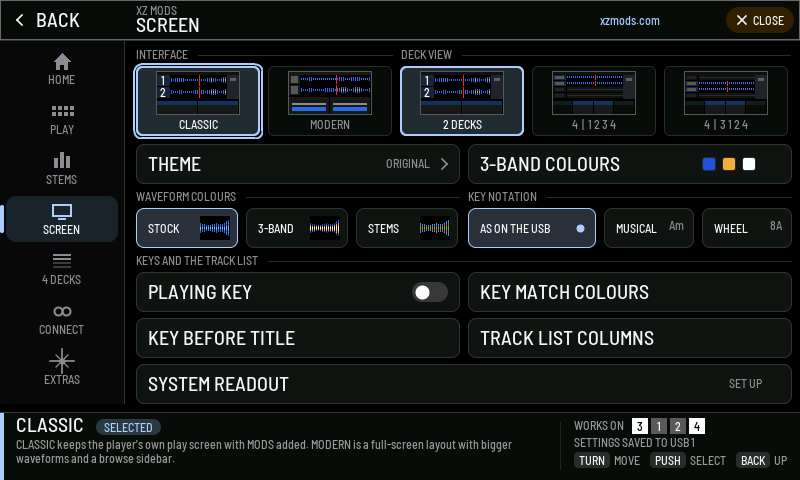
- 1INTERFACE
CLASSIC or MODERN. The picture shows each one.
- 2DECK VIEW
2 DECKS, 4 DECKS in number order, or 4 DECKS in mixer order.
- 3THEME
The CLASSIC theme. In MODERN this place holds LAMPS AND TITLES instead.
- 43-BAND COLOURS
A colour for the lows, mids and highs of the 3-BAND waveform. The squares show the colours in use.
- 5WAVEFORM COLOURS
STOCK, 3-BAND or STEMS. MODERN adds RGB.
- 6KEY NOTATION
AS ON THE USB, MUSICAL or WHEEL, each with an example key.
- 7Keys and the track list
PLAYING KEY, KEY MATCH COLOURS, KEY BEFORE TITLE and TRACK LIST COLUMNS.
- 8SYSTEM READOUT
CPU, memory and temperature on the top bar, on its own row at the bottom of the page.
Screen, interfaces and themes explains every item on this page. DECK VIEW is explained in Four decks.
4 DECKS
4 DECKS plays decks 3 and 4 over the loopback cable experimental.
- Press MENU
- Tap 4 DECKS
- Turn ROTARY SELECTOR 3 clicks clockwise
- Press BACK
- Press
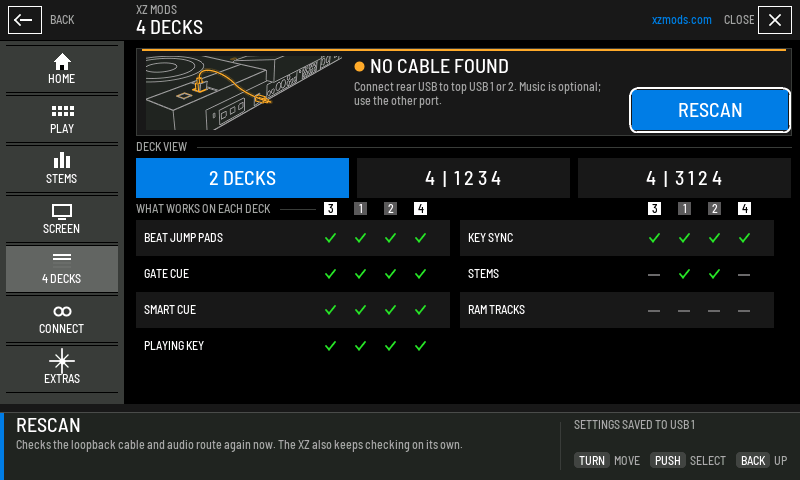
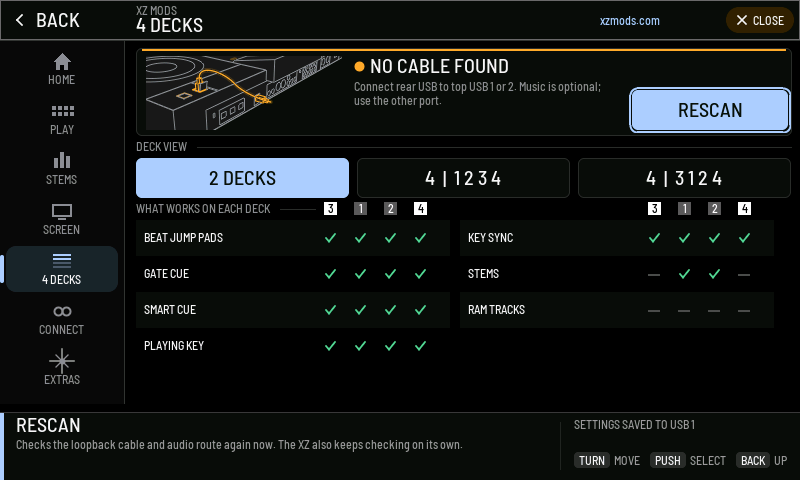
- 1Cable state
Where four decks stand, and what happens next.
- 2RESCAN
Checks the cable now. Reads TRY AGAIN after a failed start.
- 3DECK VIEW
How many decks the play screen shows, and in what order.
- 4What works on each deck
A tick for every deck a feature works on.
Four decks explains the cable, every state and what decks 3 and 4 can do.
CONNECT
CONNECT links the player to you and to computers.
- Press MENU
- Tap CONNECT
- Turn ROTARY SELECTOR 3 clicks clockwise
- Press BACK
- Press
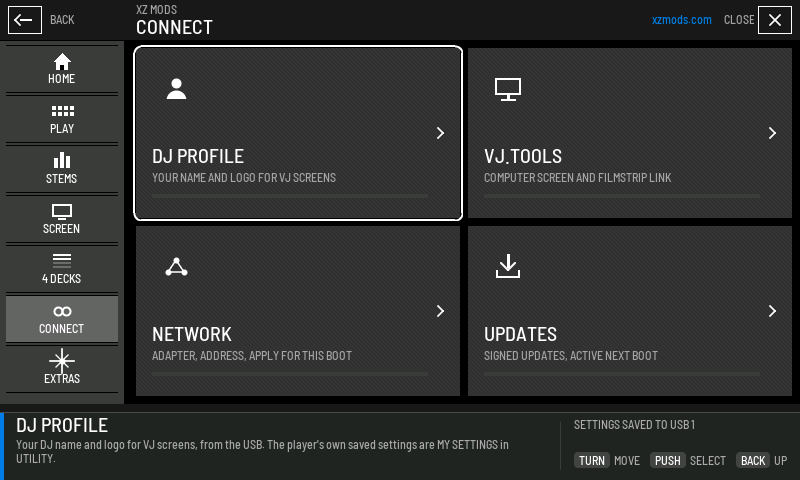
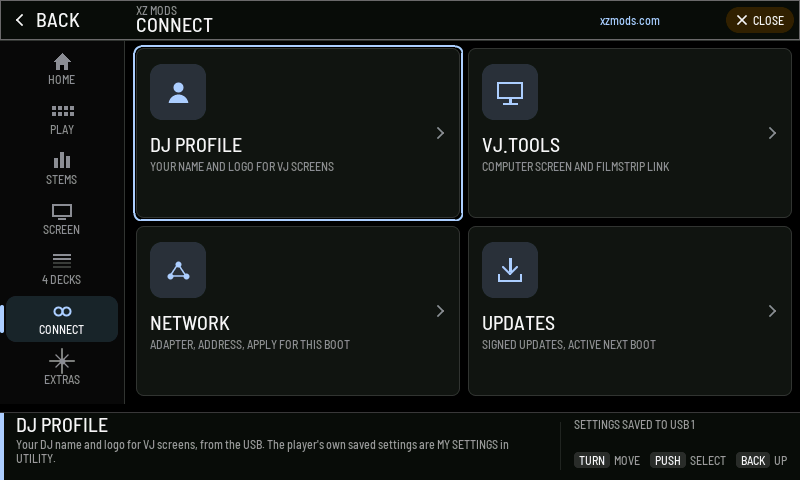
- 1DJ PROFILE
Your DJ name and logo from the USB, for VJ screens.
- 2VJ.TOOLS
Lets VJ.Tools on a computer connect, and shows its picture instead of the play screen.
- 3NETWORK
The network adapter and address, applied for this start of the player.
- 4UPDATES
Signed updates over the network. An update becomes active at the next start.
Connect and DJ profiles explains every page here.
EXTRAS
- Press MENU
- Tap EXTRAS
- Turn ROTARY SELECTOR 3 clicks clockwise
- Press BACK
- Press
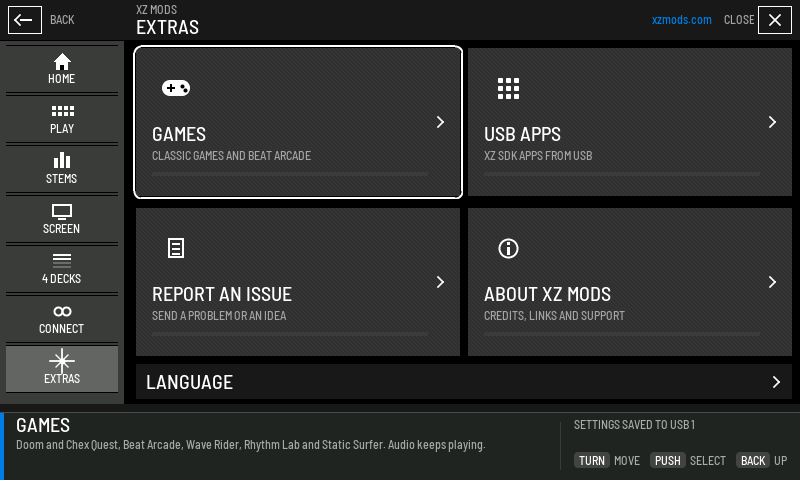
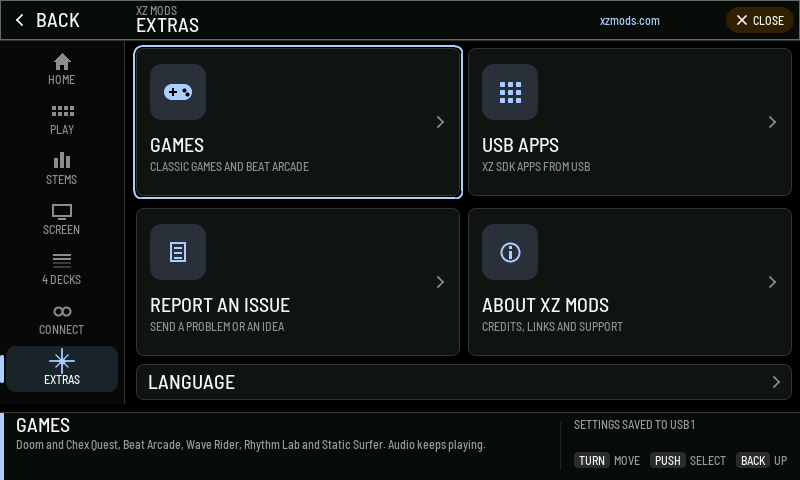
- 1GAMES
Doom, Chex Quest, Beat Arcade, Wave Rider, Rhythm Lab and Static Surfer. The music keeps playing.
- 2USB APPS
Apps for the XZ from the USB.
- 3REPORT AN ISSUE
Sends a problem, a question or an idea, in three presses.
- 4ABOUT XZ MODS
Credits, links and support.
- 5LANGUAGE
The language of the MODS menu.
Extras explains every page here.
UTILITY, the player's own settings
MENU held opens the player's own UTILITY: quantize, auto cue, play mode, the display and the player's other settings.
- Hold MENU for a second
- Push ROTARY SELECTOR
- Turn ROTARY SELECTOR 1 click clockwise, then push it
- Turn ROTARY SELECTOR 1 click clockwise, then push it
- Press BACK
- Hold
- In CLASSIC you see the player's own UTILITY screen, unchanged.
- In MODERN, UTILITY shows the player's settings in the MODERN colours.
- In MODERN, MODS also has a UTILITY cell at the bottom of the section rail. It closes MODS and opens UTILITY. Until MODERN has read the player's settings, it reads NOT READY.
MODERN UTILITY modern
- Press
 SHORTCUT
 - Tap the screen
- Tap the screen
- Press
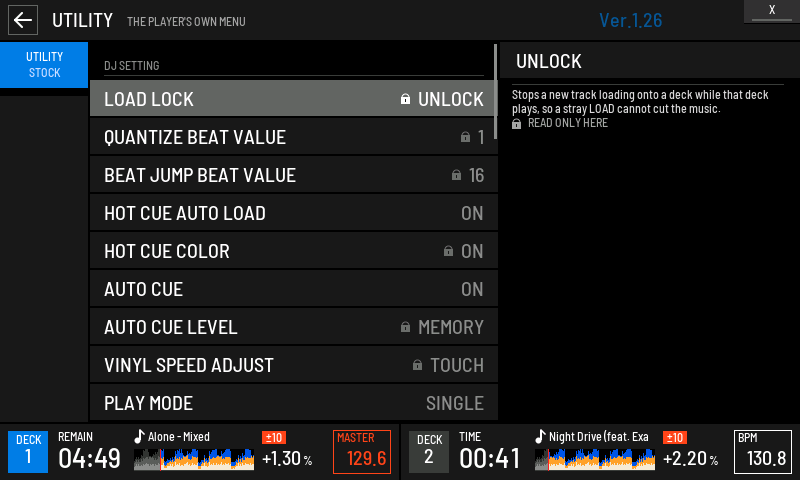
- 1UTILITY STOCK
The player's own settings. On the player, the rail lists the MODS sections below it, and each one opens MODS on that section.
- 2Group
DJ SETTING, DISPLAY (LCD), MIXER, SYSTEM and INFO, as on the player.
- 3Lock
XZ Mods shows this setting but cannot change it here. The help says why.
- 4Current value
A locked setting shows its value without choice buttons. Writable settings open a list of choices.
- 5Help
What the setting does and why it is read-only here, or what a writable choice means.
- 6Version
The player's firmware version.
- 7Deck strip
Decks 1 and 2 stay in view while you change settings.
Turn the encoder to move through the settings. On a writable row, push to open its choices, turn to pick one and push to set it. A locked row stays in the list and shows a read-only value and explanation. BACK goes back to the list. MENU or X closes UTILITY.
A lock next to a setting comes with one of these notes:
| Note | What it means |
|---|---|
| PLAYER CONTROLLED | The player sets this itself. XZ Mods only shows it. |
| FIRMWARE LIMIT | XZ Mods cannot read or set it on this firmware version. |
| READ-ONLY BUILD | This start of XZ Mods shows settings but changes none. Start from the USB loader to change them. |
| READ ONLY HERE | XZ Mods shows this setting but cannot change it here. |
Pushing a locked setting does nothing.
MY SETTINGS modern
MY SETTINGS shows the player settings saved on a USB stick, and the DJ profiles on it. In MODERN, open the stick in browse, highlight the category rail on the left, and press MENU.
- Press
 BROWSE
 - Press MENU
- Tap the screen
- Tap the screen
- Tap the screen
- Tap the screen
- Press
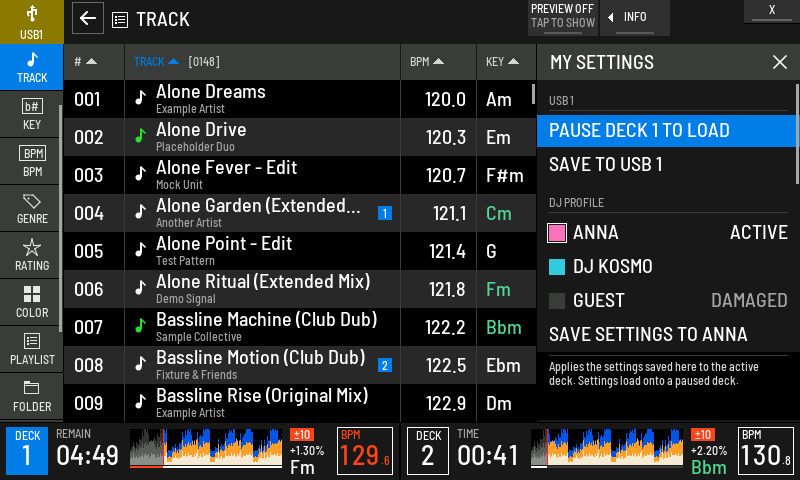
- 1MY SETTINGS
The panel for the stick you browse. X closes it.
- 2Stick
The stick whose settings these are: USB 1, USB 2, or a LINK player's USB.
- 3LOAD TO DECK
Applies the settings saved on the stick to the active deck. Reads PAUSE DECK 1 TO LOAD while that deck plays.
- 4SAVE TO USB 1
Saves the player's current settings to the stick, replacing the ones there. Push once to arm it, then again to save.
- 5DJ PROFILE
The DJ profiles on the stick. Push one to make it active and apply its settings and look. ACTIVE marks the one in use.
- 6DAMAGED
A profile whose files cannot be read.
- 7SAVE SETTINGS TO
Saves the current settings into the active DJ's profile. Push twice.
- 8Help
What the highlighted row does.
Further down, WAVEFORM sets COLOR, POSITION, ZOOM, USB COLORS and the stem row layout. SAVED ON USB 1 lists the settings stored on the stick, which you can change there.
Saving to the USB
There is no save button in MODS. Every change saves on its own to the settings USB, the stick you browse. The settings live in the VJ.Tools folder on that stick, so they travel with you to another XZ running XZ Mods. When you browse a stick, the player takes that stick's settings. A stick with no settings, or with damaged ones, leaves the current settings as they are.
- Press MENU
- Tap SCREEN
- Tap CLASSIC
- Tap MODERN
- Press MENU
- Press
The XZ also remembers the last settings it applied. If you start it with no stick, it uses them.
The save state at the right of the dock says what happened to your last change:
| Save state | What it means |
|---|---|
| SAVING... | The change is being written. |
| SAVED TO USB 1 (or USB 2) | The change is on the stick. |
| SAVED ON THIS XZ / NO USB | No stick is in. The change is kept on this XZ. |
| SAVED ON THIS XZ / USB CHANGED | The settings stick changed. The change is kept on this XZ. |
| SAVED ON THIS XZ / USB PROFILE KEPT | The stick is locked. The change is kept on this XZ and the stick is left as it was. |
| USB REMOVED: SETTINGS KEPT | You pulled the settings stick. Nothing resets. |
| NOT SAVED TO USB 1: CHECK USB | Writing failed. Check that the stick is in and not locked. |
| NOT SAVED: USB PROFILE KEPT | The stick is locked and the XZ could not keep the change either. |
| NO SETTINGS USB: CHANGES LAST UNTIL POWER OFF. | Nothing can be saved. Your change works until you switch the player off. |
| NOT SAVED: CHANGES LAST UNTIL POWER OFF. | This build does not save settings. Changes work until you switch the player off. |
Lines that say NOT SAVED or NO SETTINGS USB show in amber. DJ profiles are not settings. They stay on the DJ's stick and never on the XZ. See Connect and DJ profiles.
Older pages
Earlier versions had GENERAL, CONTROLS, THEMES and SETTINGS pages in MODS. They are gone. Anything that pointed at them now opens the page that replaced them:
| Old page | Opens |
|---|---|
| GENERAL | HOME |
| CONTROLS | STEM PADS, in STEMS |
| THEMES | SCREEN |
| SETTINGS | PLAY |