
On the player
Stems
Muting vocals, harmonics and drums live, stem layouts and pads, and how to prepare stems for a USB.
Applies to MODERN and CLASSIC
Stems split a track into its parts so you can mute them live. XZ Mods plays three stems per track: VOCALS, HARMONICS (everything melodic that is not a voice) and DRUMS. You mute them from the pads or from buttons on the screen, change their levels by sliding, and switch back to the whole track with BYPASS. Stems work on decks 1 and 2. Decks 3 and 4 have no stems.
Prepare stems
The player cannot split a track itself. You prepare stems on your computer, once per track, and they travel on the USB beside your music.
- Prepare the stems in the XZ Mods app on your computer, or in OverCue Desktop. See The XZ Mods app.
- Keep the stems on the same USB as the music. Your original files and the library your DJ software exported stay unchanged.
- On the player, load the original track through the normal browser and wait a moment for its stems to load.
A track without prepared stems plays as normal. Its stem buttons say why, and the button at their end tells you what to do (see Stem readiness).
Turn stems on
Open MODS, choose STEMS on the section rail, and turn USB STEMS on. It is on by default. With it off, every pad keeps its normal job and the stem buttons say STEMS ARE OFF or STEMS OFF.
- Press
 MENU
MENU - Tap STEMS
- Tap USB STEMS
- Tap USB STEMS
- Tap CLOSE
- Press
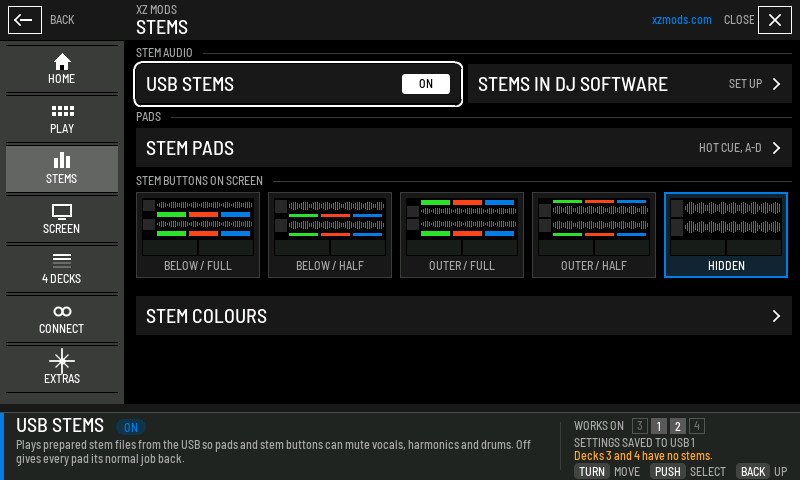
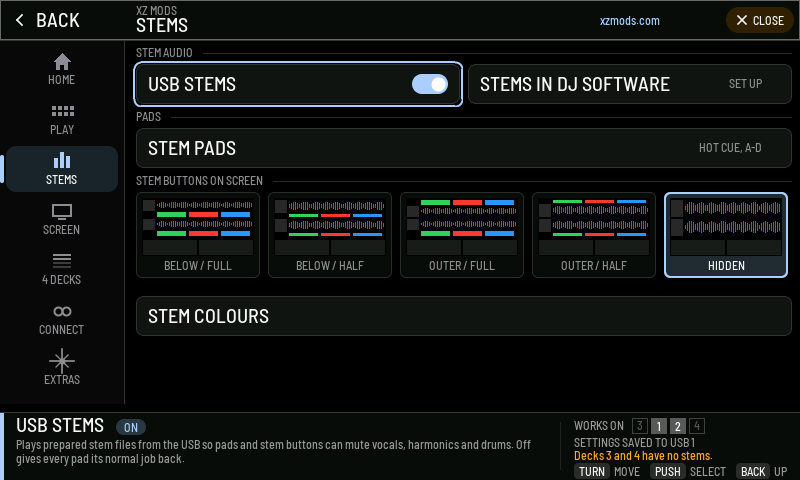
- 1USB STEMS
Plays prepared stems from the USB. Off gives every pad its normal job back. Without the stem engine on the USB it reads SET UP USB STEMS and starts the setup.
- 2STEMS IN DJ SOFTWARE
Sets up stem control for DJ software on a computer. See Stems in DJ software.
- 3STEM PADS
Which pad mode gives stem pads, the stem order and the pad lights. See Stem pads.
- 4Stem buttons on screen
Where the stem buttons sit on the play screen. The outlined tile is the current layout.
- 5STEM COLOURS
The colour of each stem. See Stem colours.
- 6WORKS ON
The decks this page applies to. Decks 3 and 4 have no stems.
Stem buttons on the play screen
Each deck gets three stem buttons and BYPASS. Tap a stem button to mute that stem, and tap it again to bring it back. A muted stem goes dark and keeps its level in its label.
- Tap STEMS HEADER
- Tap STEMS HEADER
- Tap STEMS HEADER
- Tap STEMS HEADER
- Tap STEMS HEADER
- Tap STEMS HEADER
MODERN stem buttons modern
- Tap DRUMS
- Tap BYPASS
- Tap BYPASS
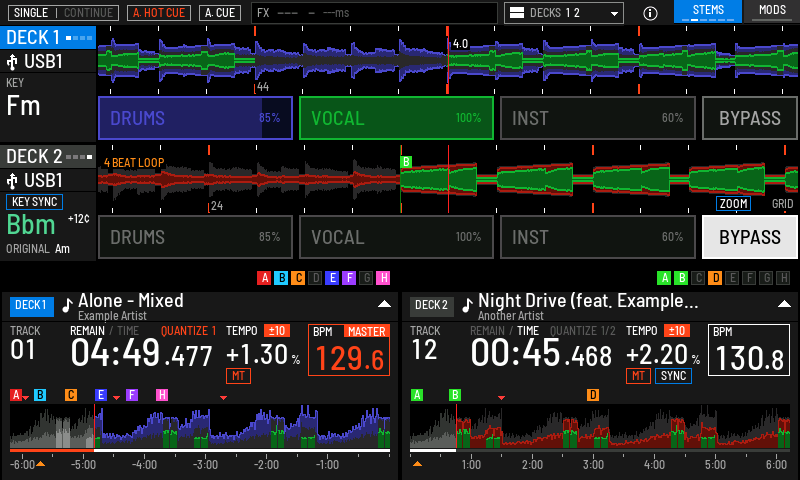
- 1STEMS
Lit blue while stems are on. Tap to step to the next layout. The marks under the label show which one is current. In 4 DECKS it shows or hides the stem buttons.
- 2DRUMS
Tap to mute. Slide sideways to set the level. The fill and the percentage show it.
- 3VOCAL
The vocals stem.
- 4INST
Muted. It goes dark and keeps its level in the label.
- 5BYPASS
Grey while the stems play.
- 6BYPASS lit
Lit white, the deck plays the original track and every stem button goes dark. Tap again to hear the stems as you left them.
On full-height rows each stem button is also a fader. Put a finger on it and slide right to raise the level or left to lower it. One button's width covers the whole range. A tap without a slide toggles the mute. Half-height rows and the small buttons beside the hot cues mute only.
In 2 DECKS, STEMS in the top bar steps through six layouts in this order: beside the hot cues, below each deck at full height, below at half height, at the outer edges at full height, at the outer edges at half height, and hidden. You can also pick one in MODS under STEMS. MODERN keeps its own layout (modern_stems), so switching to CLASSIC and back does not change it. The default is the small buttons beside the hot cues.
The marks under STEMS follow the same order, so the lit mark tells you the layout without looking at the decks.
BYPASS BUTTON in MODS under STEMS shows or hides the BYPASS button. Hidden, the stem buttons take its room and the pads still bypass.
If stems are off when you tap STEMS, the layout still changes, and a notice says STEM ROWS SHOW ONCE STEMS ARE ON IN MODS.
Stem buttons in 4 DECKS modern
In a 4 DECKS view the lanes are too short for the layouts, so STEMS is a switch there. One tap hides the stem buttons on every deck, and the screen says STEM BUTTONS HIDDEN. The next tap brings them back and says STEM BUTTONS SHOWN. STEMS is lit while they show and has no layout marks. Your 2 DECKS layout does not change, and XZ Mods saves the 4 DECKS choice on the USB separately.
- Tap DECKS
- Turn
 ROTARY SELECTOR 1 click clockwise, then push it
 - Tap STEMS HEADER
- Tap STEMS HEADER
A deck whose track has no prepared stems shows no stem buttons in 4 DECKS, and its waveform keeps the whole lane. The buttons appear when you load a track with stems. Decks 3 and 4 have no stems, so they never show stem buttons. Four decks has pictures.
CLASSIC stem rows classic
In CLASSIC the stem rows sit inside the player's own waveform area, one row per deck.
- Tap the screen
- Tap the screen
- Tap the screen

- 1VOCALS
Tap to mute. Slide sideways to set the level.
- 2Level
The fill and the percentage show the stem's level.
- 3Muted
A muted stem goes dark and reads MUTE with the level it returns to.
- 4BYPASS
D1 OFF means deck 1 plays its stems. Tap to play the original track.
In 2 DECKS, the STEMS button in the top right corner of the play screen steps the rows through five layouts: BELOW / FULL, BELOW / HALF, OUTER / FULL, OUTER / HALF and HIDDEN, then back to BELOW / FULL. Its five marks show the current one. Half rows give each waveform more height. HIDDEN gives the player's waveforms their full size back while the stems keep playing. CLASSIC keeps its own layout (stems_overlay).
While four decks show in CLASSIC, no stem rows are drawn, and STEMS stays dark. A tap changes nothing and says STEM BUTTONS SHOW IN 2 DECKS VIEW. The layout comes back when you return to two decks.
Stem pads
The pads mute stems too, without looking at the screen. Open STEM PADS on the STEMS page.
- Press
 HOT CUE on the left deck
 - Press pad A on the left deck
- Press pad B on the left deck
- Press pad C on the left deck
- Press pad D on the left deck
- Press pad A on the left deck
- Press
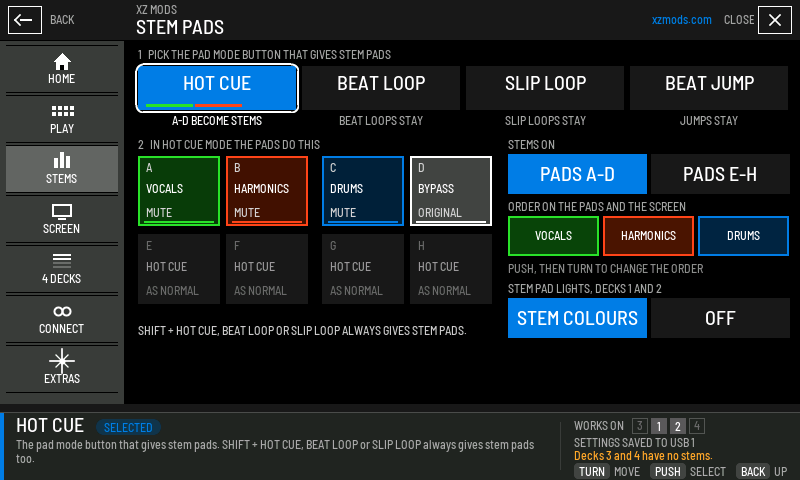
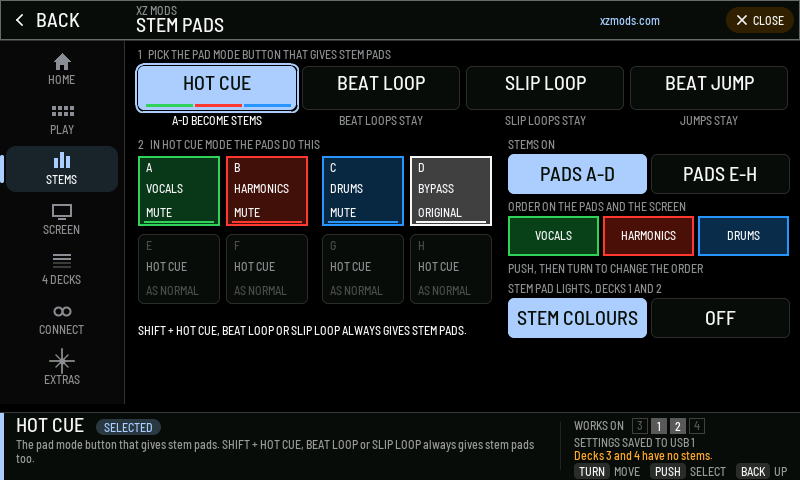
- 1Pad mode button
Pick the pad mode that gives stem pads: HOT CUE, BEAT LOOP, SLIP LOOP or BEAT JUMP. The other modes keep their normal pads.
- 2Stem pads
Pads A, B and C mute the three stems in the order below.
- 3BYPASS pad
Pad D plays the original track while lit.
- 4Other pads
Pads E to H keep their normal job.
- 5STEMS ON
Put the stems on pads A to D or on pads E to H.
- 6Order
The stem order on the pads and on the screen. Push, then turn to change it.
- 7Pad lights
STEM COLOURS lights the stem pads in their stem colours and dims a muted one. OFF leaves the lights to the player.
- 8SHIFT shortcut
SHIFT + HOT CUE, BEAT LOOP or SLIP LOOP always gives stem pads, whatever mode you picked.
Mute and bypass are performance state. They are not saved, and every track starts with all stems playing.
Stem order
The order puts the stems where your fingers expect them. It changes the pads and the stem buttons on the screen together. There are six orders.
- Press MENU
- Tap STEMS
- Tap USB STEMS
- Tap BY THE CUES
- Tap BELOW / FULL
- Tap BELOW / HALF
- Tap OUTER / FULL
- Tap OUTER / HALF
- Tap HIDDEN
- Tap BYPASS BUTTON
- Press
| Order | Pads A, B, C |
|---|---|
| VOCALS / HARMONICS / DRUMS | The default |
| VOCALS / DRUMS / HARMONICS | |
| HARMONICS / VOCALS / DRUMS | |
| HARMONICS / DRUMS / VOCALS | |
| DRUMS / VOCALS / HARMONICS | |
| DRUMS / HARMONICS / VOCALS |
The layered STEMS waveform and the stem row for DJ software keep their own order.
Stem colours
Each stem has a colour on the pads, the stem buttons and the STEMS waveform. In the ORIGINAL theme drums are blue, harmonics red and vocals green. Every theme has its own shades.
- Press MENU
- Tap STEMS
- Tap STEM COLOURS
- Turn ROTARY SELECTOR 2 clicks clockwise
- Press
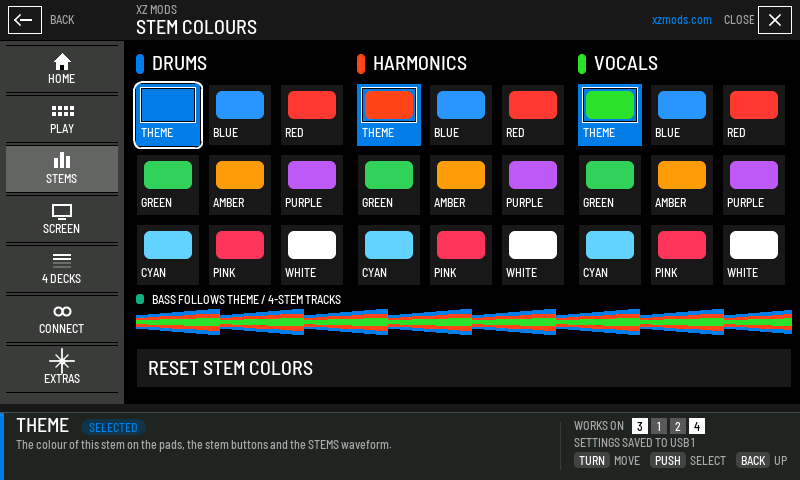
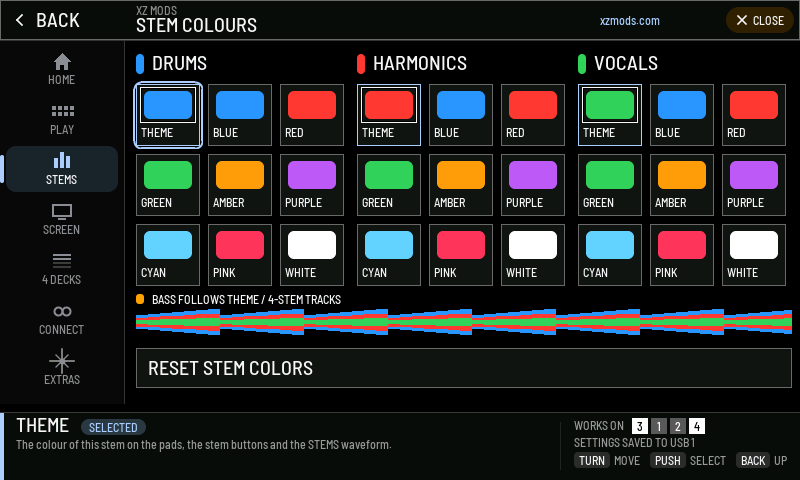
- 1Stem
DRUMS, HARMONICS and VOCALS each have their own column.
- 2THEME
Follows the theme you chose. The outlined tile is the current choice.
- 3Bass
A four-stem track's bass always follows the theme.
- 4Preview
The three colours as the STEMS waveform draws them.
- 5RESET STEM COLORS
Puts all three back to THEME.
The choices are THEME, BLUE, RED, GREEN, AMBER, PURPLE, CYAN, PINK and WHITE. A fixed colour stays when you change theme.
Stem readiness
Each deck's stem buttons tell you whether its stems can play. When they cannot, the stem buttons go dark and the last button names the reason. Where you can fix it from the player, that button does it.
- Press MENU
- Tap STEMS
- Tap SET UP USB STEMS
- Tap CHECK STEM ENGINE
- Tap TURN ON USB STEMS / DECKS 1 + 2
- Tap CHECK THIS DECK AGAIN
- Tap CHECK THIS DECK AGAIN
- Tap STEMS READY / BACK TO PLAY
- Press
| On the stem row | What it means | What to do |
|---|---|---|
| STEMS READY | The stems play | Nothing |
| NO STEM ENGINE, with SET UP | The USB loader has no stem engine | Update the USB loader with XZ Mods on your computer, then restart the player |
| STEMS OFF, with TURN ON | USB STEMS is off | Tap TURN ON, or turn USB STEMS on in MODS |
| NO TRACK LOADED | The deck is empty | Load a track from USB on this deck |
| NOT PREPARED, with HOW TO FIX | This track has no prepared stems | Prepare it in XZ Mods on your computer, then load it again |
| LOADING STEMS | The stems are loading from USB | Wait a moment |
| PLAY TO ALIGN | The stems are loaded and wait for the track | Press PLAY. The stems lock to the track a few seconds in |
| STEM SET ERROR, with HOW TO FIX | A stem file is missing or damaged | Verify the track in XZ Mods on your computer |
In MODERN the stem buttons on a deck that cannot play stems read STEMS ARE OFF or NO STEMS ON THIS TRACK, and only the hot-cue lamps stay in the pad row. In 4 DECKS such a deck shows no stem buttons, and its waveform keeps the whole lane.
USB STEMS setup
Tap SET UP or HOW TO FIX on a stem row, or SET UP USB STEMS in MODS, to open USB STEMS setup. It checks one deck at a time and walks you through the three steps: check the engine, turn stems on, load a prepared track.
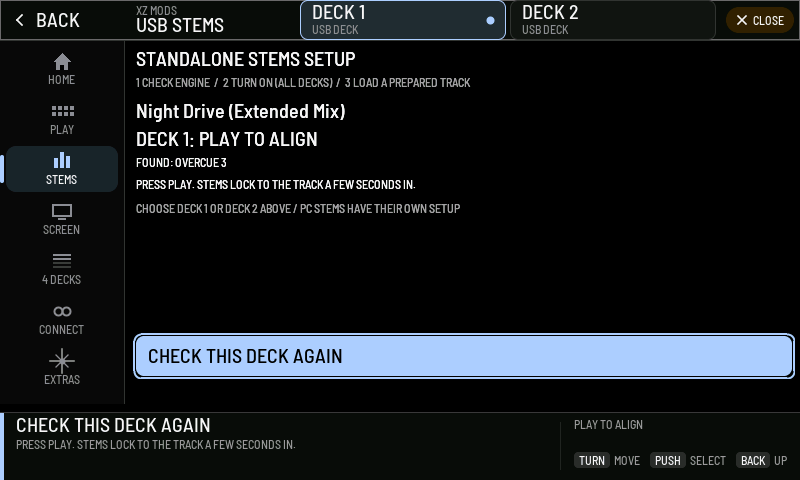
- 1DECK 1 / DECK 2
The deck this setup checks.
- 2Steps
Check the engine, turn stems on, load a prepared track.
- 3Deck status
Where this deck stands now.
- 4FOUND
The stem format found for this track.
- 5Next step
What to do next, in one line.
- 6Action
Does the next step, or checks the deck again.
Stems in DJ software experimental
When the XZ plays from DJ software on a computer over USB, the stem buttons can switch the software's stems instead. Open STEMS IN DJ SOFTWARE on the STEMS page and follow its four steps for each deck: DETECT, MAP STEMS, LIVE TEST and CONFIRM.
- Press MENU
- Tap STEMS
- Tap STEMS IN DJ SOFTWARE
- Turn ROTARY SELECTOR 2 clicks clockwise
- Press
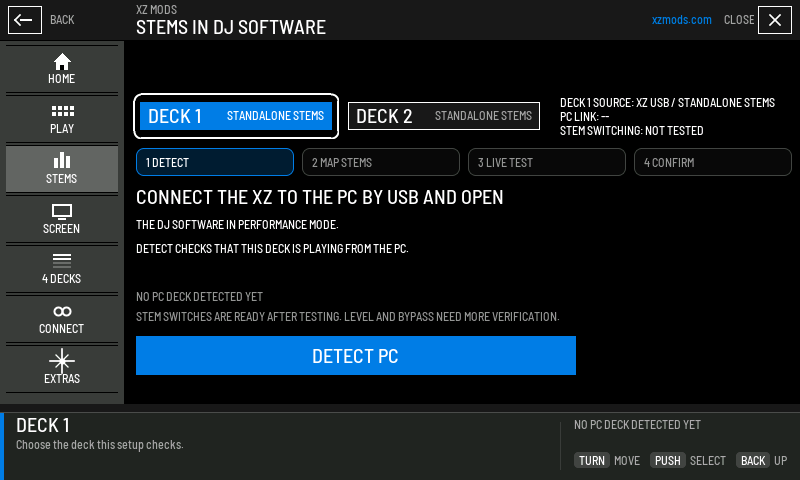
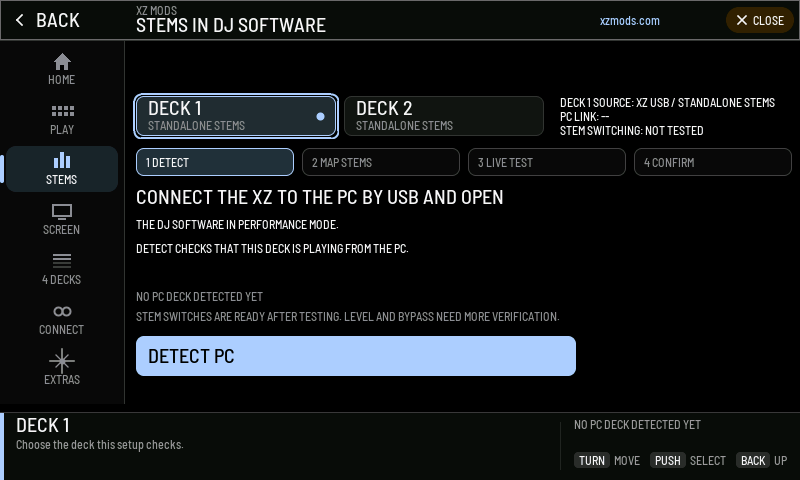
- 1Deck
The deck this setup checks.
- 2Status
The deck's source, the link to the computer and whether stem switching has been tested.
- 3Steps
DETECT, MAP STEMS, LIVE TEST and CONFIRM.
- 4DETECT PC
Checks that this deck plays from the computer.
Connect the XZ to the computer by USB and open your DJ software in Performance mode before you start. A deck playing from the computer then shows a stem row for the software, with three or four stems.
If stems do not play
| You see | What to do |
|---|---|
| No stem buttons at all in MODERN | Tap STEMS in the top bar until the layout you want shows. HIDDEN shows none. In 4 DECKS, tap STEMS once. A deck whose track has no stems shows none |
| STEMS ARE OFF | Turn USB STEMS on in MODS under STEMS |
| NO STEMS ON THIS TRACK or NOT PREPARED | Prepare the track in the XZ Mods app, copy it to the USB, then load it again |
| PLAY TO ALIGN does not go away | Let the track play for a few seconds. If it stays, check the track in the XZ Mods app |
| Stems on decks 3 and 4 | Not available. Stems work on decks 1 and 2 only |