
MODS menu
Extras
Games, USB apps, reporting a problem and the About page.
Applies to MODERN and CLASSIC
EXTRAS holds what is not about playing a set: games, apps from a USB, reporting a problem, the About page and the language of the MODS menu. Nothing here starts on its own. The XZ always starts in its normal DJ view, and a game or app opens only when you choose it.
Open MODS with  MENU, then choose EXTRAS in the section rail.
The EXTRAS page
- Press MENU
- Tap EXTRAS
- Turn
 ROTARY SELECTOR 3 clicks clockwise
 - Press
 BACK
BACK
- Press
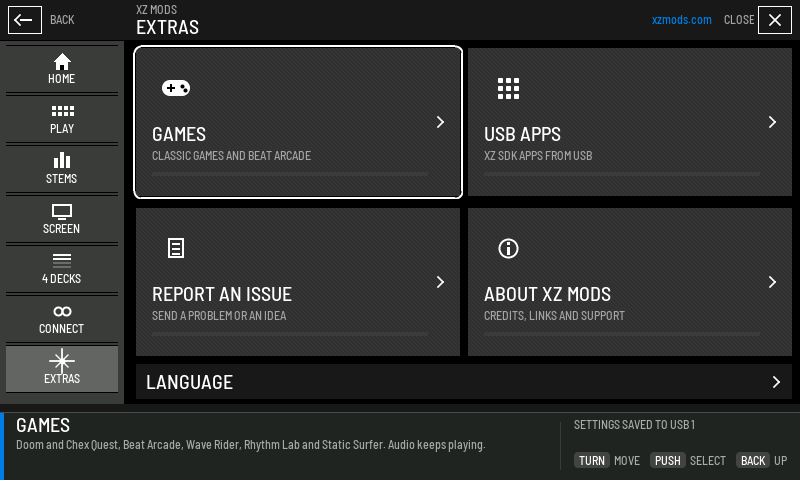
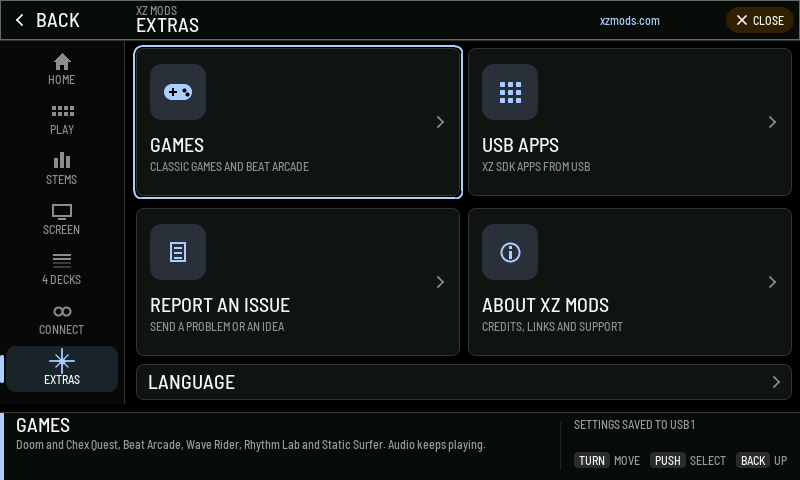
- 1GAMES
Doom and Chex Quest, Beat Arcade, Wave Rider, Rhythm Lab and Static Surfer.
- 2USB APPS
XZ SDK apps from a USB.
- 3REPORT AN ISSUE
Send a problem, a question or an idea from the player.
- 4ABOUT XZ MODS
Credits, links and support.
- 5Dock
Explains the highlighted card. For GAMES it reminds you that audio keeps playing.
- 6LANGUAGE
The language of the MODS menu on the player.
The HOME card for EXTRAS counts the games and the apps found on your USBs, for example 6 games | no USB apps.
Games
Every game runs on the XZ itself. The music keeps playing while you play, and PLAY and track search keep their normal jobs in Beat Arcade. Doom and Beat Arcade make no sound of their own.
- Press MENU
- Tap EXTRAS
- Tap GAMES
- Turn ROTARY SELECTOR 2 clicks clockwise
- Press
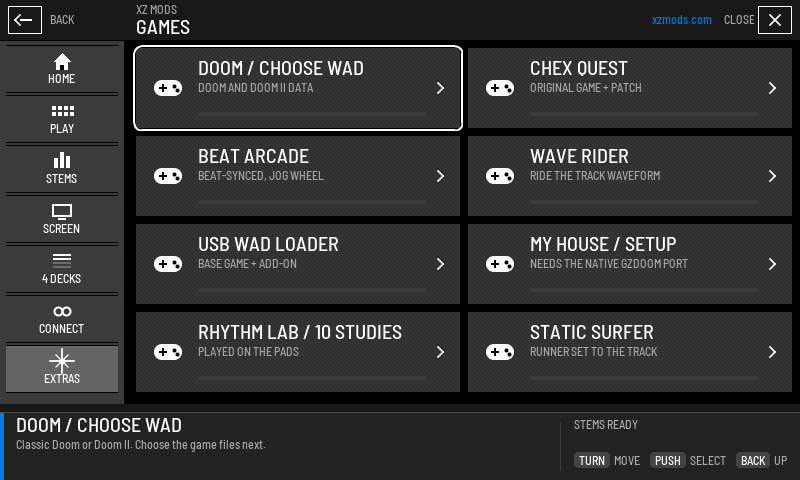
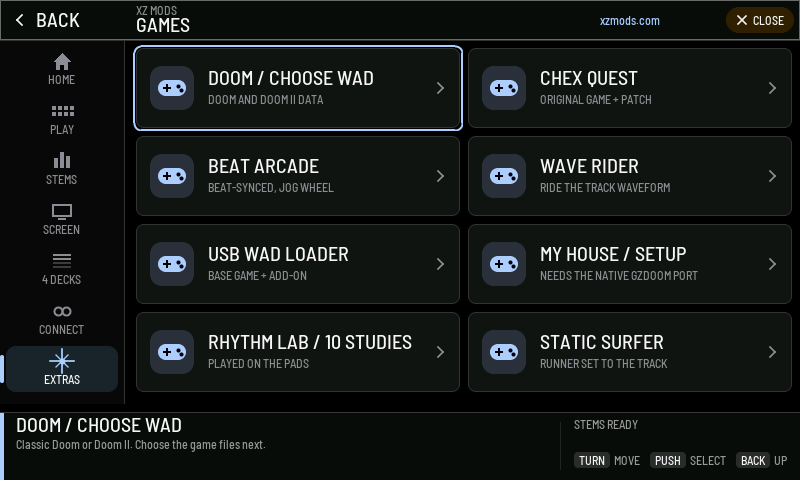
- 1DOOM / CHOOSE WAD
Classic Doom or Doom II. Choose the game files next.
- 2CHEX QUEST
The original Chex Quest.
- 3BEAT ARCADE
Pong and Breakout scored on the beat, played with the jog.
- 4WAVE RIDER
Surf the playing track's waveform with the jog.
- 5USB WAD LOADER
Choose a Doom base game and an optional add-on from the USB.
- 6MY HOUSE / SETUP
Checks for the engine the My House mod needs.
- 7RHYTHM LAB / 10 STUDIES
Ten short rhythm studies played on the pads.
- 8STATIC SURFER
A runner game set to the playing track.
| Game | What it is | Needs |
|---|---|---|
| Beat Arcade experimental | Solo Pong, Pong Duel on both jogs, Solo Breaks and a two-player Breakout. Tap CUE on the beat to build charge | Nothing. Built in |
| Wave Rider experimental | The loaded track's waveform becomes hills. Steer with the jog, hold  CUE to add weight. Solo, Co-op or Versus CUE to add weight. Solo, Co-op or Versus | Nothing. Built in |
| Rhythm Lab | Ten short rhythm studies for the jogs and pads. They are prototypes, and you can rate each one | Nothing. Built in |
| Static Surfer | A rhythm platformer. Tap to jump and tilt the jog to pass through the glyphs | Nothing. Built in |
| Doom | Classic Doom or Doom II | Game files on the USB |
| Chex Quest | The original Chex Quest | Game files on the USB |
Moving around a game
You do not need the touchscreen in any game.
- Press MENU
- Tap EXTRAS
- Tap GAMES
- Tap WAVE RIDER
- Turn ROTARY SELECTOR 1 click clockwise, then push it
- Push ROTARY SELECTOR
- Push ROTARY SELECTOR
- Turn the left jog wheel
- Turn ROTARY SELECTOR 1 click clockwise, then push it
- Press CUE on the left deck
- Turn the left jog wheel
- Tap the screen
- Press
| Control | In a game |
|---|---|
| Turn the encoder | Moves a ring over the controls on the screen |
| Push the encoder | Presses the control under the ring |
| BACK | Steps back |
| Touch | Presses what you touch. The ring hides until you turn the encoder again |
Beat Arcade experimental
Turn the jog to move your paddle and tap CUE on each beat as the moving light meets the target. Good notes build charge. Eight good notes in a row earn a shield, and sixteen build a Drop that fires on the next downbeat.
- Press MENU
- Tap EXTRAS
- Tap GAMES
- Tap BEAT ARCADE
- Turn ROTARY SELECTOR 1 click clockwise, then push it
- Turn the left jog wheel
- Press CUE on the left deck
- Press pad G on the left deck
- Tap the screen
- Tap the screen
- Press
| Control | Action |
|---|---|
| Jog | Moves the paddle. In the menu, chooses a game |
| CUE or pad A | Strikes on the beat. Starts, resumes and rematches |
| Pad B | Wide paddle for 16 beats |
| Pad C | Saves one miss with a shield |
| Pad D | Queues a Drop on the next downbeat |
| Pads E and F | Aim the next return |
| Pad G | Changes the scene between Tunnel, Grid and Orbit |
| Pad H | Lines up with the mixer tempo, or taps a tempo |
| PLAY, track search | Work as usual on the music |
| DJ VIEW on screen | Saves the round and gives every control back to the deck |
Tap the source display at the top of the game to choose where the beat comes from: an analysed USB track, Pro DJ Link, the mixer tempo or four taps on pad H. For mixer tempo, set Beat FX to the channel you play, usually MASTER, and use AUTO BPM.
While Beat Arcade runs, touching the platter does not pause or scratch the music. Choose DJ VIEW before you go back to mixing.
Wave Rider experimental
Choose Solo, Co-op or Versus, then the deck whose track you ride. In Solo that deck's jog steers. With two players, the left jog is player 1 and the right jog is player 2.
- Hold CUE or a top-row pad to add weight and gain speed downhill. Let go as the ground rises, and the crest throws you into the air.
- Turn the jog to tilt the board. Clockwise points the nose down.
- Land with the slope to keep your speed. Clean landings in a row score more.
- EASY is the default and keeps the angle you set in the air. NORMAL and HARD are stricter.
A missed landing never stops the music.
Doom and Chex Quest
Doom and Chex Quest need game files on the USB. The XZ Mods app can download and check free Doom shareware, Chex Quest and Freedoom data when you prepare the USB. For the full Doom or Doom II you supply your own files. See The XZ Mods app.
- Press MENU
- Tap EXTRAS
- Tap GAMES
- Tap USB WAD LOADER
- Turn ROTARY SELECTOR 1 click clockwise
- Press
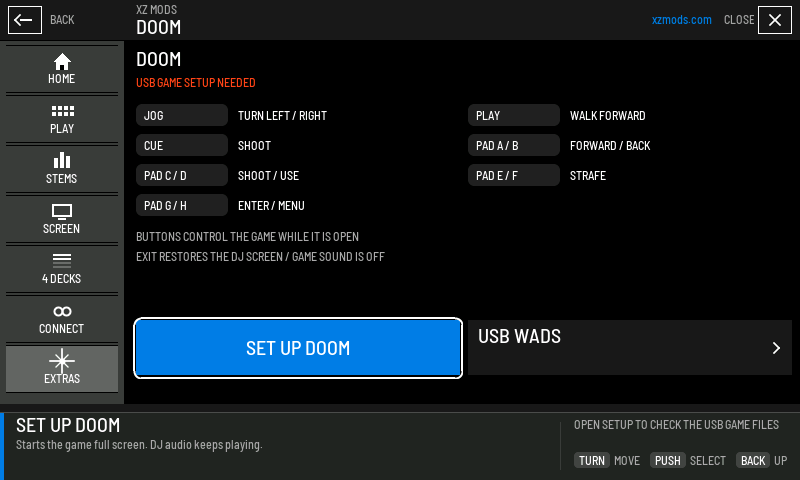
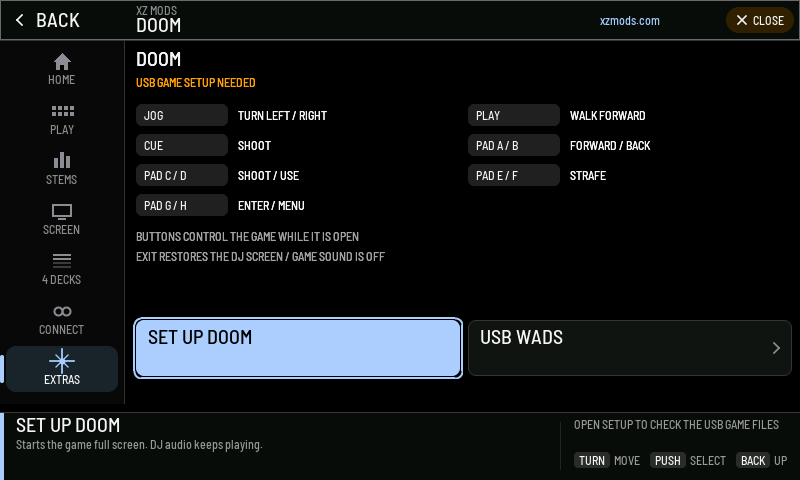
- 1Status
USB GAME SETUP NEEDED until the files and engine have been checked.
- 2Controls
What each control does while the game is open.
- 3Notes
The buttons belong to the game while it is open. Exit gives back the DJ screen. Game sound is off.
- 4SET UP DOOM
Reads START DOOM once setup is done. Starts the game full screen. DJ audio keeps playing.
- 5USB WADS
Opens USB WAD LOADER to choose the game files.
| Player control | In Doom |
|---|---|
| Jog | Turn left or right |
| PLAY, or pad A | Walk forward |
| Pad B | Walk back |
| CUE, or pad C | Shoot |
| Pad D | Use, for example open a door |
| Pads E and F | Strafe |
| Pad G | Enter |
| Pad H, or BACK | Game menu |
| Turn and push the encoder | Moves through the game menu and enters |
To end the game, touch EXIT. The player goes back to the screen you had before.
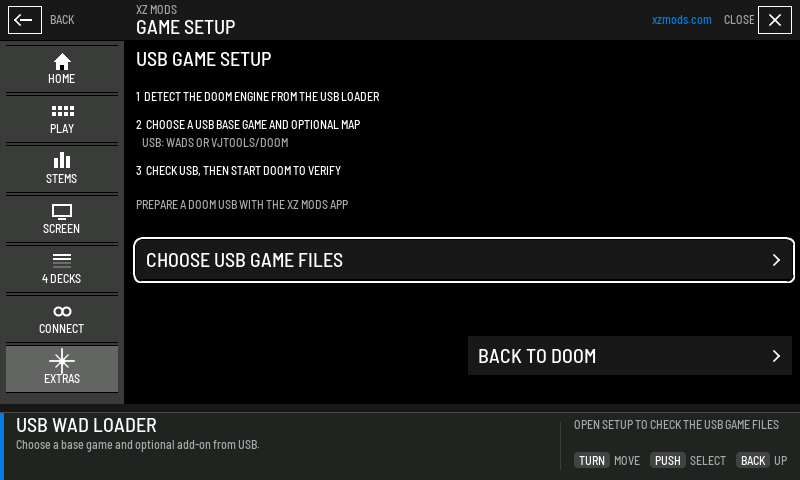
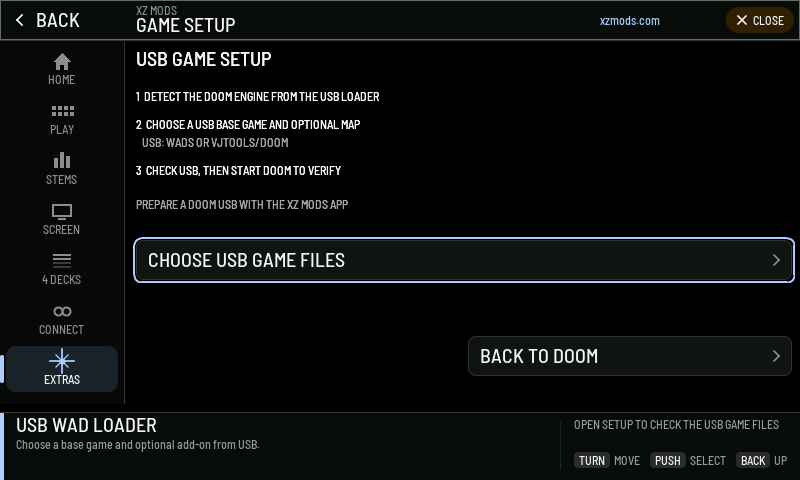
- 1Steps
Find the Doom engine on the USB loader, choose a base game and optional map, then start Doom to check.
- 2Where the files go
A WADS or VJTOOLS/DOOM folder on the USB.
- 3The XZ Mods app
Prepares a Doom USB for you.
- 4CHOOSE USB GAME FILES
Opens USB WAD LOADER.
- 5BACK TO DOOM
Returns to the Doom page.
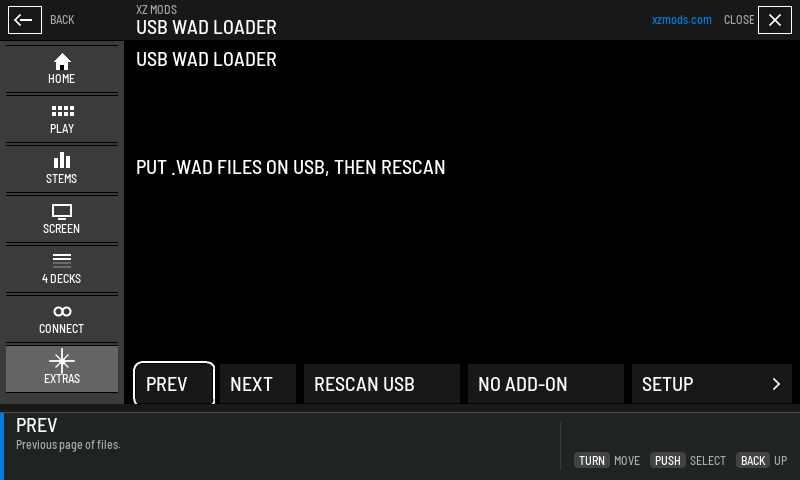
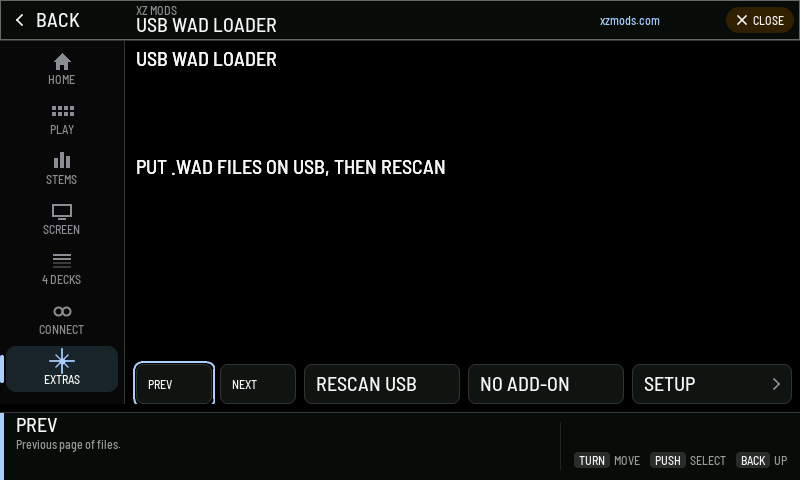
- 1File list
One row per game file on the USB. Choose the base game, then an add-on if you want one.
- 2PREV and NEXT
Pages through a long list.
- 3RESCAN USB
Searches both USB ports again.
- 4NO ADD-ON
Plays the base game with no add-on.
- 5SETUP
Opens GAME SETUP.
If the list says PUT .WAD FILES ON USB, THEN RESCAN, copy the files to the USB on a computer, put it back and push RESCAN USB.
My House experimental
My House is a Doom mod that needs the GZDoom engine. The MY HOUSE page checks for that engine and the files, but the classic Doom engine cannot load this mod, and the XZ Mods app no longer copies it to the USB.
- Press MENU
- Tap EXTRAS
- Tap GAMES
- Tap MY HOUSE / SETUP
- Turn ROTARY SELECTOR 1 click clockwise
- Press
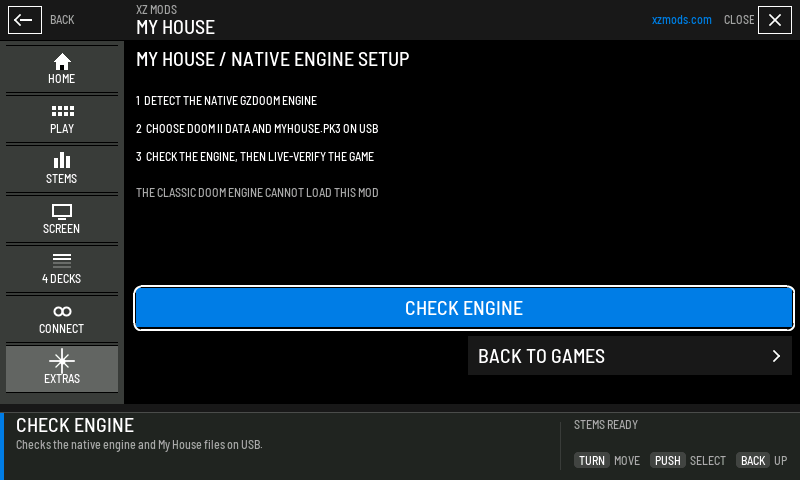
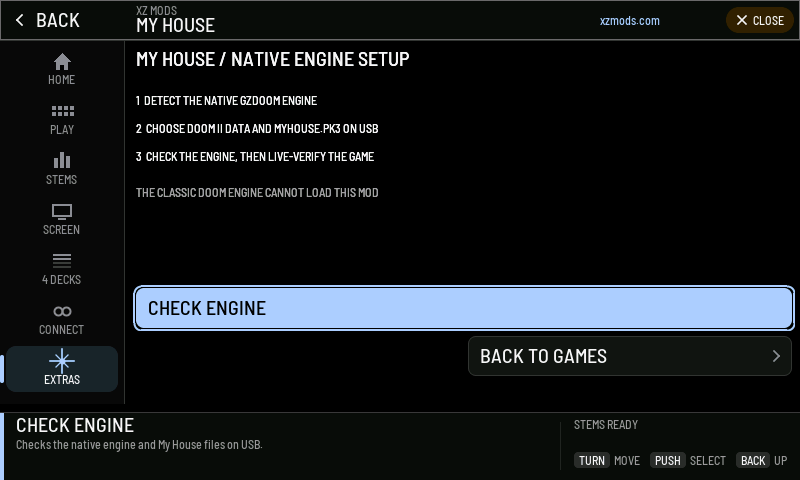
- 1Steps
Find the GZDoom engine, choose the Doom II data and MYHOUSE.PK3, check and start.
- 2Limit
The classic Doom engine cannot load this mod.
- 3CHECK ENGINE
Checks the engine and My House files on the USB.
- 4BACK TO GAMES
Returns to GAMES.
USB apps experimental
USB APPS runs apps built with the XZ SDK from a USB. DJ controls keep working while an app runs.
- Press MENU
- Tap EXTRAS
- Tap USB APPS
- Tap SET UP APPS
- Turn ROTARY SELECTOR 1 click clockwise
- Press
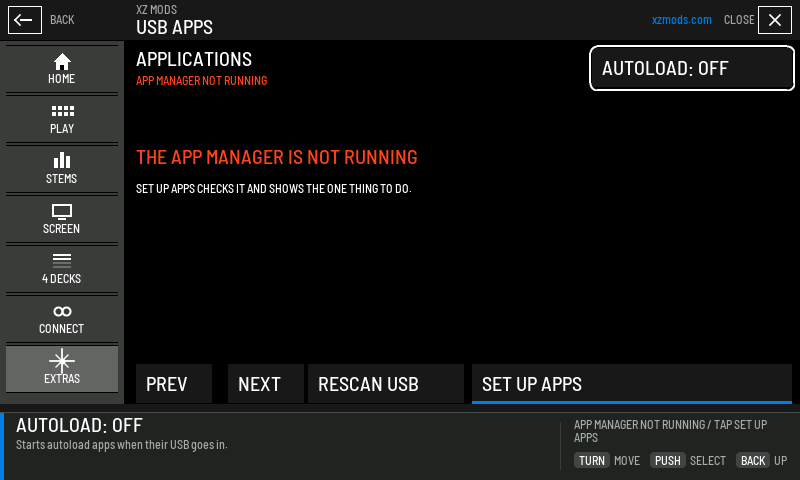
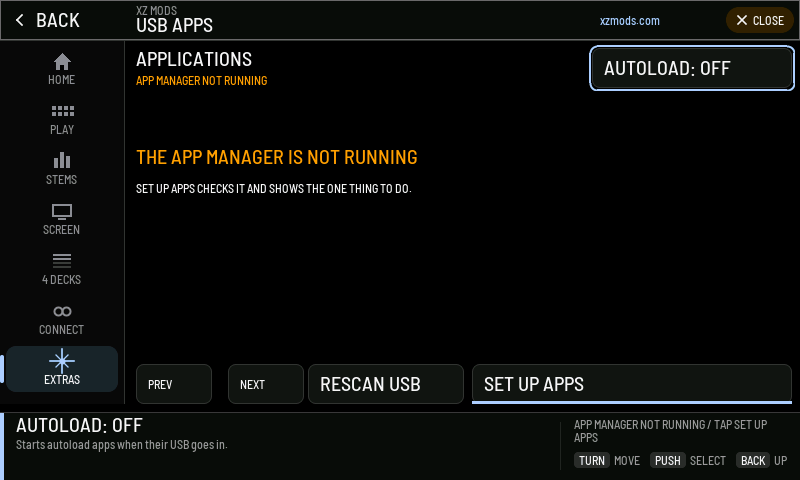
- 1AUTOLOAD
ON starts apps in the autoload folder when their USB goes in. OFF starts apps only when you run them.
- 2Status
How many packages were found, or why there are none.
- 3Message
The one thing to do next.
- 4PREV and NEXT
Pages through the apps.
- 5RESCAN USB
Searches the USB again for apps.
- 6SET UP APPS
A four-step guide from finding apps to a live test.
Put apps on a USB in VJ.Tools/XZ-SDK/Applications. Apps in VJ.Tools/XZ-SDK/Autoload start on their own when AUTOLOAD is on.
Each app row shows what kind of package it is and its state.
| State | Meaning |
|---|---|
| RUNNING ON SCREEN | An app is showing on the player |
| RUNNING IN BACKGROUND | A service is running |
| APPLIED | A profile package is in use |
| FAILED | The app stopped. Push RUN AGAIN |
| BLOCKED | The package cannot run. Push SET UP to see how to fix it |
| CHECKING | The app manager is still reading the package |
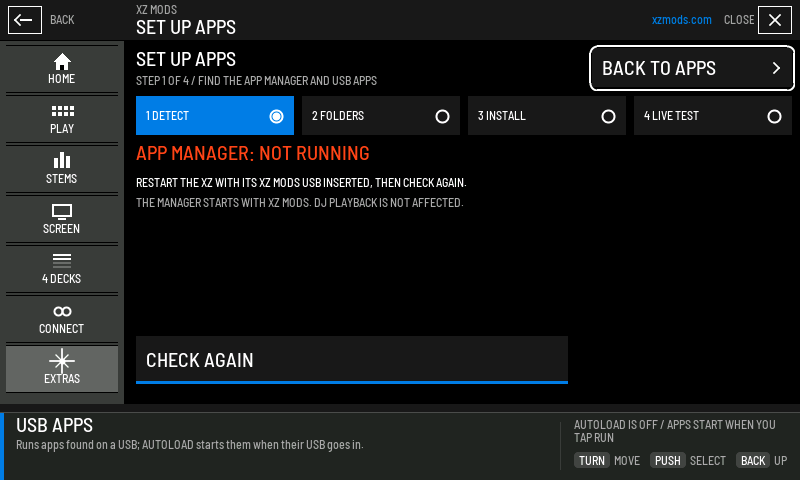
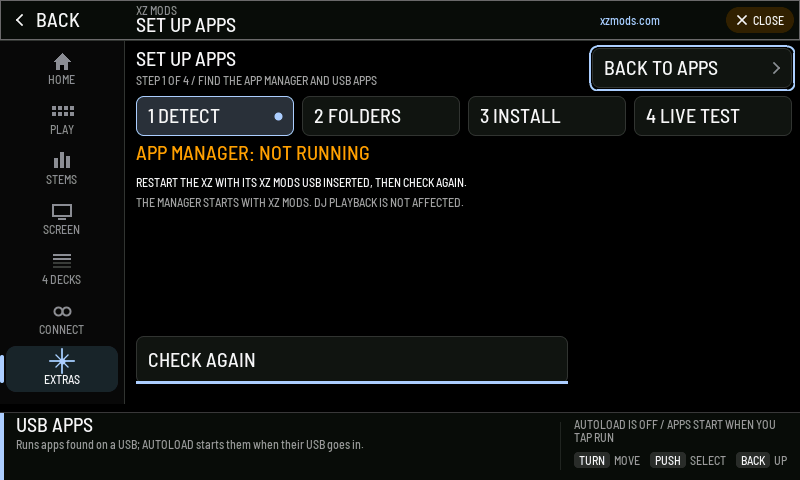
- 1Step
Which of the four steps you are on.
- 2Step tabs
DETECT, FOLDERS, INSTALL, LIVE TEST. Tap one to jump to it.
- 3Result
What this step found.
- 4What to do
The one action that fixes it.
- 5CHECK AGAIN
Runs this step again.
- 6BACK TO APPS
Returns to USB APPS.
- Detect. Finds the app manager and any apps on the USB.
- Folders. Choose START WHEN I TAP RUN or START ON USB INSERT.
- Install. Copy apps to the USB. The page shows the packer command for the desktop.
- Live test. Push RUN TEST APP. When it shows, push IT WORKS.
Report an issue
REPORT AN ISSUE sends the maintainer a problem, a question or an idea from the player. You say what it is about and, if you like, what happened. The player adds its own details. A topic and SEND take three presses.
- Press MENU
- Tap EXTRAS
- Tap REPORT AN ISSUE
- Turn ROTARY SELECTOR to SOMETHING ISN'T WORKING and push it
- Push ROTARY SELECTOR to choose SKIP, I'LL ADD IT ON MY COMPUTER
- Press
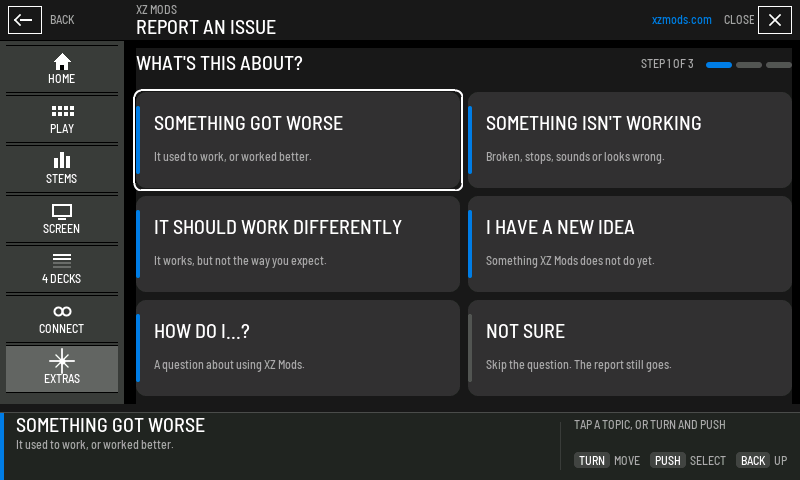
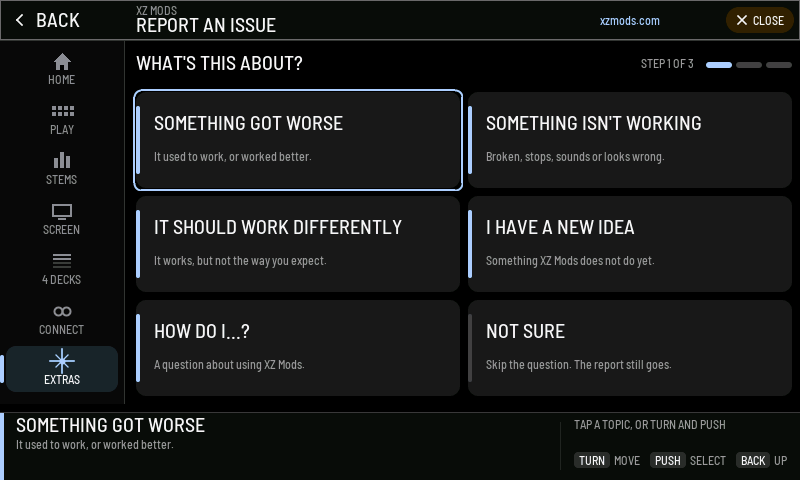
- What's this about? Push one of the five topics, or NOT SURE.
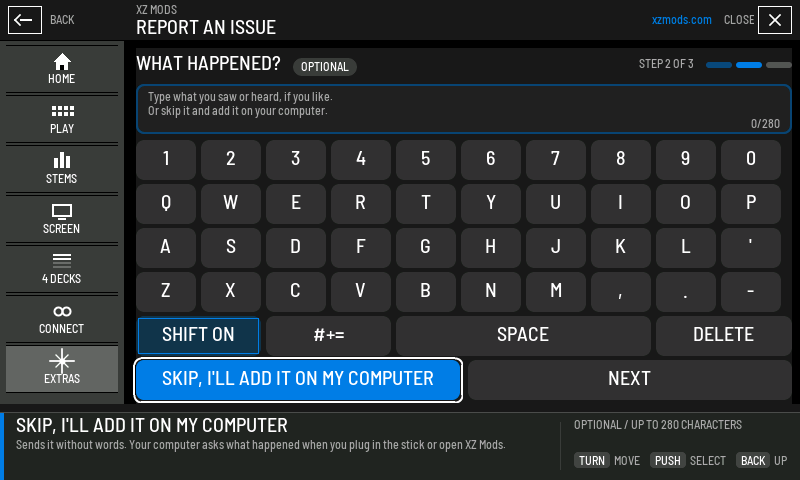
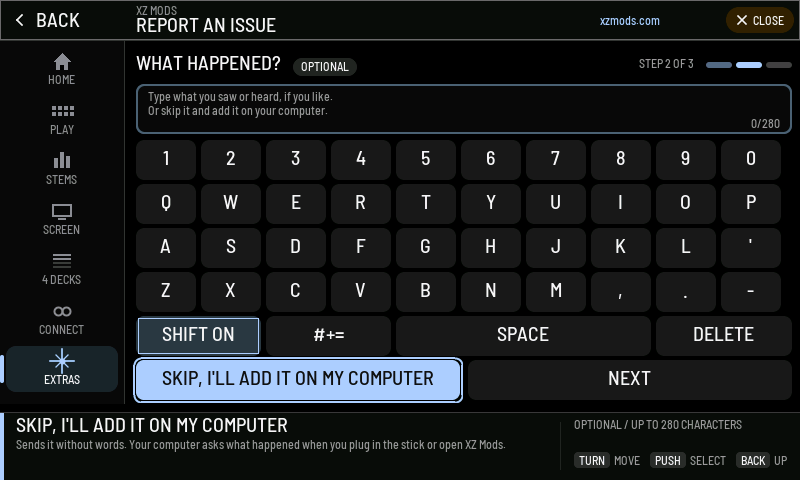
- What happened? Type a few words, or push SKIP, I'LL ADD IT ON MY COMPUTER.
- Ready to send. Check the summary, then push SEND REPORT.
With the encoder, push three times: the first topic, SKIP, then SEND.
- 1WHAT'S THIS ABOUT?
One question. Each topic goes straight to the next step.
- 2Topics
SOMETHING GOT WORSE, SOMETHING ISN'T WORKING, IT SHOULD WORK DIFFERENTLY, I HAVE A NEW IDEA and HOW DO I...?
- 3NOT SURE
Skips the question. The report still goes.
- 4Steps
Where you are: step 1 of 3.
- 1OPTIONAL
You can send a report without typing anything.
- 2Your words
Up to 280 characters. The count is on the right.
- 3Keyboard
Turn and push the encoder, or tap the keys. The first letter is a capital.
- 4SKIP, I'LL ADD IT ON MY COMPUTER
Goes on without words. Your computer asks what happened later.
- 5NEXT
Goes on with what you typed.
Once you type, NEXT is lit instead.
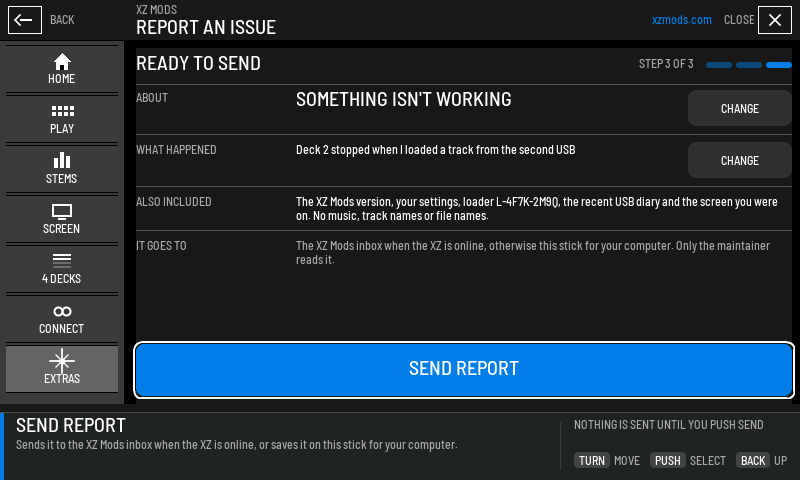
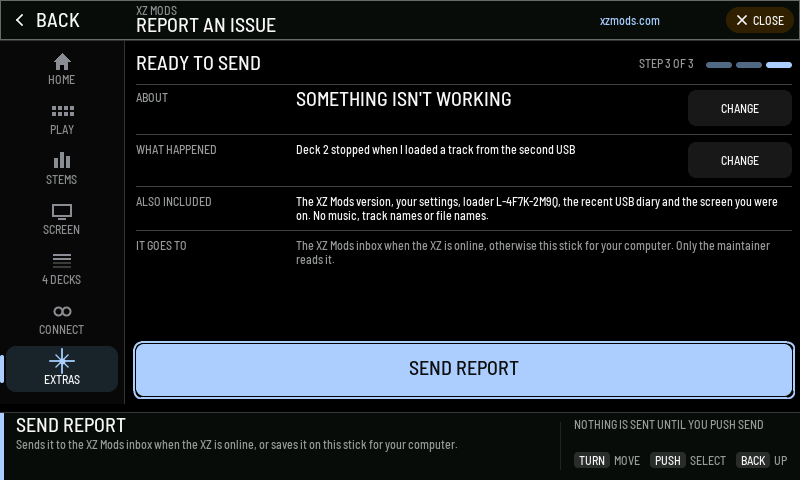
- 1ABOUT
The topic you chose.
- 2WHAT HAPPENED
Your words, or a note that you add them on your computer.
- 3ALSO INCLUDED
Added by the player: the XZ Mods version, your settings, this stick's loader ID, the recent USB diary and the screen you were on. No music, track names or file names.
- 4IT GOES TO
The XZ Mods inbox when the player is online, otherwise this stick.
- 5CHANGE
Goes back to that step. Your words are kept.
- 6SEND REPORT
Sends it.
BACK goes back a step. If you leave the page before sending, your words wait for you there.
After you send
The report goes one of three ways. Whichever it is, nothing is lost and you never type it again.
- Press MENU
- Tap EXTRAS
- Tap REPORT AN ISSUE
- Turn ROTARY SELECTOR to SOMETHING ISN'T WORKING and push it
- Type test report on the screen keyboard
- Tap NEXT
- Tap SEND REPORT
- Tap EDIT REPORT
- Tap CHANGE
- Tap HOW DO I...?
- Tap NEXT
- Tap SEND REPORT
- Tap DONE
- Press
| The screen says | What happened | What to do |
|---|---|---|
| SENT and a reference like R-4F7K-2M9Q | It reached the XZ Mods inbox | Finish it on your computer: the XZ Mods app reminds you and shows the same reference |
| SAVED ON THIS STICK | The player is offline, its clock is not set, the loader is from an older XZ Mods app, or the inbox did not take it | Plug the stick into your computer. The XZ Mods app opens the report |
| NOT SENT YET | It could not be sent, and the stick could not take it | Do what the line says (put the stick back, use a writable stick, make room on it), then push TRY AGAIN |
A saved report waits in VJ.Tools/XZ-Mods-reports/pending/ on the stick, up to 32 of them. The XZ Mods app sends it from there and moves it to sent/. TRY AGAIN sends the same report, so the maintainer gets it once.
Report an error from the dock
When an error shows in the dock's top row, REPORT THIS beside it opens REPORT AN ISSUE at WHAT HAPPENED? with SOMETHING ISN'T WORKING chosen. Push SKIP and SEND REPORT, and the error goes with it. Every report includes an error on screen, however you open it.
- Press MENU
- Tap REPORT THIS
- Tap SKIP, I'LL ADD IT ON MY COMPUTER
- Tap SEND REPORT
- Press
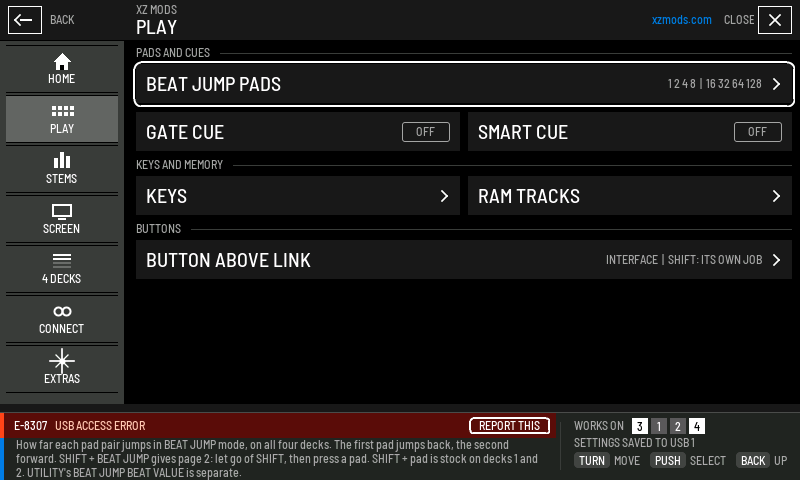
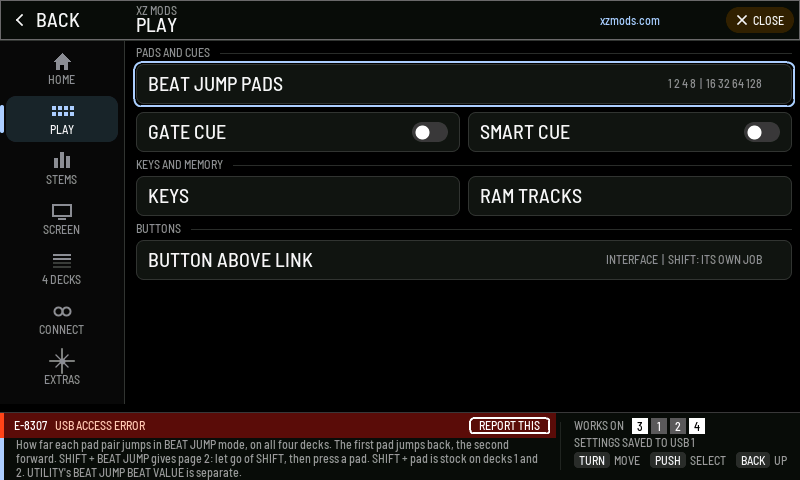
- 1REPORT THIS
Opens REPORT AN ISSUE about this error. Touch only: with the encoder, open EXTRAS › REPORT AN ISSUE.
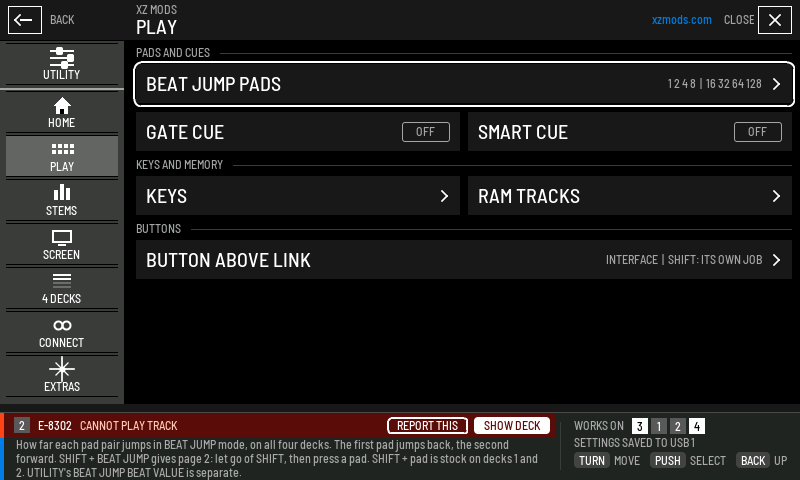
- 1REPORT THIS
Reports this error. SHOW DECK closes MODS onto the deck.
What the player sends
The report holds facts the player can check, never text read from its screens:
- the topic and your words, if any;
- the XZ Mods version and a fingerprint of your settings, with a few of them (stems, gate cue, interface, theme, deck view, browse preview);
- the loader ID from ABOUT and the ID of the computer that made the loader, so the report reaches your own XZ Mods app;
- the screen MODS was opened from (PLAY, BROWSE and so on), the interface, the deck view and the code of any error on screen;
- known status codes from decks 3 and 4 and the player, and the recent entries of the USB diary on this stick.
It never holds music, track or playlist names, file names or network addresses. Only the maintainer reads it. You can also report from the XZ Mods app. See Messages and troubleshooting.
Language
LANGUAGE sets the language of the MODS menu on the player. All 15 languages show in their own names. Tap one, or turn the encoder to it and push. The choice is saved on the USB with your other settings, and BACK returns to EXTRAS.
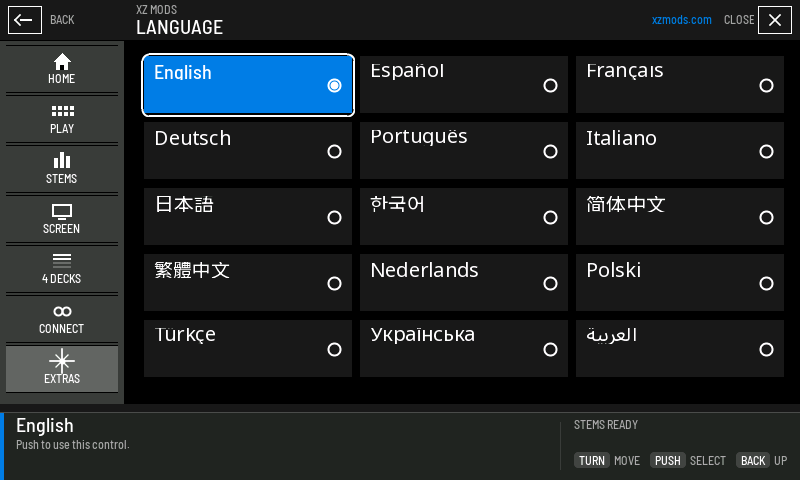
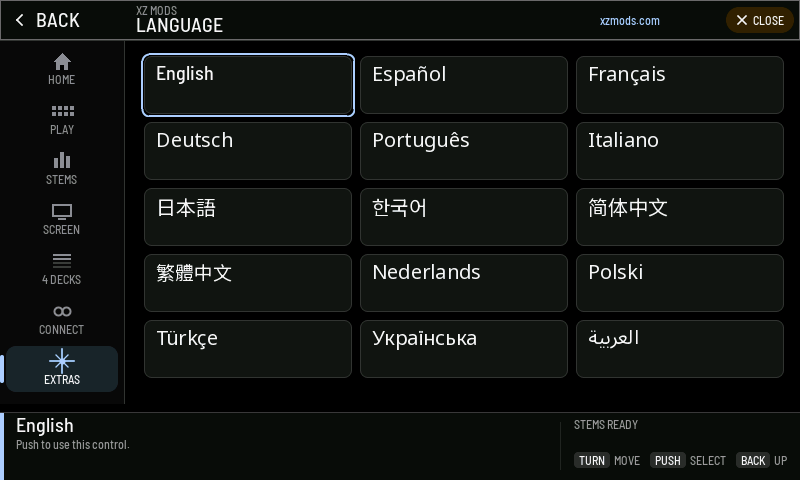
- 1Chosen language
The language the MODS menu uses now.
- 2Other languages
Each one in its own name and script.
The translations are machine-made and still being reviewed. Some lines stay in English, and track names, the player's own screens and the printed button names never change. The XZ Mods app has its own language choice; see Desktop language.
About XZ Mods
- Press MENU
- Tap EXTRAS
- Tap ABOUT XZ MODS
- Turn ROTARY SELECTOR 2 clicks clockwise
- Press
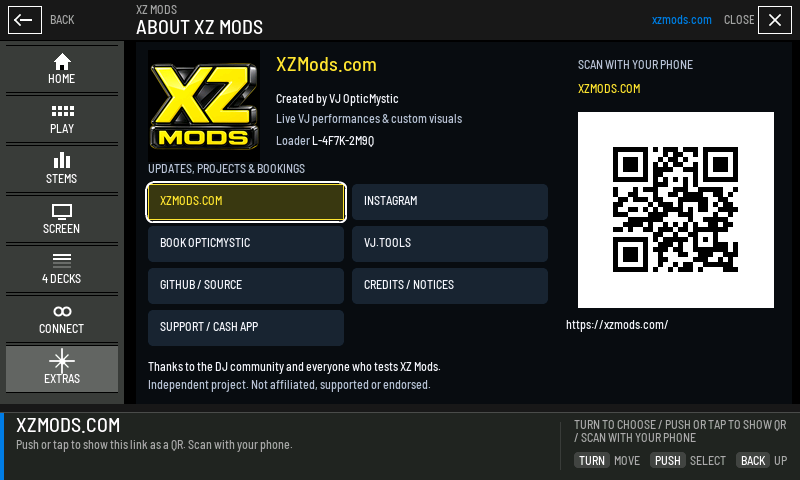
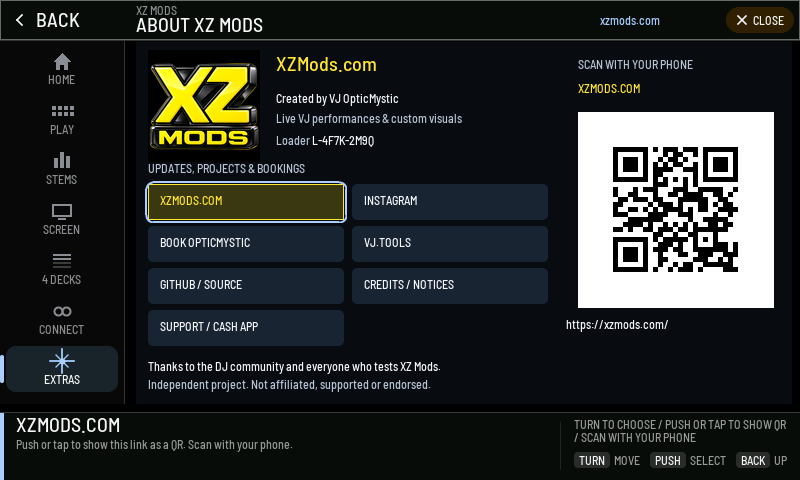
- 1Credits
Who made XZ Mods.
- 2Links
XZMODS.COM, INSTAGRAM, BOOK OPTICMYSTIC, VJ.TOOLS, GITHUB / SOURCE, CREDITS / NOTICES and SUPPORT / CASH APP.
- 3QR code
The highlighted link as a QR code. Scan it with your phone.
- 4Address
The link the QR code opens.
- 5Thanks
Thanks, and a reminder that XZ Mods is an independent project.
- 6Loader
The ID of this stick's loader, written by the XZ Mods app. Reports from this stick carry it. An older loader shows Loader: not identified and can still report.
Turn the encoder to a link, then push or tap it to show it as a QR code. Scan the code for CREDITS / NOTICES to read the full credits, licences and matching source. Support is voluntary. Every feature stays available without it.