On the player
Beat jump and performance features
Beat jump distances, gate cue, smart cue, key sync and RAM tracks.
Applies to MODERN and CLASSIC
XZ Mods adds performance features to the pads and deck keys: two pages of beat jump sizes you choose, gate cue, smart cue, key shift and KEY SYNC, and RAM tracks. Their settings live on one MODS page, PLAY. Every change saves to your USB as you make it.
The PLAY page
Open MODS and choose PLAY in the section rail.
- Press
 MENU
MENU - Tap PLAY
- Turn
 ROTARY SELECTOR 3 clicks clockwise
 - Press
 BACK
BACK
- Press
![The PLAY page with the default settings: gate cue and smart cue off, the default jump sizes, and the button above [[LINK]] on INTERFACE.](/manual/shots/3c881709f40bd90b.webp)
![The PLAY page with the default settings: gate cue and smart cue off, the default jump sizes, and the button above [[LINK]] on INTERFACE.](/manual/shots/7554cfda9c0e88ec.webp)
 LINK on INTERFACE.
- 1BEAT JUMP PADS
Opens the beat jump editor. The numbers are your page 1 and page 2 sizes in beats.
- 2GATE CUE
Hot cues play only while you hold the pad. Off by default.
- 3SMART CUE
A hot cue press also moves the CUE point there. Off by default.
- 4KEYS
Opens the key page: key shift and KEY SYNC for all four decks.
- 5RAM TRACKS
Opens RAM TRACKS: copy a deck's track into memory.
- 6BUTTON ABOVE LINK
What the button above LINK does, alone and with SHIFT. See Controls on the player.
- 7Dock
Explains the highlighted row in plain words.
- 8Works on
The decks the highlighted feature works on, in mixer order 3 1 2 4. A dim number is a deck it does not work on, with the reason below.
If the cue engine has not reported on this USB loader, GATE CUE and SMART CUE show as SET UP GATE CUE and SET UP SMART CUE instead of switches. See Feature setup.
Beat jump
In BEAT JUMP mode the eight pads form four pairs: A/B, C/D, E/F and G/H. The first pad of a pair jumps back, the second jumps forward, by the same number of beats. With a loop on, the loop moves by that amount instead.
- Press MENU
- Tap PLAY
- Tap BEAT JUMP PADS
- Turn ROTARY SELECTOR 2 clicks clockwise
- Press
- Press
 BEAT JUMP on the left deck
 - Press pad A on the left deck
- Press pad B on the left deck
- Press pad C on the left deck
- Press pad D on the left deck
- Press pad E on the left deck
- Press pad F on the left deck
- Press pad G on the left deck
- Press pad H on the left deck
- Hold
 SHIFT on the left deck and press BEAT JUMP on the left deck
 - Press pad A on the left deck
- Press pad B on the left deck
- Press pad C on the left deck
- Press pad D on the left deck
- Press pad E on the left deck
- Press pad F on the left deck
- Press pad G on the left deck
- Press pad H on the left deck
- Press
You get two pages of sizes:
| Page | How you select it | Default sizes A/B, C/D, E/F, G/H |
|---|---|---|
| Page 1 | Press BEAT JUMP | 1, 2, 4, 8 beats |
| Page 2 | Hold SHIFT, press BEAT JUMP, let go of SHIFT | 16, 32, 64, 128 beats (4, 8, 16, 32 bars) |
- Press BEAT JUMP for page 1, or SHIFT + BEAT JUMP for page 2.
- Let go of SHIFT.
- Press a pad. The first pad of a pair jumps back, the second forward.
Each deck remembers its own page. Choosing another pad mode and coming back with BEAT JUMP gives page 1 again. On page 2 the pads light warm red and amber, so you can see which page you are on. SHIFT + pad keeps its normal job on decks 1 and 2.
Change the jump sizes
Open MODS > PLAY > BEAT JUMP PADS. The editor shows the pads as they sit on the deck: A to D on top, E to H below.
- Press MENU
- Tap PLAY
- Tap BEAT JUMP PADS
- Turn ROTARY SELECTOR to PAGE 2 and push it
- Turn ROTARY SELECTOR to PAGE 1 and push it
- Turn ROTARY SELECTOR to PAGE 1: MY SIZES and push it
- Turn ROTARY SELECTOR to PAGE 2 and push it
- Press
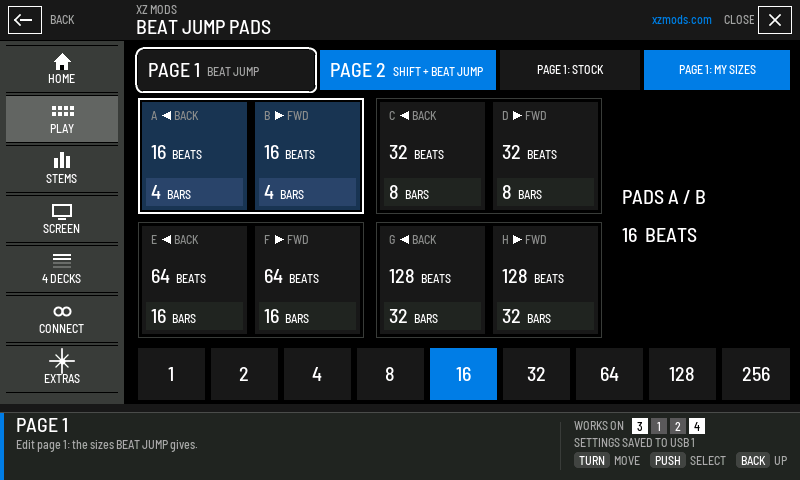
- 1PAGE 1
Edit the sizes BEAT JUMP gives.
- 2PAGE 2
Edit the sizes SHIFT + BEAT JUMP gives. The filled tab is the page you are editing.
- 3PAGE 1: STOCK or MY SIZES
STOCK keeps the player's own 1, 2, 4 and 8 beats on page 1. MY SIZES uses yours. Page 2 always uses yours.
- 4Pad pair
Two pads with one size. The left pad jumps back, the right pad forward. The selected pair has a light outline.
- 5Beats
The size in beats.
- 6Bars
The same size in bars. 4 beats make 1 bar.
- 7Readout
The selected pair and its size.
- 8Sizes
Tap a size to give it to the selected pair. The filled size is the current one.
- 9Dock
What the highlighted control does.
- 10Works on
Beat jump works on all four decks.
- Choose PAGE 1 or PAGE 2.
- For page 1, choose PAGE 1: MY SIZES. With STOCK, page 1 keeps the player's own sizes.
- Tap a pad in the pair you want to change.
- Tap a size in the row along the bottom.
Without the touch screen, turn the rotary selector to a pair, push it, then turn to step the size. It stops at the smallest and largest size. Push or press BACK when you are done.
| Sizes you can choose | |
|---|---|
| Beats | 1, 2, 4, 8, 16, 32, 64, 128, 256 |
| Bars | 1/4, 1/2, 1, 2, 4, 8, 16, 32, 64 |
The sizes apply to every deck. UTILITY's own beat jump setting is separate and does not change them.
| Setting | Choices | Default |
|---|---|---|
| PAGE 1 | STOCK, MY SIZES | MY SIZES |
| Page 1 A/B, C/D, E/F, G/H | 1 to 256 beats | 1, 2, 4, 8 beats |
| Page 2 A/B, C/D, E/F, G/H | 1 to 256 beats | 16, 32, 64, 128 beats |
Decks 3 and 4
Decks 3 and 4 use the same sizes and both pages. They jump along the track's beat grid, or by its BPM when there is no grid. A track with neither jumps at 120 BPM, as on decks 1 and 2. With a loop on, the loop moves.
When a jump is refused
A jump the deck cannot make does nothing else. XZ Mods never silently shortens the selected distance. The screen shows why:
- Press BEAT JUMP on the left deck
- Press pad A on the left deck
- Press
| Notice | Deck | What it means |
|---|---|---|
| JUMP UNAVAILABLE: TRACK EDGE, BUFFER OR DECK STATE | 1 or 2 | The player refused the jump. It would pass the start or end of the track, or the deck cannot jump right now. |
| JUMP UNAVAILABLE: BEFORE TRACK START | 3 or 4 | The jump would land before the start of the track. |
| JUMP UNAVAILABLE: AFTER TRACK END | 3 or 4 | The jump would land after the end of the track. |
| JUMP UNAVAILABLE: LOOP MOVE OUT OF TRACK | 3 or 4 | Moving the loop would push it past the start or end. |
| JUMP UNAVAILABLE: NO BEAT GRID OR BPM | 3 or 4 | The track's beat grid is damaged, so beats can't be counted. Analyse it again in your DJ software. |
Gate cue and smart cue
Both change what a hot cue pad does in HOT CUE mode. Turn them on in MODS > PLAY. Both are off by default, and each works on its own.
- Press MENU
- Tap PLAY
- Tap GATE CUE
- Tap SMART CUE
- Tap CLOSE
- Press
 HOT CUE on the left deck
 - Press pad A on the left deck
- Press
| Feature | What a hot cue pad does |
|---|---|
| GATE CUE | The track plays from the hot cue only while you hold the pad. Let go and it jumps back to the hot cue and pauses. Use it to stab hot cues like samples. Press  PLAY/PAUSE while you hold the pad to keep playing after you let go. PLAY/PAUSE while you hold the pad to keep playing after you let go. |
| SMART CUE | Calling a hot cue also moves the CUE point there, so  CUE takes you back to the last hot cue you used. Recording a new hot cue does not move it. CUE takes you back to the last hot cue you used. Recording a new hot cue does not move it. |
Gate cue and smart cue work on all four decks. On decks 1 and 2 they need the cue engine; see below.
Feature setup
When the cue engine has not reported on a deck, MODS shows a short setup instead of the switch. It checks the feature on a loaded USB track in four steps: detect, choose deck, enable and test.
- Press MENU
- Tap PLAY
- Tap SET UP GATE CUE
- Tap DETECT FEATURE
- Tap DETECT FEATURE
- Tap USE SELECTED DECK
- Tap ENABLE FEATURE
- Tap I TESTED IT / DONE
- Press
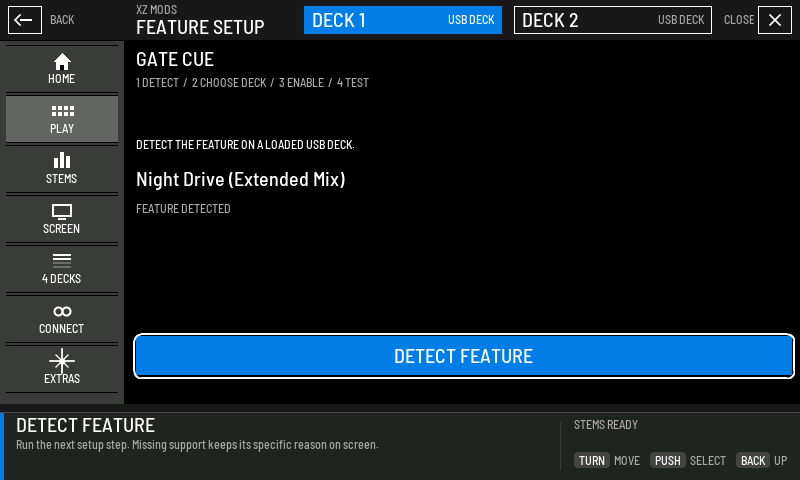
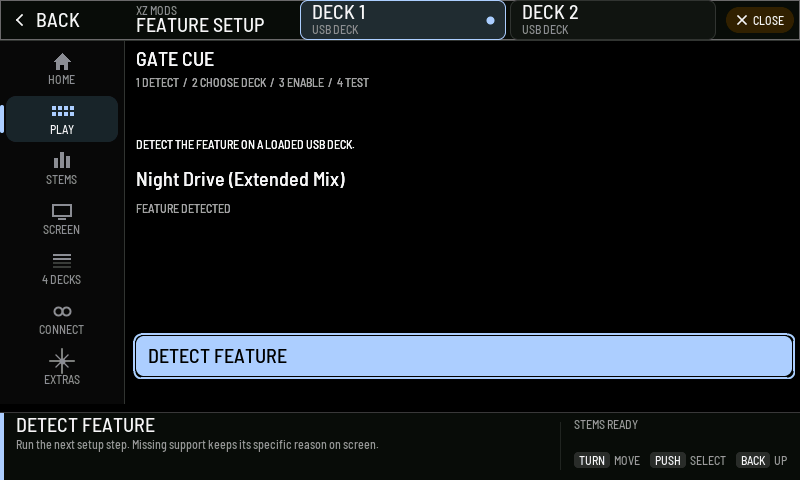
- 1Feature
The feature this setup checks.
- 2Steps
The four steps. The button at the bottom always runs the next one.
- 3Deck
Choose deck 1 or deck 2.
- 4What to do
The instruction for the current step.
- 5Track
The track loaded on the chosen deck.
- 6Status
FEATURE DETECTED, or what to do when it is missing.
- 7Next step
Runs the step. Missing support keeps its reason on the screen.
- Load a track from USB on deck 1 or deck 2.
- Press DETECT FEATURE.
- Choose the deck, then enable the feature.
- Close MODS and test it: hold and release a hot cue for gate cue, or call a hot cue and check that the cue point follows for smart cue.
- Reopen the setup and confirm.
If the status still asks you to load a USB track while one is loaded, prepare the USB again with the current XZ Mods app.
Keys and KEY SYNC
XZ Mods can move the key of any deck a semitone at a time, and match a deck's key to the master deck with KEY SYNC. The master can be any deck, 1 to 4. The key display then shows the key the track plays in now.
- Press MENU
- Tap PLAY
- Tap KEYS
- Turn ROTARY SELECTOR 2 clicks clockwise
- Press
- Hold SHIFT on the left deck and press
 SYNC on the left deck
- Hold
From the deck
- Load tracks with analysed keys, and make the deck you want to match to the tempo master.
- Hold SHIFT and press SYNC on the deck you want to move. On a side that drives deck 3 or 4, this moves that deck.
- The deck shifts to a key that fits the master deck and MASTER TEMPO turns on. A notice shows the new key and the master deck, with RELATIVE KEY when it matches the relative major or minor.
To end KEY SYNC, press SHIFT + SYNC again, or press  MASTER TEMPO. Both return the deck to its own key and put MASTER TEMPO back the way it was. After that, MASTER TEMPO does its normal job.
KEY SYNC changes the key only. The tempo, SYNC and the master deck stay as they were.
All four decks can hold key shifts and KEY SYNC together. Before starting a new shift on deck 3 or 4, the player checks its measured audio workload. If there is too little headroom, it shows KEY SHIFT REFUSED: AUDIO LOAD TOO HIGH and leaves the current keys unchanged. Shifts already in use keep running. SYSTEM READOUT shows render times and the number of active key shifters.
If KEY SYNC cannot work, a notice or the deck's key display shows why for a few seconds:
| Message | What to do |
|---|---|
| KEY ENGINE OFF: SET UP KEYS | This USB loader has no key engine. Open MODS > PLAY > KEYS and press SET UP KEYS, or prepare the USB again with the current XZ Mods app. |
| DECK 1 TRACK HAS NO KEY (or another deck) | The track on this deck has no analysed key. Analyse it in your DJ software. |
| LOAD AN ANALYZED TRACK / SET UP KEYS | The deck has no track with an analysed key. Load one. |
| LOAD A KEYED TRACK ON DECK 2 (or another deck) | The master deck has no track with an analysed key. |
| THIS DECK IS MASTER, MAKE DECK 2 MASTER FIRST | The deck you pressed is the master, so there is nothing to match. Make another deck the master. On the KEYS page the master deck has no KEY SYNC button and says it is the master. |
| SELECT ONE LOCAL MASTER / SET UP KEYS | No deck on this player is the tempo master. Press  MASTER on the deck to match to. MASTER on the deck to match to. |
| VERIFY MASTER PLAYING KEY / SET UP KEYS | The master deck's playing key is not known yet. Let it play a moment, then try again. |
| MASTER CHANGED / RETRY KEY SYNC, TRACK CHANGED / RETRY KEY CONTROL | The master or the track changed before the key moved. Press again. |
| KEY SHIFT REFUSED: AUDIO LOAD TOO HIGH | Measured audio work leaves too little headroom for a new shift. Existing shifts keep running. Check SYSTEM READOUT and retry when the load falls. |
| SHIFT OUT OF RANGE, KEY RANGE IS -12 TO +12 SEMITONES | The key that fits is further away than the deck can shift. |
| EMERGENCY LOOP / LOAD NEXT TRACK | The deck lost its track and loops. Load another track first. |
The KEYS page
MODS > PLAY > KEYS does the same from the screen, and adds key shift by semitones. On the play screen, tapping a deck's key opens the same controls for that deck.
- Press MENU
- Tap PLAY
- Tap KEYS
- Turn ROTARY SELECTOR to KEY UP and push it
- Turn ROTARY SELECTOR to KEY DOWN and push it
- Turn ROTARY SELECTOR to RESET and push it
- Turn ROTARY SELECTOR to KEY SYNC and push it
- Press
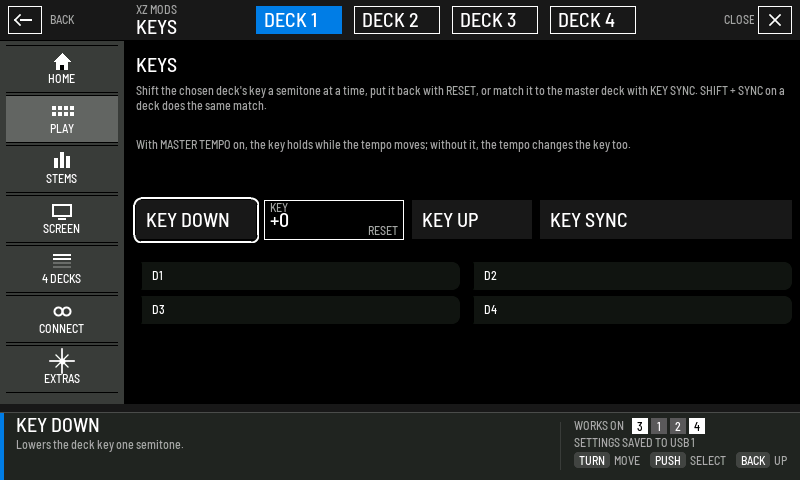
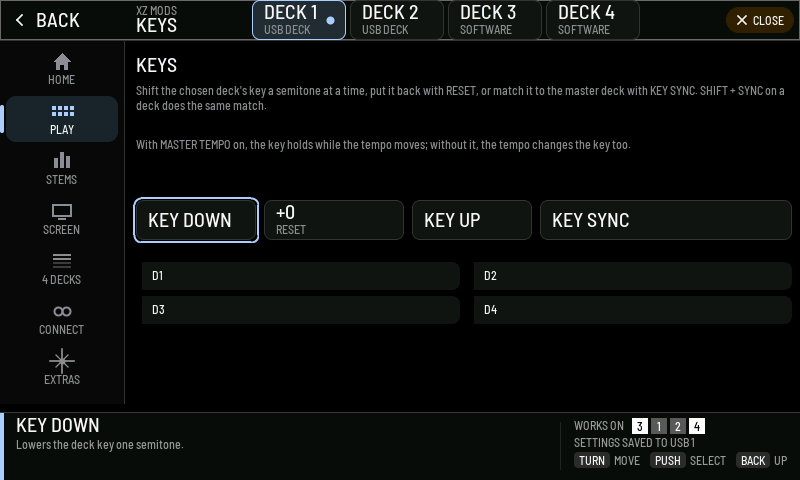
- 1Deck
Choose deck 1, 2, 3 or 4. Where there is room, a tab adds USB DECK for decks 1 and 2 and SOFTWARE for decks 3 and 4.
- 2KEY DOWN
Lowers the deck's key one semitone.
- 3RESET
Shows the current shift. Press it to return the deck to its own key.
- 4KEY UP
Raises the deck's key one semitone.
- 5KEY SYNC
Shifts the deck to a key that fits the master deck, as SHIFT + SYNC does.
- 6Deck keys
Each deck's own key, the key it plays in now, the cents and SYNC or MASTER. The rows are empty in this picture.
- 7Works on
Key shift and KEY SYNC work on all four decks.
With MASTER TEMPO on, the key holds while the tempo moves. Without it, the tempo changes the key too, and the key display shows that.
When the key engine has not reported, the buttons show an amber dot, the dock says NOT READY and SET UP KEYS appears. It opens a short setup that checks the key engine and the chosen deck's track, and ends with a live test:
The key on the MODERN play screen modern
In MODERN each deck's panel beside its waveform shows its key. With PLAYING KEY on, the big key is the key the track plays in now, after tempo and key shift.
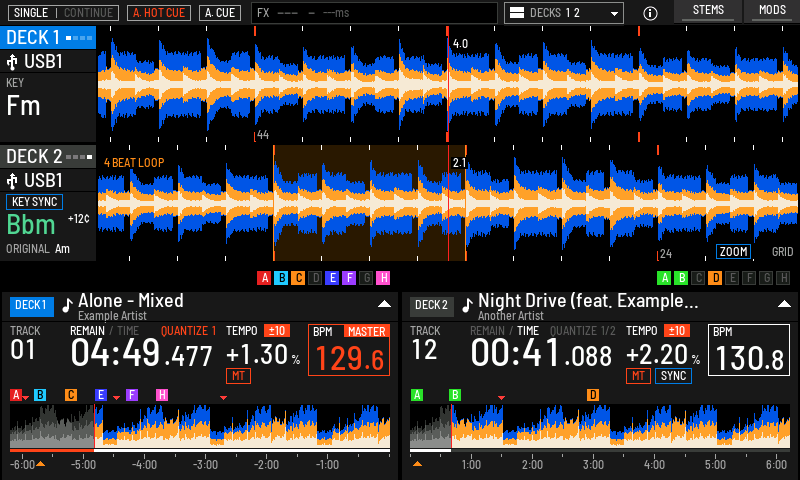
- 1Key panel
KEY SYNC, the key the deck plays in now, the cents left over and the track's own key.
- 2Deck in its own key
Deck 1 plays in its own key, so the panel shows only KEY and the key.
- 3MT
MASTER TEMPO. It blinks while KEY SYNC holds on that deck.
| Part of the key panel | Meaning |
|---|---|
| KEY SYNC | KEY SYNC holds on this deck. |
| The big key | The key the deck plays in now. Green or amber compares it with the master deck's key; see Key and KEY SYNC. |
| +12¢ | Cents between the playing key and the nearest semitone. |
| ORIGINAL | The track's own key, shown when the playing key differs. |
| ▲1 | The key shift in semitones, on older USB loaders that do not report the analysed key. |
The key on the CLASSIC play screen classic
In CLASSIC, XZ Mods draws the playing key where the player shows its beat countdown, under the key:
| What you see | Meaning |
|---|---|
| KEY and a key | The track plays in its own key. |
| TRACK KEY | Deck 3 or 4 shows the track's own key until it reports the key it plays in. |
| Own key ▸ playing key | The tempo or a key shift moved the key. |
| SYNC | KEY SYNC holds on this deck. The tile turns green while the key matches the master. |
| MASTER | This deck is the master that KEY SYNC matches to. |
| +12c in amber | Cents between the playing key and the nearest semitone. |
| Green or amber key | The playing key compared with the master deck's key, as KEY MATCH COLOURS sets it. |
| A message in red | KEY SYNC could not work; see the table above. |
PLAYING KEY
PLAYING KEY is on by default. Turn it off in MODS > SCREEN to show the track's own key instead. In CLASSIC, off brings the beat countdown back. Key notation (AS ON THE USB, MUSICAL or WHEEL) is set on the same page; see Screen, interfaces and themes.
- Press MENU
- Tap SCREEN
- Tap PLAYING KEY
- Tap PLAYING KEY
- Tap KEY MATCH COLOURS
- Tap KEY BEFORE TITLE
- Tap CLOSE
- Press
Decks 3 and 4 show their playing key too, after tempo and key shift. Until a software deck reports it, the deck shows the track's own key.
RAM tracks experimental
RAM TRACKS copies the track on a deck into the player's memory. The deck then plays from memory, so it keeps playing if the music USB goes out. It works on all four decks. Decks 3 and 4 need the loopback cable connected to start a copy.
- Press MENU
- Tap PLAY
- Tap RAM TRACKS
- Turn ROTARY SELECTOR to LOAD TRACK INTO RAM and push it
- Press
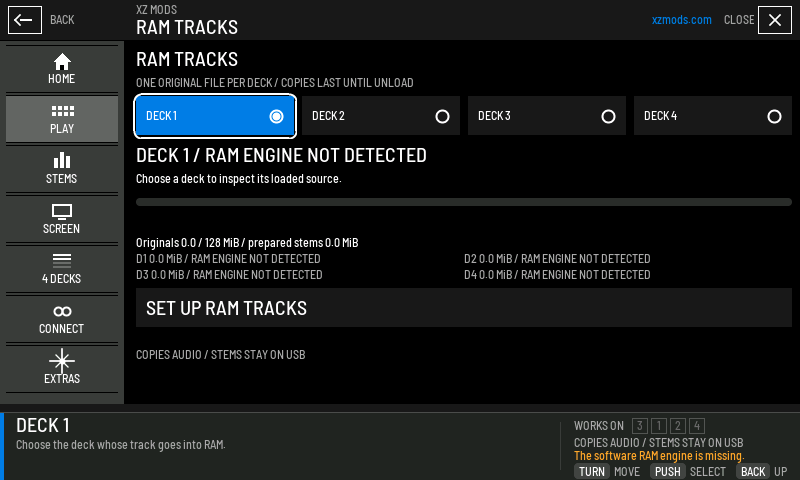
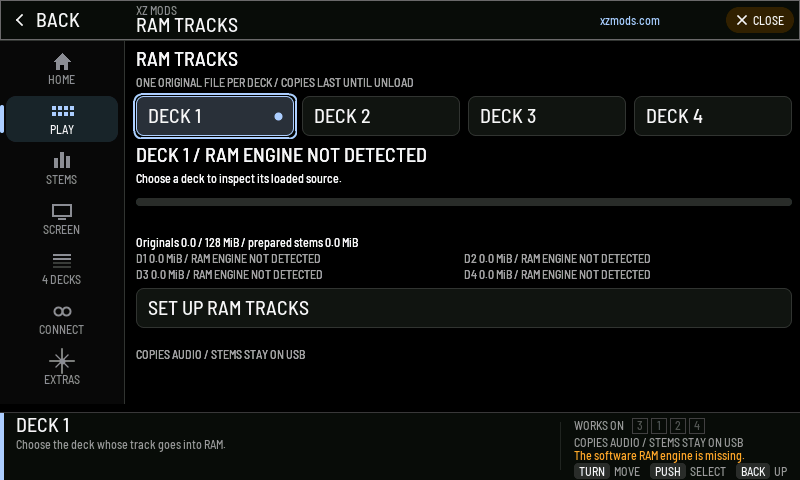
- 1Deck
Choose deck 1, 2, 3 or 4.
- 2State
The deck and the state of its RAM copy.
- 3Source
The track loaded on that deck, or what to do next.
- 4Progress
How much of the track is copied, in MiB.
- 5Memory
How much of the 128 MiB the copies use, prepared stems apart, then each deck's copy and state.
- 6Action
The one next step for this state: set up, choose a track, load, cancel, retry or release.
- 7Scope
What RAM holds for this deck. COPIES AUDIO / STEMS STAY ON USB means only the original audio goes into RAM.
- 8Reason
Why the feature is not available. Here the RAM engine is missing.
- Load a track from USB on the deck.
- Open MODS > PLAY > RAM TRACKS and choose that deck.
- Press LOAD TRACK INTO RAM. Keep the USB connected while it copies.
- Wait for ORIGINAL AUDIO IN RAM.
A track that plays is also copied on its own when there is room. CANCEL COPY or RELEASE RAM COPY stops that for the loaded track.
| State | Button | What it means |
|---|---|---|
| RAM ENGINE NOT DETECTED | SET UP RAM TRACKS | This USB loader has no RAM engine, or it has not reported yet. The setup checks the engine. If it stays, prepare the USB again with the current XZ Mods app. |
| LOOPBACK CABLE NOT CONNECTED | SET UP FOUR DECKS | Deck 3 or 4 is chosen and decks 3 and 4 are not running. The button opens 4 DECKS. |
| NOT IN RAM | LOAD TRACK INTO RAM | The deck plays from USB. |
| COPYING TO RAM | CANCEL COPY | The copy is running. Cancel leaves the track playing from USB. |
| ORIGINAL AUDIO IN RAM | RELEASE RAM COPY | The deck plays from memory. Release frees the memory and needs the USB still connected. |
| COPY FAILED | RETRY LOAD INTO RAM | The track keeps playing from USB. Retry; if it fails again, load the track again from USB. |
| USB OUT / RAM COPY ONLY | BACK TO PLAY | The USB is out and the deck plays from memory. The play screen says so in the deck's lane; see below. Load another track to release the copy. |
When a copy does not fit, the page says why and offers the next step:
| Message | What to do |
|---|---|
| This file exceeds the 64 MiB RAM limit. | Press CHOOSE ANOTHER TRACK. |
| Other RAM tracks leave too little space for this file. | Press MANAGE RAM TRACKS, choose a deck with a copy and release it. |
| Free RAM cannot keep the 64 MiB safety reserve. | Release another copy the same way. |
- One track per deck. Each file can be up to 64 MiB, and all four decks together up to 128 MiB. The player always keeps 64 MiB of its memory free.
- RAM TRACKS copies the original audio. On decks 1 and 2, the line under the action button says what else is held; see the table below.
- On decks 3 and 4 the waveform, beat grid and cues already loaded stay with the copy when the USB goes out. Cues you change then are kept for the session and not written to a USB.
- If the loopback cable goes out, decks 3 and 4 keep their copies and pause, as they do without RAM. They do not start again on their own when the cable returns.
- Loading another track on the deck drops its RAM copy.
When the music USB goes out experimental
- Press
 BROWSE
 - Push ROTARY SELECTOR
- Press
 LOAD 1
- Press
A deck with its whole track in RAM keeps playing when the music USB goes out. The waveform was read from the USB, so the deck's lane cannot draw it any more. A teal card takes its place: WHOLE TRACK IN RAM · PLAYABLE, and under it how to get the waveform back.
Everything else about the deck stays on screen: title and artist, time and remain, BPM, tempo, key, the lamps, the hot cues and the playhead.
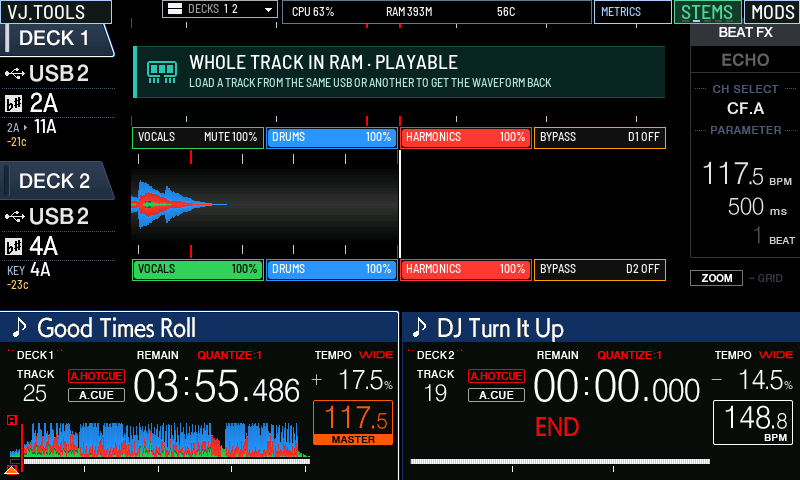
- 1RAM card
The deck plays its whole track from RAM. The second line says how to get the waveform back.
To get the waveform back, reinsert the same USB or insert another, then load a track from it. The card goes as soon as the deck has a waveform to draw again. Loading a track also ends the deck's RAM copy, as it always does.
On decks 3 and 4 the waveform loaded before the USB went out stays, so the card shows there only if the waveform had not loaded yet.
| Line under the button, decks 1 and 2 | What it means |
|---|---|
| COPIES AUDIO / STEMS STAY ON USB | No copy yet. RAM TRACKS copies the audio, not the stems. |
| AUDIO IN RAM / STEMS NEED USB | The audio is in RAM. The stems still read the USB. |
| AUDIO + STEMS IN RAM / WAVES KEPT | The deck's prepared stems are held in RAM as well, and the loaded waveforms stay. |
Quantize
On decks 1 and 2, quantize is the player's own:  DECK QUANTIZE and UTILITY work as without XZ Mods. In MODERN each deck shows its QUANTIZE lamp and beat value above its time. You can hide them in MODS > SCREEN > LAMPS AND TITLES.
- Press DECK QUANTIZE
- Press DECK QUANTIZE
- Press
While a side drives deck 3 or 4:
| Key | Action |
|---|---|
| DECK QUANTIZE | Switches quantize for every deck. Decks 1 and 2 switch through the player as before. |
| SHIFT + DECK QUANTIZE | Switches quantize only for the deck of that side. |
With quantize on, decks 3 and 4 put cue points, loop in and out, hot cues and beat and slip loops on the beat grid, at a one-beat value. SYNC then also locks the deck to the master's beat. Four decks has the rest of what decks 3 and 4 do.